
SHYSKY H96 Max M12
SHYSKY H96 Max M12 8K Ultra HD Android TV Box User Manual
Model: H96 Max M12
1. Introduction
Thank you for choosing the SHYSKY H96 Max M12 8K Ultra HD Android TV Box. This device transforms your television into a smart entertainment hub, offering access to a wide range of applications, streaming services, and media content. Powered by Android 11.0 and an Amlogic S928X processor, it supports stunning 8K video playback, advanced connectivity options like WiFi 6 and Bluetooth 5.4, and ample storage for your digital needs. This manual provides essential information for setting up, operating, and maintaining your TV box to ensure optimal performance.
2. Package Contents
Please verify that all items listed below are included in your package:
- 1 x H96 Max M12 TV Box
- 1 x Remote Control
- 1 x HD Cable (HDMI)
- 1 x Power Adapter (5V/2A)
- 1 x English User Manual

Image: All items included in the H96 Max M12 package.
Unboxing Video
Video: This video demonstrates the unboxing process of the H96 Max M12 TV Box, showing how to unpack the device and its accessories from the retail box.
3. Product Features
- Operating System: Android 11.0
- Processor: Amlogic S928X (Big Core Cortex A76 + Quad Core Cortex A55 CPU)
- GPU: ARM G57 MC2 GPU
- Memory: 8GB RAM
- Storage: 128GB EMMC Flash Memory
- Video Support: 8K 60fps, AV1, VP9, H.265, 4K 60fps, HDR
- Wireless Connectivity: WiFi 6 (2.4G & 5G Dual Wifi, IEEE 802.11a/b/g/n/ac/ax), Bluetooth 5.4
- Wired Connectivity: 1000M Ethernet
- External Storage: Supports USB Storage Devices, Micro SD card
- Video Output: HD 2.1a (8Kx4K 60hz max resolution)

Image: Overview of the Amlogic S928X CPU and ARM G57 MC2 GPU architecture.

Image: Details on WiFi 6 dual-band connectivity and AV1 video codec support.
4. Device Layout and Ports
The H96 Max M12 TV Box features a compact design with various ports for connectivity:
- USB Ports: 1 x USB 3.0, 2 x USB 2.0
- Card Slot: 1 x TF Card slot (Micro SD)
- Audio Output: 3.5mm Audio Jack
- Network: 1 x 1000M Ethernet Port
- Video Output: 1 x HD 2.1a Port
- Power Input: DC IN (5V/2A)
- Antenna: External Wi-Fi Antenna Connector
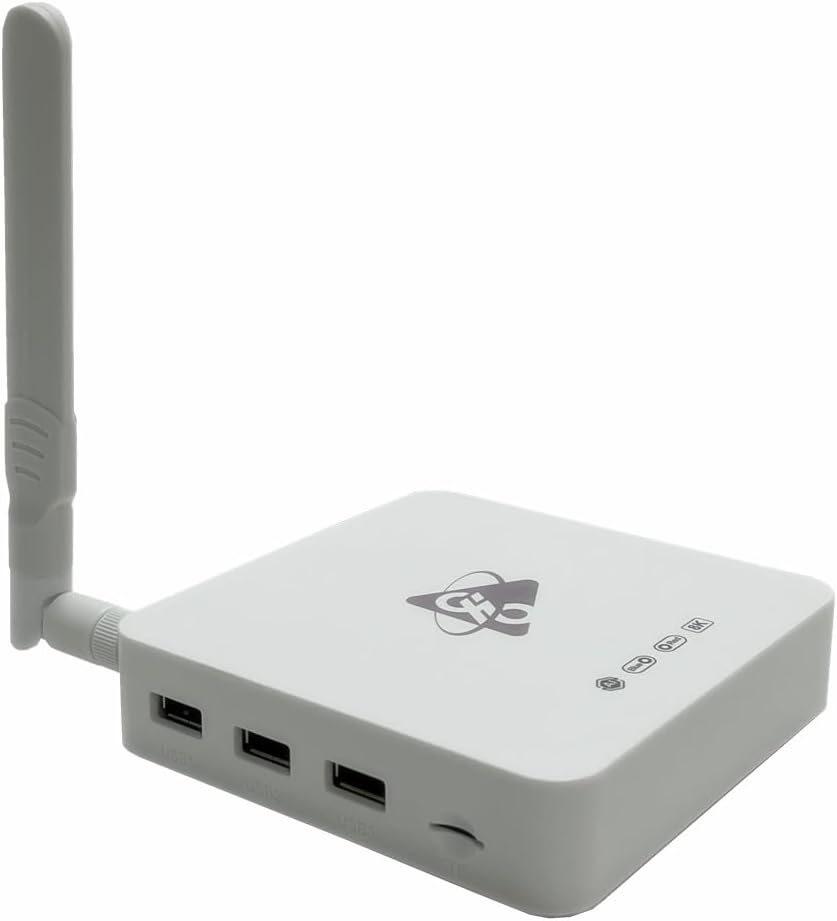
Image: Side view of the TV Box highlighting the USB ports and TF card slot.

Image: Rear view of the TV Box displaying the audio, Ethernet, HDMI, DC power, and antenna ports.

Image: Comprehensive diagram showing all ports and physical dimensions of the device.
5. Setup Guide
Follow these steps to set up your H96 Max M12 TV Box:
- Connect the Antenna: Gently screw the external Wi-Fi antenna into its designated port on the TV box. Ensure it is securely fastened for optimal wireless signal reception.
- Connect to TV: Use the provided HD Cable (HDMI) to connect the TV box's HD 2.1a port to an available HDMI input on your television.
- Connect Power: Plug the power adapter into the DC IN port on the TV box, then plug the adapter into a wall outlet. The device should power on automatically or indicate power status via an LED.
- Remote Control Setup: Insert two AAA batteries (not included) into the remote control. Ensure correct polarity.
- Initial Boot: Turn on your television and select the correct HDMI input source. The TV box will boot up, displaying the Android 11.0 interface.
- Network Connection: Navigate to 'Settings' on the TV box. Select 'Network & Internet' and connect to your Wi-Fi network by entering the password, or connect an Ethernet cable to the LAN port for a wired connection.
6. Operating Instructions
Once set up, you can begin using your H96 Max M12 TV Box:
Remote Control Functions
The included remote control allows for easy navigation and control. Key functions include:
- Power Button: Turns the device on/off or puts it into standby mode.
- Navigation Pad (OK/Directional Buttons): Used to move through menus and select items.
- Back Button: Returns to the previous screen.
- Home Button: Returns to the main home screen.
- Volume Buttons: Adjusts the audio volume.
- Mute Button: Mutes/unmutes audio.
- Voice Control Button: Activates voice commands (if supported by the remote and applications).
- Numeric Keypad: For direct input or channel selection.
General Usage
- App Installation: Access the Google Play Store to download and install your favorite streaming apps, games, and utilities.
- Media Playback: Use pre-installed media players or download others to play local video, audio, and image files from connected USB drives or TF cards.
- Settings: Customize your device settings, including display resolution, sound output, network configuration, and language preferences.
- Firmware Updates: Periodically check for system updates in the settings menu to ensure your device has the latest features and security patches.
7. Maintenance
To ensure the longevity and optimal performance of your TV box, consider the following maintenance tips:
- Cleaning: Use a soft, dry cloth to clean the exterior of the device. Avoid liquid cleaners or abrasive materials.
- Ventilation: Ensure the device is placed in a well-ventilated area to prevent overheating. Do not cover ventilation openings.
- Power Off: When not in use for extended periods, it is recommended to power off the device and unplug the power adapter.
- Software Updates: Regularly check for and install system updates to improve stability and add new features.
8. Troubleshooting
If you encounter issues with your H96 Max M12 TV Box, refer to the following common problems and solutions:
- No Power:
- Ensure the power adapter is securely connected to the device and a working power outlet.
- Check if the power outlet is functional.
- No Signal on TV:
- Verify the HDMI cable is securely connected to both the TV box and the television.
- Ensure your TV is set to the correct HDMI input source.
- Try a different HDMI port on your TV or a different HDMI cable.
- Remote Control Not Responding:
- Check if the batteries are correctly inserted and not depleted. Replace if necessary.
- Ensure there are no obstructions between the remote control and the TV box.
- Wi-Fi Connection Issues:
- Ensure the external Wi-Fi antenna is properly attached.
- Verify your Wi-Fi password is correct.
- Restart your Wi-Fi router and the TV box.
- Move the TV box closer to your Wi-Fi router to improve signal strength.
- Device Freezes/Lags:
- Close unnecessary background applications.
- Clear cache for problematic applications.
- Restart the TV box.
- If issues persist, consider a factory reset (note: this will erase all user data and installed apps).
9. Specifications
| Feature | Detail |
|---|---|
| CPU | Amlogic S928X (Big Core Cortex A76 + Quad Core Cortex A55) |
| GPU | ARM G57 MC2 GPU |
| Operating System | Android 11.0 |
| RAM | 8GB |
| Storage Capacity | 128GB EMMC |
| Video Support | 8K 60fps, AV1, VP9, H.265, 4K 60fps, HDR |
| Wi-Fi | WiFi 6 (2.4G & 5G Dual Wifi, IEEE 802.11a/b/g/n/ac/ax) |
| Ethernet | 1000M |
| Bluetooth | BT 5.4 |
| USB Ports | 1 x USB 3.0, 2 x USB 2.0 |
| Card Slot | 1 x TF Card |
| Video Output | HD 2.1a (8Kx4K 60hz max resolution) |
| Audio Output | 3.5mm Audio Jack |
| Power Input | DC IN (5V/2A) |
| Dimensions | 110mm x 109.5mm x 26.5mm |
| Weight | 155g |
10. Warranty and Support
For warranty information and technical support, please refer to the documentation provided with your purchase or contact the retailer/manufacturer directly. Keep your proof of purchase for warranty claims.
Ask a question about this manual
Ask about setup, troubleshooting, compatibility, parts, safety, or missing instructions. Manuals+ will review the question and use this page’s manual context to help answer it.