
XINDADA HT29 (THO29)
XINDADA HT29 Smartwatch User Manual
Model: HT29 (THO29) | Brand: XINDADA
1. Introduction
Thank you for choosing the XINDADA HT29 Smartwatch. This manual provides essential information for setting up, operating, and maintaining your device. The HT29 is a versatile outdoor sports smartwatch equipped with a 2.01-inch display, a powerful 600mAh battery, and features like an LED flashlight, money detection lamp, compass, and altitude measurement, designed to enhance your daily activities and outdoor adventures.

Figure 1.1: XINDADA HT29 Smartwatch (Khaki variant)
2. Key Features
The XINDADA HT29 Smartwatch offers a comprehensive suite of features for both daily use and outdoor activities:
- Integrated Utility Tools: Includes a money detection lamp, LED flashlight, compass, and altitude/air pressure measurement.
- Communication: Supports Bluetooth phone calls, frequently used contacts, call history, and message/call alerts.
- Health Monitoring: Features exercise monitoring, sleep monitoring, heart rate detection, blood pressure detection, and breathing exercises.
- Sports Modes: Over 100 sports modes for various activities like outdoor running, running, walking, and jump rope.
- Daily Conveniences: Weather updates, music playback control, voice assistant, stopwatch, timer, alarm, payment codes, business cards, calendar, calculator, find my phone, and remote camera control.
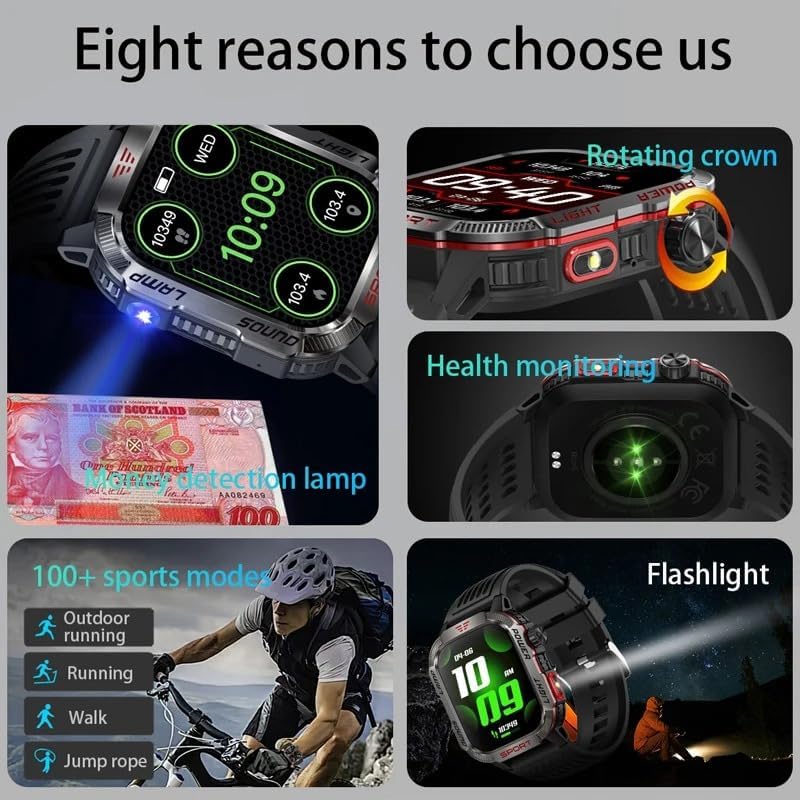
Figure 2.1: Overview of Smartwatch Features
3. Technical Specifications
| Feature | Specification |
|---|---|
| Display | 2.01-inch IPS Touch Screen (240 x 296 resolution) |
| Chipset | Realtek8763EWE-VP + HRS3605 + SC7A20 |
| Battery | 600mAh Polymer Battery |
| Dimensions | 51.5 x 44 x 13 mm |
| Connectivity | Bluetooth 5.0BLE |
| Water Resistance | IP68 (Hand washing, rain; not for swimming/diving) |
| Charging Port | Magnetic |
| Compatible System | Android 5.1 or iOS 8.2 and above |
| Companion App | FitCloudPro |
| Supported Languages | 23 languages (Watch & App) including Simplified Chinese, English, German, Russian, Spanish, Portuguese, French, Japanese, Arabic, Dutch, Italian, Czech, Greek, Hebrew, Indonesian, Malay, Polish, Thai, Vietnamese, Finnish, Romanian, Turkish, Croatian. |
4. Getting Started
4.1 Initial Charging
Before first use, fully charge your smartwatch. Connect the magnetic charging cable to the charging port on the back of the watch and plug the USB end into a power adapter (not included) or a computer's USB port. The watch display will indicate charging status.
4.2 App Installation
To unlock the full potential of your HT29 Smartwatch, download and install the FitCloudPro app on your smartphone. Search for "FitCloudPro" in your device's app store (Google Play Store for Android or Apple App Store for iOS) or scan the QR code provided in the watch's packaging or on the watch screen during initial setup.
4.3 Device Pairing
- Ensure your smartphone's Bluetooth is enabled.
- Open the FitCloudPro app and follow the on-screen instructions to create an account or log in.
- In the app, navigate to the "Device" or "Add Device" section.
- The app will search for available devices. Select "HT29" or the corresponding device name from the list.
- Confirm the pairing request on both your smartwatch and smartphone.
- Once paired, the app will synchronize data with your watch.
5. Operating Instructions
5.1 Basic Navigation
- Touch Screen: Swipe left/right, up/down to navigate through menus and features. Tap to select.
- Side Buttons/Crown: Use the physical buttons and rotating crown (if applicable) for quick access to functions or to scroll through lists.
5.2 Communication Features
The HT29 supports Bluetooth calling, allowing you to make and receive calls directly from your wrist.

Figure 5.1: Wireless Calling Functionality
- Making Calls: Access the dial pad or frequently used contacts from the watch menu.
- Receiving Calls: When a call comes in, the watch will display the caller ID. Tap to answer or decline.
- Message Alerts: Receive notifications for incoming messages from your paired smartphone.
5.3 Utility Features
The smartwatch integrates several useful tools for outdoor activities and daily convenience.
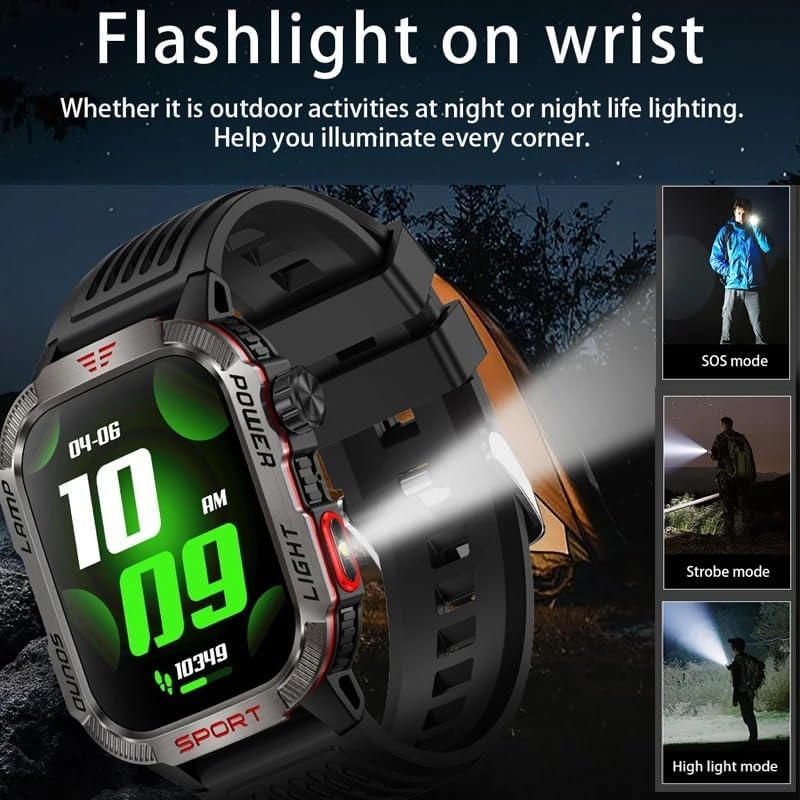
Figure 5.2: Flashlight on Wrist
- Flashlight: Activate the built-in LED flashlight for illumination in dark environments. Multiple modes (SOS, Strobe, High Light) may be available.
- Money Detection Lamp: Use the integrated UV light to verify currency.

Figure 5.3: Compass Function
- Compass: Access the compass feature to determine your direction. Ensure you are in an open area away from strong magnetic fields for accurate readings.

Figure 5.4: Altitude and Air Pressure Display
- Altitude & Air Pressure: Monitor current altitude and atmospheric pressure. This feature is for reference only and should not be used for critical navigation.
5.4 Sports Modes
Select from over 100 sports modes to track your workouts. The watch records data such as duration, distance, calories burned, and heart rate during exercise.
5.5 Other Functions
- Music Playback: Control music playing on your smartphone (play, pause, skip tracks).
- Voice Assistant: Activate your smartphone's voice assistant directly from the watch.
- Stopwatch, Timer, Alarm: Standard timekeeping functions.
- Remote Camera: Use your watch as a remote shutter for your smartphone's camera.
- Find My Phone: Trigger an alarm on your paired phone to locate it.
6. Health and Fitness Tracking
The HT29 Smartwatch provides various health monitoring features to help you stay informed about your well-being:
- Heart Rate Detection: Continuously or periodically monitor your heart rate.
- Blood Pressure Detection: Measure your blood pressure. Note: This is for reference only and not a substitute for medical devices.
- Sleep Monitoring: Tracks your sleep patterns, including deep sleep, light sleep, and awake times.
- Breathing Exercise: Guided breathing exercises to help reduce stress.
- Exercise Monitoring: Records steps, distance, and calories burned throughout the day.
For accurate health data, ensure the watch is worn snugly on your wrist, about one finger's width from your wrist bone.
7. Care and Maintenance
7.1 Water Resistance (IP68)
The HT29 Smartwatch has an IP68 water resistance rating. This means it is resistant to splashes, rain, and can withstand hand washing. It is not suitable for swimming, diving, hot showers, or saunas. Avoid exposing the watch to hot water or steam, as this can damage the seals.
7.2 Cleaning
Regularly clean your smartwatch and strap to prevent skin irritation and maintain device longevity. Use a soft, lint-free cloth to wipe the screen and body. For the strap, use a damp cloth and mild soap if necessary, then rinse and dry thoroughly. Do not use harsh chemicals or abrasive materials.
7.3 Storage
When not in use for extended periods, store the smartwatch in a cool, dry place. Avoid extreme temperatures and direct sunlight.
8. Troubleshooting
If you encounter issues with your XINDADA HT29 Smartwatch, please refer to the following common solutions:
- Watch not turning on: Ensure the watch is fully charged. Connect it to the magnetic charger and leave it for at least 30 minutes.
- Unable to pair with phone:
- Ensure Bluetooth is enabled on your phone.
- Make sure the watch is within Bluetooth range (typically 10 meters).
- Restart both your phone and the smartwatch.
- Check if the FitCloudPro app is updated to the latest version.
- Forget the device in your phone's Bluetooth settings and try pairing again through the app.
- Inaccurate health data: Ensure the watch is worn snugly on your wrist, not too loose or too tight. Clean the sensor on the back of the watch.
- Notifications not appearing:
- Check notification permissions for the FitCloudPro app in your phone's settings.
- Ensure the app is running in the background.
- Verify that notification alerts are enabled within the FitCloudPro app for the specific applications.
- Short battery life: Reduce screen brightness, disable unnecessary features, and limit continuous heart rate monitoring if not needed.
If the problem persists, try resetting the smartwatch to factory settings via the watch's settings menu or the FitCloudPro app. Note that this will erase all data on the watch.
9. Warranty and Support
Specific warranty information for the XINDADA HT29 Smartwatch is not provided in the product details. For warranty claims, technical support, or further assistance, please contact the retailer or the manufacturer directly through their official support channels. Keep your purchase receipt as proof of purchase.
Ask a question about this manual
Ask about setup, troubleshooting, compatibility, parts, safety, or missing instructions. Manuals+ will review the question and use this page’s manual context to help answer it.