
1. Product Overview
The WenzhiIoT Zigbee 5.8GHz MmWave Presence Sensor is a smart device designed for accurate human presence detection. Utilizing advanced millimeter-wave (mmWave) radar technology, it can detect human presence, static states, micro-motions, and general movement within a specified area. This sensor also integrates a luminance monitor, allowing for smart scene linkage with other smart home devices based on ambient light conditions.
This sensor is designed for wall mounting and is powered via USB-Type-C 5V. It requires a Tuya Zigbee gateway for operation and is compatible with the Smart Life/Tuya app, as well as Zigbee2mqtt systems.
2. Package Contents
- WenzhiIoT Zigbee 5.8GHz MmWave Presence Sensor
- USB Cable
- Self-adhesive mounting pad
- Instruction Manual
3. Setup and Installation
3.1 Powering the Sensor
Connect the provided USB cable to the USB-Type-C port on the sensor and plug the other end into a 5V USB power adapter (not included). The sensor will power on automatically.
3.2 Mounting the Sensor
The sensor features a mini wall-mount design. Use the self-adhesive pad to attach the sensor to a desired wall location. Ensure the sensor is positioned to cover the intended detection area effectively.

Image: The WenzhiIoT Zigbee 5.8GHz MmWave Presence Sensor, designed for wall mounting.
3.3 Connecting to a Zigbee Gateway
A Tuya Zigbee gateway (hub) is required to connect the sensor to your smart home system. Ensure your Zigbee gateway is powered on and in pairing mode.
- Power on the WenzhiIoT Presence Sensor.
- Open the Smart Life or Tuya Smart app on your mobile device.
- Navigate to the 'Add Device' section and select your Zigbee gateway.
- Follow the app's instructions to search for nearby devices. The sensor should be automatically discovered.
- Once discovered, add the sensor to your network and assign it to a room or group.

Image: The presence sensor shown alongside a Zigbee hub and a smartphone displaying the Smart Life app interface for home automation.
3.4 Zigbee2mqtt Integration
For users integrating with Zigbee2mqtt, the new version supports setting data reporting interval time. If your Zigbee2mqtt system does not directly recognize the device, please refer to the manufacturer's GitHub page by searching for "wzwenzhi" for necessary JS files or contact support for assistance.
Video: This video demonstrates the connection method for both wall-mount and ceiling-mount versions of the 5.8G presence sensor, including the pairing process with a smartphone application.
4. Operating Instructions
4.1 Detection Capabilities
The sensor is capable of detecting various states of human presence:
- Human Presence: General detection of a person in the area.
- Human Static: Detection of a stationary person, such as someone sleeping or sitting still.
- Human Micro Motion: Detection of subtle movements, like breathing.
- Human Movement: Detection of active motion.

Image: Illustrations showing the sensor's ability to detect different human states, including sleeping, talking, lying down, and even blinking, highlighting its advanced micro-motion detection.
4.2 Adjusting Sensor Settings
All sensor parameters can be adjusted via the Smart Life/Tuya app:
- Sensitivity: Adjustable from 1 to 9 to fine-tune detection.
- Detection Range: Set minimum and maximum detection distances (e.g., 0.00m to 9.5m).
- Unmanned Delay Time: Configurable from 5 to 1500 seconds. This sets how long the sensor waits after no presence is detected before reporting an 'unoccupied' state.
- Detection Delay: Configurable from 0.1 to 10 seconds. This helps prevent false alarms from irrelevant, brief movements.
- Data Reporting Interval: For Zigbee2mqtt users, this setting controls the frequency of data updates, reducing network traffic.
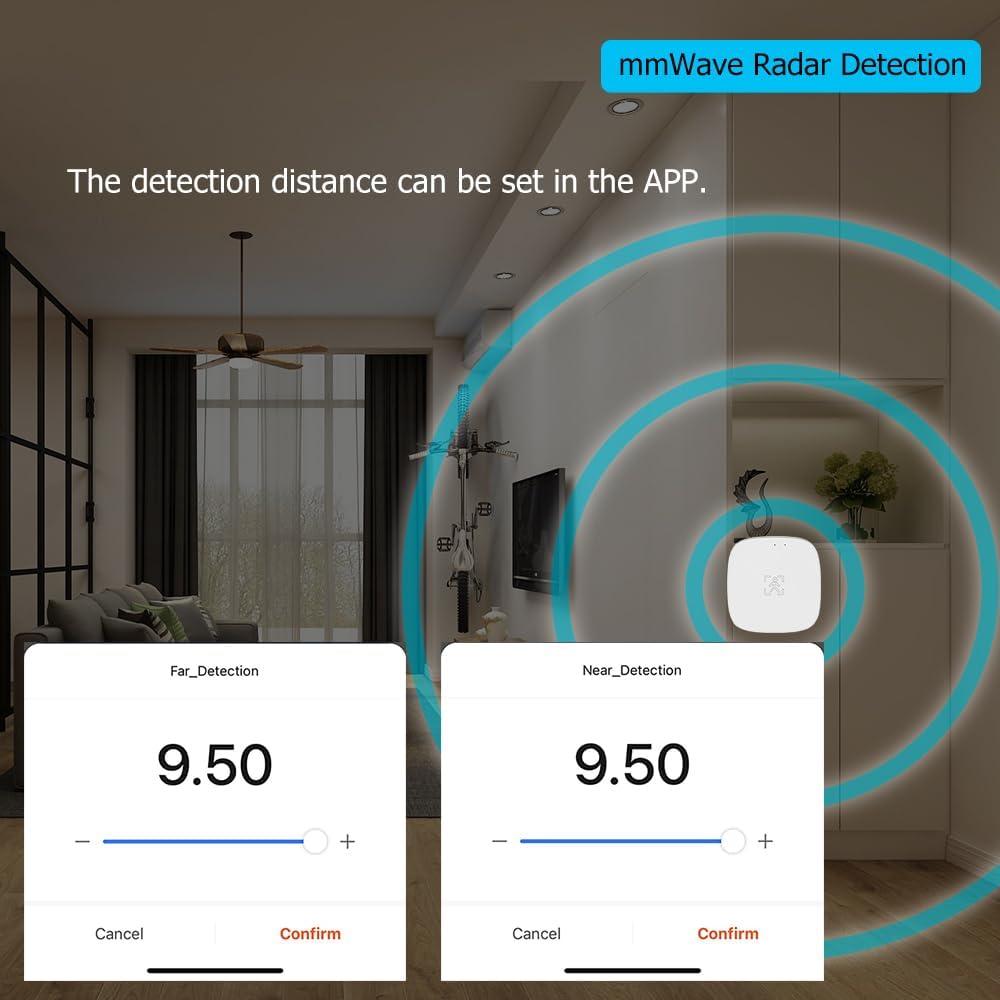
Image: The Smart Life app displaying options to set the farthest and nearest detection distances for the mmWave radar sensor.

Image: The Smart Life app interface showing the 'Interval Time' setting, which allows users to adjust the frequency of data reporting for the sensor.
4.3 Luminance Detection and Scene Linkage
The integrated illuminance monitor provides real-time light intensity data to the Tuya Smart app. This feature allows you to create smart automation scenes, such as automatically turning lights ON/OFF based on changes in ambient brightness.

Image: The presence sensor mounted on a wall in a living space, illustrating its illumination detection capability for smart home integration.
5. Maintenance
To ensure optimal performance and longevity of your WenzhiIoT Presence Sensor, follow these maintenance guidelines:
- Cleaning: Gently wipe the sensor's exterior with a soft, dry cloth. Avoid using abrasive cleaners, solvents, or excessive moisture, as these can damage the device.
- Placement: Ensure the sensor remains securely mounted and its detection path is unobstructed. Avoid placing it near strong electromagnetic interference sources.
- Firmware Updates: Periodically check the Smart Life/Tuya app for any available firmware updates. Keeping the firmware updated ensures you have the latest features and performance improvements.
6. Troubleshooting
If you encounter issues with your WenzhiIoT Presence Sensor, refer to the following common troubleshooting steps:
| Problem | Possible Cause | Solution |
|---|---|---|
| Sensor not pairing with Zigbee gateway | Gateway not in pairing mode; sensor too far from gateway; sensor not powered; incorrect pairing procedure. | Ensure gateway is in pairing mode. Move sensor closer to gateway. Verify sensor is powered. Follow app's pairing instructions carefully. |
| False detections or over-sensitivity | Sensitivity setting too high; detection range too wide; environmental factors (e.g., pets, moving curtains, vibrations). | Adjust the sensitivity and detection range settings in the app. Ensure the sensor is not affected by unintended movements or objects. |
| Sensor not detecting presence reliably | Sensitivity setting too low; detection range too narrow; obstructions in detection path; sensor placement. | Increase sensitivity and expand detection range in the app. Ensure a clear line of sight for detection. Reposition the sensor for better coverage. |
| Sensor loses connection frequently | Weak Zigbee signal; interference; gateway issues. | Move sensor closer to the Zigbee gateway or add a Zigbee repeater. Check for sources of interference (e.g., Wi-Fi routers, other wireless devices). Restart the Zigbee gateway. |
| Device not recognized by Zigbee2mqtt | Missing device definition files. | Refer to the WenzhiIoT GitHub page for JS files or contact WenzhiIoT support for assistance. |
| Sensor not powering on | Faulty USB cable or power adapter; non-compliant USB-C cable. | Try a different USB cable and 5V power adapter. Ensure you are using a standard USB-A to USB-C cable, as some USB-C to USB-C cables may not be compatible if not compliant with USB-C power standards. |
7. Specifications
| Feature | Specification |
|---|---|
| Brand | WenzhiIoT |
| Model Number | WZ-M100-ZB-5.8G |
| Style | Zigbee 5.8GHz MmWave Radar (Wall Mount) |
| Power Source | Corded Electric (USB-Type-C 5V) |
| Maximum Range | 10 Meters |
| Item Weight | 0.07 Kilograms (2.39 ounces) |
| Product Dimensions | 3.94"D x 3.94"W x 1.57"H |
| Mounting Type | Wall Mount |
| Compatible Devices | Tuya smart home devices, ZigBee2mqtt systems |
| Batteries Required? | No |
8. Warranty and Support
For warranty information, technical support, or further assistance with your WenzhiIoT Zigbee 5.8GHz MmWave Presence Sensor, please contact WenzhiIoT customer service through your purchase platform or visit the official WenzhiIoT website.