
1. Introduction
The WenzhiIoT Smart WiFi 5.8 GHz MmWave Presence Sensor is an advanced device designed for accurate human presence detection in various states, including static presence, micro-motion, and general movement. Utilizing 5.8 GHz millimeter-wave radar technology, this sensor offers enhanced reliability and anti-interference capabilities. It also integrates luminance detection, enabling smart home automation and scene linkage through the Tuya Smart or Smart Life application.

Figure 1: Front view of the WenzhiIoT Smart WiFi 5.8 GHz MmWave Presence Sensor.
2. Safety Information
- Power Source: Use only the specified USB-Type-C 5V power supply. Ensure the power adapter meets safety standards.
- Installation: Install the device in a dry indoor environment. Avoid direct exposure to water, high humidity, or extreme temperatures.
- Placement: Do not place the sensor near strong electromagnetic fields or metallic objects that could interfere with radar signals.
- Cleaning: Disconnect power before cleaning. Use a soft, dry cloth. Do not use liquid cleaners or aerosols.
- Disassembly: Do not attempt to disassemble or repair the device. Refer all servicing to qualified personnel.
3. Package Contents
Verify that all items are present in the package:
- WenzhiIoT Smart WiFi 5.8 GHz MmWave Presence Sensor
- USB-Type-C Power Cable
- Self-adhesive Mounting Pad
- User Manual (this document)

Figure 2: Sensor indicating USB 5V input and wall mount capability.
4. Setup
4.1 Physical Installation
- Choose a Location: Select a central location within the desired detection area. The sensor is designed for wall mounting. Ensure the area is free from obstructions that could block the radar signal.
- Mounting: Use the provided self-adhesive pad to securely attach the sensor to a clean, dry wall surface. Ensure the sensor is oriented correctly for optimal coverage.
- Power Connection: Connect the USB-Type-C power cable to the sensor and plug the other end into a compatible 5V USB power adapter (not included). The sensor will power on automatically.
4.2 App Download and Pairing
The sensor operates with the Tuya Smart or Smart Life application.
- Download App: Download the 'Tuya Smart' or 'Smart Life' app from your mobile device's app store (iOS App Store or Google Play Store).
- Register/Login: Open the app and register for a new account or log in with an existing one.
- Add Device:
- Ensure your mobile device is connected to a 2.4 GHz Wi-Fi network.
- In the app, tap the 'Add Device' button (usually a '+' icon in the top right corner).
- Select 'Sensor' or 'Security & Video Surveillance' category, then choose 'Presence Sensor (Wi-Fi)'.
- Follow the on-screen instructions to put the sensor into pairing mode (usually indicated by a blinking LED). Confirm the Wi-Fi network and enter the password.
- The app will search for and connect to the sensor. Once connected, you can rename the device and assign it to a room.
5. Operating Instructions
The WenzhiIoT sensor provides comprehensive detection and customization options via the Tuya Smart/Smart Life app.
5.1 Detection Modes
The sensor can detect various states of human presence:
- Human Presence: Detects the presence of a person in the area.
- Human Static: Identifies a person who is stationary, such as sleeping or sitting still.
- Human Micro Motion: Detects subtle movements like breathing or slight shifts in position.
- Human Movement: Detects active motion within the detection zone.

Figure 3: Sensor's ability to detect different human states.
5.2 App Settings and Customization
Access the sensor's settings within the Tuya Smart/Smart Life app to fine-tune its performance:
- Sensitivity: Adjust the detection sensitivity from 1 to 9. Higher values increase sensitivity, detecting more subtle movements.
- Detection Range: Set the minimum and maximum detection range (0.00m to 9.5m) to define the active detection zone.
- Unmanned Delay: Configure the time (5-1500 seconds) before the sensor reports 'no presence' after a person leaves the detection area.
- Detection Delay: Set a short delay (0.1-10 seconds) to filter out brief, irrelevant movements and reduce false alarms.
- Luminance Monitoring: The sensor includes an illuminance monitor. This data can be used in smart scenes to automate lighting based on ambient brightness.
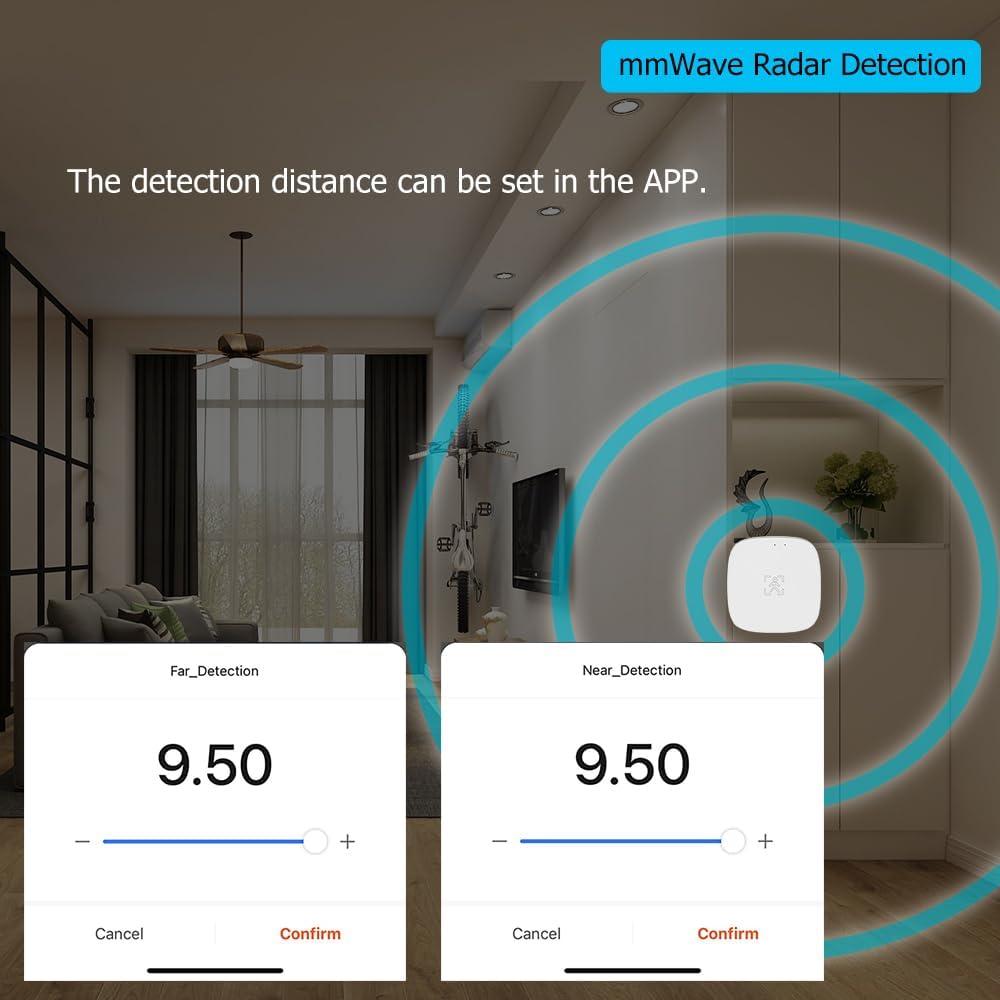
Figure 4: App interface for adjusting detection range.

Figure 5: App interface displaying various sensor settings and automation options.
5.3 Smart Scene Linkage
Leverage the sensor's capabilities to create automated routines within the Tuya Smart/Smart Life app:
- Lighting Automation: Use presence detection to automatically turn lights on when a room is occupied and off when it's vacant. Combine with luminance data to only activate lights when ambient light is low.
- Security Alerts: Receive notifications if presence is detected in an unoccupied area during specific times.
- Climate Control: Link with smart thermostats to adjust heating or cooling based on room occupancy.

Figure 6: Sensor demonstrating illumination detection in a home environment.
6. Maintenance
- Cleaning: Periodically wipe the sensor's surface with a soft, dry cloth to remove dust. Do not use abrasive cleaners or solvents.
- Firmware Updates: The Tuya Smart/Smart Life app may prompt you for firmware updates. It is recommended to keep the device's firmware updated for optimal performance and security. Follow the in-app instructions carefully during updates.
- Power Cycle: If the sensor becomes unresponsive, disconnect the USB power cable for 10 seconds and then reconnect it to perform a power cycle.
7. Troubleshooting
| Problem | Possible Cause | Solution |
|---|---|---|
| Sensor not connecting to Wi-Fi | Incorrect Wi-Fi password; 5 GHz Wi-Fi network; sensor too far from router; incorrect pairing mode. | Ensure 2.4 GHz Wi-Fi, correct password. Move sensor closer to router. Re-enter pairing mode as per app instructions. |
| No presence detected / Inconsistent detection | Sensitivity too low; detection range too small; obstructions; sensor placement. | Increase sensitivity in app. Adjust detection range. Ensure clear line of sight for radar. Reposition sensor for better coverage. |
| False alarms / Over-detection | Sensitivity too high; detection delay too short; external interference. | Decrease sensitivity in app. Increase detection delay. Check for sources of interference (e.g., fans, pets, moving objects). |
| Luminance readings inaccurate | Sensor placed in shadow or direct light. | Relocate sensor to an area with representative ambient light. |
| Device unresponsive | Power issue; temporary software glitch. | Check USB power connection. Perform a power cycle (unplug and replug). |
8. Specifications
| Feature | Detail |
|---|---|
| Brand | WenzhiIoT |
| Model Number | WZ-M100-W-5.8G |
| Detection Technology | 5.8 GHz MmWave Radar |
| Connectivity | Wi-Fi (2.4 GHz) |
| Power Source | Corded Electric (USB-Type-C 5V) |
| Maximum Detection Range | 9 Meters |
| Mounting Type | Wall Mount |
| Product Dimensions | 3.94"D x 3.94"W x 1.57"H (100mm x 100mm x 40mm approx.) |
| Item Weight | 1.76 ounces (50g approx.) |
| Operating Temperature | Up to 70°C (7E+1 Degrees Celsius) |
| Compatible Apps | Tuya Smart, Smart Life |

Figure 7: Product dimensions of the WenzhiIoT sensor.
9. Warranty and Support
WenzhiIoT products are designed for reliability and performance. For warranty information, technical support, or further assistance, please refer to the official WenzhiIoT website or contact their customer service directly. You can also visit the WenzhiIoT Store on Amazon for product updates and support resources.