Introduction
This instruction manual provides comprehensive guidance for the UGREEN Wireless Mouse, Model 45792. Please read this manual carefully before using the product to ensure proper operation and to maximize its features. Keep this manual for future reference.
Product Overview
Components and Features
The UGREEN Wireless Mouse (Model 45792) is designed for comfort and efficiency. Familiarize yourself with its various parts:

Figure 1: UGREEN Wireless Mouse Component Diagram
- Left Button: Standard click function.
- Right Button: Context menu function.
- Metallic Scroll Wheel: For ultra-fast vertical scrolling.
- DPI Switch Button: Adjusts cursor sensitivity.
- Forward Button: Navigates forward in browsers/applications (Windows).
- Backward Button: Navigates backward in browsers/applications (Windows).
- Side Scroll Wheel: For horizontal scrolling.
- Connection Mode Switch Key: Toggles between 2.4G and Bluetooth modes.
- DPI Indicator: Shows current DPI setting.
- Optical Sensor: Tracks mouse movement.
- On/Off Switch: Powers the mouse on or off.
- USB Receiver Compartment: Stores the 2.4G USB receiver.
- Battery Compartment: Holds two AA 1.5V batteries.
- Glide Pads: Ensures smooth movement.
Setup
1. Battery Installation
- Locate the battery compartment on the underside of the mouse.
- Open the battery compartment cover.
- Insert two AA 1.5V batteries, ensuring correct polarity (+/-). Batteries are not included.
- Close the battery compartment cover securely.
2. Powering On/Off
Slide the On/Off switch located on the bottom of the mouse to the 'ON' position to power it on. Slide it to 'OFF' when not in use to conserve battery life.
Operating Instructions
Dual Mode Connectivity (2.4G Wireless & Bluetooth)
The mouse supports two connection modes: 2.4G wireless via a USB receiver and Bluetooth. It can connect to up to three devices simultaneously (one via 2.4G, two via Bluetooth).

Figure 2: Dual Mode Connection Example
2.4G Wireless Connection:
- Locate the USB receiver in the compartment on the bottom of the mouse.
- Plug the USB receiver into an available USB port on your computer.
- Turn on the mouse.
- Press the Connection Mode Switch Key until the 2.4G indicator light is active. The mouse should connect automatically.
Bluetooth Connection:
- Turn on the mouse.
- Press the Connection Mode Switch Key to select either Bluetooth 1 or Bluetooth 2. The corresponding indicator light will flash slowly.
- Press and hold the Connection Mode Switch Key for 3-5 seconds until the Bluetooth indicator light flashes rapidly. This indicates pairing mode.
- On your device (computer, tablet, smartphone), enable Bluetooth and search for new devices.
- Select "UGREEN Mouse" from the list of available devices to pair.
- Once paired, the indicator light will stop flashing and remain solid for a few seconds before turning off.
DPI Adjustment
The mouse features 5 adjustable DPI levels to control cursor sensitivity:

Figure 3: DPI Adjustment Levels
- Available DPI Levels: 1000, 1600 (default), 2400, 3200, 5000.
- To change the DPI, press the DPI Switch Button located below the scroll wheel. Each press cycles through the available DPI settings.
- The DPI indicator light will briefly illuminate to show the current setting.
System Switching
An operating system switch is located on the bottom of the mouse, allowing you to optimize functionality for Windows or MacOS.
- Slide the switch to the appropriate operating system (Windows or MacOS) for optimal performance and shortcut key functionality.
Advanced Features
- Side Scroll Wheel: Use the side scroll wheel for horizontal navigation in documents or web pages.
- Side Shortcut Keys: The forward and backward buttons on the side function as navigation keys in Windows. On MacOS, these keys can be configured to switch applications.
Silent Click Feature
The UGREEN Wireless Mouse is designed with silent click and scroll functions, producing less than 40dB of noise. This feature ensures a quiet working environment for you and those around you.
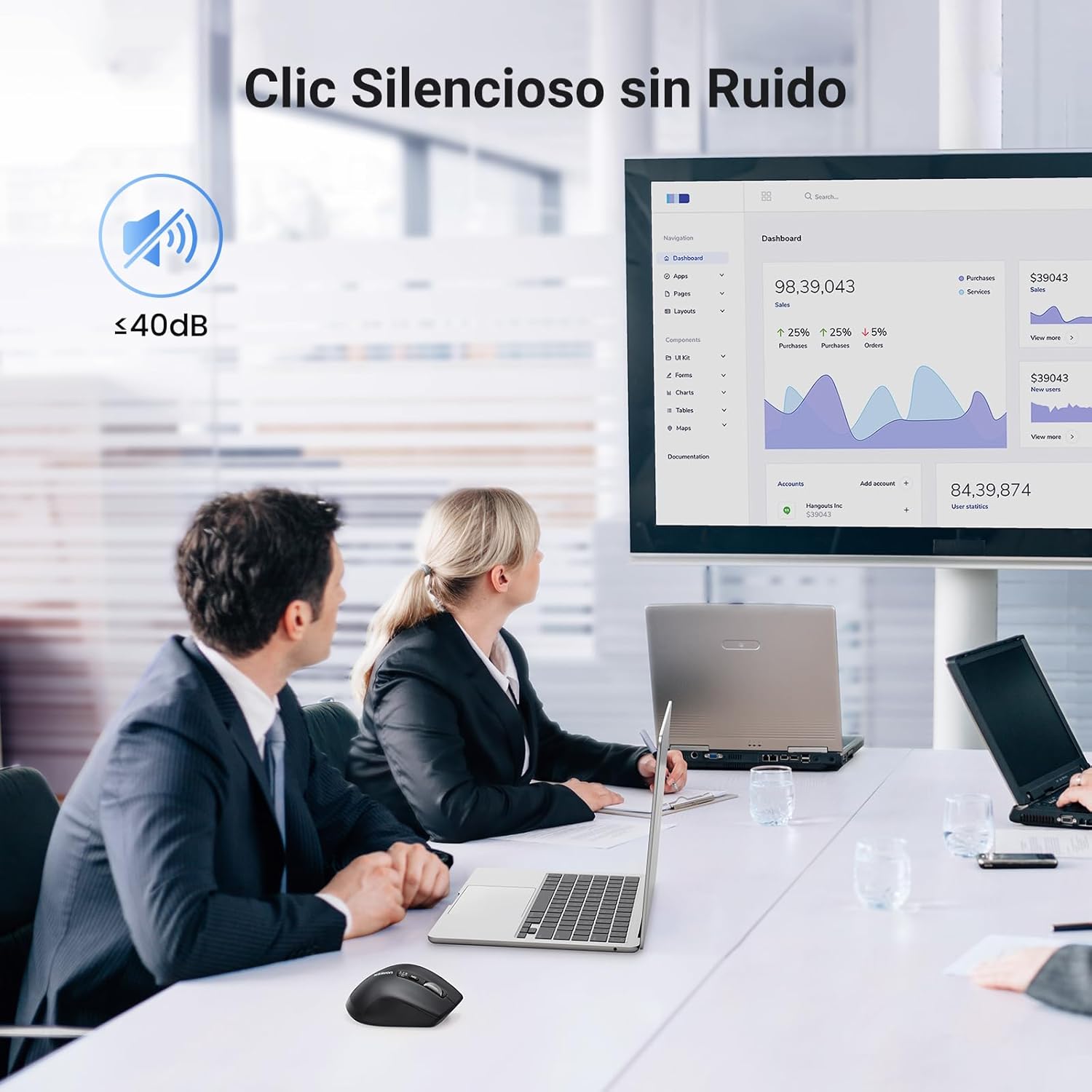
Figure 4: Silent Click Operation
Power Management
Smart Sleep Mode
To conserve battery power, the mouse will automatically enter a smart sleep mode after 10 minutes of inactivity. To reactivate the mouse, simply move it or press any button.
Battery Life
The average battery life is approximately 240 days, depending on usage. Replace batteries when performance degrades.
Maintenance
- Cleaning: Use a soft, dry cloth to clean the mouse. Avoid using harsh chemicals or abrasive materials.
- Storage: When not in use for extended periods, turn off the mouse and store it in a dry, cool place. Consider removing batteries if storing for several months.
- USB Receiver: Store the USB receiver in its dedicated compartment on the mouse to prevent loss.
Troubleshooting
| Problem | Possible Cause | Solution |
|---|---|---|
| Mouse not responding | Low battery; Mouse is off; Incorrect connection mode; USB receiver not connected (2.4G); Bluetooth not paired. | Replace batteries; Turn on the mouse; Switch to the correct connection mode (2.4G or Bluetooth); Ensure USB receiver is plugged in; Re-pair Bluetooth. |
| Cursor movement is erratic or inaccurate | Dirty optical sensor; Unsuitable surface; Low battery; Incorrect DPI setting. | Clean the optical sensor; Use on a smooth, non-reflective surface; Replace batteries; Adjust DPI setting. |
| Side buttons not working | Incorrect operating system setting; Application does not support side buttons. | Ensure the system switch on the bottom is set to the correct OS (Windows/MacOS); Check application settings for custom button assignments. |
| Cannot connect to multiple devices | Bluetooth pairing limit reached; Incorrect mode switching. | Ensure you are switching between the 2.4G, Bluetooth 1, and Bluetooth 2 modes correctly; Only one 2.4G connection and two Bluetooth connections are supported. |
Specifications

Figure 5: Operating System Compatibility
| Feature | Detail |
|---|---|
| Model Number | 45792 |
| Connectivity Technology | 2.4G Wireless, Bluetooth |
| DPI Levels | 1000, 1600, 2400, 3200, 5000 |
| Sensor Technology | Optical |
| Number of Buttons | 5 (Left, Right, Scroll Wheel Click, Forward, Backward) + 2 Scroll Wheels (Vertical, Horizontal) |
| Power Source | 2 x AA 1.5V Batteries (not included) |
| Average Battery Life | 240 days |
| Dimensions (L x W x H) | 11.2 x 7.6 x 0.1 cm |
| Weight | 130 g |
| Material | Plastic, Rubber |
| Compatibility | Windows 7/8.1/10/11, MacOS 10.15 and above, Android 5.0 and above, Linux, Chrome OS |
Safety Information
- Do not expose the mouse to extreme temperatures or humidity.
- Avoid dropping or subjecting the mouse to strong impacts.
- Keep out of reach of children.
- Dispose of batteries according to local regulations.
Warranty and Support
UGREEN products come with a standard warranty. For detailed warranty information, technical support, or customer service, please refer to the official UGREEN website or contact your local distributor. Please have your product model number (45792) and purchase information ready when contacting support.


