
HUION L610
Contents
HUION Inspiroy Frego Medium Wireless Drawing Tablet User Manual
Model: L610
1. Introduction
This manual provides detailed instructions for setting up, operating, maintaining, and troubleshooting your HUION Inspiroy Frego Medium Wireless Drawing Tablet. Please read this manual thoroughly before using the device to ensure optimal performance and longevity.
The Inspiroy Frego is designed for creative professionals and enthusiasts, offering a seamless digital drawing experience with its minimalist design and advanced PenTech 3.0+ technology.
2. Product Overview

Figure 2.0.1: The HUION Inspiroy Frego Medium Wireless Drawing Tablet with its accompanying stylus.
The HUION Inspiroy Frego Medium Wireless Drawing Tablet (Model: L610) features a 10 x 6.25-inch working area, providing ample space for your creative endeavors. Its sleek design prioritizes functionality and user comfort.
2.1. Key Features
- Minimalist Design: Clean drawing canvas with a 10 x 6.25-inch working area, slightly smaller than an A4 sheet.
- Flexible Connectivity: Supports both Bluetooth and direct USB-C cable connection.
- Extended Battery Life: Fully charges in 2.5 hours, providing up to 24 hours of continuous use.
- PenTech 3.0+ Technology: Equipped with the slim PW550S pen (9.5mm diameter, 0.4mm retraction distance) for solid drawing, featuring two programmable side keys.
- Mobile Compatibility: Connects to Android phones/tablets, iPhones, and iPads via HiPaint or ibisPaint. HiPaint automatically adjusts aspect ratio for mobile devices.
- Ergonomic Design: Sloping curved edges and a wrist rest reduce discomfort during long creative sessions.
- Portability: Compact size and built-in nylon pen holder make it easy to carry. Symmetrical design accommodates both left-handed and right-handed users.
- Wide Compatibility: Works with Windows 7 or later, macOS 10.12 or later, and Ubuntu 20.04 LTS via wired connection. Bluetooth connection supported on Windows 10 (64bit) or later, macOS 10.13 or later, and Android 6.0 or later.
2.2. Package Contents
Verify that all items listed below are included in your package:
- HUION Inspiroy Frego Medium Drawing Tablet
- PW550S Stylus (comes with one felt nib)
- 10 x Standard Nibs
- Pen Nib Clip
- USB-C Cable

Figure 2.2.1: Package Contents. Includes the tablet, stylus, extra nibs, nib clip, and USB-C cable.
3. Setup
3.1. Connecting the Tablet
The Inspiroy Frego offers two connection methods: Bluetooth wireless and USB-C wired.
3.1.1. Bluetooth Wireless Connection (Recommended for PC/Mac/Android/iOS)
For wireless operation, ensure your device has Bluetooth capabilities. The tablet can be fully charged in 2.5 hours, providing up to 24 hours of usage.
- Ensure the tablet is charged or has sufficient battery.
- Turn on the tablet's Bluetooth by pressing the power button until the indicator light flashes.
- On your computer or mobile device, go to Bluetooth settings and search for available devices.
- Select "HUION Inspiroy Frego" from the list and pair.
- Once paired, the indicator light on the tablet will turn solid.
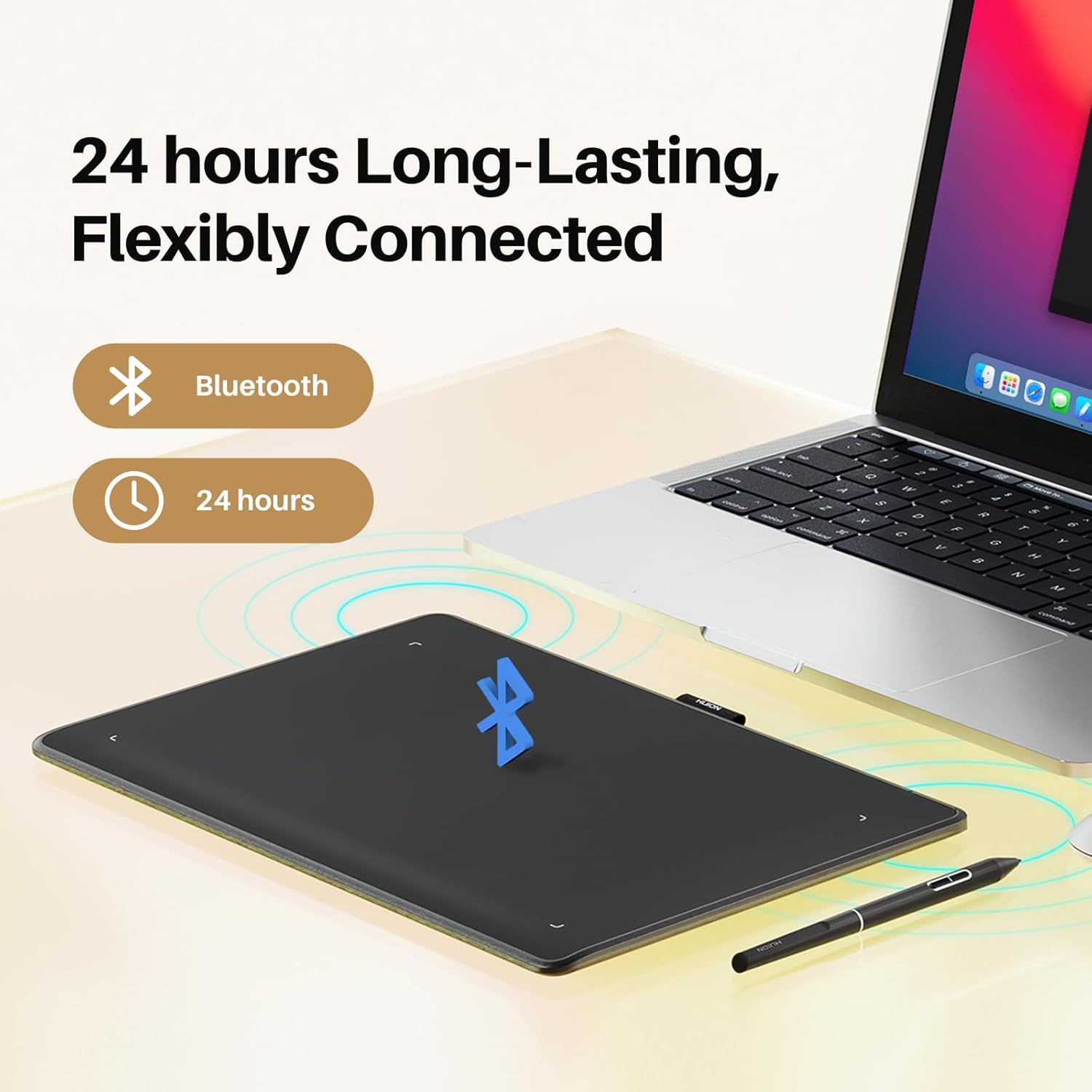
Figure 3.1.1: Wireless Bluetooth connection setup. The tablet offers flexible connectivity and long-lasting battery life.
Video 3.1.1: "Creat Beyond Limits-HUION Inspiroy Frego". This video demonstrates the tablet's features, including its wireless connectivity and ease of use in a creative workflow.
3.1.2. USB-C Wired Connection (For PC/Mac/Linux)
For a stable wired connection, use the provided USB-C cable.
- Connect one end of the USB-C cable to the tablet's USB-C port.
- Connect the other end to an available USB port on your computer.
- The tablet will be automatically recognized.
3.2. Driver Installation
To unlock the full potential of your Inspiroy Frego tablet, including pen pressure sensitivity, tilt recognition, and customizable keys, it is essential to install the latest driver.
- Visit the official HUION website: www.huion.com/download/
- Locate the drivers section and search for "Inspiroy Frego" or "L610".
- Download the appropriate driver for your operating system (Windows, macOS, or Linux).
- Before installation, close all drawing software and uninstall any existing tablet drivers from other brands to avoid conflicts.
- Run the downloaded installer and follow the on-screen instructions.
- Restart your computer after installation is complete.
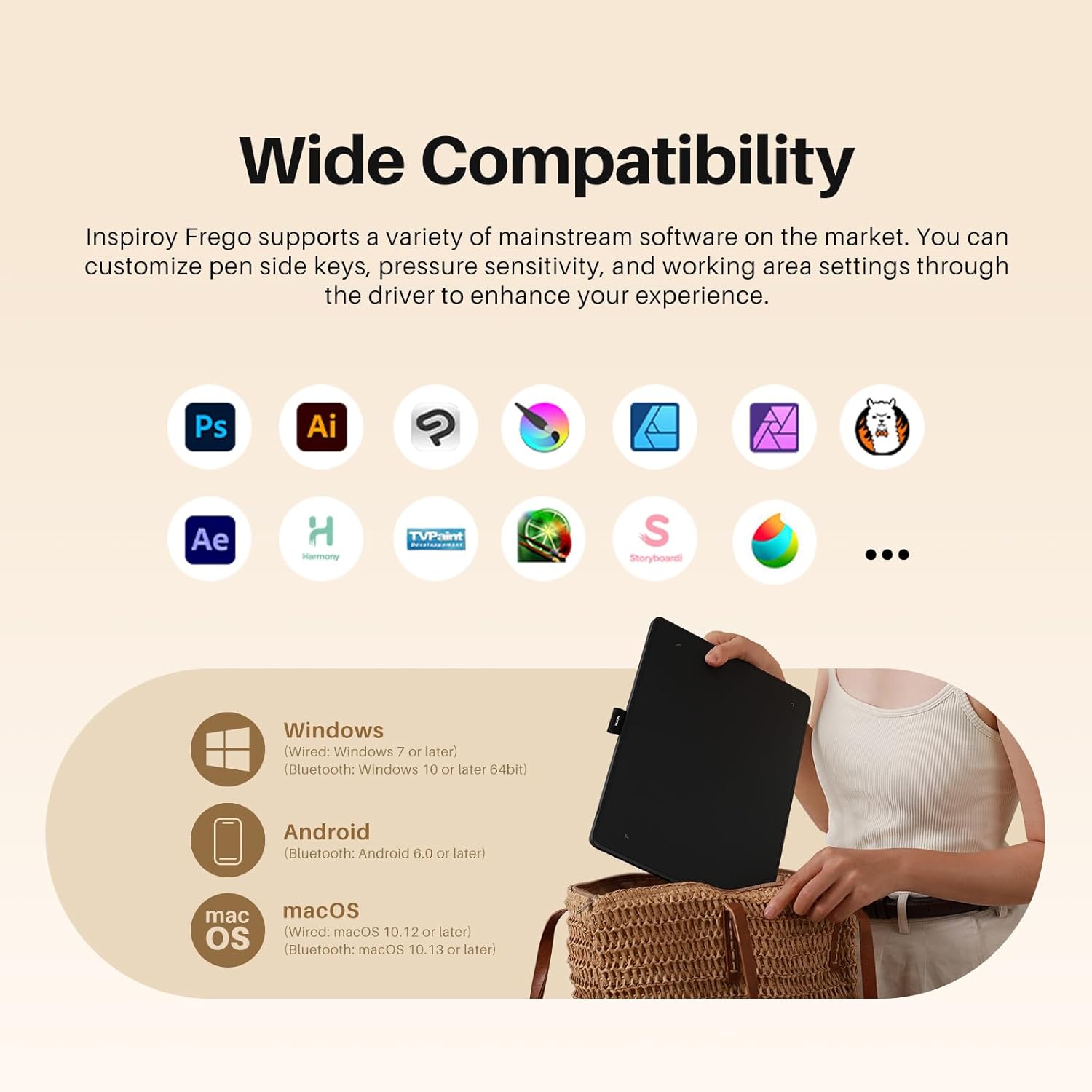
Figure 3.2.1: Wide compatibility with Windows, macOS, Android, and various creative software.
4. Operating the Tablet
4.1. Using the PW550S Stylus
The PW550S stylus is a battery-free pen designed for precision and comfort. It features 8192 levels of pressure sensitivity and ±60° tilt recognition for a natural drawing experience.
- Pressure Sensitivity: The tablet recognizes 8192 levels of pressure, allowing for varied line thickness and opacity based on how hard you press.
- Tilt Recognition: The stylus supports ±60° tilt, enabling brush effects like shading and calligraphy, similar to traditional art tools.
- Programmable Side Keys: The two side keys on the stylus can be customized through the driver software to perform various functions (e.g., brush, eraser, zoom, undo).

Figure 4.1.1: PW550S Stylus features. This pen offers advanced pressure and tilt capabilities for precise control.

Figure 4.1.2: Demonstrating the pen's performance with 8192 pressure levels and ±60° tilt recognition.
4.2. Customizing Settings
The HUION driver software allows you to customize various settings to suit your workflow:
- Working Area: Adjust the active drawing area of the tablet to match your screen or preference.
- Pen Pressure Curve: Fine-tune the pressure sensitivity response of the stylus.
- Express Keys: Program the side keys on the stylus and any potential express keys on the tablet (though this model is minimalist without physical express keys on the tablet itself) for quick access to frequently used functions.
- Orientation: Configure the tablet for left-handed or right-handed use.
4.3. Mobile Device Usage
The Inspiroy Frego is compatible with Android phones/tablets and iOS devices (iPhone/iPad) through specific applications like HiPaint or ibisPaint.
- Download and install HiPaint or ibisPaint from your device's app store.
- Connect the tablet via Bluetooth.
- HiPaint can automatically recognize and map the aspect ratio of your phone or tablet to the tablet's working area, preventing display discrepancies.

Figure 4.3.1: Tablet in use with an iPad, demonstrating mobile compatibility with drawing applications.
5. Maintenance
Proper maintenance ensures the longevity and optimal performance of your drawing tablet.
5.1. Cleaning the Tablet
- Use a soft, dry cloth to wipe the tablet surface.
- For stubborn smudges, slightly dampen the cloth with water or a mild, non-abrasive cleaner.
- Avoid using harsh chemicals, alcohol, or abrasive materials, as these can damage the surface.
- Ensure the tablet is powered off and disconnected from any power source before cleaning.
5.2. Replacing Pen Nibs
The pen nibs will wear down over time with regular use. Replace them when they become too short or sharp to maintain a smooth drawing experience.
- Use the provided pen nib clip to gently pull out the old nib from the stylus.
- Insert a new standard nib firmly into the stylus until it clicks into place.
- The package includes 10 standard replacement nibs. Additional nibs can be purchased from authorized retailers.
5.3. Battery Care
- Charge the tablet fully before first use.
- Avoid completely draining the battery frequently, as this can reduce its lifespan.
- Store the tablet in a cool, dry place when not in use for extended periods.
6. Troubleshooting
If you encounter issues with your HUION Inspiroy Frego tablet, refer to the following common solutions.
| Problem | Possible Cause | Solution |
|---|---|---|
| No response from tablet/stylus. |
|
|
| Pen pressure not working. |
|
|
| Lag or delay in drawing. |
|
|
| Tablet not recognized by mobile device. |
|
|
If the problem persists, please contact HUION customer support for further assistance.
7. Specifications
| Feature | Detail |
|---|---|
| Product Dimensions | 11.97 x 8.66 x 0.04 inches |
| Item Weight | 1.2 pounds |
| Model Number | L610 |
| Working Area | 10 x 6.25 inches |
| Connectivity Technology | Bluetooth, USB-C |
| Pressure Sensitivity | 8192 Levels |
| Tilt Support | ±60° |
| Report Rate | 300 PPS |
| Pen Resolution | 5080 LPI |
| Battery Type | 1 Lithium Ion (included) |
| Charging Time | 2.5 hours |
| Usage Time | Up to 24 hours |
| Operating System Compatibility | Wired: Windows 7+, macOS 10.12+, Ubuntu 20.04 LTS Bluetooth: Windows 10 (64bit)+, macOS 10.13+, Android 6.0+ |
8. Warranty and Support
HUION provides customer support and warranty services for its products. For specific warranty terms and conditions, please refer to the warranty card included in your product packaging or visit the official HUION website.
For technical assistance, driver downloads, FAQs, or to contact customer service, please visit the official HUION support page: www.huion.com/support/
Ask a question about this manual
Ask about setup, troubleshooting, compatibility, parts, safety, or missing instructions. Manuals+ will review the question and use this page’s manual context to help answer it.