
Introduction
This manual provides comprehensive instructions for setting up, operating, and maintaining your BIGASUO Frameo 10.1 Inch WiFi Digital Picture Frame. Please read this manual carefully before using the device to ensure proper functionality and to avoid any potential issues. Keep this manual for future reference.
Package Contents
Upon opening the package, please verify that all the following items are included and in good condition:
- Digital Photo Frame x 1
- User Manual x 1
- Frame Stand x 1
- AC Adapter x 1
- Box x 1

Description: This image displays all items included in the product package: the digital photo frame, its stand, the AC power adapter, and the user manual, neatly arranged next to the product box.
Setup Guide
- Power Connection: Connect the AC adapter to the digital photo frame's power port and then plug it into a standard electrical outlet. The frame will automatically power on.
- Frame Stand Installation: Attach the included frame stand to the back of the digital photo frame. The stand allows for stable placement on a desktop or shelf.
- Initial Setup: Follow the on-screen prompts to select your preferred language, time zone, and connect the frame to your Wi-Fi network. A stable Wi-Fi connection is essential for sharing photos and videos via the Frameo app.
- Frameo App Download: Download the "Frameo" app from the App Store (for iOS devices) or Google Play Store (for Android devices) on your smartphone or tablet.
- Pairing with App: Open the Frameo app and follow the instructions to pair your device with the digital photo frame. This typically involves entering a unique code displayed on the frame's screen into the app.

Description: This image illustrates the seamless wireless sharing capability, showing a smartphone displaying the Frameo app interface with options for photos and videos, and the digital frame receiving content.
Operating Instructions
Sending Photos and Videos via Frameo App
The Frameo app allows you to send photos and short videos (up to 15 seconds) directly to your digital photo frame from anywhere in the world.
- Select Content: In the Frameo app, tap the camera icon to take a new photo/video or select existing media from your gallery.
- Choose Frame(s): Select one or multiple digital frames to which you wish to send the content.
- Add Caption (Optional): You can add a personalized caption to your photos or videos.
- Send: Confirm your selection and send. The content will appear on the frame within seconds, provided it is connected to Wi-Fi.

Description: This image highlights the instant wireless sharing feature, showing a smartphone displaying the Frameo app interface with options for photos and videos, and the digital frame receiving content.
Touch Screen Operation
The 10.1-inch IPS HD touch screen allows for easy navigation and settings adjustments.
- Swipe: Swipe left or right to navigate through photos and videos.
- Tap: Tap the screen to access settings, adjust brightness, volume, or view photo details.
- Pinch-to-Zoom: Use two fingers to zoom in or out on photos.

Description: This image illustrates the ease of use of the 10.1-inch HD touch screen, with a hand tapping the screen to showcase its responsive operation.
Managing Photos and Videos
The frame has a built-in 32GB memory and supports Micro SD cards (up to 32GB) for expanded storage.
- Import/Export: You can import photos and videos directly from a Micro SD card. Ensure the Micro SD card is formatted to "FAT32" before use.
- Delete Content: Access the frame's settings to delete individual photos or videos, or manage storage.
- Slideshow Settings: Customize the order of playback, transition effects, and display duration for your slideshow.
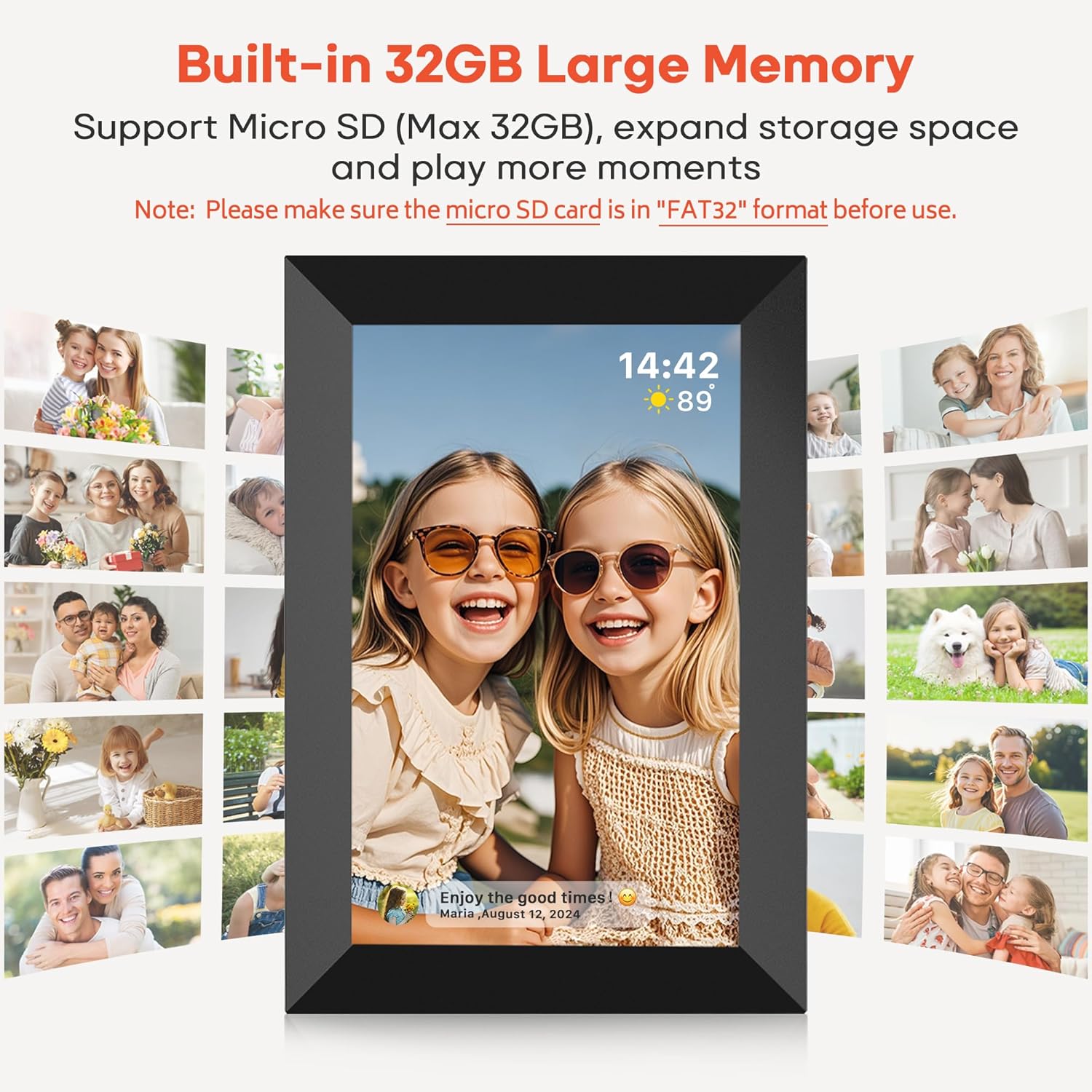
Description: This image emphasizes the large 32GB built-in memory, capable of storing numerous photos and videos, with a central image on the frame surrounded by a collage of other memories.
Multi-User Connections
Invite family and friends to share photos and videos directly to your frame by sharing your unique frame code. Multiple users can send content to the same frame, and you can send content to multiple frames from your app.

Description: This image visually represents the multi-user connection feature, showing various individuals connected to and sharing content with the digital photo frame.
Auto-Rotation and Placement
The frame automatically adjusts the orientation of photos (landscape or portrait) based on its physical placement. It can be placed on a desktop using the stand or mounted on a wall.

Description: This image demonstrates the frame's versatility, showing it in both horizontal and vertical orientations, highlighting its auto-rotation and wall-mounting capabilities.
Sleep Mode
To conserve energy and for convenience, you can set the frame to enter and exit sleep mode at specified times. This will automatically turn the screen off and on.

Description: This image visually explains the sleep mode function, depicting the frame displaying a photo during the day and its screen turned off at night, indicating power saving.
Maintenance
- Cleaning the Screen: Use a soft, lint-free cloth to gently wipe the screen. For stubborn smudges, slightly dampen the cloth with water or a screen-cleaning solution. Avoid harsh chemicals or abrasive materials.
- Cleaning the Frame: Wipe the frame's exterior with a dry, soft cloth.
- Storage: If storing the frame for an extended period, disconnect it from power and store it in a cool, dry place away from direct sunlight.
- Software Updates: Ensure your frame's software is up to date for optimal performance and new features. Updates are typically managed through the Frameo app or the frame's settings menu.
Troubleshooting
| Problem | Possible Cause / Solution |
|---|---|
| Frame does not power on. |
|
| Cannot connect to Wi-Fi. |
|
| Photos/videos not appearing on the frame. |
|
| Screen is unresponsive. |
|
| Micro SD card not recognized. |
|
Specifications
| Feature | Detail |
|---|---|
| Screen Size | 10.1 Inches |
| Resolution | 1280 x 800 HD IPS |
| Internal Memory | 32GB |
| External Storage | Supports Micro SD card (Max. 32GB, FAT32 format) |
| Connectivity | Wi-Fi |
| Compatible App | Frameo (iOS/Android) |
| Supported Image Formats | JPG/JPEG/BMP/PNG |
| Supported Video Formats | MP4 (15-second limit via app, no limit via SD card) |
| Dimensions | 26.67 x 18.2 x 2.51 cm |
| Weight | 800 g |
| Model Number | 102K |
Warranty and Support
For warranty information and technical support, please refer to the official BIGASUO website or contact their customer service directly. The Frameo app also provides support resources and frequently asked questions.
Online Resources:
For specific product support, please have your model number (102K) and purchase details ready.