
Introduction
This manual provides comprehensive instructions for the setup, operation, and maintenance of your iHeylinkit M3 Wireless CarPlay/Android Auto Adapter. This device is designed to convert your vehicle's existing wired CarPlay or Android Auto system into a wireless connection, enhancing convenience and user experience.
Safety Information
For optimal performance and safety, please observe the following guidelines:
- Avoid using the adapter near other wireless devices that may cause interference.
- Keep the device away from liquids and environments with high temperatures.
- Do not attempt to disassemble or modify the adapter, as this may void the warranty and cause damage.
Product Overview

The iHeylinkit M3 Wireless CarPlay/Android Auto Adapter, shown with its two accompanying USB cables (USB-C to USB-A and USB-C to USB-C), designed for versatile connectivity.
The iHeylinkit M3 adapter is a compact device designed to provide wireless connectivity for your vehicle's infotainment system. It features a durable zinc alloy metal construction with a glass cover, ensuring both robustness and a sleek appearance. The package includes the M3 adapter, a user manual, and two types of USB cables to accommodate various vehicle ports: one USB-C to USB-A cable and one USB-C to USB-C cable.

Contents of the iHeylinkit M3 package, including the adapter, user manual, and connection cables.
Setup Guide
Initial Connection
Follow these steps to connect the adapter to your vehicle:
- Ensure your vehicle supports wired Apple CarPlay or Android Auto.
- Select the appropriate USB cable (USB-C to USB-A or USB-C to USB-C) based on your car's USB port.
- Plug one end of the selected USB cable into the iHeylinkit M3 adapter's USB-C port.
- Plug the other end of the USB cable into your car's wired CarPlay/Android Auto USB port.
- The adapter's indicator light will illuminate, indicating it is powered on.
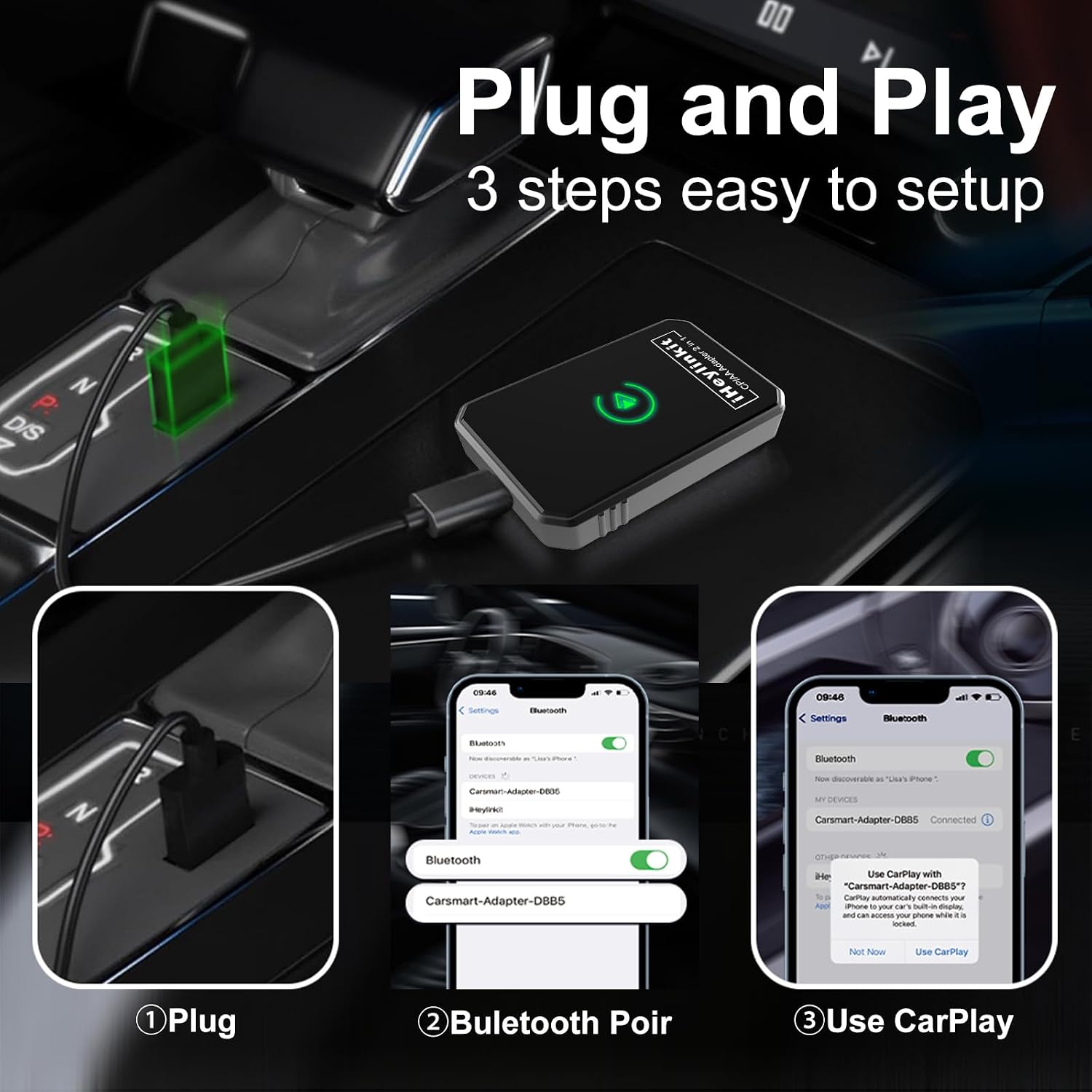
Visual guide for the simple three-step setup process.
Bluetooth Pairing
Once the adapter is connected to your car:
- On your smartphone, navigate to the Bluetooth settings.
- Search for available devices and select the adapter, typically named 'Carsmart-Adapter-XXXX' (where XXXX is a unique identifier).
- Confirm the pairing request on your phone and allow access if prompted.
- Your phone should now be wirelessly connected to your car's infotainment system via the adapter.

The adapter supports a wide range of vehicles and smartphone operating systems for wireless connectivity.
Operating Your Adapter
Wireless CarPlay/Android Auto Integration
The iHeylinkit M3 adapter enables seamless wireless integration of your smartphone with your car's infotainment system. Once connected, your car's display will automatically switch to the CarPlay or Android Auto interface, allowing you to access navigation, music, calls, and other compatible applications wirelessly.

Experience full CarPlay functionality without the need for a wired connection.
Control Methods
You can control CarPlay or Android Auto through various methods:
- Voice Assistant: Utilize voice commands (e.g., "Hey Siri" or "Ok Google") for hands-free operation, such as making calls or getting directions.
- Touch Screen: Interact directly with the car's touch screen display.
- Knob Control: Use the vehicle's OEM control knob for navigation within the interface.
- Steering Wheel Control: Access functions using your car's steering wheel buttons.
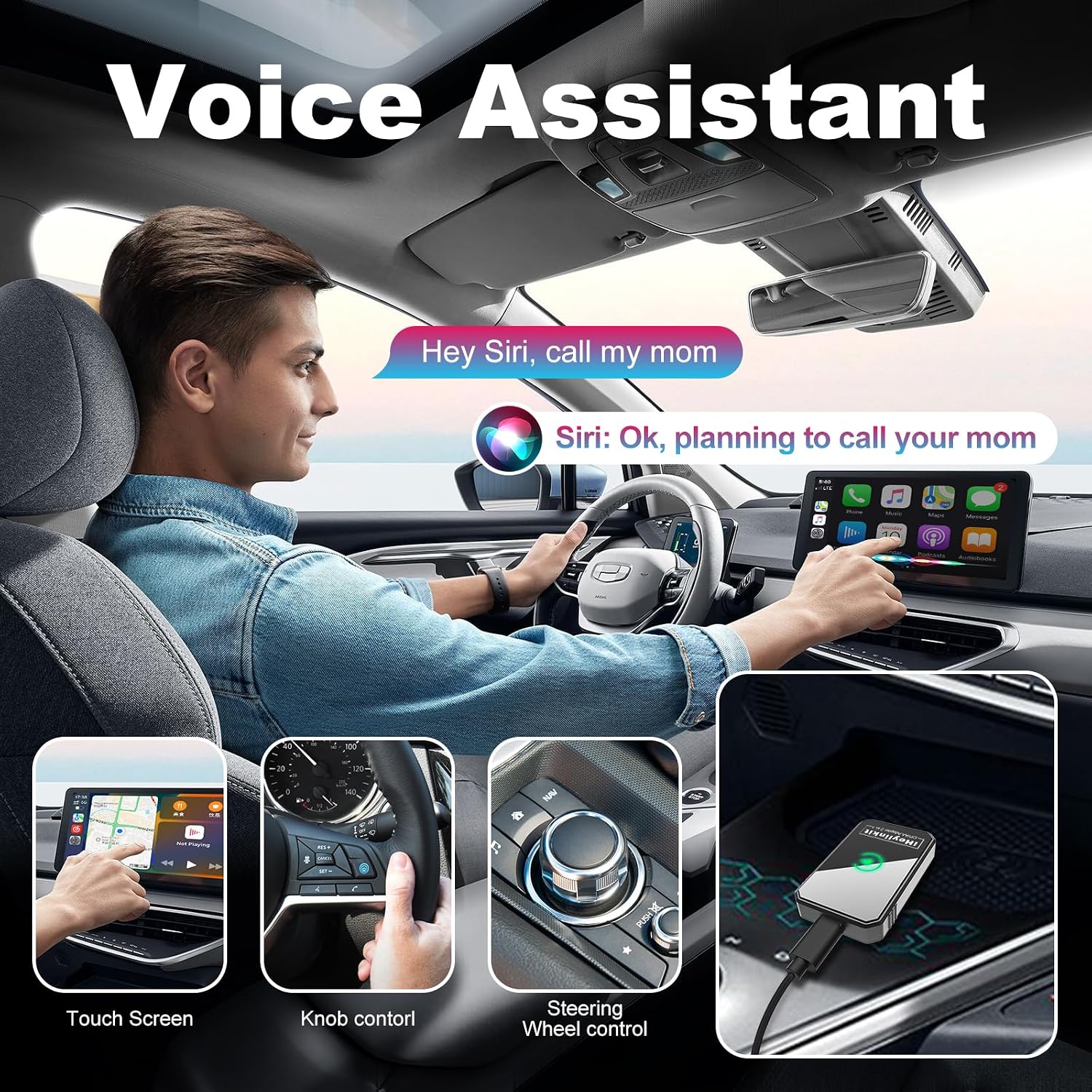
Multiple control options ensure a convenient and safe driving experience.
Video Playback Considerations
Please note that Apple CarPlay and Android Auto do not natively support video playback on the car's display. While audio from video streaming on your phone can be played through the car stereo, wireless CarPlay/Android Auto limitations may result in audio/video synchronization issues.

Information regarding video playback limitations within CarPlay and Android Auto.
Maintenance
To ensure the longevity and optimal performance of your iHeylinkit M3 adapter, follow these simple maintenance tips:
- Keep the device clean by wiping it with a soft, dry cloth.
- Avoid exposing the adapter to extreme temperatures or direct sunlight for prolonged periods.
- Store the adapter in a cool, dry place when not in use.
Troubleshooting
If you encounter issues with your iHeylinkit M3 adapter, refer to the following common troubleshooting steps:
| Issue | Solution |
|---|---|
| Adapter does not respond when plugged in. | First, confirm whether your vehicle has wired CarPlay or Android Auto. If your car only has Android Auto, ensure Bluetooth is turned on and search for the adapter's SSID name to connect directly. |
| Cannot connect to the adapter. | Check if your phone's Bluetooth is occupied. If not, restart your phone and try connecting again from the Bluetooth interface to the device shown SSID name. |
| Sound delay or navigation delay. | Troubleshoot network issues and restart your phone first. |
| Can this product be paired with more than one cell phone? | Yes, but if you want to use a different phone, make sure the Bluetooth and Wi-Fi of the previously connected phone are turned off. |
| Why is there no sound on the phone? | Please ensure you select the correct sound channel to the adapter's name during your call. |
| Can it link automatically? | It supports automatic connection. Ensure your phone's Wi-Fi and Bluetooth are turned on. |
Specifications
| Feature | Detail |
|---|---|
| Product Dimensions | 1.37 x 0.39 x 2.28 inches (3.48 x 0.99 x 5.79 cm) |
| Item Weight | 3.52 ounces (99.79 grams) |
| Item Model Number | M3 |
| Wireless Communication Standard | Bluetooth |
| Manufacturer | iHeylinkit |
| Date First Available | January 4, 2025 |

The adapter features a robust design with efficient heat dissipation.
Warranty and Support
iHeylinkit is committed to providing high-quality products and excellent customer service. Your M3 Wireless CarPlay/Android Auto Adapter comes with the following:
- 365-Day Quality Guarantee: Ensuring product reliability and performance.
- Lifetime Technical Help: Access to ongoing technical support for any queries or issues.
- 30-Day Free Returns: For hassle-free returns within 30 days of purchase.
- 24/7 Fast Support: Dedicated customer support available around the clock.
For further assistance, please refer to the contact information provided in your product packaging or visit the official iHeylinkit website.