
1. Product Overview
The Rolling Stone Billboard Wireless Speaker with Galaxy Projector offers a unique blend of high-quality audio and immersive visual effects. Designed for portability and ease of use, this device enhances any entertainment setting with its powerful sound and captivating light projections.
- Wireless Audio: Enjoy exceptional audio with True Wireless Bluetooth connectivity, allowing you to play music wirelessly from any compatible device.
- Integrated Projector: Transform any space with stunning galaxy projections, creating a unique and immersive atmosphere for entertainment.
- Carbon Design: Elegant carbon universe finish combining durability with modern aesthetics, perfect for any decor.
- Long-lasting Battery: Rechargeable battery system provides hours of continuous playback without constant connection.
- Immersive Experience: Combines powerful sound with visual galaxy effects, creating a unique audiovisual experience for parties or relaxation.
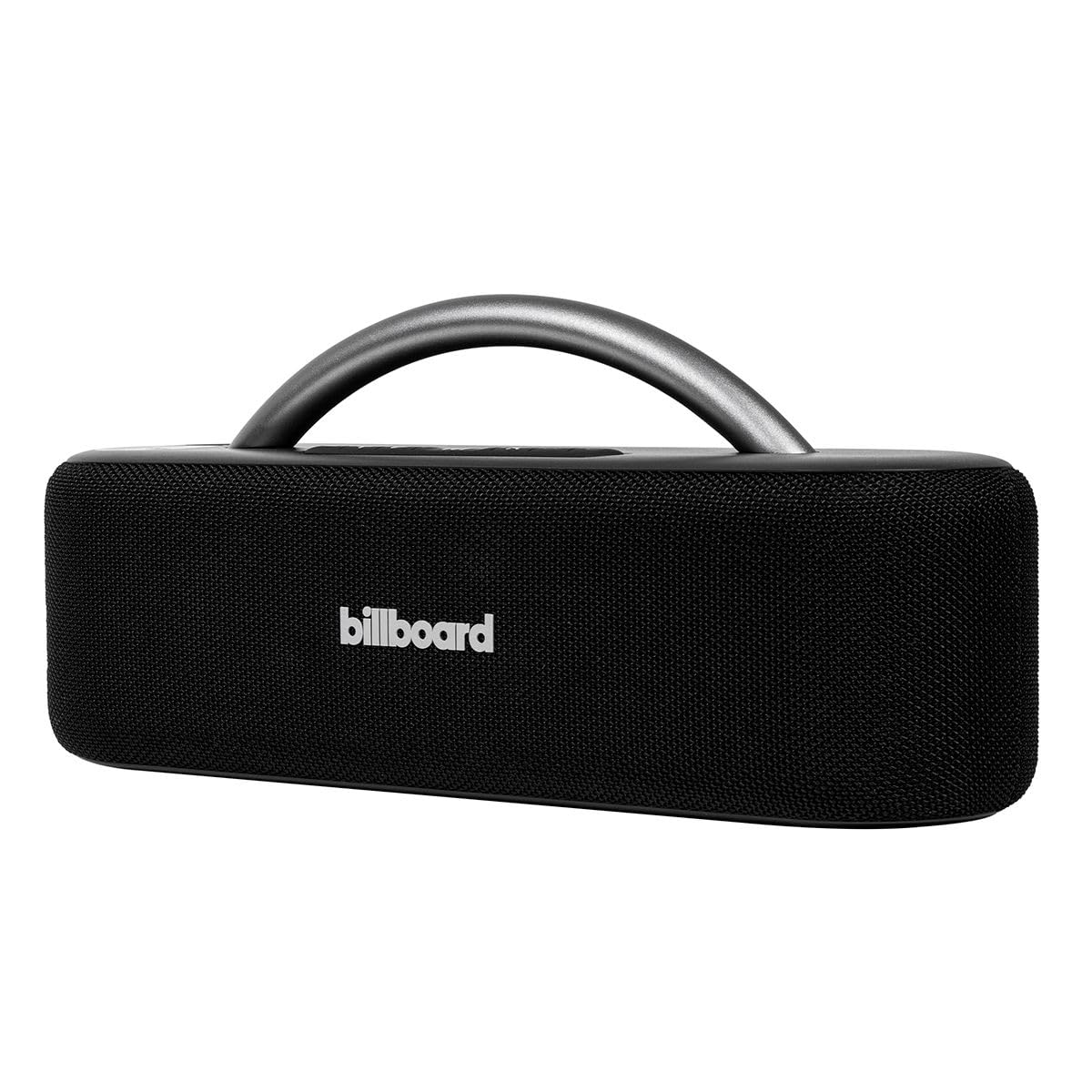
Figure 1: Rolling Stone Billboard Wireless Speaker with integrated galaxy projector.
2. Package Contents
Please check the package for the following items:
- Rolling Stone Billboard Wireless Speaker
- USB Charging Cable
- Auxiliary Audio Cable
- User Manual
3. Controls and Ports
Familiarize yourself with the speaker's controls and connection ports for optimal use.

Figure 2: Top control panel with buttons for power, volume, playback, and light effects.

Figure 3: Overall top view of the speaker, highlighting the handle and control layout.

Figure 4: Detailed view of the input ports, including MIC, USB, DC 5V (charging), and AUX.
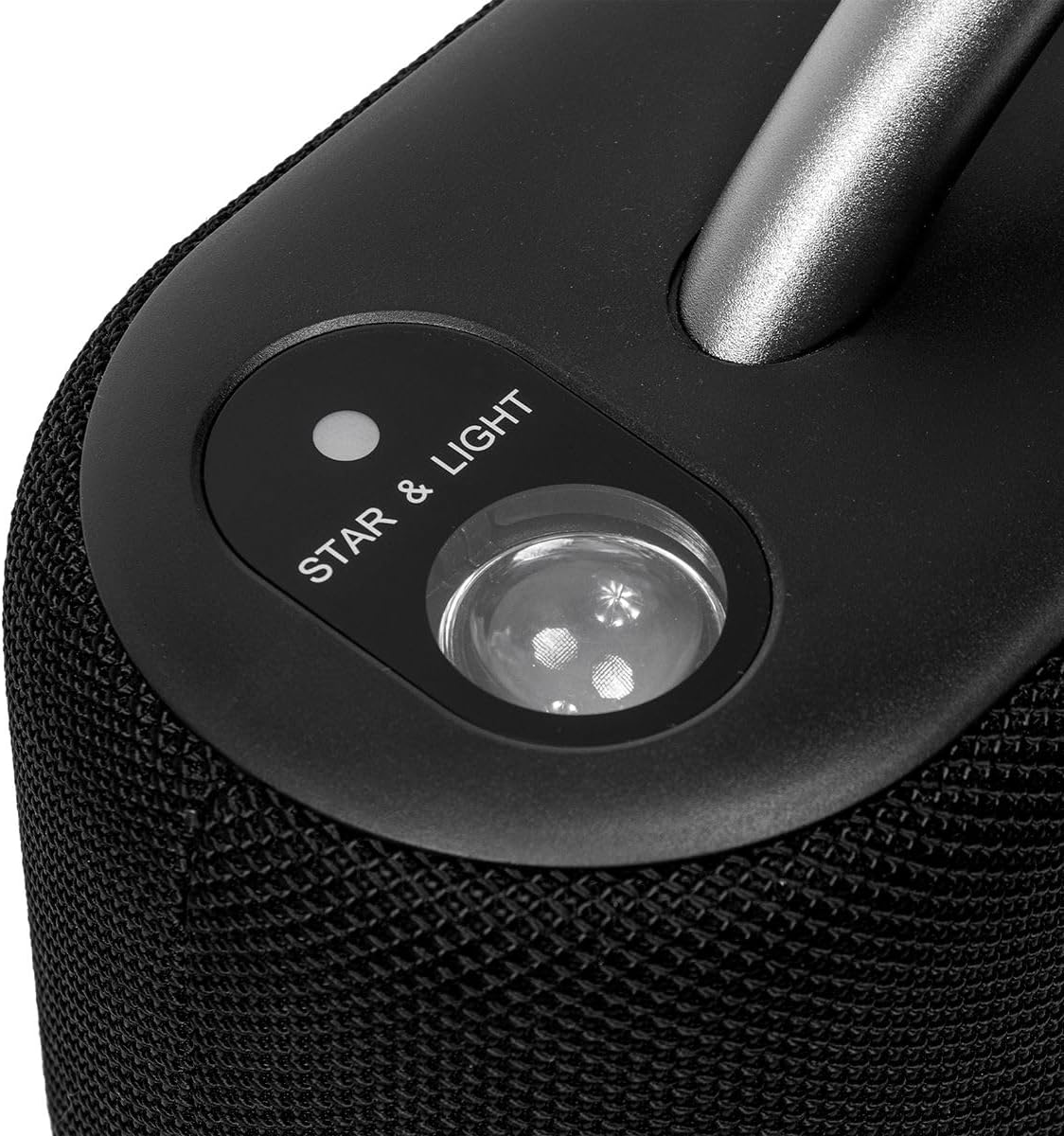
Figure 5: Close-up of the 'STAR & LIGHT' projector lens on the speaker.
Control Buttons:
- Power Button: Press and hold to turn the speaker ON/OFF. Short press to switch modes (Bluetooth, AUX, USB).
- Volume Down (-): Decrease volume.
- Volume Up (+): Increase volume.
- Play/Pause Button: Play or pause audio playback.
- Previous Track Button: Skip to the previous track.
- Next Track Button: Skip to the next track.
- Light Mode Button: Cycle through different galaxy projection light modes.
- Bluetooth Pairing Button: Press to enter Bluetooth pairing mode.
Connection Ports:
- MIC Input: For connecting an external microphone.
- USB Port: For playing audio from a USB drive.
- DC 5V Input: For charging the speaker using the provided USB cable.
- AUX Input: For connecting external audio devices via a 3.5mm auxiliary cable.
4. Initial Setup
4.1 Charging the Speaker
Before first use, fully charge the speaker. Connect the provided USB charging cable to the DC 5V input port on the speaker and the other end to a compatible USB power adapter (not included) or a computer USB port. The charging indicator light will show charging status.
4.2 Powering On/Off
Press and hold the Power button for approximately 3 seconds to turn the speaker ON or OFF. A sound prompt will indicate the power status.
5. Operation
5.1 Bluetooth Mode
- Turn on the speaker. It will automatically enter Bluetooth pairing mode, indicated by a flashing LED light.
- Enable Bluetooth on your mobile device (smartphone, tablet, etc.).
- Search for "Billboard" in the list of available Bluetooth devices and select it to pair.
- Once successfully paired, the LED indicator will stop flashing, and you will hear a confirmation sound.
- You can now play music from your device through the speaker. Use the speaker's playback controls or your device's controls to manage music.
5.2 AUX Mode
Connect one end of the 3.5mm auxiliary audio cable to the AUX input port on the speaker and the other end to the audio output jack of your external device (e.g., MP3 player, computer). The speaker will automatically switch to AUX mode, or you can manually select it by short-pressing the Power button.
5.3 USB Playback Mode
Insert a USB flash drive containing MP3 audio files into the USB port. The speaker will automatically detect the USB drive and begin playing music. If not, short-press the Power button to cycle to USB mode.
5.4 Galaxy Projector Operation
Press the 'Light Mode' button (often indicated by a star or light icon) to activate the integrated galaxy projector. Each press will cycle through different light patterns and colors. Press and hold the button to turn the projector OFF.
6. Charging the Battery
The speaker is equipped with a rechargeable battery. When the battery is low, you will hear an audible alert. Connect the USB charging cable to the DC 5V port and a power source. The charging indicator will illuminate during charging and turn off or change color when fully charged. A full charge typically takes 3-4 hours.
7. Care and Maintenance
- Keep the speaker away from extreme temperatures, direct sunlight, and moisture.
- Clean the speaker with a soft, dry cloth. Do not use abrasive cleaners or solvents.
- Avoid dropping or subjecting the speaker to strong impacts.
- When not in use for extended periods, store the speaker in a cool, dry place and charge it periodically to maintain battery health.
8. Troubleshooting
| Problem | Possible Cause | Solution |
|---|---|---|
| Speaker does not turn on. | Battery is depleted. | Charge the speaker fully. |
| No sound from the speaker. | Volume is too low or muted. Device not paired/connected. | Increase volume on speaker and connected device. Re-pair Bluetooth or check AUX/USB connection. |
| Bluetooth pairing fails. | Speaker is too far from device. Bluetooth is off on device. Interference. | Ensure speaker and device are within 10 meters. Turn Bluetooth ON. Move away from other wireless devices. |
| Galaxy projector not working. | Projector is off. | Press the 'Light Mode' button to activate. |
9. Product Specifications
| Feature | Detail |
|---|---|
| Brand | Rolling Stone |
| Model Name | Billboard |
| Connectivity Technology | Auxiliary, USB, Wireless (Bluetooth) |
| Audio Output Mode | Stereo |
| Mounting Type | Tabletop Mount |
| Speaker Type | Multimedia |
| Recommended Uses | Home entertainment systems, portable audio setups |
| Control Method | Touch |
| MP3 Player | No |
| Number of Audio Channels | Stereo |
| Compatible Devices | Television, Projector |
| Power Source | Rechargeable Battery |
| Audio Driver Type | Dynamic Driver |
| Average Customer Review | 4.4 out of 5 stars (11 ratings) |
10. Warranty and Support
This product comes with a standard manufacturer's warranty. For detailed warranty information, please refer to the warranty card included in your package or visit the official Rolling Stone website. For technical support, product inquiries, or service requests, please contact Rolling Stone customer service.
Return Policy: 30 days free return.
