
Introduction
Thank you for choosing the MINISFORUM Neptune HX99G Mini PC. This compact yet powerful gaming PC is designed to deliver high performance for both gaming and demanding applications. This manual will guide you through the setup, operation, and maintenance of your device to ensure optimal performance and longevity.
Package Contents
Please check the package contents carefully. If any items are missing or damaged, contact your retailer.
- MINISFORUM Neptune HX99G Mini PC
- Power Adapter
- HDMI Cable
- User Manual (this document)
Product Overview
The MINISFORUM Neptune HX99G is a high-performance mini PC featuring an AMD Ryzen 9 6900HX processor and an AMD Radeon RX 6600M dedicated graphics card. It offers extensive connectivity and upgrade options.
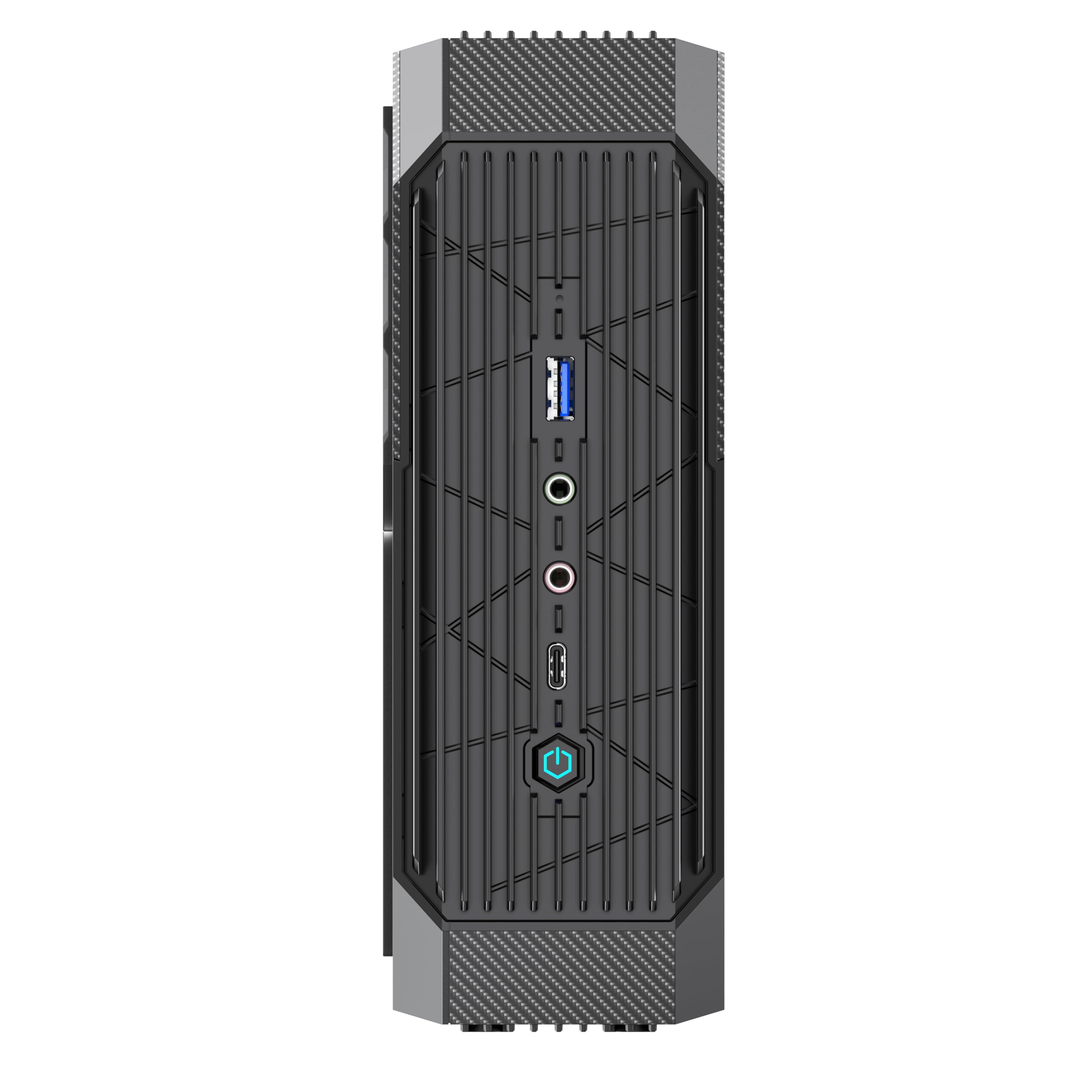
Image: Front and side view of the MINISFORUM Neptune HX99G Mini PC, showcasing its compact design and various ports.
Key Features:
- Processor: AMD Ryzen 9 6900HX (8 Cores/16 Threads, up to 4.9 GHz)
- Graphics: AMD Radeon RX 6600M (8 GB GDDR6)
- Memory: 32GB DDR5-4800MHz RAM (expandable to 64GB)
- Storage: 1TB PCIe4.0 SSD (with additional M.2 2280 slot for NVMe PCIe4.0 or NGFF SATA SSD)
- Connectivity: Wi-Fi 6E, Bluetooth 5.2, Ethernet
- Ports: 2x USB4, 2x HDMI, 5x USB3.2
- Cooling: Dual fan system with 7 heat pipes and liquid metal thermal compound
Setup Guide
- Connect Peripherals: Connect your monitor(s) using the HDMI or USB4 ports. Connect your keyboard and mouse to the available USB3.2 ports.
- Network Connection: For wired internet, connect an Ethernet cable to the LAN port. For wireless internet, ensure your Wi-Fi network is available.
- Power Connection: Connect the power adapter to the DC-in port on the Mini PC, then plug the power adapter into a wall outlet.
- Power On: Press the power button located on the front or top of the device. The system will boot up.
- Initial Setup: Follow the on-screen instructions to complete the operating system setup, including language, region, and user account creation.
Operating Instructions
Display Configuration:
The HX99G supports multiple displays. Use the HDMI ports for standard connections. The USB4 ports offer advanced display capabilities, including 8K@60Hz output. Ensure your monitor and cables support the desired resolution and refresh rate.
Network Connectivity:
- Wi-Fi 6E: Access your operating system's network settings to connect to a Wi-Fi 6E compatible network for high-speed wireless internet.
- Ethernet: For a stable wired connection, plug an Ethernet cable into the RJ45 port.
USB4 Port Functionality:
The dual USB4 ports provide a maximum transfer speed of 40 Gbps. They also support display output (up to 8K@60Hz) and can simultaneously power a 15W portable touch display.
Maintenance
Cleaning:
- Regularly clean the exterior of the Mini PC with a soft, dry cloth.
- Use compressed air to gently clear dust from the ventilation openings to maintain optimal airflow and cooling performance.
- Do not use liquid cleaners directly on the device.
Software Updates:
Keep your operating system, drivers, and applications updated to ensure system stability, security, and performance. Check the MINISFORUM official website for the latest driver updates for your HX99G model.
Storage and Memory Upgrades:
The HX99G supports memory expansion up to 64GB DDR5 RAM. It also features an additional M.2 2280 slot for either an NVMe PCIe4.0 SSD or an older generation NGFF SATA SSD. Refer to the detailed upgrade guide on the MINISFORUM support website for instructions on how to safely install these components.
Troubleshooting
| Problem | Possible Cause | Solution |
|---|---|---|
| No power | Power cable not connected; Power adapter faulty; Power outlet issue. | Ensure power cable is securely connected. Test with a different power outlet. Contact support if the adapter is suspected faulty. |
| No display on monitor | Monitor not powered on; Video cable loose or faulty; Incorrect input selected on monitor. | Check monitor power and input selection. Ensure video cables (HDMI/USB4) are securely connected. Try a different cable or port. |
| Wi-Fi connection issues | Incorrect Wi-Fi password; Router issues; Driver issues. | Verify Wi-Fi password. Restart your router. Update Wi-Fi drivers from the MINISFORUM website. |
| System slow or freezing | Too many applications running; Overheating; Malware; Outdated drivers. | Close unnecessary applications. Ensure proper ventilation. Run antivirus scans. Update drivers. |
For further assistance, please refer to the support section or contact MINISFORUM customer service.
Specifications
| Feature | Detail |
|---|---|
| Brand | MINISFORUM |
| Model Name | HX99G |
| Processor | AMD Ryzen 9 6900HX (8 Cores, 16 Threads, 3.3 GHz base, up to 4.9 GHz boost) |
| Graphics Card | AMD Radeon RX 6600M (Dedicated, 8 GB GDDR6) |
| RAM | 32 GB DDR5-4800MHz (2x16GB, expandable to 64 GB) |
| Storage | 1 TB PCIe4.0 SSD (M.2 2280 slot, additional slot for NVMe PCIe4.0 or NGFF SATA SSD) |
| Operating System | OS (Pre-installed) |
| Wireless Connectivity | Wi-Fi 6E, Bluetooth 5.2 |
| Wired Connectivity | Ethernet |
| USB Ports | 2x USB4 (40 Gbps, 8K@60Hz display, 15W power delivery), 5x USB3.2 |
| Video Output | 2x HDMI, 2x USB4 |
| Cooling System | Dual fans, 7 heat pipes (3 CPU, 4 GPU), liquid metal thermal compound |
| Dimensions | Mini PC form factor |
| Color | Black |
| GTIN | 703670510168 |
Warranty Information
The MINISFORUM Neptune HX99G Mini PC comes with a 90-day limited warranty. This warranty covers manufacturing defects and hardware malfunctions under normal use. Please retain your proof of purchase for warranty claims. For detailed terms and conditions, refer to the warranty card included in your package or visit the official MINISFORUM website.
Support
For technical support, driver downloads, FAQs, or further assistance, please visit the official MINISFORUM support website. You can typically find support resources by searching for "MINISFORUM support" online or by visiting their official domain.
Online Resources: MINISFORUM Official Support (Example link, actual URL may vary)


