Introduction
This manual provides detailed instructions for the JOMAA Mini Foldable Bluetooth Keyboard. Designed for portability and multi-device compatibility, this keyboard features an aluminum alloy housing, silent keys, and a rechargeable battery, making it ideal for use with smartphones, iPads, and tablets.
The keyboard offers a comfortable and natural typing experience, supporting seamless switching between up to three Bluetooth-enabled devices. Its compact, foldable design allows for easy transport in a pocket, backpack, or messenger bag.
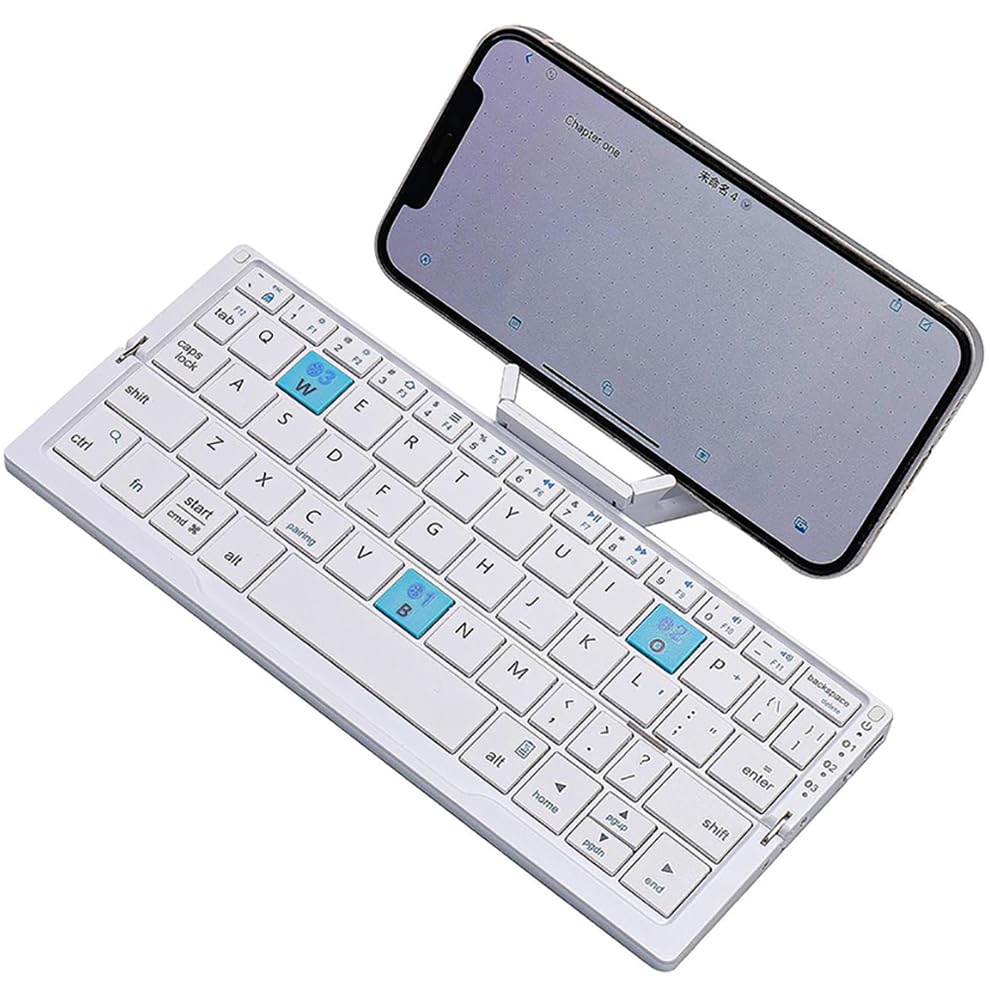
Image: The JOMAA Mini Foldable Bluetooth Keyboard shown in its open, ready-to-use state, with a smartphone placed on its integrated stand. This illustrates the compact design and how a device can be positioned for typing.
Setup Guide
1. Unfolding the Keyboard
To prepare the keyboard for use, gently unfold it. The keyboard is designed to be compact when closed (202.5 x 46.51 mm) and expands to a full size of 202.5 x 89.2 x 5.5 mm when opened, providing a comfortable typing area.
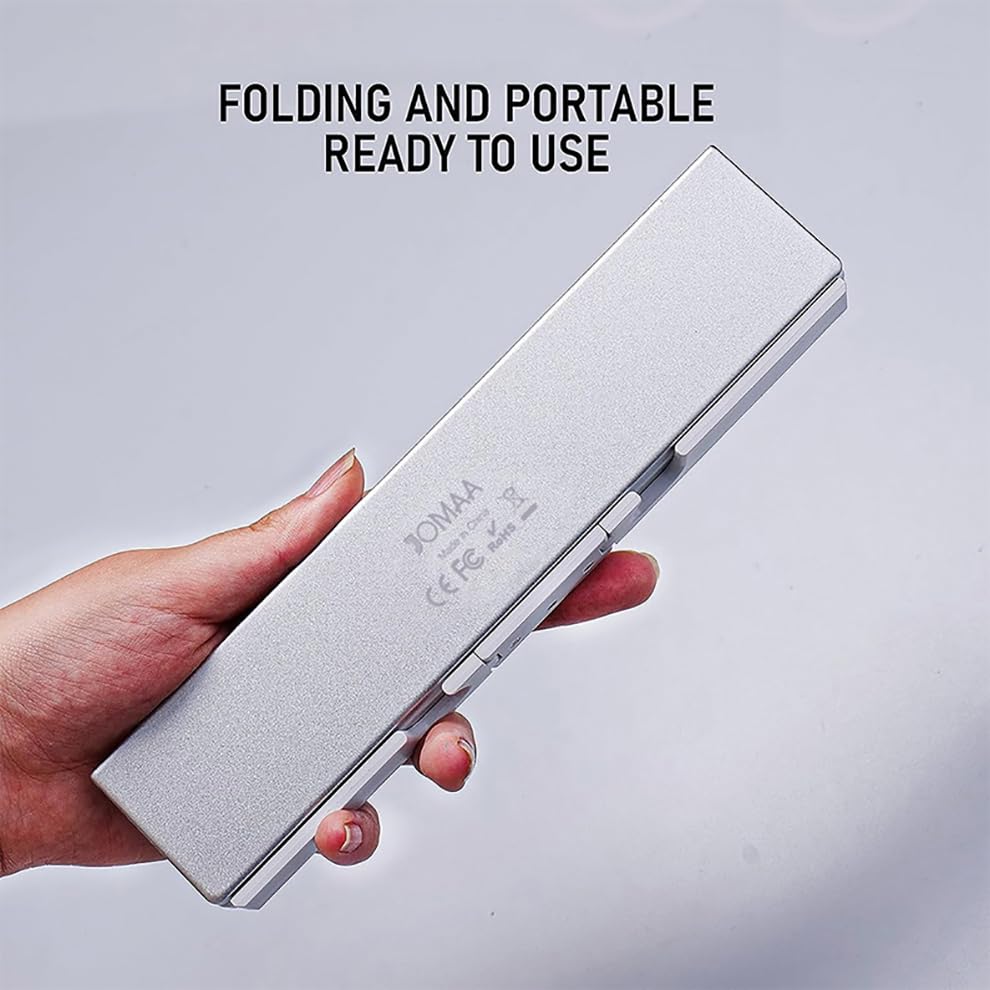
Image: A hand holding the JOMAA Mini Foldable Bluetooth Keyboard in its folded, closed position, highlighting its portability and compact form factor for travel.
2. Charging the Keyboard
The keyboard comes with a built-in rechargeable lithium battery. Before first use, or when the battery is low, connect the included USB cable to the keyboard's charging port and a power source. A full charge takes approximately 2 hours, providing up to 45 hours of continuous typing or up to 90 days of standby time.
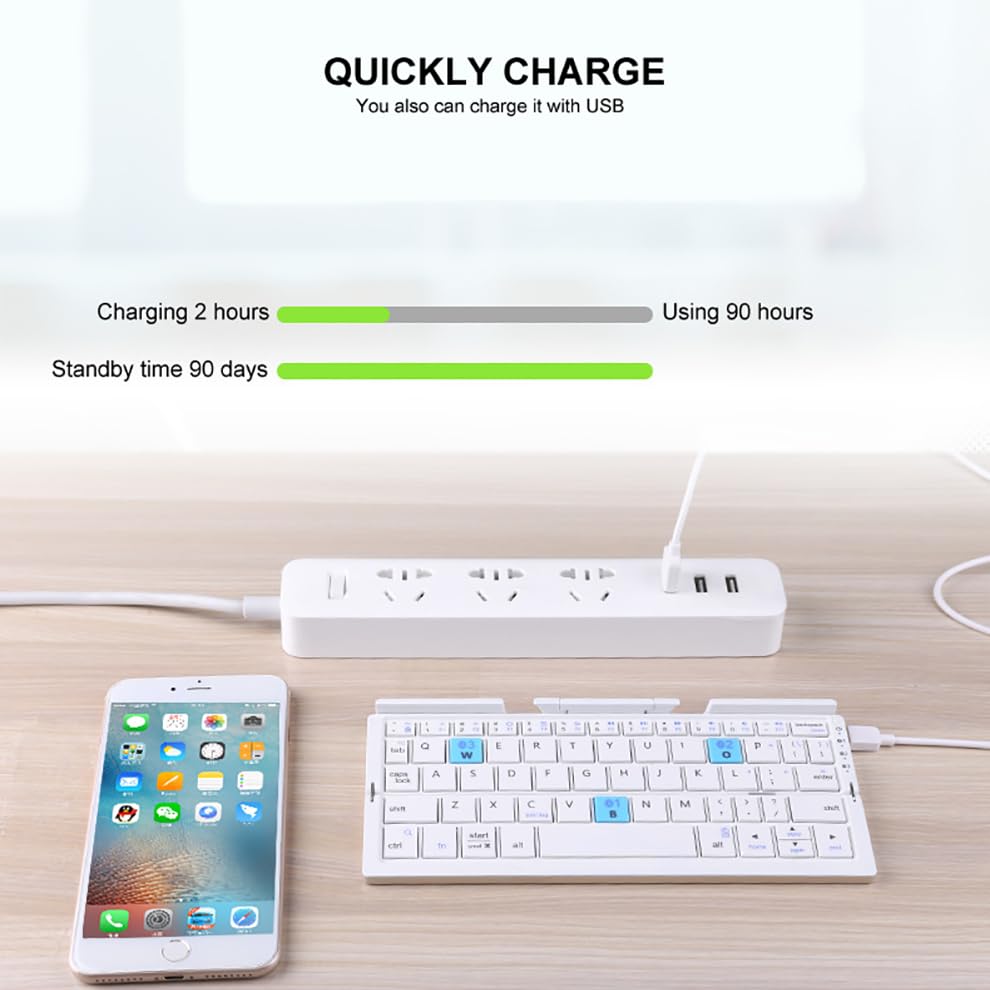
Image: The JOMAA Mini Foldable Bluetooth Keyboard shown connected via a USB cable to a power strip, illustrating the charging process. A smartphone is also visible nearby.
3. Bluetooth Pairing
The keyboard can connect to up to three Bluetooth devices simultaneously, allowing for seamless switching between them.
- Ensure the keyboard is charged and powered on.
- Activate Bluetooth on your device (smartphone, tablet, etc.).
- On the keyboard, press the Fn key simultaneously with one of the Bluetooth channel keys (Q, W, or E) to enter pairing mode for that channel. The indicator light will flash.
- On your device, search for Bluetooth devices. Select "JOMAA Keyboard" or a similar name from the list of available devices.
- Follow any on-screen prompts to complete the pairing process. Once paired, the indicator light on the keyboard will stop flashing.
Repeat these steps for up to two additional devices, assigning each to a different Bluetooth channel (Q, W, or E).
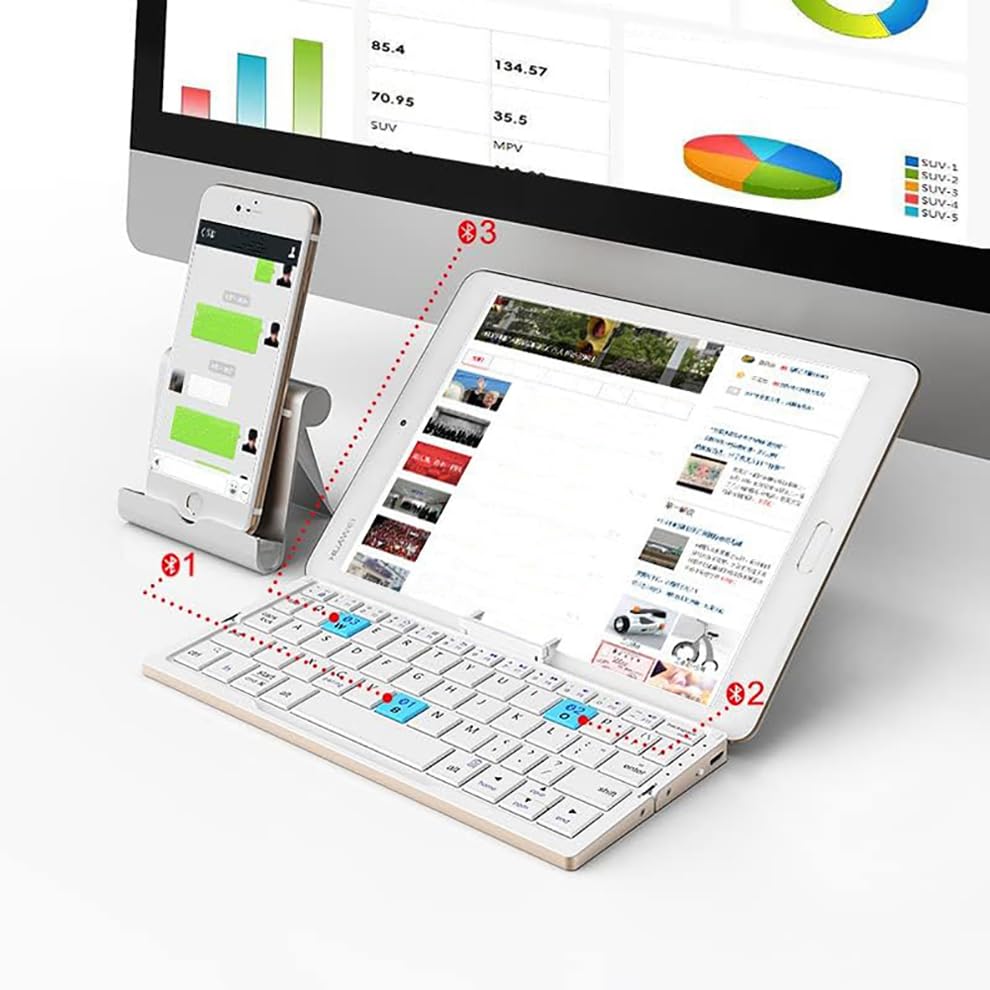
Image: The JOMAA Mini Foldable Bluetooth Keyboard positioned in front of a tablet and a smartphone, illustrating its capability to connect and be used with multiple devices simultaneously.
4. Using the Integrated Stand
The keyboard features a hidden stand designed to hold and prop up your device at an ideal viewing angle. This stand is magnetically attached to the keyboard. Please note that while convenient, the stand's size is limited. It is most stable for devices under 11 inches. For devices larger than 11 inches, stability may be compromised, though the Bluetooth connection will remain unaffected if you choose not to use the stand.
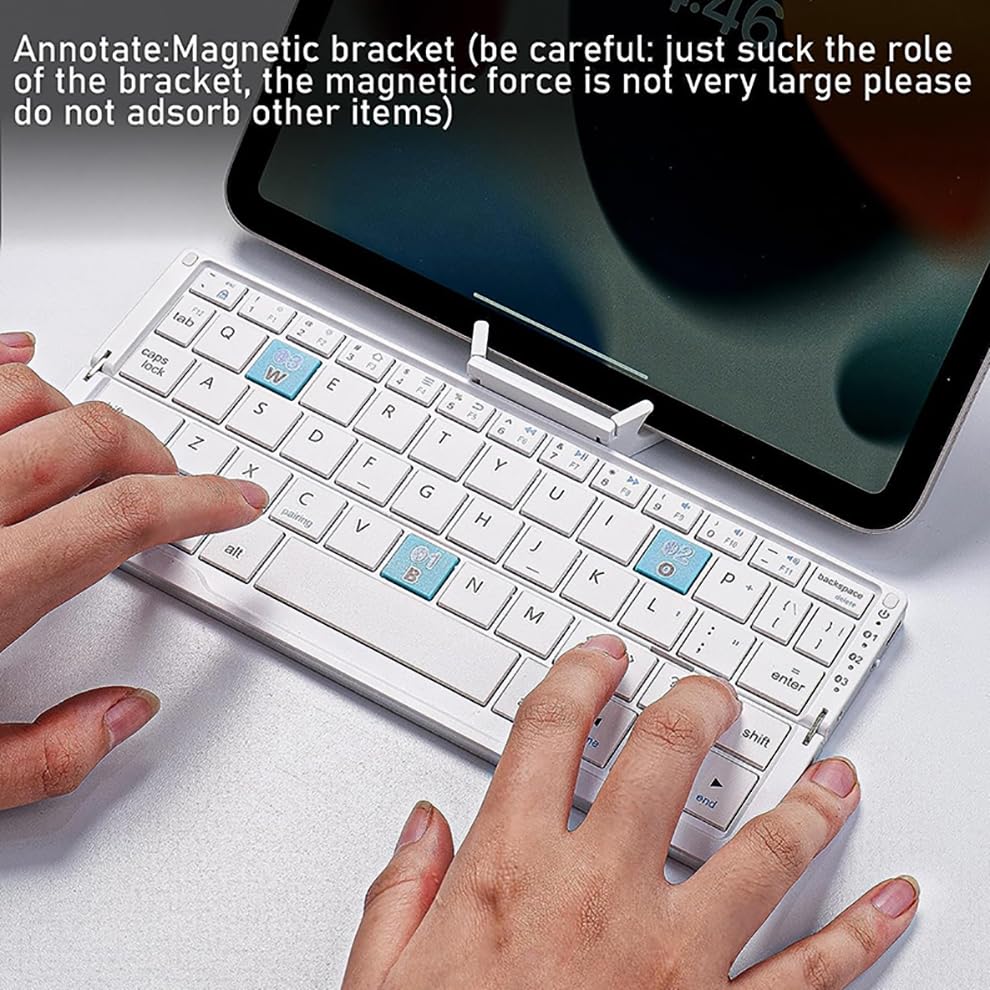
Image: The JOMAA Mini Foldable Bluetooth Keyboard with a tablet resting on its integrated magnetic stand. The image highlights the stand's functionality and the keyboard's compact design when in use.
Operating Instructions
1. Basic Typing
The JOMAA Mini Foldable Bluetooth Keyboard provides a natural and pleasing typing experience. The keycaps have a matte finish for comfortable grip and feel. Simply open the keyboard and begin typing on your connected device.
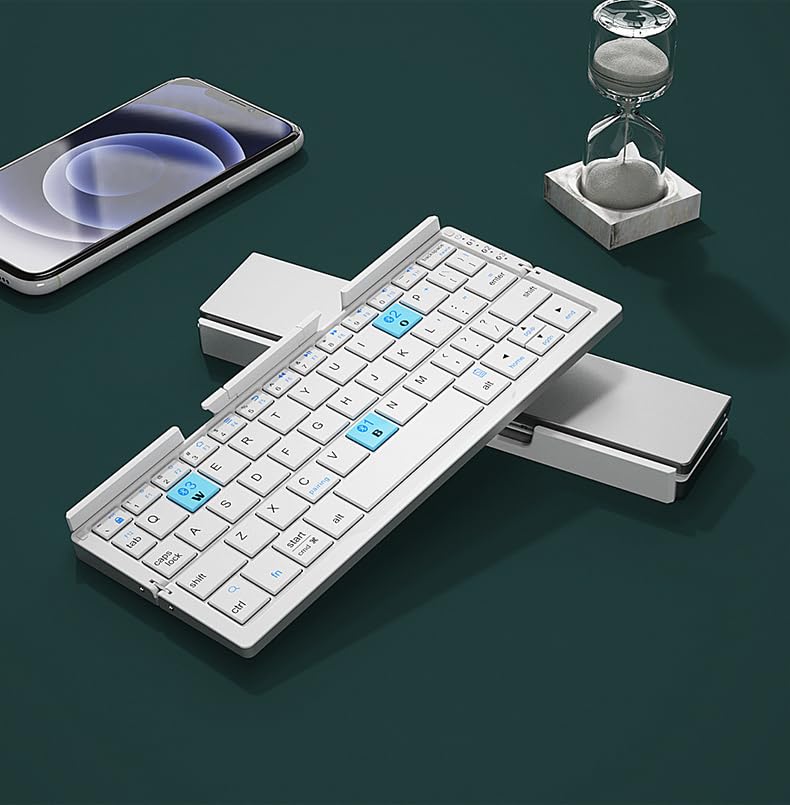
Image: A user's hands are shown actively typing on the JOMAA Mini Foldable Bluetooth Keyboard, demonstrating its use in a typical work or casual setting with a smartphone nearby.
2. Switching Between Devices
To switch between your paired devices, simply press the Fn key along with the corresponding Bluetooth channel key (Fn + Q for device 1, Fn + W for device 2, Fn + E for device 3). The keyboard will seamlessly connect to the selected device.
3. Function Shortcuts
The keyboard includes various function shortcuts to enhance productivity and control media. These shortcuts are typically accessed by pressing the Fn key in combination with the desired function key.
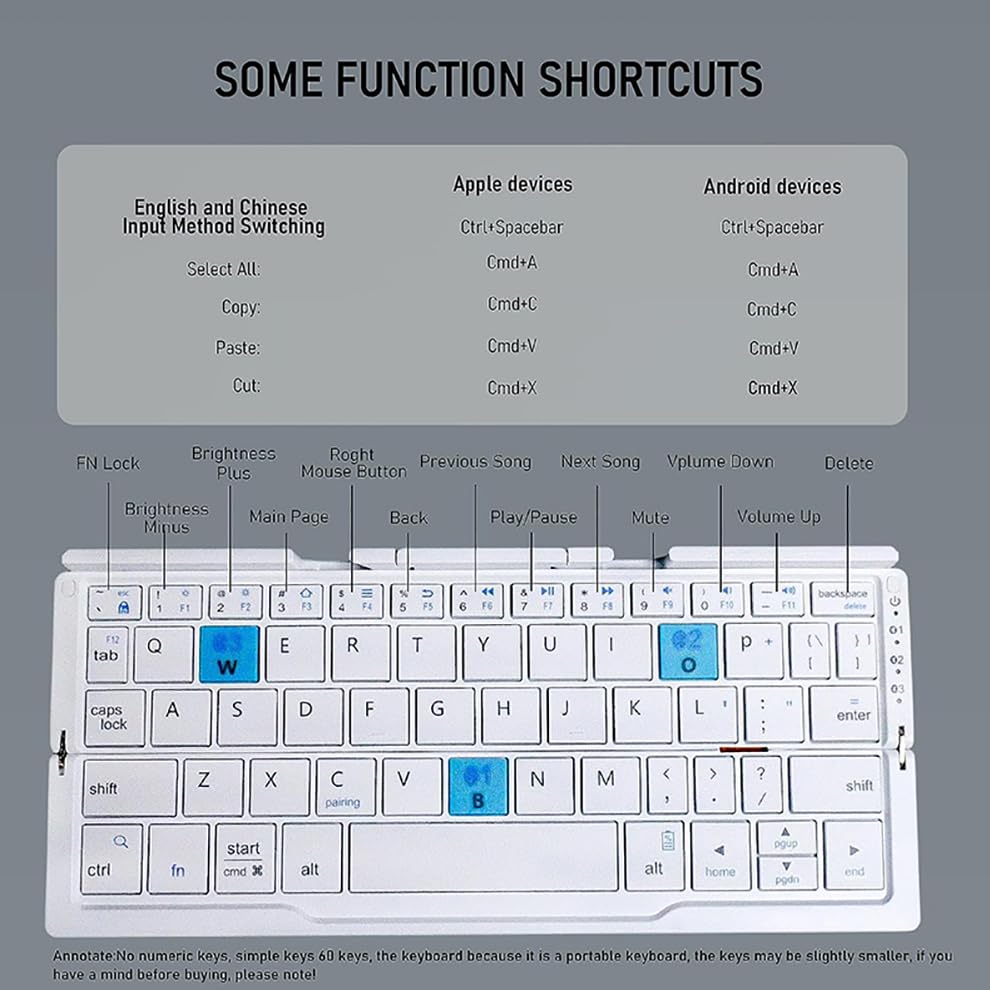
Image: A detailed diagram illustrating various function shortcuts available on the JOMAA Mini Foldable Bluetooth Keyboard. It shows keys for media control, brightness adjustment, and other system functions.
Common shortcuts include:
- Fn + F1: FN Lock
- Fn + F2: Brightness Plus
- Fn + F3: Brightness Minus
- Fn + F4: Main Page
- Fn + F5: Back
- Fn + F6: Play/Pause
- Fn + F7: Previous Song
- Fn + F8: Next Song
- Fn + F9: Mute
- Fn + F10: Volume Up
- Fn + F11: Volume Down
- Fn + Delete: Delete
For Apple and Android devices, common text editing shortcuts are also available:
- Select All: Cmd+A (Apple), Ctrl+A (Android)
- Copy: Cmd+C (Apple), Ctrl+C (Android)
- Paste: Cmd+V (Apple), Ctrl+V (Android)
- Cut: Cmd+X (Apple), Ctrl+X (Android)
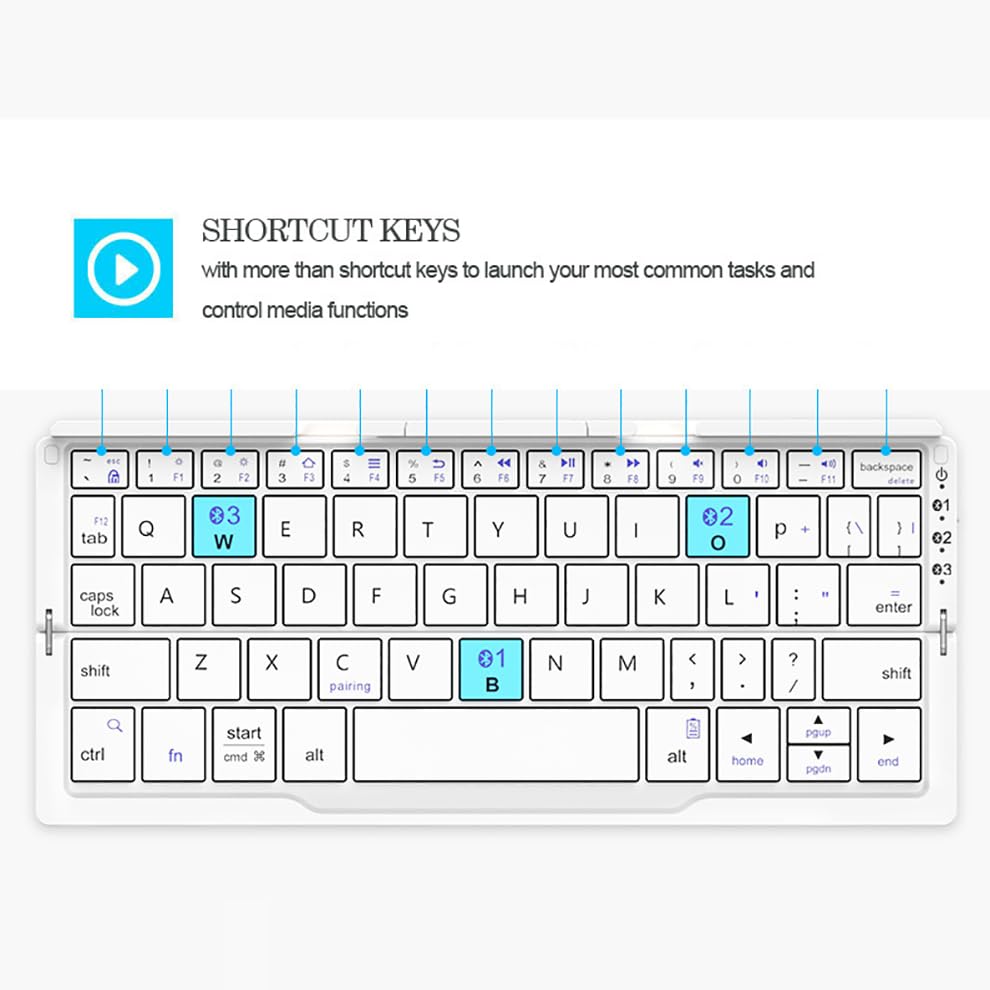
Image: A close-up view of the JOMAA Mini Foldable Bluetooth Keyboard, specifically highlighting the shortcut keys and their corresponding functions, aiding users in quick command execution.
4. Keycap Design
The keyboard features a floating chocolate keycap design, contributing to a quiet and comfortable typing experience. The structural design aims for extraordinary mute operation.
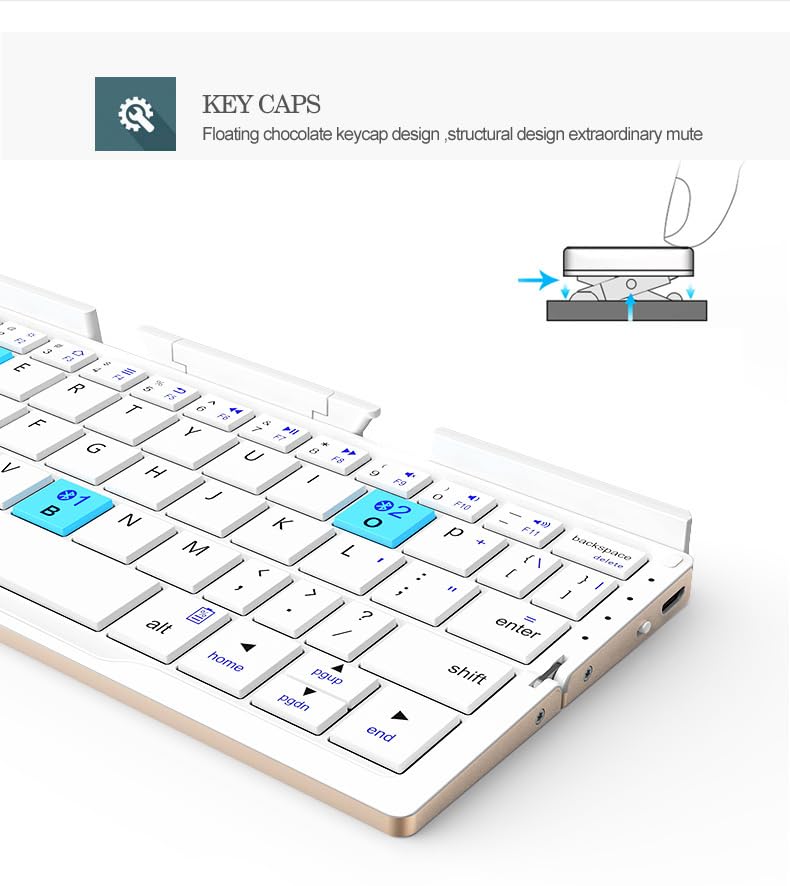
Image: A diagram showcasing the floating chocolate keycap design of the JOMAA Mini Foldable Bluetooth Keyboard, emphasizing its structural design for quiet operation.
Maintenance
1. Battery Care
To maximize the lifespan of your keyboard's lithium polymer battery, avoid fully discharging it frequently. Recharge the keyboard when the battery indicator is low. Store the keyboard in a cool, dry place when not in use for extended periods.
2. Cleaning Instructions
To clean the keyboard, use a soft, lint-free cloth. For stubborn dirt, slightly dampen the cloth with water or a mild, non-abrasive electronic cleaner. Avoid spraying liquids directly onto the keyboard. Do not use harsh chemicals or abrasive materials, as these can damage the finish and components.
Troubleshooting
Keyboard Not Connecting via Bluetooth
- Ensure the keyboard is fully charged.
- Make sure Bluetooth is enabled on your device.
- Verify that the keyboard is in pairing mode (indicator light flashing) for the selected channel.
- Forget the keyboard from your device's Bluetooth settings and attempt to re-pair.
- Ensure your device is within the effective Bluetooth range (typically 10 meters).
- Try restarting both the keyboard and your device.
Keys Not Responding
- Check the battery level and recharge if necessary.
- Ensure the keyboard is properly connected to your device via Bluetooth.
- Clean any debris that might be lodged under the keys.
Device Instability on Stand
As noted, the integrated stand is optimized for devices under 11 inches. If your device is larger, it may not sit as stably. This is a design limitation and does not affect the keyboard's Bluetooth connectivity or functionality.
Specifications
| Feature | Detail |
|---|---|
| Brand | JOMAA |
| Model Number | B0D8TMQLR2 |
| Product Dimensions (Closed) | 20.25 x 4.65 x 0.55 cm |
| Product Dimensions (Open) | 20.25 x 8.92 x 0.55 cm |
| Item Weight | 249 g |
| Batteries | 1 Lithium Polymer battery (included) |
| Operating System Compatibility | Android, iOS (iPhone, iPad), Tablet OS |
| Compatible Devices | Smartphone, Tablet |
| Special Features | Portable, Foldable, Multi-device Connectivity (3 channels) |
| Mounting Hardware | USB Cable |
| Power Source | Battery Powered |
| Battery Charging Time | Approx. 2 hours |
| Effective Usage Time | More than 50 hours (up to 45 hours continuous typing) |
| Standby Time | Up to 90 days |
| Keyboard Description | Flexible, Floating Chocolate Keycap Design |
| Connector Type | Bluetooth |
| Material | Aluminium Alloy |
| Country of Origin | China |
| First Available Date | 15 October 2024 |
Warranty and Support
This product is typically covered by a 10-day replacement policy. For specific warranty details, terms, and conditions, please refer to the documentation provided at the time of purchase or contact the seller directly. For technical support or inquiries, please reach out to JOMAA customer service through the official channels provided with your product or on the retailer's website.


