
tiebutie tiebutie
Programmable Remote for Roku Express 4K+ User Manual
Model: tiebutie
Introduction
This manual provides comprehensive instructions for the tiebutie Programmable Remote, designed as a replacement for various Roku Express, Roku Express+, Roku Express 4K, and Roku Express 4K+ models. It also features 9 learnable keys for controlling other devices such as TVs, DVDs, receivers, and soundbars. Please read this manual carefully to ensure proper setup and operation of your new remote control.
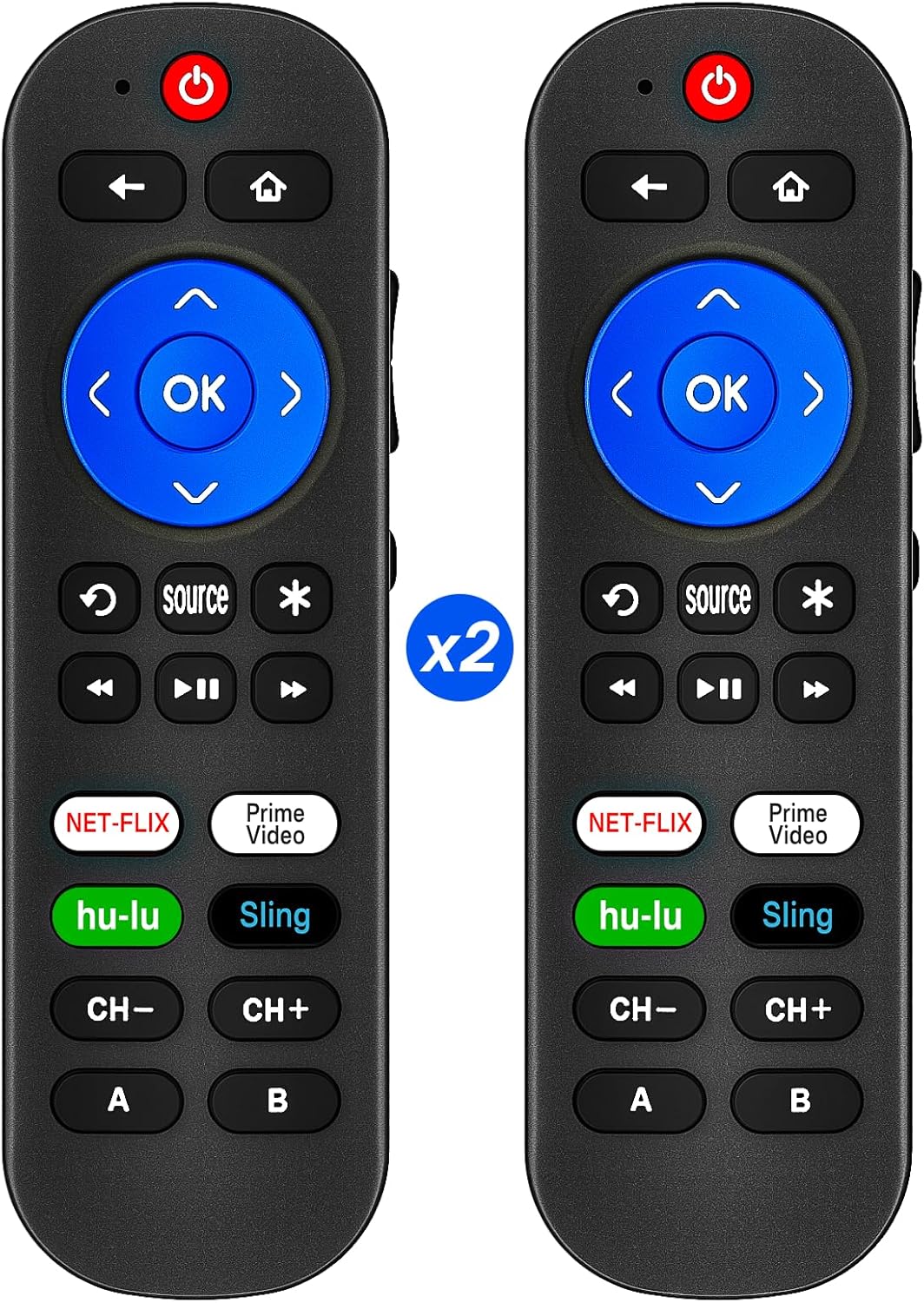
Image: Two tiebutie programmable remote controls, illustrating the product.
Compatibility
The tiebutie Programmable Remote is pre-programmed to be compatible with the following Roku Express series models:
- Roku Express (3960X, 3700, 3900, 3930, 3950, 3960 series)
- Roku Express+ (3710, 3910, 3931 series)
- Roku Express 4K (3940, 3942 series)
- Roku Express 4K+ (3941 series)
Additionally, this remote is pre-programmed to control basic functions (Power, Mute, Volume+/-, Source, CH+/-) of Vizio TVs and Vizio soundbars.

Image: A visual guide detailing the specific Roku Express models compatible with this remote.
Important Compatibility Notes:
- NOT compatible with Roku Stick or Roku Streaming Stick.
- This remote is an IR (Infrared) remote only. It is NOT compatible with RF, IP, Bluetooth, or Wi-Fi remotes.
- This remote does NOT include a headphone jack, pairing button, voice search function, or game controls.

Image: A visual representation of incompatible devices and features, such as Roku Sticks and RF models.
Setup
1. Battery Installation
The remote requires 2 AAA batteries (not included). Open the battery compartment cover on the back of the remote, insert the batteries according to the polarity indicators (+/-), and close the cover.
2. Initial Pairing with Roku Device
For initial use with your Roku device, the remote should work right out of the box. If the remote does not respond immediately, please follow these steps:
- Unplug your Roku device from its power source.
- Wait for approximately one to two minutes.
- Plug your Roku device back into its power source.
- The remote control should automatically pair with your Roku player during the startup process.
3. DIY Re-programming (Learning Function)
This remote features 9 learnable buttons, allowing you to copy functions from other original IR remotes (e.g., for your TV, DVD player, soundbar, or receiver). This enables you to control multiple devices with a single remote.
Note: An original, working IR remote for the device you wish to control is required for this process.

Image: A detailed view of the remote, highlighting the 9 learnable keys and their functions.
To program the learnable keys:
- Place the tiebutie remote and your original remote head-to-head, approximately 1 cm (0.39 inches) apart. Ensure their IR emitters are aligned.
- Press and hold the desired learnable button on the tiebutie remote until its indicator light blinks slowly, then stays solid.
- Press the corresponding button on your original remote that you wish to copy. The indicator light on the tiebutie remote will blink rapidly, then stay solid, indicating successful learning.
- Repeat for other buttons as needed.
- Once finished, press any non-learnable button on the tiebutie remote to exit learning mode.

Image: Illustration of how to position the tiebutie remote and an original remote for the learning function.

Image: A visual guide demonstrating how to re-program the remote's learnable buttons using an original remote.
Operating Instructions
Basic Functions
The remote provides standard controls for your Roku device and other programmed devices:
- Power Button: Turns your Roku device or programmed TV/device on/off.
- Navigation Pad (Up, Down, Left, Right, OK): Used to navigate menus and select items.
- Back Button: Returns to the previous screen.
- Home Button: Returns to the Roku home screen.
- Volume Up/Down: Controls the volume of your TV or soundbar (if programmed).
- Mute Button: Mutes/unmutes the audio of your TV or soundbar (if programmed).
- Source Button: Changes the input source on your TV (if programmed).
- Channel Up/Down: Changes channels on your TV (if programmed).
- Playback Controls (Rewind, Play/Pause, Fast Forward): Controls media playback on your Roku device.
Shortcut Buttons
The remote includes four dedicated shortcut buttons for quick access to popular streaming services:
- Netflix
- Prime Video
- Hulu
- Sling

Image: A detailed view of the remote's shortcut buttons for Netflix, Prime Video, Hulu, and Sling.
Line-of-Sight Requirement
As an IR remote, the tiebutie Programmable Remote requires a direct line-of-sight to your Roku device or other controlled devices to function correctly. Ensure there are no obstructions between the remote and the device's IR receiver.
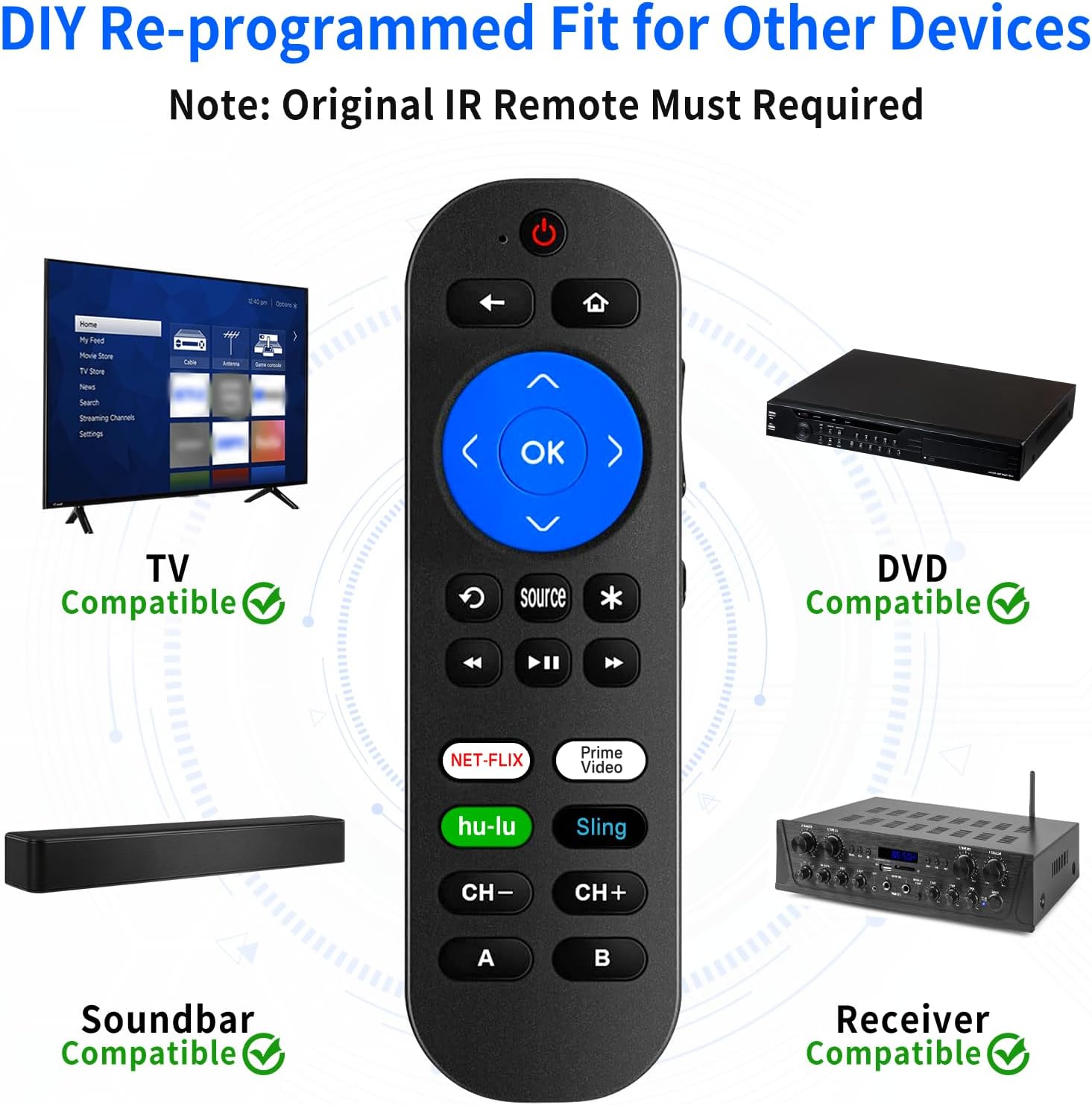
Image: A diagram showing the importance of direct line-of-sight between the remote and the Roku device for proper operation.
Maintenance
Battery Replacement
When the remote's performance degrades or it stops responding, it is likely time to replace the batteries. Always replace both AAA batteries simultaneously with new ones. Do not mix old and new batteries, or different types of batteries.
Cleaning
To clean the remote, use a soft, dry cloth. For stubborn dirt, a slightly damp cloth can be used, but ensure no moisture enters the remote. Do not use abrasive cleaners or solvents.
Troubleshooting
- Remote not responding to Roku device:
- Ensure there is a clear line-of-sight between the remote and the Roku device.
- Check if the batteries are correctly installed and have sufficient charge. Replace if necessary.
- Unplug the Roku device from power, wait 1-2 minutes, then plug it back in. The remote should re-pair automatically.
- Learning function not working:
- Ensure the original remote is an IR remote and is functioning correctly.
- Verify that the IR emitters of both remotes are aligned and approximately 1 cm apart during the learning process.
- Make sure the room lighting is not too bright, as strong light can interfere with IR signals.
- Repeat the learning steps carefully.
- Remote does not control my Roku Stick/Streaming Stick:
- This remote is explicitly NOT compatible with Roku Stick or Roku Streaming Stick models. It is designed for Roku Express series devices.
- No voice control or headphone jack functionality:
- This remote does not support voice control or have a headphone jack. These features are not included in its design.
Specifications
| Brand | tiebutie |
| Model Number | tiebutie |
| ASIN | B0D8TDKPY6 |
| Package Dimensions | 6.02 x 3.94 x 1.02 inches |
| Item Weight | 3.84 ounces |
| Color | Black |
| Special Feature | Pre Programmed, 9 Learnable Keys |
| Max Number of Supported Devices | 2 (Roku + 1 other device via learning) |
| Compatible Devices (Learning) | TV, DVD/Blu-ray Player, Soundbar, Receiver (requires original IR remote) |
| Transmitting Distance | Over 26 ft |
| Button Lifespan | Tested to support over 150,000 clicks |
Warranty and Support
Specific warranty information for this product is not provided in the available documentation. For any product support, technical assistance, or warranty inquiries, please contact the manufacturer, tiebutie, directly through their official channels or the retailer from whom the product was purchased.
Ask a question about this manual
Ask about setup, troubleshooting, compatibility, parts, safety, or missing instructions. Manuals+ will review the question and use this page’s manual context to help answer it.