
1. Introduction
Thank you for choosing the Phomemo LT12 Bluetooth Portable Label Printer. This device offers two convenient methods for label creation: direct keyboard input and mobile app connectivity via Bluetooth. Designed for ease of use, it is suitable for various labeling needs in home, office, and school environments. This manual provides essential information for setting up, operating, maintaining, and troubleshooting your label printer.
2. Safety Information
- Keep the device away from water and high humidity to prevent electric shock or damage.
- Do not expose the printer to extreme temperatures or direct sunlight.
- Use only the specified charging cable and power adapter to avoid battery damage.
- Do not attempt to disassemble or repair the device yourself. Contact support if issues arise.
- Keep out of reach of children.
3. Package Contents
Verify that all items are present in your package:
- Phomemo LT12 Label Printer
- 1 x 12mm x 4m Adhesive Label Tape Roll (pre-installed or included separately)
- Type-C Charging Cable
- User Manual
4. Product Overview
The Phomemo LT12 is a compact and portable thermal label printer featuring a QWERTY keyboard for direct input and Bluetooth connectivity for mobile editing. It utilizes inkless thermal printing technology, eliminating the need for ink cartridges or ribbons.

Image: Phomemo LT12 Label Printer highlighting its 203dpi print resolution and built-in rechargeable battery.
Key features include:
- High Resolution: 203 dpi for clear and crisp labels.
- Inkless Printing: Uses thermal technology, no ink or toner required.
- Rechargeable Battery: Integrated 1200mAh lithium battery with Type-C charging.
- Dual Editing Modes: Keyboard input and Bluetooth app control (iOS/Android compatible).
- LCD Screen: Backlit LCD for improved visibility in various lighting conditions.
- Portable Design: Compact dimensions (22.2P x 10l x 6.7H cm) and lightweight (292 grams) for easy carrying.
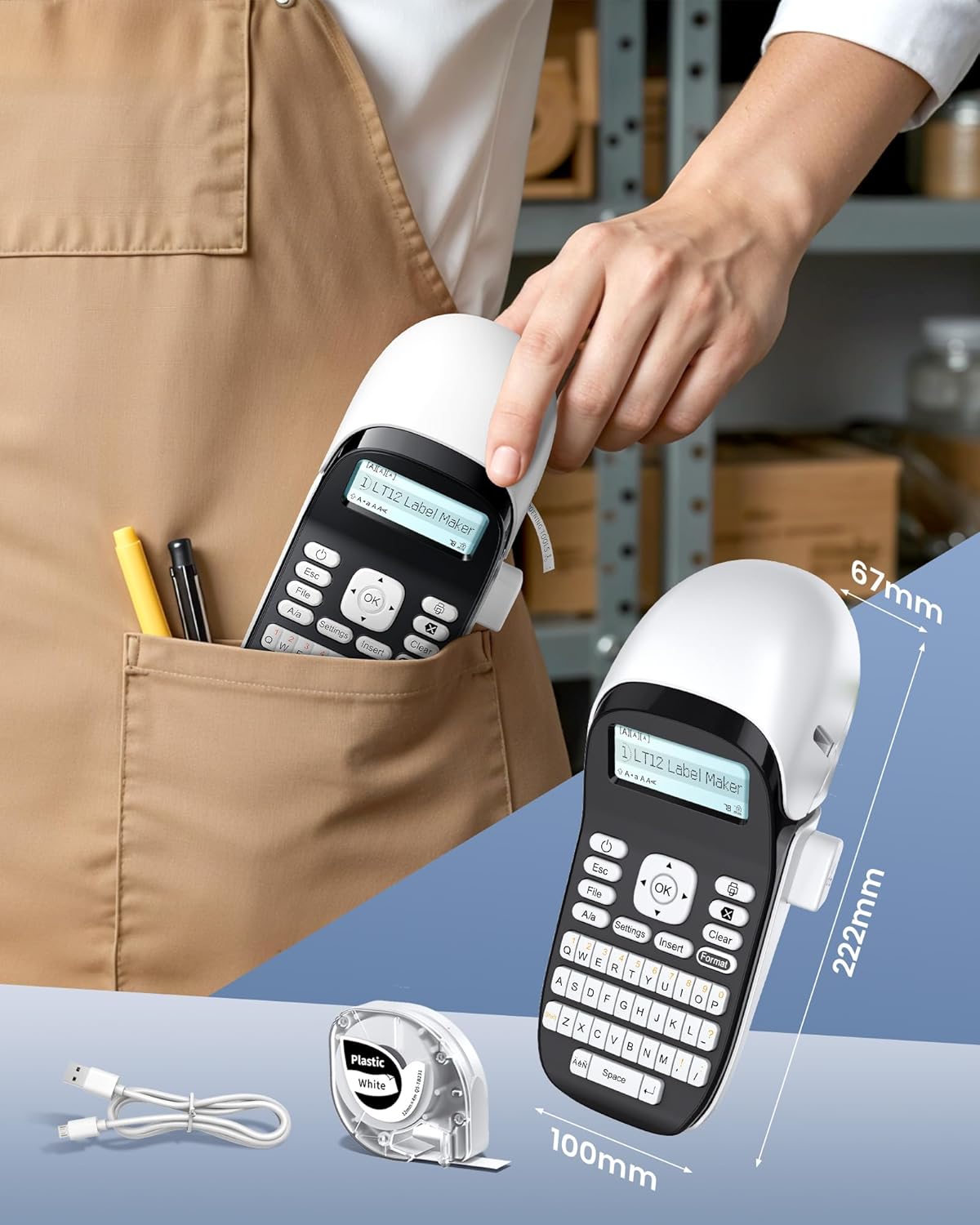
Image: The Phomemo LT12 Label Printer demonstrating its compact size and portability, fitting easily into a pocket.
5. Setup
5.1 Charging the Device
Before first use, fully charge the label printer. Connect the provided Type-C charging cable to the printer's charging port and the other end to a USB power adapter (not included) or a computer's USB port.

Image: The Phomemo LT12 Label Printer being charged via its Type-C port, highlighting its 1200mAh built-in battery and inkless operation.
5.2 Loading Label Tape
- Open the label compartment cover.
- Insert the label tape roll with the label side facing down, ensuring the tape feeds smoothly through the guide.
- Close the cover securely.
5.3 Powering On/Off
- To power on: Press and hold the power button until the LCD screen illuminates.
- To power off: Press and hold the power button until the LCD screen turns off.
5.4 Installing the "Print Master" App
For mobile editing, download the free "Print Master" app from your device's app store (available for iOS and Android).
5.5 Connecting via Bluetooth
To connect your label printer to a smartphone or tablet:
- Ensure the printer is powered on.
- Enable Bluetooth on your mobile device.
- Open the "Print Master" app.
- Within the app, search for and select your Phomemo LT12 printer to establish a connection.

Image: Step-by-step guide on how to connect the label maker: Download the 'Print Master' app, connect via Bluetooth, and then proceed with editing and printing.
6. Operating Instructions
6.1 Editing Labels via Keyboard
Use the integrated QWERTY keyboard to type your desired text directly onto the label. The backlit LCD screen provides real-time preview and allows for basic formatting adjustments.
6.2 Editing Labels via Mobile App
The "Print Master" app offers advanced editing capabilities:
- Extensive Resources: Access over 1600 symbols, 280 frames, and 160 fonts.
- Multi-line Text: Supports printing 1 to 3 lines of text.
- Template Saving: Save your custom label designs for future use.
- Multi-language Support: Available in 14 languages.

Image: Demonstrating the two editing methods: directly using the keyboard on the device or through the mobile app via Bluetooth connection.

Image: The 'Print Master' app interface showcasing its intelligent functions, including numerous built-in templates, icons, borders, and fonts.
6.3 Printing Labels
After editing your label, press the print button on the device or within the app to generate your label. The printer will automatically cut the label.
6.4 Compatible Label Types and Applications
The Phomemo LT12 supports a maximum label width of 12mm and is compatible with various Phomemo Q5 series label tapes, including:
- Plastic Labels
- Satin Ribbons
- Luminous Labels
- Iron-on Fabric Labels
- Thermal Transfer Labels (Outdoor)
- Standard Thermal Labels (Indoor)
- Glittering Plastic Labels
- Flexible Nylon Labels
- Clear Labels

Image: A selection of compatible label types, such as Thermal Transfer, Luminous, Glittering Plastic, Fabric Iron-on, and Satin Ribbon, illustrating their varied uses.
7. Maintenance
7.1 Cleaning the Printer
- Ensure the printer is powered off before cleaning.
- Use a soft, dry cloth to wipe the exterior of the printer.
- Gently clean the print head with a cotton swab lightly dampened with isopropyl alcohol if print quality degrades. Allow to dry completely before use.
7.2 Battery Care
- Charge the battery regularly, even if the printer is not in frequent use, to maintain battery health.
- Avoid fully discharging the battery frequently.
- Store the printer in a cool, dry place when not in use.
7.3 Label Durability
Phomemo labels are designed for durability and resistance to various conditions:

Image: Infographic detailing the durability features of Phomemo labels, including resistance to water, oil, fading, extreme temperatures, scratches, and being BPA-Free.
8. Troubleshooting
| Problem | Possible Cause | Solution |
|---|---|---|
| Printer does not turn on | Low battery; Power button not pressed correctly | Charge the printer; Press and hold the power button firmly. |
| Cannot connect via Bluetooth | Bluetooth off; App not open; Printer too far; Interference | Ensure Bluetooth is on for both devices; Open "Print Master" app; Move devices closer; Restart printer and phone. |
| Poor print quality | Dirty print head; Incorrect label tape; Low battery | Clean the print head; Ensure correct 12mm Phomemo label tape is used; Charge the printer. |
| Labels not feeding correctly | Label tape improperly loaded; Obstruction | Re-load label tape, ensuring it's straight; Check for any obstructions in the feed path. |
9. Specifications
| Feature | Detail |
|---|---|
| Model Name | LT12 |
| Print Technology | Thermal |
| Print Resolution | 203 dpi |
| Connectivity | Bluetooth |
| Compatible Devices | Smartphone, Tablet (Android, iOS) |
| Max Label Width | 12 mm |
| Battery Type | Lithium-polymer (1200mAh) |
| Charging Interface | Type-C |
| Power Consumption | 5 Watts |
| Item Weight | 292 Grams |
| Product Dimensions (L x W x H) | 22.2 x 10 x 6.7 cm |
| Country of Origin | China |
10. Warranty and Support
Manufacturer Warranty: None
Spare Parts Availability: Information unavailable
For any product inquiries or technical assistance, please refer to the contact information provided with your purchase or visit the official Phomemo website.


