
Introduction
This manual provides detailed instructions for the installation, operation, and maintenance of your Fortdows Android 13 Car Radio. This unit is designed specifically for Toyota Corolla models from 2014 to 2016, offering advanced features such as a 10.2-inch touchscreen, wireless CarPlay, Android Auto, Bluetooth, GPS, 5G WiFi, and an HD reversing camera.
Setup and Installation
The Fortdows car radio is designed for non-destructive installation, aiming to integrate seamlessly with your vehicle's existing systems. Professional installation is recommended.
Package Contents
Verify that all components are present in the package.

Image: Overview of the Fortdows car radio package contents, showing the main head unit, power cable, USB cables, RCA cable, CanBus, 4G antenna, reversing line, backup camera, external microphone, crowbar tool, and GPS antenna.
- Main Head Unit (10.2-inch touchscreen)
- Power Cable
- Original USB Cable
- USB Cable * 2
- RCA Cable
- CanBus Decoder
- 4G Antenna
- Reversing Line
- Backup Camera
- External Microphone
- Crowbar Tool
- GPS Antenna
Installation Steps (General Guidelines)
- Preparation: Disconnect the vehicle's battery before beginning installation.
- Remove Original Unit: Carefully remove the factory radio and trim using the provided crowbar tool.
- Connect Wiring: Connect the power cable, USB cables, RCA cable, CanBus, 4G antenna, reversing line, backup camera, external microphone, and GPS antenna to their respective ports on the new head unit and vehicle harness. Ensure all connections are secure.
- Mounting: Position the new Fortdows unit into the dashboard opening. Some minor modifications (e.g., trimming tabs) may be necessary for a perfect fit in certain vehicle configurations.
- Secure Unit: Secure the unit in place using the vehicle's mounting points.
- Test Functionality: Reconnect the battery and power on the unit to test all functions (audio, touchscreen, steering wheel controls, camera, GPS, etc.) before fully reassembling the dashboard.
- Reassemble: Reinstall any removed trim pieces.

Image: Comparison of a Toyota Corolla dashboard before and after the installation of the Fortdows car radio, demonstrating the integrated appearance.
Operating Instructions
Power On/Off
Press and hold the power button (if available) or turn the vehicle ignition to the ACC or ON position to power on the unit. The unit will boot up, which may take a few seconds.
Touchscreen Interface
The 10.2-inch 1280*800 IPS touchscreen provides a responsive and clear display. Navigate through menus and applications by tapping, swiping, and pinching.

Image: The main interface of the Fortdows car radio, showing a clean layout with icons for navigation, music, phone, and other applications.
Wireless CarPlay & Android Auto
This unit supports wireless CarPlay and Android Auto for seamless smartphone integration.
- Enable Bluetooth/Wi-Fi: Ensure Bluetooth and Wi-Fi are enabled on your smartphone.
- Pair Device: On the car radio, go to the CarPlay or Android Auto application and follow the on-screen instructions to pair your phone.
- Access Features: Once connected, you can access navigation, music, phone calls, and other compatible apps directly from the car radio screen.

Image: A visual representation of the CarPlay and Android Auto interfaces on the car radio, demonstrating navigation, music, and phone call functionalities.
Bluetooth Connectivity
Connect your smartphone via Bluetooth for hands-free calling and audio streaming.
- Go to the Bluetooth settings on the car radio.
- Enable Bluetooth on your phone and search for available devices.
- Select the car radio from the list and confirm pairing.
5G WiFi
The unit supports 5G WiFi for faster internet connectivity.
- Access the WiFi settings on the car radio.
- Select your desired WiFi network and enter the password if required.
- Once connected, you can download apps, stream content, and browse the internet.

Image: The car radio screen displaying various applications and highlighting the 5G WiFi functionality, indicating enhanced network performance.
GPS Navigation
The built-in GPS module provides accurate navigation.
- Open the pre-installed navigation application or download your preferred GPS app from the app store.
- Ensure the GPS antenna is properly installed for optimal signal reception.
FM Radio
Access the FM radio application to listen to local radio stations.
- Open the "FM Radio" app.
- Use the scan function to find available stations or manually tune to a frequency.
- Save your favorite stations for quick access.
DSP Sound Adjustment
The Digital Signal Processor (DSP) allows for multi-sound field adjustment and audiophile-grade lossless sound quality.
- Navigate to the "Sound Settings" or "DSP" application.
- Adjust equalizer settings, sound effects, and sound field to customize your audio experience.

Image: A visual representation of the DSP sound technology, illustrating how sound is optimized within the car cabin for an enhanced audio experience.
Steering Wheel Controls (SWC)
The unit is compatible with your vehicle's original steering wheel controls, allowing for convenient operation without diverting attention from the road.
- After installation, the steering wheel controls should automatically function.
- If not, access the "Steering Wheel Control" settings in the unit's menu to map the buttons.
- Functions typically include volume adjustment, track skipping, and answering/ending calls.

Image: Depiction of steering wheel controls and their corresponding functions on the car radio, such as call handling and media playback.
HD Reversing Camera
The included 1080P HD rearview camera provides a clear view of the area behind your vehicle, enhancing safety during reversing maneuvers.
- When the vehicle is shifted into reverse gear, the camera feed will automatically display on the screen.
- The camera features night vision for visibility in low-light conditions.

Image: A simulated view from the backup camera displayed on the car radio screen, complete with parking guidelines for assistance.
Maintenance
Screen Cleaning
To clean the touchscreen, gently wipe it with a soft, lint-free cloth. For stubborn smudges, slightly dampen the cloth with water or a screen-safe cleaner. Avoid harsh chemicals or abrasive materials.
Software Updates
Periodically check for software updates through the unit's settings menu or the manufacturer's website to ensure optimal performance and access to new features.
Troubleshooting
| Problem | Possible Cause | Solution |
|---|---|---|
| Unit does not power on. | Incorrect wiring; Blown fuse; Vehicle battery disconnected. | Check power cable connections. Verify vehicle fuses. Ensure battery is connected. |
| Slow boot-up time. | Normal for Android systems; Background apps. | This is often normal. Close unnecessary background applications. |
| Poor GPS signal. | GPS antenna not properly installed or obstructed. | Ensure the GPS antenna is mounted in a clear location with an unobstructed view of the sky. Check antenna connection. |
| CarPlay/Android Auto not connecting. | Bluetooth/Wi-Fi off on phone; Incorrect pairing; Software issue. | Ensure phone's Bluetooth and Wi-Fi are on. Re-pair the device. Restart both phone and car radio. |
| Steering wheel controls not working. | CanBus not connected; Controls not mapped. | Verify CanBus connection. Go to SWC settings to map buttons. |
| Unit does not fit perfectly. | Minor variations in vehicle dashboard. | Some minor trimming of plastic tabs may be required for a flush fit. Consult a professional installer. |
Specifications
- Operating System: Android 13
- Processor: Octa-core
- RAM: 4GB
- ROM: 32GB
- Screen Size: 10.2 Inches
- Screen Resolution: 1280*800P IPS Touchscreen
- Connectivity: Wireless CarPlay, Android Auto, Bluetooth 5.0, 5G Wi-Fi, USB
- Audio: Built-in DSP (Digital Signal Processor), Audiophile-grade lossless sound quality
- Camera Support: 1080P HD Rearview Camera with Night Vision
- Navigation: Built-in GPS
- Compatibility: Toyota Corolla 2014, 2015, 2016
- Mounting Type: Dashboard Mount
- Item Weight: 4.54 pounds
- Package Dimensions: 19.1 x 8.3 x 4.8 inches
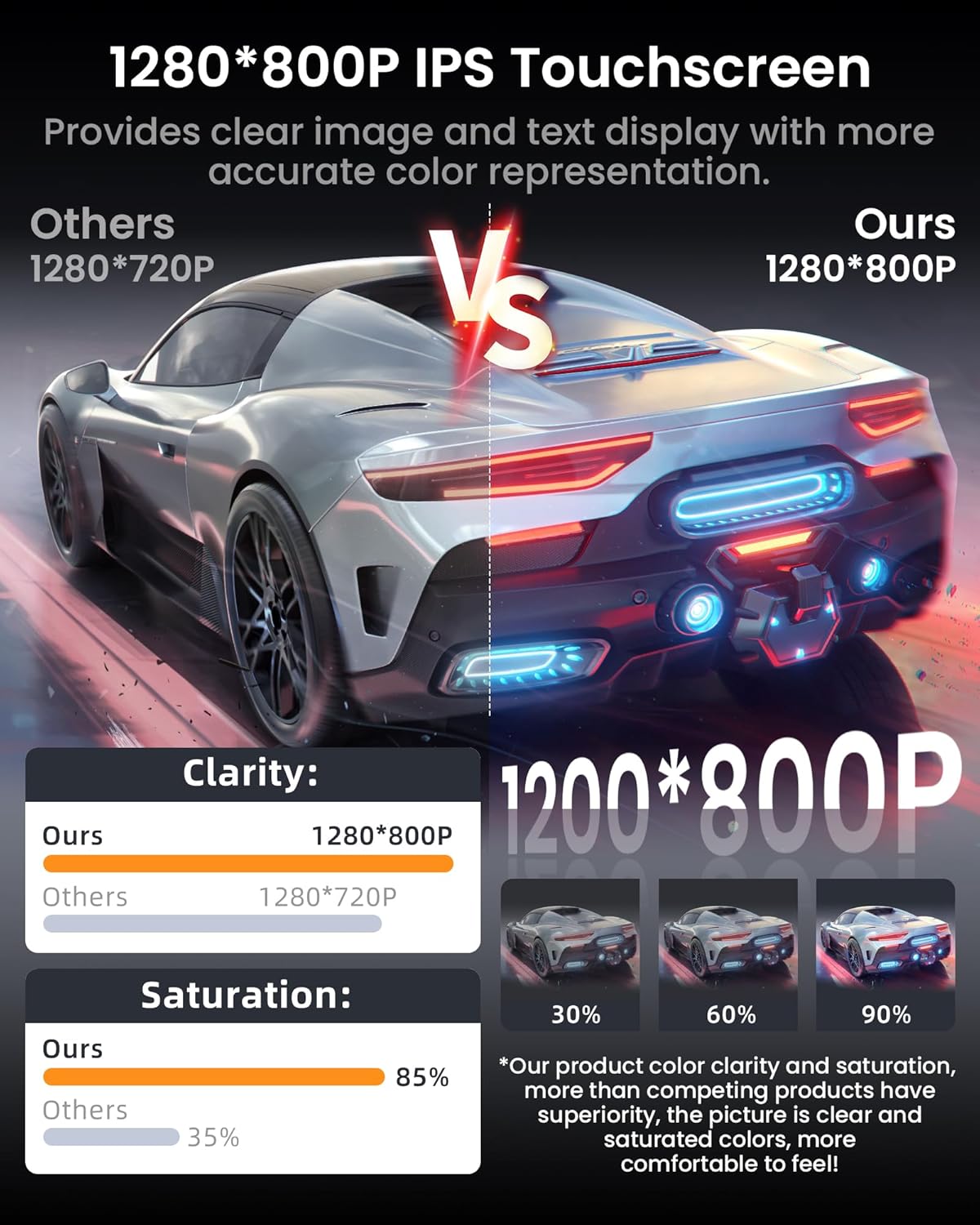
Image: An illustration highlighting the 8-core processor, 4GB RAM, and 32GB ROM specifications of the car radio, emphasizing its performance capabilities.
Warranty and Support
Fortdows provides customer support for its products.
- Warranty: 1-Year Warranty
- Return Policy: 7 Days Return Policy
- Defects: Return on Defects
For technical assistance, installation difficulties, or warranty claims, please contact Fortdows customer support.


Image: Warranty and customer support details, including warranty period, return policy, and contact information.
Customer Support Email: fortdows.cam@gmail.com
Official Website: www.fancygod.com


