
1. Product Overview
This manual provides instructions for the Fortdows 8 Core 6+128G Android 13 Car Radio, a 10.1-inch HD touchscreen car stereo designed for Toyota Camry models from 2012 to 2014. It features wireless Carplay and Android Auto, a backup camera input, mirror link functionality, GPS navigation, WiFi, and Bluetooth connectivity, and supports steering wheel controls and JBL amplifier systems.

Figure 1: Fortdows Android 13 Car Radio with included backup camera and connectivity options.
2. Package Contents
Verify that all items listed below are included in your package:
- 1x Fortdows Android 13 Car Radio Unit
- 1x Power Cable
- 1x Original USB Cable
- 2x USB Cables
- 1x RCA Cable
- 1x GPS Antenna
- 1x Reversing Line
- 1x Crowbar (for installation)
- 1x External Microphone
- 1x Backup Camera
- 1x Radio Antenna
- 1x CANBUS Decoder
- 1x 4G Antenna (if applicable)
- 1x High-quality dual-flash adapter light cable (if applicable)

Figure 2: Visual representation of the Fortdows car radio and its included accessories.
3. Setup and Installation
Important: Professional installation is recommended. Disconnect the vehicle's battery before beginning installation to prevent electrical damage.
- Preparation:
- Ensure the vehicle is turned off and the battery is disconnected.
- Carefully remove the original car radio and dashboard trim using the provided crowbar or appropriate tools.
- Wiring Connections:
- Connect the main power cable harness from the new unit to the vehicle's factory wiring. This unit is designed for plug-and-play compatibility with Toyota Camry 2012-2014 models, retaining original functions like steering wheel control and JBL amplifier support.
- Connect the GPS antenna and position it in a location with a clear view of the sky (e.g., on the dashboard).
- Connect the USB cables for external devices.
- Connect the external microphone for improved call quality.
- If installing the backup camera, route the reversing line and connect the camera to the designated input on the head unit. Ensure the camera is mounted securely at the rear of the vehicle.
- Connect the radio antenna.
- Install the CANBUS decoder if your vehicle requires it for steering wheel controls or other integrated features.
- Mounting the Unit:
- Carefully insert the new car radio into the dashboard opening, ensuring all cables are not pinched.
- Secure the unit in place using the appropriate mounting brackets and screws.
- Reinstall the dashboard trim.
- Initial Power-Up:
- Reconnect the vehicle's battery.
- Turn on the vehicle's ignition and power on the car radio.
- Perform initial setup steps on the touchscreen, such as language selection and time zone.

Figure 3: Comparison of the dashboard before and after installing the Fortdows car radio, showing the integrated fit.
4. Operating Instructions
4.1. Basic Operation
- Power On/Off: Press and hold the power button (usually located on the front panel or screen) to turn the unit on or off. A short press may mute/unmute audio.
- Volume Control: Adjust volume using the on-screen controls or the vehicle's steering wheel controls.
- Home Screen: Tap the home icon to return to the main application interface.
- Navigation: Swipe left or right on the screen to access different app pages.
4.2. Wireless Carplay & Android Auto
This unit supports wireless Carplay for iOS devices and Android Auto for Android devices, allowing seamless integration of your smartphone's features.
- Ensure Bluetooth and Wi-Fi are enabled on your smartphone.
- On the car radio, open the "Carplay" or "Android Auto" application.
- Follow the on-screen prompts to pair your phone via Bluetooth. Once paired, the system will automatically establish a Wi-Fi connection for wireless Carplay/Android Auto.
- You can now access navigation, make calls, send messages, and play music directly from the car's display.

Figure 4: Display showing the wireless Carplay and Android Auto interfaces.
4.3. GPS Navigation
The unit comes with pre-installed Google offline maps and supports online navigation when connected to Wi-Fi.
- Offline Maps: Access the pre-installed map application to use navigation without an internet connection.
- Online Maps: Connect the unit to a Wi-Fi hotspot (e.g., from your smartphone) to use real-time online navigation services and download additional map data.
4.4. Bluetooth Connectivity
Bluetooth 5.0 enables hands-free calling and audio streaming.
- Pairing: Go to the Bluetooth settings on the car radio and your phone. Search for available devices and select the car radio's name to pair.
- Hands-Free Calling: Use the built-in or external microphone for calls. You can dial numbers, answer, and end calls directly from the touchscreen or steering wheel controls.
- Audio Streaming: Play music from your phone through the car's speakers.
4.5. Wi-Fi Connection
Connect to Wi-Fi for internet access, app downloads, and online services.
- Go to "Settings" > "Network & Internet" > "Wi-Fi".
- Select your desired Wi-Fi network and enter the password if required.
- Once connected, you can download apps from the Google Play Store (e.g., YouTube, TikTok, Spotify) and use online navigation.

Figure 5: The car radio display showcasing various applications and indicating a 5G WiFi connection.
4.6. Backup Camera
The included 1080P AHD backup camera provides a clear view when reversing.
- When the vehicle is shifted into reverse gear, the screen will automatically display the rear view.
- The camera features night vision and a 170-degree ultra-wide-angle lens for enhanced visibility.
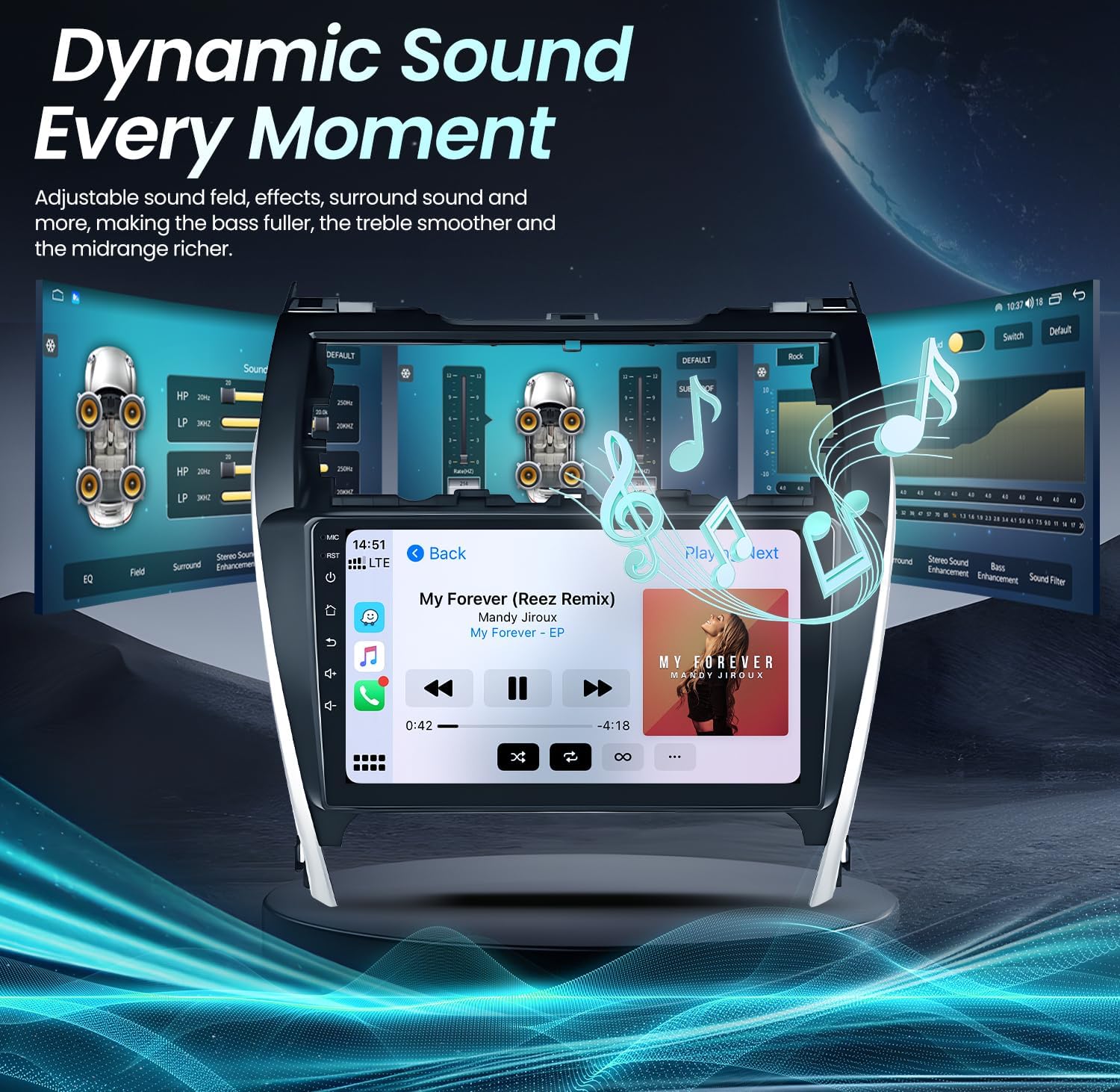
Figure 6: The car radio displaying the backup camera feed with reversing guidelines.
4.7. Steering Wheel Control (SWC)
The unit is compatible with the vehicle's original steering wheel controls.
- After installation, the steering wheel controls should function automatically. If not, navigate to the "SWC Settings" menu on the unit to configure them.
- This allows for safe control of volume, track changes, and call management without taking your hands off the steering wheel.

Figure 7: The car radio screen showing the interface for configuring steering wheel controls.
4.8. Audio Settings (HiFi & EQ)
The unit features HiFi audio with a 36-band EQ for sound customization.
- Access the "EQ" or "Sound Settings" menu to adjust bass, treble, and other audio parameters.
- Pre-set sound modes like Rock, Pop, Jazz, and Classic are available.

Figure 8: The car radio's dynamic sound equalizer interface, allowing for detailed audio adjustments.
5. Maintenance
- Screen Cleaning: Use a soft, lint-free cloth to clean the touchscreen. Avoid abrasive cleaners or solvents.
- Software Updates: Periodically check for software updates via the unit's settings menu or the manufacturer's website to ensure optimal performance and access to new features.
- Cable Connections: Ensure all cables remain securely connected to prevent intermittent issues.
6. Troubleshooting
| Problem | Possible Cause | Solution |
|---|---|---|
| Unit does not power on. | Loose power connection, blown fuse, vehicle battery issue. | Check power cable connections. Inspect vehicle fuses. Ensure vehicle battery is charged. |
| No sound. | Volume muted, incorrect audio source, loose speaker wires. | Check volume level and mute status. Verify correct audio source is selected. Inspect speaker wiring connections. |
| GPS not working or inaccurate. | GPS antenna not properly connected or positioned, outdated maps. | Ensure GPS antenna is securely connected and has a clear view of the sky. Update maps if necessary via Wi-Fi. |
| Bluetooth connection issues. | Phone not paired, Bluetooth off, interference. | Ensure Bluetooth is enabled on both devices. Re-pair the phone. Restart both devices. |
| Backup camera not displaying. | Camera cable loose, incorrect wiring, camera malfunction. | Check the reversing line and camera connections. Verify correct wiring to the reverse light trigger. |
| Steering wheel controls not responding. | CANBUS not installed/configured, incorrect SWC settings. | Ensure CANBUS decoder is correctly installed. Access SWC settings in the unit to configure or recalibrate. |
7. Specifications
- Model Name: 8 Core 6+128G
- Operating System: Android 13
- Processor: 8 Core
- RAM: 6GB
- ROM: 128GB
- Screen Size: 10.1 Inches
- Screen Resolution: 1280x800 HD IPS Touchscreen
- Connectivity: Bluetooth 5.0, 5G Wi-Fi, USB
- Special Features: Wireless Carplay, Android Auto, Mirror Link, GPS Navigation, FM RDS Radio, 36-band EQ, 1080P AHD Backup Camera (Waterproof IP67, 170° viewing angle), Steering Wheel Control (SWC) compatibility.
- Compatible Vehicles: Toyota Camry 2012-2014
- Item Weight: 4.73 pounds
- Package Dimensions: 15 x 14.13 x 5.71 inches

Figure 9: Diagram illustrating the 8-core processor and memory configuration (6GB RAM + 128GB ROM).
8. Warranty and Support
Fortdows provides the following warranty and support information:
- Warranty: 1-Year Warranty
- Return Policy: 7 Days Return Policy for defects
- Customer Support Email: fortdows.cam@gmail.com
- Official Website: www.fancygod.com


Figure 10: Fortdows warranty, return policy, and customer support contact information.