1. Introduction
The ALLmeter OBD2 Scanner is a professional diagnostic tool designed to help you quickly and accurately identify and resolve vehicle issues. This device supports 9 major OBD2/EOBD protocols, ensuring broad compatibility with most vehicles manufactured after 1996. It features a 2.4-inch color screen for clear display of diagnostic data and offers a range of functions including reading and clearing fault codes, real-time data streaming, battery voltage testing, and more.

Figure 1.1: The ALLmeter OBD2 Scanner assists in diagnosing and resolving common vehicle problems, such as engine issues, flat tires, and general maintenance.
2. Safety Information
Always observe the following safety precautions when using the ALLmeter OBD2 Scanner:
- Ensure the vehicle is in a safe, well-ventilated area.
- Do not operate the scanner while driving.
- Keep the scanner away from water, oil, and extreme temperatures.
- Avoid touching hot engine components when connecting or disconnecting the scanner.
- Refer to your vehicle's service manual for specific diagnostic procedures.
3. What's in the Box
Upon opening the package, verify that all items are present:
- ALLmeter OBD2 Scanner Unit
- User Manual
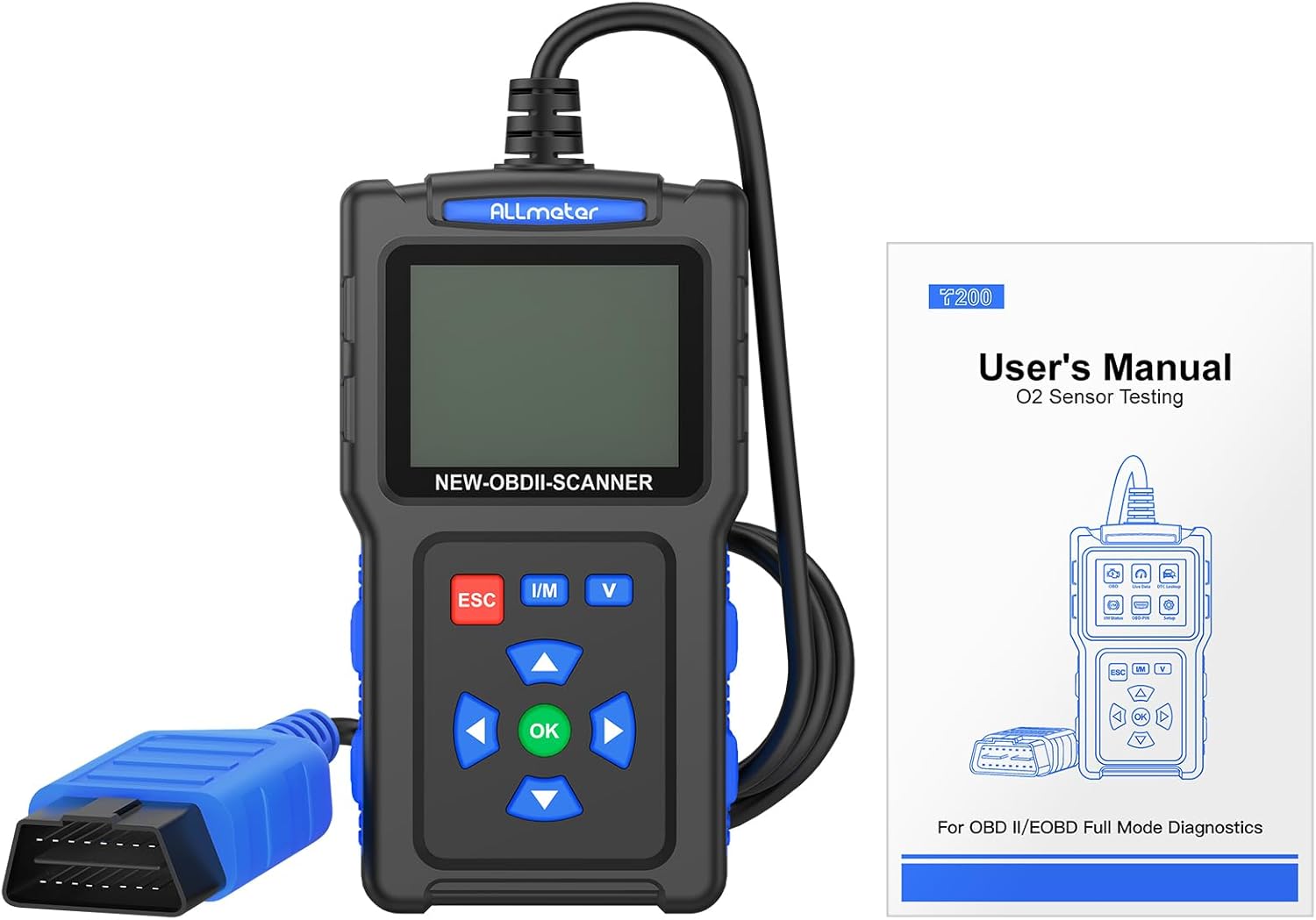
Figure 3.1: The package includes the ALLmeter OBD2 Scanner and a user manual for detailed instructions.
4. Product Overview
The ALLmeter OBD2 Scanner features a compact design with a 2.4-inch color screen and intuitive button layout for easy operation.

Figure 4.1: The ALLmeter OBD2 Scanner, showing its 2.4-inch color screen, navigation buttons, and OBD2 connector cable.
4.1. Components and Controls
- 2.4-inch Color Screen: Displays diagnostic data and menu options.
- OBD II Connector: Connects the scanner to the vehicle's OBD2 port.
- ESC Button: Exits current menu or cancels an operation.
- I/M Button: Quick access to I/M Readiness status.
- V Button: Quick access to Battery Voltage Test.
- Arrow Buttons (Up, Down, Left, Right): Navigate through menus and options.
- OK Button: Confirms selection or enters a menu.

Figure 4.2: Detailed view of the scanner's screen and control panel, highlighting the independent shortcut buttons for quick access to key functions.
5. Setup
5.1. Vehicle Compatibility
The ALLmeter OBD2 Scanner is compatible with most US vehicles manufactured after 1996, and most European and Asian vehicles manufactured after 2000. It supports the following protocols:
- ISO9141-2 (5 baud init, 10.4 Kbaud)
- SAE J1850 PWM (41.6 Kbaud)
- SAE J1850 VPW (10.4 Kbaud)
- ISO14230-4 KWP (5 baud init, 10.4 Kbaud)
- ISO14230-4 KWP (fast init, 10.4 Kbaud)
- ISO15765-4 CAN (11bit ID, 500 Kbaud)
- ISO15765-4 CAN (29bit ID, 500 Kbaud)
- ISO15765-4 CAN (11bit ID, 250 Kbaud)
- ISO15765-4 CAN (29bit ID, 250 Kbaud)
Note: This scanner does not support SRS, ABS, or advanced system diagnostics.

Figure 5.1: Compatibility overview for US, EU, and Asian vehicles, detailing the 9 supported OBD2 protocols and multilingual support.
5.2. Connecting the Scanner
- Locate the vehicle's 16-pin Data Link Connector (DLC). This is usually located under the dashboard on the driver's side.
- Turn the vehicle's ignition to the 'ON' position (engine off).
- Plug the ALLmeter OBD2 Scanner's connector into the vehicle's DLC. The scanner will power on automatically.
- The main menu will appear on the screen.
5.3. Language Selection
The scanner supports 9 languages. To change the language:
- From the main menu, navigate to 'Settings' or 'Language' (exact menu name may vary).
- Use the Arrow buttons to select your desired language (English, French, Spanish, German, Italian, Russian, Chinese, Portuguese, Polish).
- Press the 'OK' button to confirm your selection.
6. Operating Instructions
The ALLmeter OBD2 Scanner provides a comprehensive suite of diagnostic functions. Navigate through the menus using the Arrow buttons and confirm selections with the 'OK' button. Use 'ESC' to go back.

Figure 6.1: Overview of the comprehensive diagnostic functions, including Read Codes, Erase Codes, Live Data, and more.
6.1. Reading and Clearing Diagnostic Trouble Codes (DTCs)
- From the main menu, select 'Read DTC' to view current, pending, and historic trouble codes.
- To clear codes and turn off the Check Engine Light, select 'Clear DTC'. Confirm the action when prompted.

Figure 6.2: The scanner can read and then clear diagnostic trouble codes, effectively turning off the Check Engine Light after a repair.
6.2. Viewing Live Data
This function displays real-time operational parameters from the vehicle's sensors and modules.
- Select 'Live Data' from the main menu.
- Choose the parameters you wish to monitor. The scanner can record and playback data streams.
6.3. I/M Readiness Check
The I/M Readiness function indicates whether the various emissions-related systems on the vehicle are operating correctly and are ready for Inspection and Maintenance testing.
- Press the 'I/M' shortcut button or select 'I/M Status' from the menu.
- Monitors will display as 'OK' (complete), 'INC' (incomplete), or 'N/A' (not applicable).
6.4. DTC Lookup
The built-in DTC library allows you to look up the meaning of over 7000 diagnostic trouble codes directly on the device.
- Select 'DTC Lookup' from the menu.
- Enter the DTC code using the navigation buttons to view its definition.
6.5. Battery Voltage Test
Monitor your vehicle's battery health and voltage in real-time.
- Press the 'V' shortcut button or select 'Battery Voltage Test' from the menu.
- The screen will display the current battery voltage and a voltage curve.
6.6. Other Functions
- O2 Sensor Test: Monitors the performance of vehicle oxygen sensors.
- EVAP Test: Performs a test on the evaporative emission system.
- Retrieve VIN: Reads vehicle identification number and other vehicle information.
- Freeze Frame Data: Displays a snapshot of vehicle conditions at the time a fault code was set.

Figure 6.3: Examples of multiple test data functions, including I/M Status, Live Data, and Waveform Testing for battery voltage.
7. Maintenance
7.1. Cleaning the Device
To maintain the scanner's performance and appearance:
- Use a soft, damp cloth to clean the exterior of the scanner.
- Do not use abrasive cleaners or solvents.
- Ensure the device is dry before storage.
7.2. Software Updates
The ALLmeter OBD2 Scanner supports free lifetime updates to ensure compatibility with new vehicle models and diagnostic protocols.
- Visit the official ALLmeter website for the latest software and update instructions.
- Typically, updates involve connecting the scanner to a computer via a USB cable (not included) and running the update tool.
8. Troubleshooting
| Problem | Possible Cause | Solution |
|---|---|---|
| Scanner does not power on. | Loose connection to DLC; vehicle ignition not ON; vehicle battery low. | Ensure secure connection. Turn ignition ON. Check vehicle battery. |
| "Failed to Connect" message. | Vehicle not OBD2 compliant; incorrect protocol; faulty DLC. | Verify vehicle year/model for OBD2 compliance. Try on another vehicle. Consult a mechanic if DLC is suspected faulty. |
| Cannot clear codes. | Fault causing the code is still present; ignition not ON. | Ensure the underlying vehicle fault has been repaired. Turn ignition ON (engine off). |
| Screen is dim or unreadable. | Low light conditions; screen brightness setting. | The 2.4-inch TFT backlit color screen is designed for clarity. Check if there's a brightness setting in the menu (refer to manual if available). |
9. Specifications
- Brand: ALLmeter
- Model: OBD2 Scanner Code Reader
- Item Weight: 8.2 ounces
- Product Dimensions: 5.12 x 1.42 x 6.89 inches
- Screen: 2.4-inch TFT backlit color screen (320*240 resolution)
- Supported Protocols: ISO9141-2, SAE J1850 PWM, SAE J1850 VPW, ISO14230-4 KWP, ISO15765-4 CAN (9 protocols total)
- Operating System: No external operating system required (standalone device)
- Languages Supported: English, French, Spanish, German, Italian, Russian, Chinese, Portuguese, Polish
10. Warranty and Support
ALLmeter provides free lifetime software updates for this OBD2 scanner. For technical support, warranty claims, or further assistance, please refer to the contact information provided in the original product packaging or visit the official ALLmeter website.
Official ALLmeter Store: Visit the ALLmeter Store on Amazon


