
LAUNCH Original Adapter for DBSCar VII and SmartLink C VCI Connector User Manual
1. Overview
The LAUNCH Original Adapter is a replacement connector designed to facilitate communication between your LAUNCH diagnostic tool and a vehicle's OBD2 port. This adapter converts a DR15 male connection from your DBSCar VII or SmartLink C VCI Device Cable to a standard OBD2 16-pin male connector. It is constructed from zinc-plated copper to ensure reliable and corrosion-resistant connections.
Important Note: This product is solely a connector and does not possess any diagnostic functions on its own. It requires a compatible LAUNCH diagnostic device for operation. Please confirm your specific device model before purchase to ensure compatibility.
2. Product Components
The package includes the following item:
- 1 x DR15 Male to OBD2 16 Pin Male Replacement Adapter
2.1 Adapter Views

Figure 1: Front and rear views of the LAUNCH adapter, highlighting both connector types.

Figure 2: Detailed view of the 3-Row DR15 Male Connector.

Figure 3: Detailed view of the OBD2 16-Pin Male Connector.
3. Compatibility
This diagnostic adapter is specifically designed for use with DBSCar VII (DBSCar 7) or SmartLink C Device Cables from LAUNCH. It is compatible with a wide range of LAUNCH X431 diagnostic scanners, including but not limited to:
- CRP919XBT
- CRP919EBT
- CRP919MAX
- PRO3 ACE
- PROS V/V+5.0
- PRO3S+ V5.0
- PRO TT Elite
- PRO Dyno
- X431 V+ HD
- PRO 5
- PAD VII
- PAD V
Ensure your diagnostic device utilizes a DBSCar VII or SmartLink C Device Cable for proper connection with this adapter.
4. Setup & Connection
Follow these steps to properly connect the adapter for diagnostic use:
- Connect to VCI Device: Plug the DR15 male end of the adapter into the corresponding DR15 female port on your LAUNCH DBSCar VII or SmartLink C VCI Device Cable. Ensure a secure and firm connection.
- Connect to Vehicle: Locate your vehicle's OBD2 diagnostic port (typically found under the dashboard on the driver's side). Plug the OBD2 16-pin male end of the adapter into the vehicle's OBD2 port.
- Verify Connection: Once both ends are connected, ensure all connections are snug. The adapter is now ready to facilitate communication between your diagnostic tool and the vehicle.
4.1 Connection Diagrams
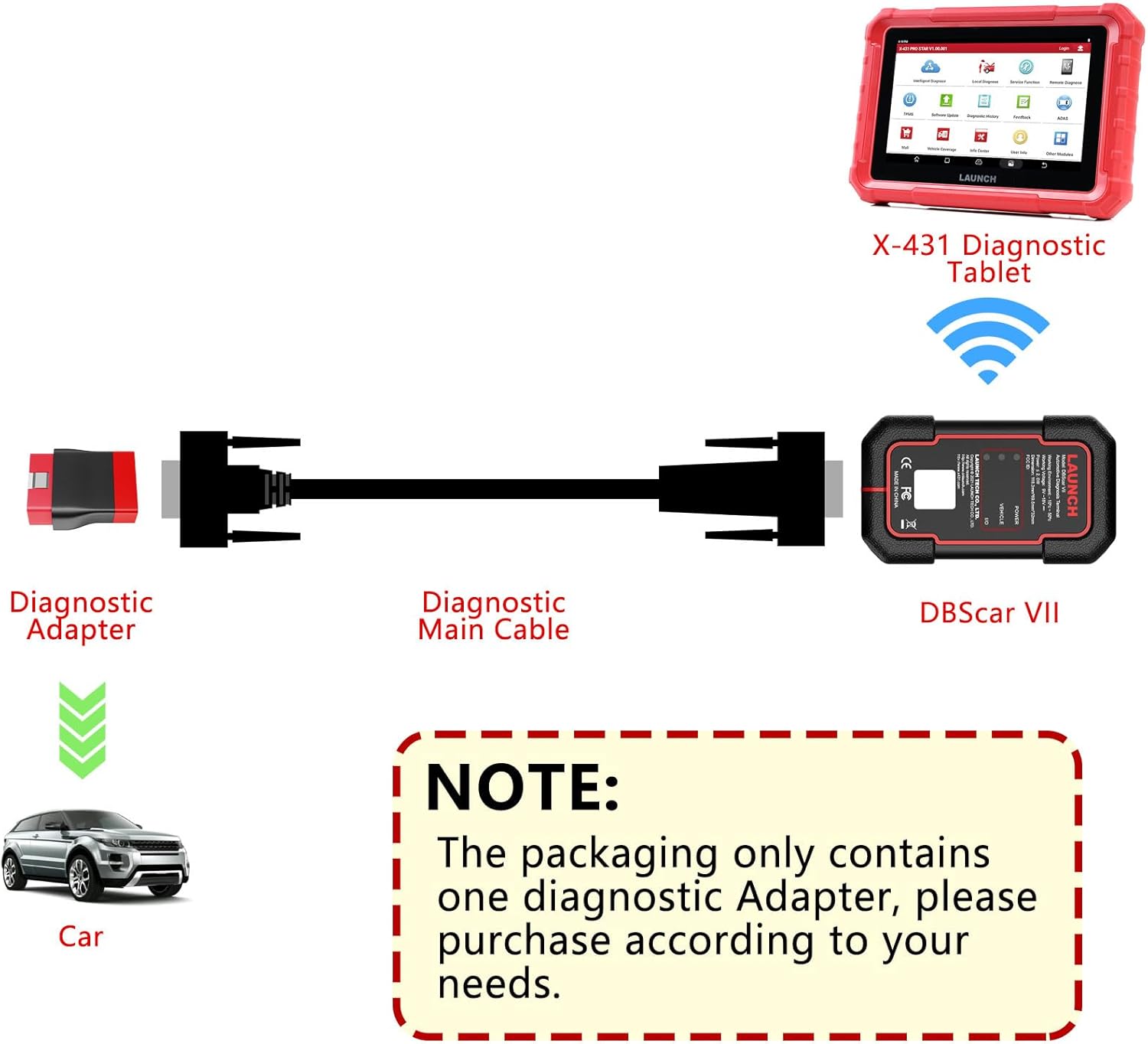
Figure 4: Connection diagram for DBSCar VII with the diagnostic adapter.

Figure 5: Connection diagram for SmartLink C with the diagnostic adapter.
5. Operating Instructions
The LAUNCH Original Adapter serves as a passive connector. Its primary function is to establish a physical link between your LAUNCH diagnostic tool and the vehicle. All diagnostic operations, data reading, and fault code analysis are performed directly through your compatible LAUNCH diagnostic scanner.
Refer to the user manual of your specific LAUNCH diagnostic tool (e.g., X431 CRP919EBT, PRO3 ACE, PAD VII) for detailed instructions on how to perform vehicle diagnostics, access functions, and interpret results.
6. Maintenance
To ensure the longevity and optimal performance of your adapter, follow these maintenance guidelines:
- Cleaning: Regularly wipe the adapter's exterior with a soft, dry cloth. Avoid using harsh chemicals or abrasive materials that could damage the zinc-plated copper finish.
- Storage: Store the adapter in a clean, dry environment away from extreme temperatures, direct sunlight, and moisture. Keep it protected from physical impact to prevent damage to the connectors.
- Inspection: Periodically inspect the connectors for any signs of wear, corrosion, or damage. Ensure the pins are straight and free from debris. The zinc-plated copper construction is designed to resist corrosion and oxidation, but proper care is still recommended.
7. Troubleshooting
If you encounter issues while using the adapter, consider the following:
- No Connection: Ensure both the DR15 and OBD2 connections are fully seated and secure. A loose connection can prevent communication.
- Incompatible Device: Verify that your LAUNCH diagnostic tool uses a DBSCar VII or SmartLink C Device Cable. This adapter is not universally compatible with all LAUNCH products.
- Physical Damage: Inspect the adapter for any visible signs of damage to the cable or connectors. If damaged, replace the adapter.
- Adapter Size Mismatch: Some users have reported issues with the adapter not fitting certain DBScan VII cables, describing it as 'too small'. Always confirm your device model and connector type before purchasing to avoid compatibility problems.
For further assistance, refer to the troubleshooting section of your LAUNCH diagnostic tool's manual or contact LAUNCH customer support.
8. Specifications
| Feature | Specification |
|---|---|
| Item Model Number | Adapter for DBSCar VII |
| Package Dimensions | 4.29 x 2.48 x 1.42 inches |
| Item Weight | 2.46 ounces |
| Manufacturer | LAUNCH |
| Connector Type | DR15 Male to OBD2 16-Pin Male |
| Finish Type | Zinc |
| Color | Red |
| ASIN | B0D8PPVD5D |
| Date First Available | July 3, 2024 |
9. Warranty & Support
This LAUNCH Original Adapter comes with a 2-year warranty from the date of purchase. This warranty covers manufacturing defects and ensures the product meets quality standards.
For any questions, technical assistance, or warranty claims, please feel free to contact LAUNCH customer support. Refer to your product packaging or the official LAUNCH website for the most current contact information.


