
1. Introduction
This manual provides detailed instructions for the installation, operation, and maintenance of your WAVLINK WiFi 7 BE8800 PCIe Card. This adapter integrates advanced Wi-Fi 7 technology with tri-band capabilities (2.4GHz, 5GHz, and 6GHz) and Bluetooth 5.4, designed to enhance your desktop PC's wireless connectivity. It supports MU-MIMO and WPA3 security protocols for a fast, stable, and secure network experience.
2. Compatibility and Pre-Installation Checks
Before proceeding with the installation, please ensure your system meets the following requirements and considerations:
- Operating System Compatibility: Compatible with Windows 10 (64-bit) and Windows 11 (64-bit). Linux compatibility is also supported.
- Motherboard Compatibility: Requires a motherboard with an Intel chipset. This card is NOT compatible with AMD motherboards.
- PCIe Slot: Requires an available PCIe x1, x4, x8, or x16 slot. Standard PCI slots are not supported.
- USB Header: An available internal USB 2.0 header (9-pin) on your motherboard is required for Bluetooth functionality.
- Driver Availability: Ensure you have access to the latest drivers from the WAVLINK official website or Intel.
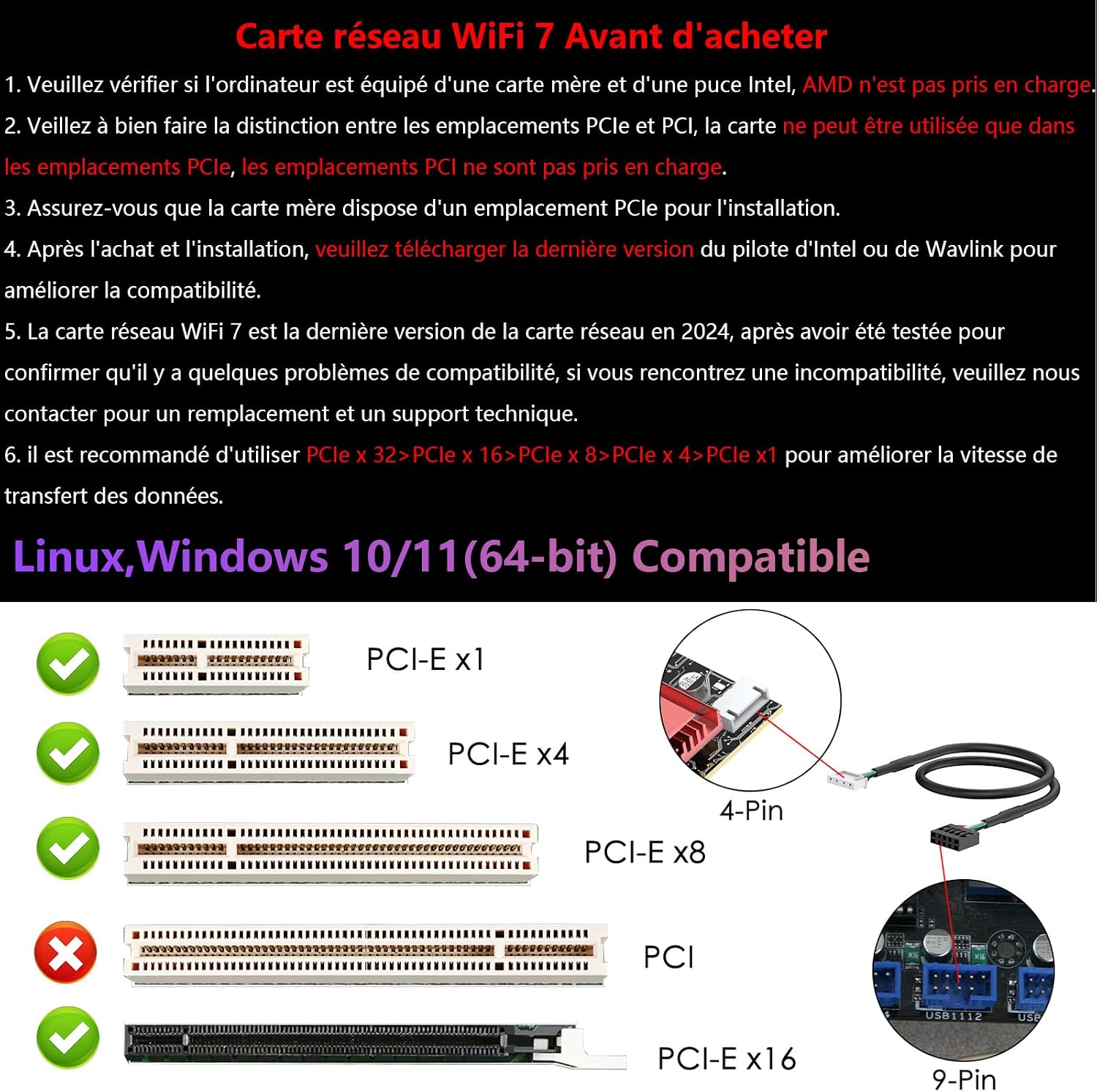
Image: WAVLINK WiFi 7 BE8800 PCIe Card with its external antenna base and cable.
3. Package Contents
Verify that all items are present in the package:
- WAVLINK WiFi 7 PCIe Card (Model WN685BE3-A)
- External Antenna Base with two omnidirectional antennas
- USB 2.0 Header Cable (for Bluetooth connectivity)
- Low-profile bracket (for small form factor PCs)
- Mounting Screws
- Quick Installation Guide (this document)

Image: Contents of the WAVLINK WiFi 7 PCIe Card package.
4. Specifications
| Brand | WAVLINK |
| Model Number | WN685BE3-A |
| Hardware Interface | PCIe x1, PCIe x4, PCIe x8, PCIe x16 |
| Compatible Devices | Desktop PCs (Windows 10/11 64-bit, Linux) |
| Data Link Protocol | Bluetooth 5.4, IEEE 802.11be (Wi-Fi 7) |
| Data Transfer Rate | Up to 8800 Mbps (574Mbps on 2.4GHz, 2400Mbps on 5GHz, 5800Mbps on 6GHz) |
| Wi-Fi Technology | Wi-Fi 7 (802.11be), Tri-Band (2.4GHz, 5GHz, 6GHz), 4096-QAM, 320MHz Channel Bandwidth, MU-MIMO |
| Security Protocol | WPA3 |
| Antennas | Two high-performance omnidirectional antennas with magnetic base |
| Dimensions (L x W x H) | 15.2 x 13.6 x 11 cm (approximate, including antenna base) |
5. Setup and Installation
Follow these steps to install the WAVLINK WiFi 7 PCIe Card into your desktop PC:
- Power Off Your PC: Completely shut down your computer and disconnect the power cable from the wall outlet.
- Open the PC Case: Remove the side panel of your computer case to access the motherboard.
- Locate an Available PCIe Slot: Identify an empty PCIe x1, x4, x8, or x16 slot on your motherboard. Remove the corresponding metal bracket cover from the PC case.

Image: Step 1 & 2 - Power off PC and open case to find a PCIe slot.
- Insert the PCIe Card: Carefully align the gold fingers of the WiFi card with the chosen PCIe slot. Press down firmly and evenly until the card is securely seated. Secure the card with a screw to the PC case.

Image: Inserting the PCIe card into the slot.
- Connect the USB Cable for Bluetooth: Connect the small end of the provided USB 2.0 header cable to the 4-pin connector on the WiFi card. Connect the other end (9-pin) to an available USB 2.0 header on your motherboard. This connection is essential for Bluetooth functionality.

Image: Connecting the USB cable for Bluetooth functionality.
- Attach the Antennas: Connect the two omnidirectional antennas to the connectors on the back of the PCIe card. Place the magnetic antenna base in an optimal location on your desktop for best signal reception.
- Close the PC Case and Power On: Reattach the side panel of your PC case and reconnect the power cable. Power on your computer.
- Install Drivers: Once Windows starts, you may need to install drivers. For optimal performance and Bluetooth functionality, download the latest drivers from the official WAVLINK website (www.wavlink.com) or Intel's website. Search for model WN685BE3-A.

Image: WAVLINK WiFi 7 PCIe card installed, highlighting Bluetooth 5.4 and WPA3.
6. Operating Instructions
6.1 Wi-Fi Connection
- After driver installation, click the Wi-Fi icon in your system tray.
- Select your desired Wi-Fi network (SSID) from the list of available networks.
- Enter the network security key (password) if prompted.
- Click 'Connect'. Your PC will now be connected to the Wi-Fi network.
6.2 Bluetooth Pairing
- Ensure Bluetooth is enabled in your Windows settings (Settings > Devices > Bluetooth & other devices).
- Put your Bluetooth device (e.g., headphones, mouse, keyboard) into pairing mode.
- On your PC, click 'Add Bluetooth or other device' and select 'Bluetooth'.
- Select your device from the list and follow any on-screen prompts to complete the pairing process.

Image: Wi-Fi 7 expanded lanes and spectrum utilization across 2.4GHz, 5GHz, and 6GHz bands.
7. Maintenance
To ensure optimal performance and longevity of your WAVLINK WiFi 7 PCIe Card:
- Keep Drivers Updated: Regularly check the WAVLINK official website for the latest driver updates. Updated drivers can improve performance, stability, and introduce new features.
- Maintain Airflow: Ensure your PC case has adequate airflow to prevent overheating, which can affect the card's performance. Periodically clean dust from inside your PC.
- Antenna Placement: Adjust the position of the external antenna base to find the best signal reception for your environment.
8. Troubleshooting
If you encounter issues with your WAVLINK WiFi 7 PCIe Card, refer to the following common solutions:
- No Wi-Fi or Bluetooth Connection:
- Verify that the card is correctly seated in the PCIe slot.
- Ensure the USB 2.0 header cable is securely connected to both the card and the motherboard.
- Check Device Manager in Windows to see if the Wi-Fi and Bluetooth adapters are recognized and have no error symbols. Reinstall drivers if necessary.
- Slow Wi-Fi Speed:
- Ensure your router supports Wi-Fi 7 (802.11be) and is configured for tri-band operation.
- Adjust the antenna position for better signal strength.
- Update your router's firmware and the card's drivers to the latest versions.
- Check for interference from other wireless devices or networks.
- Bluetooth Devices Not Pairing:
- Confirm Bluetooth is enabled in Windows settings.
- Ensure the Bluetooth device is in pairing mode and within range.
- Reinstall the Bluetooth drivers.
- Firmware Upgrade Issues: If you experience issues upgrading firmware, try clearing your browser's cache (Ctrl+Shift+Delete) and then attempt the upgrade again. Always download firmware from the official WAVLINK website.

Image: Troubleshooting advice for firmware upgrades.
9. Warranty
The WAVLINK WiFi 7 BE8800 PCIe Card comes with a 1-year manufacturer warranty from the date of purchase. This warranty covers defects in materials and workmanship under normal use. Please retain your proof of purchase for warranty claims.
10. Support
For further assistance, technical support, or warranty inquiries, please contact WAVLINK customer service:
- Phone Support: +1 8889730883 (UTC-5, Monday - Friday 9 AM - 6 PM)
- Website: www.wavlink.com
- Amazon Message: You can also contact us through the Amazon messaging system.


