
1. Introduction
The YIXZSWD 75-inch 4K Interactive Smart Whiteboard is a high-performance digital display designed for versatile use in offices, educational institutions, and homes. Featuring a built-in Android 13 system, 8-Core CPU, 8GB RAM, and 64GB storage, it offers a seamless and interactive experience. This smart board includes a 13MP camera, 8 array microphones, and 2x20W speakers, making it ideal for video conferencing and collaborative tasks. Its 20-point touchscreen allows for multi-user interaction and precise annotation.
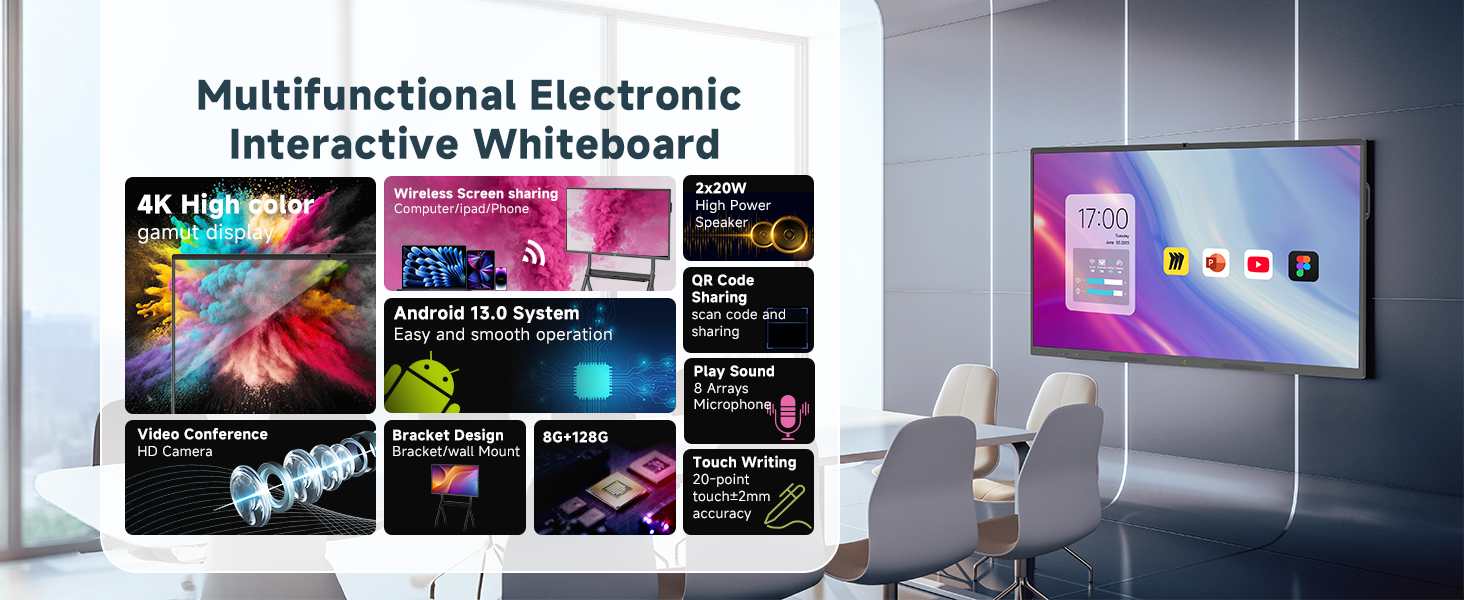
Image: Multifunctional Electronic Interactive Whiteboard showcasing its features like 4K display, wireless screen sharing, Android 13, HD camera, 8G+128G storage, 20-point touch, and 8 array microphones.
2. Setup
2.1 Unboxing and Assembly
Carefully unpack all components from the box. The smart board comes with wall-mounted brackets. If you have a mobile standing mount, you can directly install the smart board onto it. Ensure all parts listed in the packing list are present before proceeding.
Video: Demonstrates the unboxing and assembly process of the YIXZSWD Interactive Smart Whiteboard with its mobile stand.

Image: Illustrates two installation methods: wall-mounted with brackets and installation on a mobile standing bracket.
2.2 Connecting Peripherals
The smart board offers various interfaces for connecting external devices. These include multiple USB ports (PC/AN-USB), HDMI, and a dedicated TOUCH USB port for touch functionality when connected to an external PC. Ensure all cables are securely connected.
Video: Shows the various interface ports available on the smart whiteboard and how to connect them.

Image: Close-up view of the various input/output ports on the smart board, including POWER, HDMI, USB, LAN, WiFi, Audio, MIC, and RS232.

Image: Diagram illustrating the front and bottom interface connections for various devices.
2.3 Power On
Connect the power cable to the smart board and a power outlet. Press the power button to turn on the device. The system will boot up, displaying the Android operating system.
3. Operating Instructions
3.1 Basic Navigation and System Overview
The YIXZSWD Smart Whiteboard runs on an Android 13 system, powered by an 8-Core CPU, 8GB RAM, and 64GB storage. The intuitive interface allows for easy navigation between applications such as Whiteboard, Screenshare, Document viewer, and more. You can customize the display with multiple wallpapers.
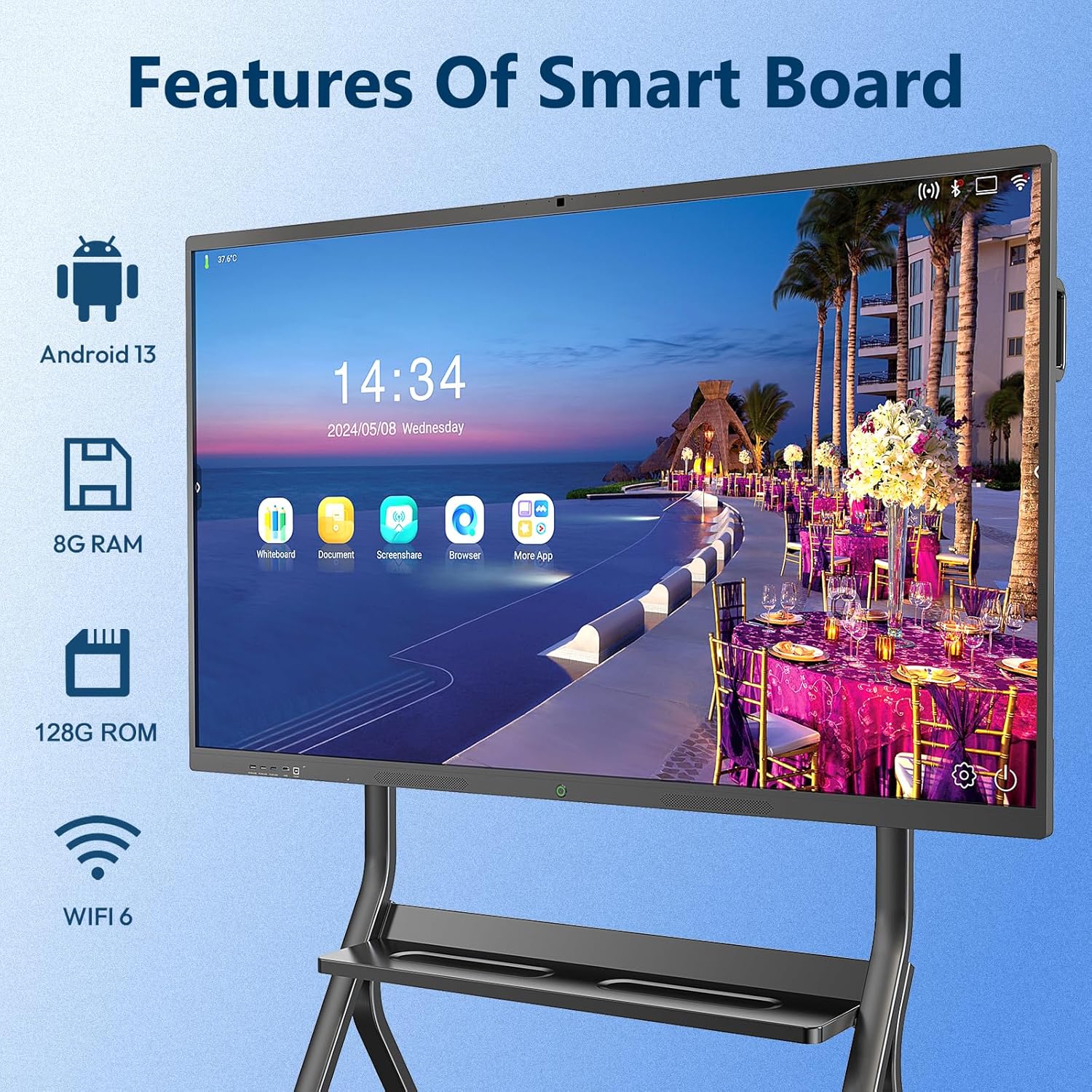
Image: Highlights key features including Android 13, 8GB RAM, 128GB ROM (note: JSON states 64GB, image says 128GB, using JSON data for text), and WiFi 6.
3.2 20-Point Touch Screen
The interactive whiteboard features a 20-point touch screen, enabling multiple users to interact simultaneously. This allows for collaborative activities and group discussions with a 6ms response speed for smooth writing and erasing.

Image: Demonstrates multiple hands interacting with the 20-point touch screen simultaneously.

Image: Shows two individuals interacting with the 20-point touch electronic whiteboard, highlighting unlimited canvases and graphic templates.
3.3 Whiteboard Functionality
Utilize the built-in whiteboard application for dynamic presentations and brainstorming. You can easily take notes, draw, and erase on images and documents. Content can be saved and shared by scanning a QR code.
Video: Demonstrates the interactive whiteboard function, including writing, erasing, and using various tools.
Image: A teacher using the smart interactive whiteboard in a classroom setting, demonstrating its use for educational purposes.
3.4 Wireless Screen Sharing
Facilitate seamless information sharing by wirelessly connecting your devices to the board. The smart board supports up to 4 users for wireless screen projection, or you can connect via various ports. This enhances productivity and communication.
Video: Illustrates the smart whiteboard's projection function, showing how content can be wirelessly shared from a mobile device.
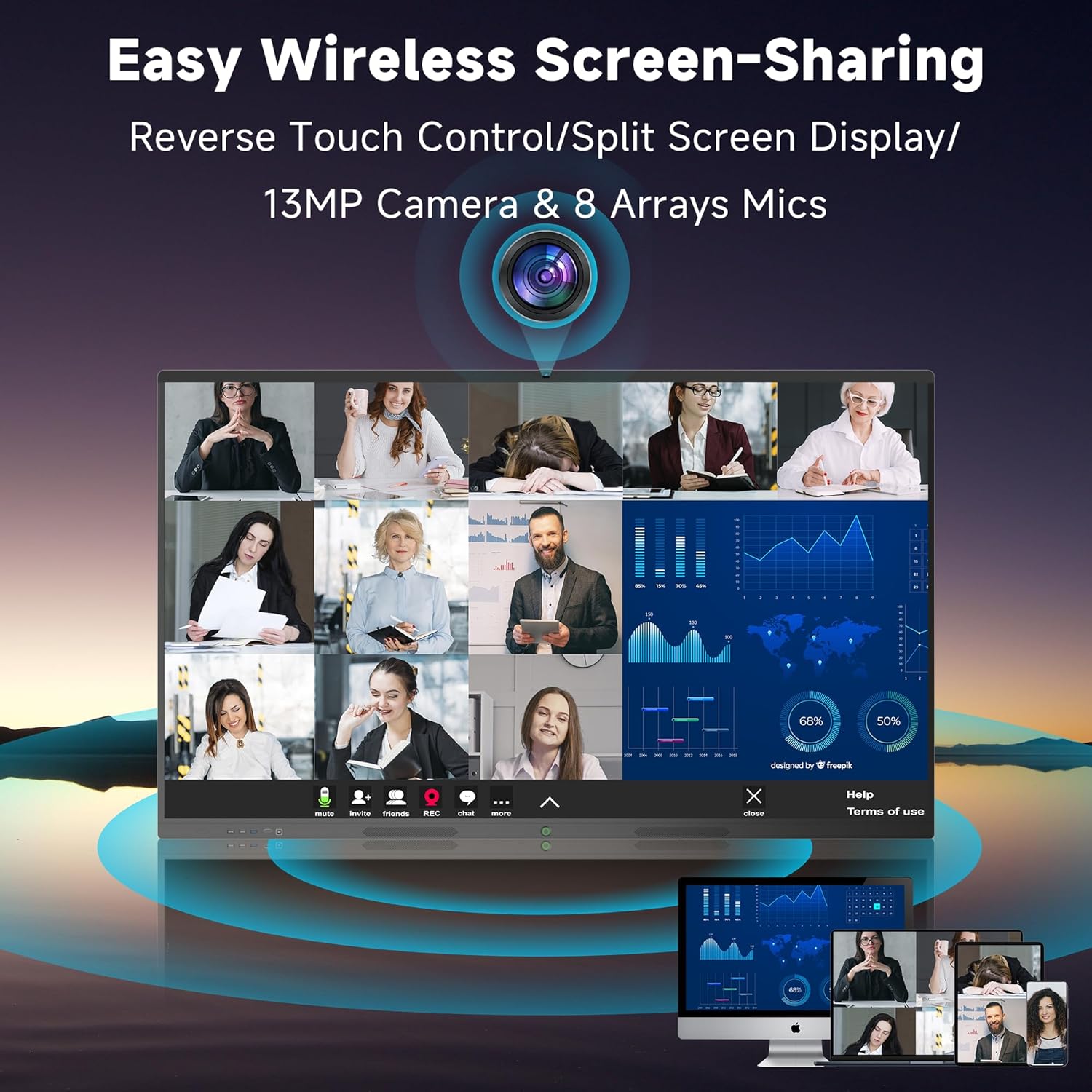
Image: Depicts easy wireless screen sharing with reverse touch control, split screen display, and integrated 13MP camera and 8 array mics.

Image: Shows multiple devices (laptops, tablets, phones) wirelessly sharing their screens to the smart board for collaborative work.
3.5 App Ecosystem and Video Conferencing
The smart board supports a robust app ecosystem, allowing you to download and use various educational and productivity applications. With its built-in 13MP camera, 8 array microphones, and 2x20W speakers, it is fully equipped for high-quality video conferencing.
Video: Showcases the digital presentation capabilities of the electronic smart whiteboard, including its use in various settings.

Image: Displays the smart board's open app ecosystem, allowing users to install various applications like Facebook, Instagram, WhatsApp, and more.

Image: Highlights the all-in-one interactive meeting board with 2x20W speakers, 8 array microphones, and a 13MP camera for video conferencing.
4. Maintenance
To ensure the longevity and optimal performance of your YIXZSWD Smart Whiteboard, follow these maintenance guidelines:
- Cleaning: Use a soft, lint-free cloth slightly dampened with a non-abrasive screen cleaner. Avoid harsh chemicals or abrasive materials that could damage the screen surface.
- Dust Removal: Regularly wipe down the screen and frame to prevent dust buildup, which can affect touch sensitivity and display clarity.
- Software Updates: Periodically check for and install system and application updates to ensure security and access to the latest features.
- Environmental Conditions: Operate the smart board within recommended temperature and humidity ranges to prevent damage. Avoid direct sunlight exposure for extended periods.
5. Troubleshooting
If you encounter issues with your smart whiteboard, refer to the following common troubleshooting steps:
- No Power: Ensure the power cable is securely connected to both the board and the power outlet. Check if the power switch is in the 'ON' position.
- No Display: Verify that all video input cables (e.g., HDMI) are correctly connected. Try switching input sources if an external device is connected.
- Touchscreen Unresponsive: Clean the screen surface to remove any obstructions. Restart the device. If connected to an external PC, ensure the TOUCH USB cable is properly connected.
- Wireless Connection Issues: Check if the Wi-Fi antennas are securely attached. Ensure the smart board is within range of your Wi-Fi network and that the network password is correct.
- Audio Problems: Check the volume settings on the smart board and any connected external devices. Ensure speakers are properly connected if external ones are used.
For persistent issues, please contact customer support.
6. Specifications

Image: Illustrates the dimensions and various size options (55", 65", 75", 85") of the smart board and its stand.

Image: A table providing guidance on choosing the appropriate smart board size based on room size and number of participants for different use cases.
| Feature | Specification |
|---|---|
| Brand | YIXZSWD |
| Model Number | QH-JYJ-IT |
| Screen Size | 75 Inches |
| Resolution | 3840 x 2160 Pixels (4K UHD 2160p) |
| Aspect Ratio | 16:9 |
| Screen Surface Description | Glossy |
| Operating System | Android 13 |
| CPU | 8-Core |
| RAM | 8GB |
| Storage | 64GB |
| Camera | 13MP |
| Microphones | 8 Array Microphones |
| Speakers | 2 x 20W |
| Connectivity | WiFi 6, USB (Total 1), HDMI, Type-C |
| Item Weight | 172.6 pounds |
| Product Dimensions | 7.87 x 39.37 x 78.74 inches |
7. What's in the Box
Your YIXZSWD 75-Inch Smart Whiteboard package includes the following items:
- 75 Inch Smart Whiteboard (x1)
- Remote Control (x1)
- Wall Mount (x1)
- Touch Pen (x2)
- HDMI Cable (x1)
- USB 2.0 Cable (x1)
- Power Cable (x1)
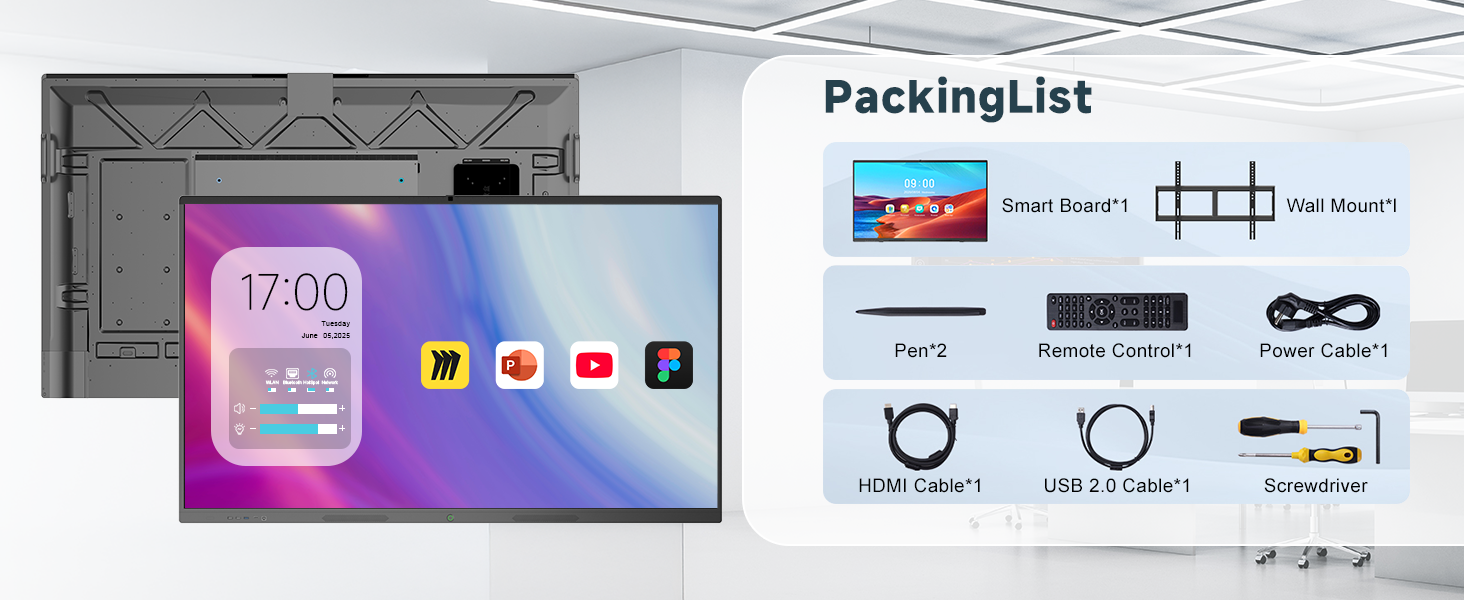
Image: Visual representation of the items included in the smart board package, such as the smart board, wall mount, remote control, touch pens, and various cables.
8. Warranty and Support
YIXZSWD is committed to providing reliable after-sales service. This includes technical support, maintenance assistance, and training to help you maximize the benefits of your smart board investment. For any inquiries or support needs, please reach out to our professional after-sales service team.
For detailed warranty information, please refer to the documentation provided with your purchase or contact YIXZSWD customer service directly.
