Introduction
This manual provides comprehensive instructions for the installation, operation, and maintenance of your new Jingelsye Android 13 Car Radio. Designed specifically for Mazda 3 models from 2010 to 2013, this unit offers advanced features including an 8Core processor, 4GB RAM, 32GB ROM, a 9-inch 1280x800 IPS touchscreen, Wireless CarPlay, Android Auto, GPS navigation, WiFi, Bluetooth, AM/FM radio, and DSP audio processing. Please read this manual thoroughly before installation and use to ensure proper function and safety.
Safety Information
- Ensure the vehicle's ignition is off and the battery is disconnected before beginning installation to prevent electrical shorts or damage.
- Professional installation is recommended for optimal performance and safety.
- Do not operate the device in a manner that distracts you from driving. Always prioritize road safety.
- Avoid exposing the unit to extreme temperatures, direct sunlight for prolonged periods, or excessive moisture.
- Use only specified cables and accessories provided with the unit or approved by Jingelsye.
Package Contents
Verify that all items listed below are included in your package:
- 1x Jingelsye Car Radio for Mazda 3
- 2x USB Cables
- 1x Power Cable
- 1x GPS Module
- 1x 4G Antenna Adapter
- 1x Reversing Line
- 1x Crowbar (for panel removal)
- 1x RCA Cable Set
- 1x External Microphone (MIC)
- 1x Canbus Decoder
- 1x Original USB Adapter
- 1x Backup Camera (1080P AHD)

Image: All components included in the Jingelsye Car Radio package, laid out on a wooden surface.
Setup and Installation
This section outlines the general steps for installing your Jingelsye Android 13 Car Radio. Specific vehicle disassembly instructions are not included and may vary by Mazda 3 model year. Refer to your vehicle's service manual for detailed panel removal procedures.
1. Preparation
- Park your vehicle on a flat, stable surface and engage the parking brake.
- Disconnect the negative terminal of your car battery to prevent electrical hazards.
- Carefully remove the factory radio and surrounding trim panels using the provided crowbar or appropriate tools.
2. Connecting Components
Connect the various cables and modules to the main head unit as shown in the video and general diagrams. Ensure all connections are secure.
Video: Detailed wiring instructions for the Jingelsye Car Radio, demonstrating how to connect the various cables and modules to the main unit.
- Power Cable: Connect the main power harness to the car radio and the vehicle's wiring harness. Ensure the Canbus decoder is properly integrated if your vehicle requires it (e.g., for steering wheel controls, Bose system integration).
- GPS Antenna: Connect the GPS antenna to the designated port on the back of the unit. Position the antenna in a location with a clear view of the sky, such as on the dashboard or under the windshield, for optimal signal reception.
- 4G Antenna (if applicable): Connect the 4G antenna adapter if your unit supports 4G connectivity.
- Radio Antenna: Connect the vehicle's radio antenna to the unit.
- USB Cables: Connect the provided USB cables to the unit. These can be routed to the glove compartment or center console for easy access to USB devices.
- Rear Camera Signal Wire: Connect the rear camera signal wire (typically yellow RCA) to the "CAM IN" port on the unit. The red wire on the camera extension cable should be connected to the reverse light power for automatic camera activation.
- External Microphone: Plug in the external microphone for enhanced call clarity. Route it to a suitable location, such as near the sun visor or steering column.
- RCA Cables: Connect any external amplifiers, subwoofers, or auxiliary audio/video inputs/outputs using the RCA cable set as needed.
3. Testing and Reassembly
- Before fully reassembling the dashboard, reconnect the car battery.
- Turn on the ignition and power on the car radio. Test all functions: radio, Bluetooth, GPS, CarPlay/Android Auto, steering wheel controls, and the backup camera.
- If all functions work correctly, carefully reassemble the dashboard and trim panels.
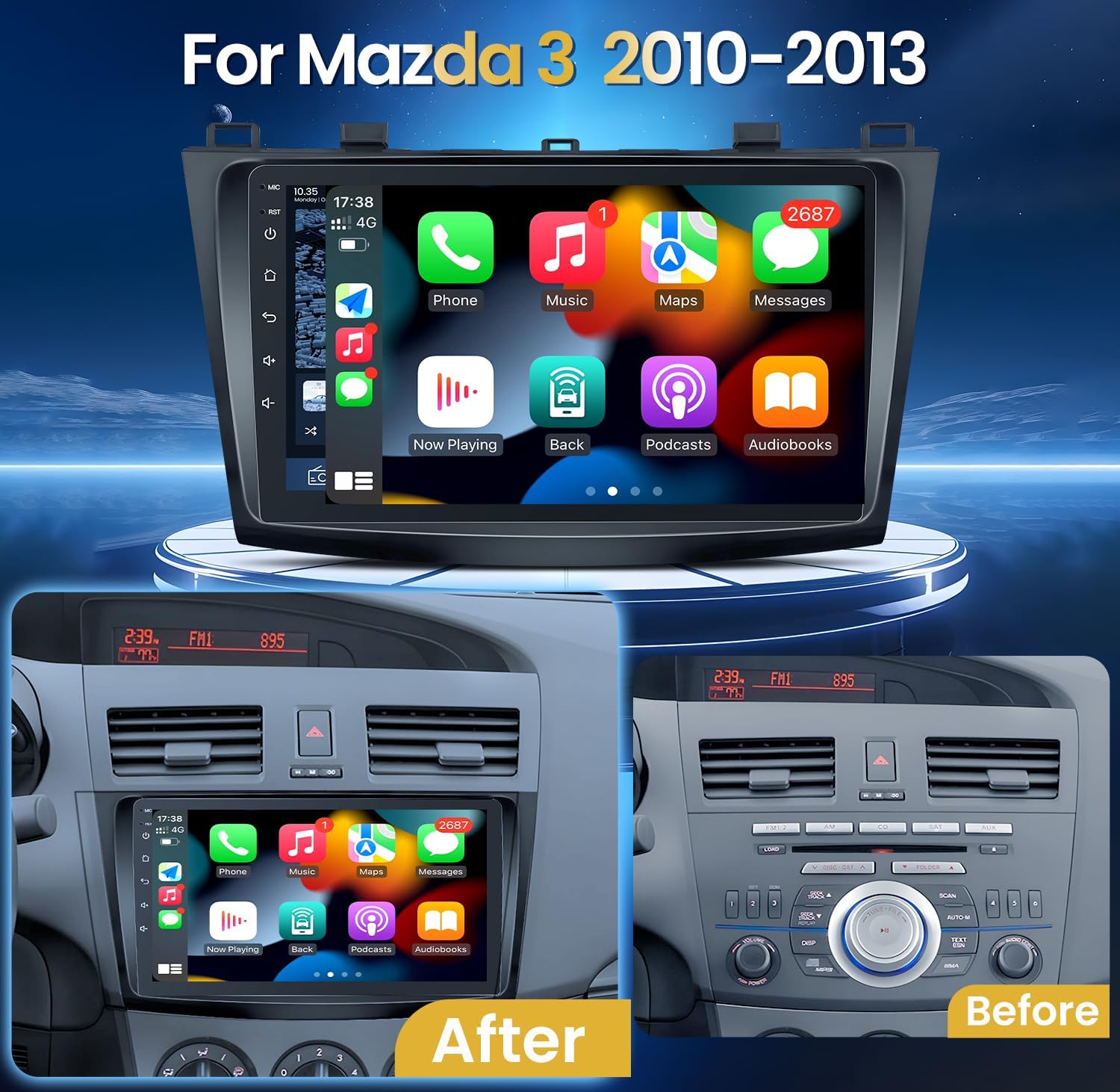
Image: Comparison of the Mazda 3 dashboard before and after the installation of the Jingelsye car radio, showing the integrated fit.
Operating Instructions
This section details the operation of your Jingelsye Android 13 Car Radio. The unit features a responsive 9-inch 1280x800 IPS touchscreen for clear visuals and easy interaction.

Image: A close-up of the car radio's Full HD 1280x800 IPS screen, highlighting its clarity and rich colors.
Video: An overview of the car radio's user interface and key features, including split-screen, DSP sound settings, Bluetooth connectivity, CarPlay/Android Auto, GPS navigation, and Wi-Fi connection.
1. Basic Operation
- Power On/Off: Press the power button on the unit or turn the vehicle ignition on. The unit will boot up automatically.
- Touchscreen: Navigate the interface by tapping, swiping, and pinching on the 9-inch IPS touchscreen.
- Volume Control: Adjust volume using the on-screen controls or your vehicle's steering wheel controls.
2. Wireless CarPlay & Android Auto
Connect your smartphone wirelessly for seamless integration of navigation, music, calls, and messaging.

Image: The car radio display showing the Wireless CarPlay and Android Auto interface with various app icons.
- Ensure your phone's Bluetooth and Wi-Fi are enabled.
- On the car radio, open the "Car Link" or similar application.
- Pair your phone via Bluetooth with the car radio.
- Follow the on-screen prompts to establish the CarPlay or Android Auto connection.
- Once connected, you can access compatible apps for navigation, music, and communication directly from the car radio display.
3. GPS Navigation & Wi-Fi Connection
The unit supports both offline maps and online GPS navigation when connected to Wi-Fi. The 5G Wi-Fi connection allows for faster downloads and online map usage.

Image: The car radio display showing a 5G Wi-Fi connection and various application icons, indicating internet access for online maps and app downloads.
- To connect to Wi-Fi, go to Settings > Wi-Fi and select your network. Enter the password if required.
- Open the "Maps" application.
- For online maps, ensure the unit is connected to a Wi-Fi hotspot (e.g., from your phone).
- Enter your destination using the touchscreen keyboard or voice commands.
4. Bluetooth Handsfree & Audio Streaming
Connect your phone via Bluetooth for hands-free calling and wireless music playback.
- Go to the Bluetooth settings on the car radio.
- Enable Bluetooth on your phone and search for available devices.
- Select the car radio from your phone's list and confirm pairing.
- Once paired, you can make/receive calls and stream audio through the car's speakers.
5. FM/AM Radio
Access your favorite radio stations with the built-in FM/AM tuner.
- Open the "Radio" application.
- Use the on-screen controls to scan for stations or manually tune to a specific frequency.
- Save your favorite stations to the preset buttons for quick access.
6. Steering Wheel Controls
The unit retains compatibility with your vehicle's original steering wheel controls for convenience and safety.

Image: A car interior showing the steering wheel with integrated controls, highlighting their functionality with the new car radio.
- Volume Up/Down: Adjust audio levels.
- Track Skip: Change music tracks or radio stations.
- Call Answer/End: Manage phone calls.
- Mode/Source: Switch between audio sources.
7. DSP Audio Processing
Utilize the built-in Digital Signal Processor (DSP) to customize your audio experience.

Image: The car radio display showing the DSP audio settings, including a 36-band equalizer and sound field adjustments.
- Access the "Equalizer" or "DSP" app from the main menu.
- Adjust the 36-band equalizer to fine-tune sound frequencies.
- Utilize features like sound field, surround, stereo sound enhancement, bass enhancement, and sound filter for a personalized audio experience.
8. Split-Screen Functionality
The octa-core processor allows for split-screen multitasking, enabling you to run two applications simultaneously.
- To activate split-screen, open an application, then long-press the recent apps button or swipe from the bottom (depending on UI theme) to select another app to run alongside it.
9. Backup Camera
The included 1080P AHD backup camera provides a clear view when reversing, automatically activating when the vehicle is in reverse gear.

Image: A diagram illustrating the 1080P AHD backup camera's wide-angle view and night vision capabilities, with an example of the display when reversing.
- When the vehicle is shifted into reverse, the display will automatically switch to the camera view.
- The camera features 170-degree ultra-wide angle, IR night vision, and an IP69 waterproof design.
Maintenance
- Screen Cleaning: Use a soft, lint-free cloth to gently wipe the touchscreen. For stubborn smudges, slightly dampen the cloth with water or a screen-safe cleaner. Avoid harsh chemicals.
- Software Updates: Periodically check for software updates via the system settings or the manufacturer's website to ensure optimal performance and access to new features. Connect to Wi-Fi for updates.
- General Care: Keep the unit free from dust and debris. Avoid placing heavy objects on the unit or exposing it to direct impacts.
Troubleshooting
| Problem | Possible Cause | Solution |
|---|---|---|
| Unit does not power on. | Loose power connection, blown fuse, vehicle battery issue. | Check all power cable connections. Inspect vehicle fuses and battery. Consult a professional if issues persist. |
| No sound or distorted audio. | Incorrect wiring, volume too low, DSP settings misconfigured, amplifier issue. | Verify speaker wiring. Adjust volume. Check DSP equalizer and sound settings. Ensure external amplifiers are powered on. |
| Wireless CarPlay/Android Auto does not connect automatically. | Phone settings, software glitch, Wi-Fi/Bluetooth interference. | Ensure phone's Wi-Fi and Bluetooth are on. Try restarting both phone and car radio. Update the Car Link app on the stereo (connect to home Wi-Fi for updates). Re-pair the device. |
| GPS signal is weak or inaccurate. | GPS antenna placement, environmental interference. | Ensure GPS antenna has a clear view of the sky. Avoid placing it under metal objects. |
| Backup camera not displaying. | Incorrect wiring, camera malfunction, reverse signal not detected. | Check camera signal wire connection and power supply to the camera. Ensure the reverse trigger wire is correctly connected. |
| Steering wheel controls not working. | Canbus wiring issue, incorrect settings. | Verify Canbus decoder connection. Check steering wheel control settings in the unit's menu. |
Specifications
| Feature | Detail |
|---|---|
| Operating System | Android 13 |
| Processor | Octa-core |
| RAM | 4GB |
| ROM | 32GB |
| Display Size | 9 Inches |
| Display Resolution | 1280 x 800 IPS |
| Connectivity | Bluetooth, USB, Wi-Fi (5G support) |
| Special Features | Wireless CarPlay, Android Auto, GPS Navigation, DSP Audio, Touchscreen, Steering Wheel Control compatibility, 1080P AHD Backup Camera support |
| Audio Output Mode | Stereo |
| Item Weight | 3.58 pounds |
| Package Dimensions | 12.76 x 8.74 x 5.2 inches |
| Vehicle Service Type | Car (Mazda 3 2010-2013) |

Image: A visual representation of the unit's intelligent chip, highlighting its 8-core processor, 4GB RAM, and 32GB ROM for efficient operation.
Warranty and Support
For warranty information, technical support, or service inquiries, please refer to the contact information provided with your purchase or visit the official Jingelsye website. Keep your proof of purchase for warranty claims.


