
Introduction
This manual provides essential instructions for the safe and efficient use of your Qubo Senior P-210nw 4G mobile phone. Please read this manual thoroughly before operating the device and keep it for future reference.
1. Setup
Before using your Qubo Senior P-210nw 4G, follow these steps to prepare the device.
1.1 Package Contents
Verify that your package contains the following items:
- Qubo Senior P-210nw 4G Mobile Phone
- Battery (1000 mAh Lithium-ion)
- Charger (USB connection)
- User Manual
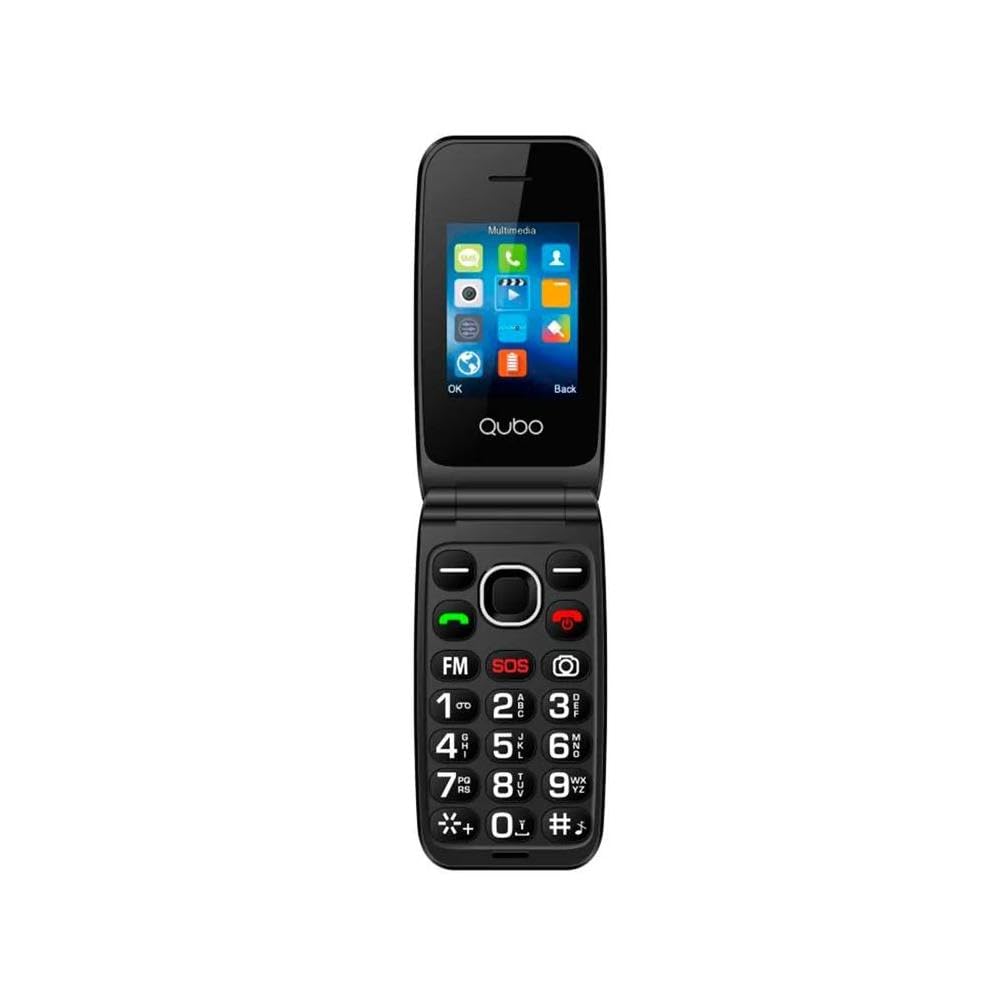
Image 1: Qubo Senior P-210nw 4G Mobile Phone. This image displays the front view of the Qubo Senior P-210nw 4G mobile phone, highlighting its compact design and physical keypad.
1.2 SIM Card and Battery Installation
- Remove the back cover: Gently pry open the back cover of the phone.
- Insert SIM card(s): Locate the SIM card slot(s). This phone supports dual SIM cards. Insert your SIM card(s) into the designated slot(s) with the gold contacts facing down.
- Insert microSD card (optional): If you wish to expand storage, insert a microSD card into its dedicated slot.
- Insert the battery: Place the 1000 mAh Lithium-ion battery into the battery compartment, ensuring the contacts align correctly.
- Replace the back cover: Securely attach the back cover until it clicks into place.
1.3 Charging the Battery
Before first use, fully charge the phone's battery.
- Connect the USB charger cable to the phone's USB port.
- Plug the other end of the charger into a power outlet.
- The charging indicator on the phone will illuminate. Once fully charged, the indicator may change color or turn off.
1.4 Powering On/Off
- To Power On: Press and hold the Power/End Call button until the screen lights up.
- To Power Off: Press and hold the Power/End Call button until the power-off options appear, then select "Power Off".
2. Operating Instructions
This section details the basic functions and operations of your Qubo Senior P-210nw 4G phone.
2.1 Basic Navigation
- Use the navigation keys (up, down, left, right) to move through menus.
- Press the "OK" or "Select" button (usually in the center of the navigation keys) to confirm selections.
- Press the "Back" or "Clear" button to return to the previous screen or delete characters.
2.2 Making and Receiving Calls
- Making a Call: Enter the phone number using the keypad and press the Green Call button.
- Receiving a Call: When the phone rings, press the Green Call button to answer.
- Ending a Call: Press the Red End Call button.
2.3 Messaging
To send and receive SMS messages:
- Navigate to the "Messages" menu.
- Select "New Message" or "Create SMS".
- Enter the recipient's number or select from contacts.
- Type your message using the keypad.
- Press "Send".
2.4 Camera Function
Your phone is equipped with a 0.3 MP rear camera.
- Access the camera from the main menu.
- Frame your subject on the screen.
- Press the "OK" or "Capture" button to take a photo.
2.5 FM Radio
To use the FM Radio:
- Connect a wired headset (not included) to the audio jack, as it acts as an antenna.
- Navigate to the "FM Radio" application.
- Use the navigation keys to scan for stations or tune manually.
2.6 Bluetooth Connectivity
To connect to other Bluetooth devices:
- Go to "Settings" > "Bluetooth".
- Turn Bluetooth "On".
- Select "Search for devices" or "Pair new device".
- Choose the desired device from the list and follow on-screen prompts to pair.
2.7 SOS Button
The SOS button is a safety feature designed for emergencies.
- Setup: In the phone's settings, configure up to five emergency contacts for the SOS function.
- Activation: In an emergency, press and hold the dedicated SOS button (usually on the back or side of the phone).
- The phone will automatically send an emergency SMS message to the pre-set contacts and then dial them one by one until a connection is made.
3. Maintenance
Proper care ensures the longevity of your Qubo Senior P-210nw 4G.
- Cleaning: Use a soft, dry cloth to clean the phone's screen and body. Avoid liquid cleaners or abrasive materials.
- Battery Care:
- Do not expose the battery to extreme temperatures.
- Avoid fully discharging the battery frequently.
- If the phone will not be used for an extended period, charge the battery to about 50% before storing.
- Storage: Store the phone in a cool, dry place away from direct sunlight and moisture.
- Water Resistance: This phone is not water-resistant. Avoid exposure to liquids.
4. Troubleshooting
Refer to this section for solutions to common issues.
| Problem | Possible Cause | Solution |
|---|---|---|
| Phone does not turn on | Low battery; Battery not inserted correctly | Charge the battery; Re-insert the battery correctly. |
| No network signal | Out of network coverage; SIM card issue | Move to an area with better coverage; Check SIM card insertion; Contact your service provider. |
| Cannot make/receive calls | No network signal; SIM card not active; Incorrect settings | Check network signal; Ensure SIM card is active; Verify call settings. |
| Battery drains quickly | Heavy usage; Old battery; Background processes | Reduce usage; Consider replacing battery if old; Close unnecessary applications. |
5. Specifications
Key technical specifications for the Qubo Senior P-210nw 4G mobile phone.
- Model: P-210NW 4G
- Brand: Qubo
- Color: Black
- Display: 2.8" VGA screen, 240 x 320 pixels
- RAM: 4 MB
- Internal Storage: 4 MB
- Expandable Storage: microSD (card not included)
- Connectivity: 4G, Dual SIM, Bluetooth, USB
- Camera: 0.3 MP Rear Camera
- Battery: 1000 mAh Lithium-ion
- Special Features: SOS Button, FM Radio, Audio Jack
- Operating System: Standard (Feature Phone OS)
- CPU Model: A-Series
- CPU Speed: 3.4 GHz (Note: Value from specifications, typical for feature phones may vary)
Note: Specifications are subject to change without prior notice.
6. Warranty and Support
6.1 Manufacturer's Warranty
Your Qubo Senior P-210nw 4G mobile phone comes with a 3-year warranty against manufacturing defects. This warranty covers defects in materials and workmanship under normal use. It does not cover damage caused by misuse, accidents, unauthorized modifications, or normal wear and tear.
Please retain your proof of purchase for warranty claims.
6.2 Customer Support
For technical assistance, warranty claims, or further inquiries, please contact your retailer or the Qubo customer service department. Refer to the packaging or Qubo's official website for contact information.