
1. Introduction
This manual provides detailed instructions for the Vgate vLinker MS Bluetooth OBD2 Car Scan Tool and the accompanying 16 Pin OBD2 Splitter. It covers setup, operation, maintenance, and troubleshooting to ensure optimal performance and safe use of your devices. Please read this manual thoroughly before using the product.
2. Product Overview
The Vgate vLinker MS is a Bluetooth-enabled OBD2 diagnostic tool designed to communicate with your vehicle's onboard computer. It supports multiple CAN protocols, allowing for comprehensive diagnostics. The included 16 Pin OBD2 Splitter provides a convenient way to connect multiple devices to a single OBD2 port.

Figure 2.1: Vgate vLinker MS Bluetooth OBD2 adapter and 16-pin OBD2 splitter cable.

Figure 2.2: Vgate vLinker MS adapter supporting CH CAN, HS CAN, MS CAN, SW CAN, and LS CAN protocols.
3. Setup Instructions
3.1. Connecting the OBD2 Splitter
- Locate your vehicle's OBD2 diagnostic port, typically found under the dashboard on the driver's side.
- Connect the male end of the 16 Pin OBD2 Splitter cable to the vehicle's OBD2 port. Ensure a secure connection.
- The splitter provides two female OBD2 ports, allowing for the connection of the vLinker MS and another compatible device if needed.
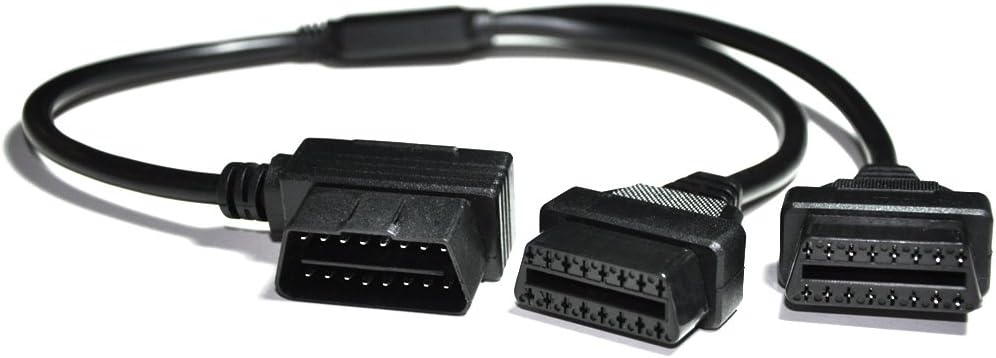
Figure 3.1: The 16-pin OBD2 splitter cable.

Figure 3.2: OBD2 splitter connected to the vehicle's diagnostic port.

Figure 3.3: Vgate vLinker MS adapter connected to the splitter, with power indicator illuminated.
3.2. Connecting the Vgate vLinker MS Bluetooth Adapter
- Plug the Vgate vLinker MS adapter into one of the female ports of the OBD2 splitter or directly into the vehicle's OBD2 port if not using the splitter.
- Turn on your vehicle's ignition (engine off or running, depending on the diagnostic task). The adapter's power indicator light should illuminate.
- On your mobile device (iOS or Android), enable Bluetooth.
- Open your preferred third-party OBD2 diagnostic application (e.g., Car Scanner, Dr. Prius, JScan, Multiecuscan).
- Within the app's settings, select the Vgate vLinker MS as your OBD2 adapter and establish the Bluetooth connection. Follow the specific pairing instructions provided by your chosen app.
4. Operating Instructions
Once the Vgate vLinker MS is connected and paired with your mobile device, you can begin using the diagnostic application to access vehicle data.
- Ensure your vehicle's ignition is on.
- Launch the diagnostic app on your mobile device.
- The app should automatically connect to the vLinker MS adapter. If not, manually initiate the connection from the app's settings.
- Navigate through the app's interface to perform various diagnostic functions, such as reading and clearing trouble codes, viewing live sensor data, and checking vehicle readiness monitors.
- The vLinker MS supports advanced CAN protocols including HS-CAN, MS-CAN, SW-CAN, CH-CAN, and LS-CAN, enabling access to a wider range of vehicle modules depending on the app's capabilities.

Figure 4.1: Vgate vLinker MS compatibility with various third-party diagnostic applications.
5. Firmware Update
The Vgate vLinker MS supports firmware updates to enhance functionality and compatibility. Updates can be performed using a mobile phone or a Windows PC.
- Scan the QR code provided below or visit the official Vgate website for the firmware update tool.
- Follow the instructions within the update tool to download and install the latest firmware.
- Ensure a stable connection and sufficient power during the update process to prevent interruptions.

Figure 5.1: Firmware update interface and QR code for Vgate vLinker MS. Scan for Firmware Update
6. Compatibility
The Vgate vLinker MS Bluetooth adapter is designed for broad compatibility with various third-party OBD2 diagnostic applications on both iOS and Android platforms. Supported applications include, but are not limited to, Car Scanner, Dr. Prius, JScan, and Multiecuscan. Features and available data may vary based on the specific application and vehicle model/year.
7. Specifications
- Model: Vgate vLinker MS
- Connectivity: Bluetooth
- Supported CAN Protocols: HS-CAN, MS-CAN, SW-CAN, CH-CAN, LS-CAN, GMLAN
- OBD Request Bytes: Up to 4K
- Baud Rate: Up to 3M bps
- Firmware: Upgradeable via phone/PC
- OBD2 Splitter Length: Approximately 12 inches (30cm)
- OBD2 Splitter Pin Configuration: Fully 16-pins connected

Figure 7.1: Performance metrics of the vLinker MS, highlighting faster programming and higher baud rate.

Figure 7.2: Standard 16-pin OBD2 connector pinout diagram.
8. Maintenance
To ensure the longevity and proper functioning of your Vgate vLinker MS and OBD2 Splitter, follow these maintenance guidelines:
- Keep the devices clean and free from dust and moisture. Use a soft, dry cloth for cleaning.
- Avoid exposing the devices to extreme temperatures or direct sunlight for extended periods.
- Store the devices in a cool, dry place when not in use.
- Do not attempt to disassemble or modify the devices, as this will void any warranty and may cause damage.
9. Troubleshooting
If you encounter issues with your Vgate vLinker MS or OBD2 Splitter, refer to the following common troubleshooting steps:
- Device not powering on: Ensure the adapter is securely plugged into the OBD2 port and the vehicle's ignition is on. Check the vehicle's OBD2 port for power issues.
- Bluetooth connection failure: Verify that Bluetooth is enabled on your mobile device. Ensure the vLinker MS is selected in your diagnostic app's settings. Try restarting both the app and your mobile device.
- App not detecting vehicle: Confirm that the vLinker MS is properly connected and powered. Ensure your vehicle is OBD2 compliant. Some apps may require specific vehicle profiles to be set up.
- Slow data transfer: Ensure your diagnostic app is up to date. Consider performing a firmware update for the vLinker MS if available.
For further assistance, please contact the Vgatemall support team.
10. Warranty and Support
For information regarding product warranty, please refer to the terms and conditions provided by your retailer or the official Vgate website. For technical support or inquiries, please reach out to the Vgatemall team through their official contact channels.


