1. Introduction
Thank you for choosing the CAMECHO 5" Wireless Carplay Android Auto Motorcycle GPS Dashcam. This device is designed to enhance your riding experience by providing seamless smartphone integration, navigation, and entertainment features directly on your motorcycle. Its robust, waterproof design ensures reliable performance in various weather conditions. Please read this manual carefully before use to ensure proper operation and maximize the product's lifespan.

Image: The CAMECHO 5-inch Motorcycle GPS Dashcam, showcasing its display with navigation and media playback, alongside a motorcycle and connection icons.
2. Product Features
- 5" Wireless Touch Screen: Ultra-high resolution, large 5-inch touch screen for efficient wireless connection to Carplay and Android Auto. Access multiple phone applications seamlessly.
- Dual Bluetooth Design & EQ Sound: Quickly pair with Carplay via Bluetooth, and simultaneously connect to a headset or helmet. Clear EQ sound and stable signal transmission for safe communication and audio.
- Waterproof & Sun-Protected: High-quality, robust, and durable material, waterproof, sand-resistant, dustproof, and sun-protected. Applicable temperature range: -4°F to 149°F (-20°C to 65°C). Waterproof rating: IP67.
- High-Performance Chips & Mirror Link: Mirror Link functionality allows mirroring mobile phone functions to the device. High-performance chip ensures faster operation and response, providing a smooth user experience.
- Easy Installation: Designed for simple installation on all motorcycle models. Includes a bracket for handlebar mounting, allowing installation in approximately 2 minutes.

Image: A visual representation of the 5-inch wireless Carplay motorcycle display, highlighting key features such as Carplay, Android Auto, Bluetooth, EQ Adjustment, Mirror Link, Waterproof IP67, Voice Control, Touchscreen, and TF Card support.
3. Package Contents
Please verify that all the following components are included in your package:
- 1 x CAMECHO 5" Carplay Moto Navi Display Unit
- 1 x Power Cable
- 1 x Universal Mounting Bracket Kit (for handlebar mounting)
- 1 x User Manual
- Accessories (e.g., 150mm Rolling strips x8)
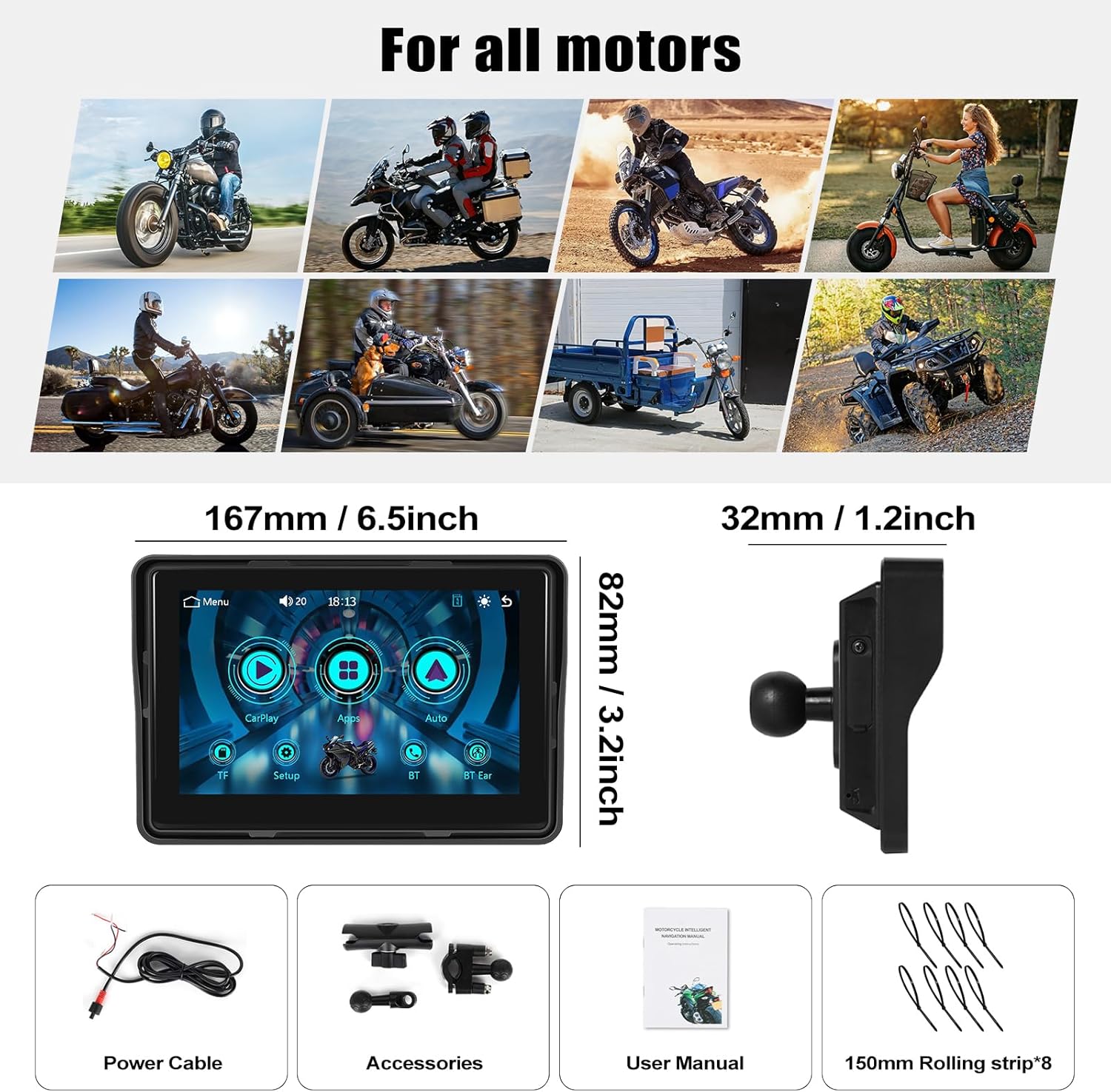
Image: A diagram illustrating the dimensions of the display unit (167mm / 6.5inch width, 82mm / 3.2inch height) and the mounting bracket (32mm / 1.2inch). Below are images of the included power cable, accessories, user manual, and rolling strips.
4. Setup and Installation
The CAMECHO Motorcycle GPS Dashcam is designed for quick and easy installation on most motorcycle handlebars.
4.1 Mounting the Device
- Identify a suitable location on your motorcycle's handlebar for mounting the display unit. Ensure it does not obstruct your view or interfere with controls.
- Attach the universal mounting bracket to the handlebar using the provided hardware. Tighten securely to prevent movement during riding.
- Slide the CAMECHO display unit onto the mounting bracket until it clicks into place. Adjust the viewing angle for optimal visibility.
4.2 Power Connection
- Connect the provided power cable to the designated power input port on the display unit.
- Route the power cable safely along your motorcycle's frame, away from moving parts or heat sources.
- Connect the other end of the power cable to your motorcycle's 12V power source (e.g., battery or ignition-switched power). It is recommended to consult a professional for electrical connections if you are unsure.

Image: A motorcycle with the CAMECHO 5-inch portable Carplay display mounted on its handlebars, demonstrating a typical installation scenario.
5. Operating Instructions
5.1 Powering On/Off
- To power on, ensure the device is connected to power and press the power button.
- To power off, press and hold the power button until the device shuts down.
5.2 Touch Screen Operation
The device features a responsive touch screen. Navigate menus, select options, and control functions by tapping, swiping, and pinching as you would on a smartphone. The screen is designed to be responsive even with gloves.
5.3 Voice Control
Utilize voice commands for safer operation while riding. The device supports voice assistants like Siri (for Carplay) and Google Assistant (for Android Auto).
- Activate voice control by saying the wake word (e.g., "Hey Siri" or "OK Google") or by tapping the voice control icon on the screen.
- Examples of commands: "Turn on display," "Show front camera," "Turn on the music," "Navigate to [destination]."
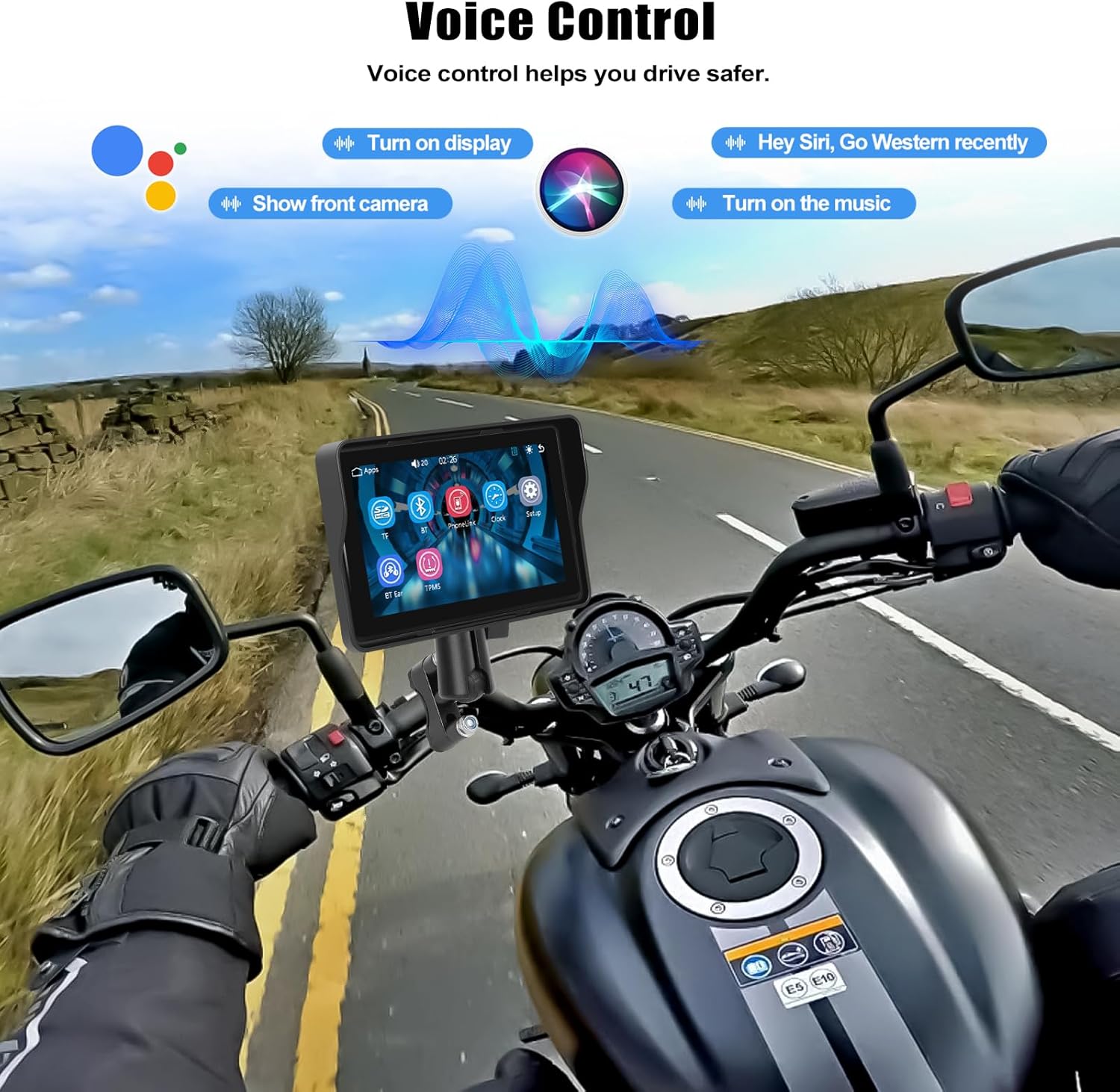
Image: A motorcycle rider on the road, demonstrating the use of voice control with the CAMECHO display mounted on the handlebars, showing examples of voice commands like "Turn on display" and "Turn on the music."
6. Connectivity
6.1 Wireless Carplay & Android Auto
Connect your smartphone wirelessly to access Carplay or Android Auto functionalities.
- Ensure Bluetooth and Wi-Fi are enabled on your smartphone.
- On the CAMECHO display, select the Carplay or Android Auto icon.
- Follow the on-screen prompts to pair your phone. Once connected, your phone's compatible apps will appear on the display.

Image: A split image showing the user interfaces for Wireless Carplay (left) and Android Auto (right) on the CAMECHO display, demonstrating how smartphone apps are integrated.
6.2 Dual Bluetooth Connection
The device supports dual Bluetooth connections, allowing you to connect your phone for Carplay/Android Auto and simultaneously connect to a Bluetooth headset or helmet for audio output.
- Go to the Bluetooth settings on the CAMECHO display.
- Pair your smartphone first for Carplay/Android Auto.
- Then, pair your Bluetooth headset or helmet. The device will route audio (navigation prompts, music, calls) to your headset.

Image: A diagram illustrating the dual Bluetooth connection capability, showing a smartphone connecting to the display for Carplay/Android Auto, and the display simultaneously connecting to a Bluetooth headset or helmet for audio.
6.3 Mirror Link (Wireless Airplay & Android Cast)
Mirror Link allows you to display your smartphone's screen directly on the CAMECHO unit.
- On the CAMECHO display, select the Mirror Link option.
- For iOS (Airplay): Open your phone's Wi-Fi settings and connect to the device's Wi-Fi hotspot. Then, pull down the control center and select Screen Mirroring.
- For Android (Android Cast): Download and open the specified app (if required). Turn off Wi-Fi on your phone, set the hotspot name and password, then click 'Start now' in the app.

Image: Detailed instructions for setting up Wireless Airplay (for iOS) and Android Cast (for Android) to mirror your phone's screen onto the CAMECHO display.
7. GPS Navigation
When connected to Carplay or Android Auto, the CAMECHO display utilizes your smartphone's GPS capabilities to provide real-time navigation.
- Open your preferred navigation app (e.g., Google Maps, Apple Maps, Waze) through Carplay or Android Auto.
- Enter your destination using the touch screen or voice commands.
- Follow the turn-by-turn directions displayed on the screen and delivered through your connected Bluetooth headset.

Image: The CAMECHO display showing a GPS navigation map with route information and voice command prompts, indicating its use for turn-by-turn directions.
8. Safety and Durability
The CAMECHO display is built to withstand challenging outdoor conditions.
- IP67 Waterproof Rating: The device is fully protected against dust ingress and can withstand immersion in water up to 1 meter for 30 minutes. This ensures reliable operation in rain or splashes.
- Temperature Resistance: Designed to operate effectively in a wide temperature range from -4°F to 149°F (-20°C to 65°C).
- Sun Protection & Auto Brightness: The display features a sun visor for improved visibility in bright sunlight and includes an auto-brightness adjustment feature to adapt to ambient light conditions.

Image: A visual representation of the CAMECHO display's durability, showing it in a rainy environment (IP67 waterproof), under varying light conditions (auto brightness adjustment), and its ability to withstand extreme temperatures (-4°F to 149°F).
9. Maintenance
To ensure the longevity and optimal performance of your CAMECHO display, follow these maintenance guidelines:
- Cleaning: Use a soft, damp cloth to clean the screen and exterior. Avoid abrasive cleaners or solvents that could damage the surface.
- Storage: When not in use for extended periods, store the device in a cool, dry place, away from direct sunlight and extreme temperatures.
- Cable Inspection: Periodically check the power cable and connections for any signs of wear or damage. Replace if necessary.
- Software Updates: Check the manufacturer's website or app for any available firmware or software updates to ensure the device has the latest features and bug fixes.
10. Troubleshooting
If you encounter issues with your CAMECHO display, refer to the following common problems and solutions:
| Problem | Possible Cause | Solution |
|---|---|---|
| Device does not power on. | No power connection or faulty cable. | Check power cable connection to device and motorcycle. Ensure motorcycle power source is active. |
| Carplay/Android Auto not connecting. | Bluetooth/Wi-Fi off on phone, incorrect pairing. | Ensure Bluetooth and Wi-Fi are on. Forget device on phone and re-pair. Restart both devices. |
| No audio from headset. | Headset not paired or low volume. | Check headset Bluetooth connection. Increase volume on both device and headset. |
| Touch screen unresponsive. | Temporary software glitch. | Restart the device. If issue persists, contact support. |
11. Specifications
| Feature | Specification |
|---|---|
| Brand | CAMECHO |
| Model Name | Carplay Moto Navi Display |
| Vehicle Service Type | Motorcycle |
| Screen Size | 5 Inches |
| Special Feature | Bluetooth, Touchscreen, Wireless Carplay, Android Auto, Mirror Link, Voice Control, EQ Sound |
| Connectivity Technology | Bluetooth, Wi-Fi |
| Map Type | Street (via connected smartphone) |
| Audio Output Mode | Digital |
| Mounting Type | Handlebar Mount |
| Waterproof Rating | IP67 |
| Operating Temperature | -4°F to 149°F (-20°C to 65°C) |
12. Warranty and Support
CAMECHO is committed to providing high-quality automotive electronics. For any product-related inquiries, technical support, or warranty claims, please contact CAMECHO customer service through the retailer where you purchased the product or visit the official CAMECHO website for support information.
Please retain your proof of purchase for warranty purposes.


