
1. Introduction
Thank you for choosing the FUNYET 2-in-1 Touchscreen Laptop, Model FUN01-03. This device combines the versatility of a tablet with the productivity of a laptop, featuring a 14-inch display, 12th Gen N100 Processor, 16GB DDR5 RAM, and a 512GB SSD. This manual provides essential information for setting up, operating, maintaining, and troubleshooting your new device to ensure optimal performance and longevity.
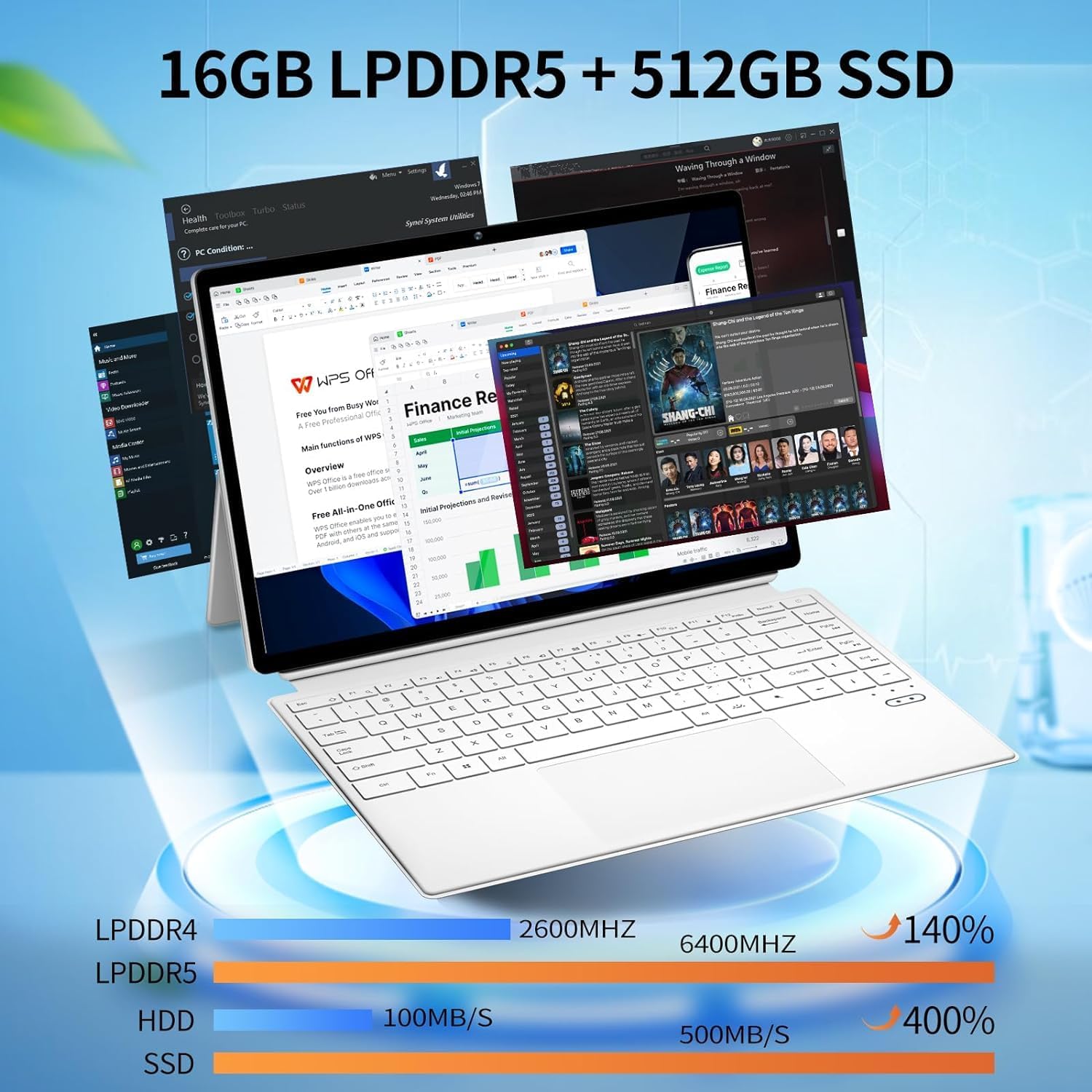
Figure 1: FUNYET 2-in-1 Laptop in its standard laptop configuration.
2. Package Contents
Verify that all items are present in your product packaging:
- 14 Inch Tablet Computer
- AC Adapter
- Instructions (this manual)
- Warranty Card
3. Product Overview
3.1 Key Specifications
- Processor: 12th Gen Celeron N100 (up to 3.4 GHz, 4 cores, 4 threads)
- RAM: 16GB DDR5
- Storage: 512GB SSD
- Display: 14-inch Touchscreen, 1920 x 1200 pixels (16:10 aspect ratio)
- Operating System: Windows 11 Pro
- Wireless Connectivity: Wi-Fi 6 (802.11ax), Bluetooth 5.2
- Cameras: 2MP Front, 5MP Rear
- Battery Life: Up to 8 hours (average use)
- Weight: Approximately 2 pounds
- Dimensions: 12.5 x 8.4 x 0.4 inches

Figure 2: Device showcasing its memory and storage capabilities with multiple applications running.
3.2 Physical Overview (Ports and Buttons)
Familiarize yourself with the various ports and buttons on your FUNYET 2-in-1 Laptop:

Figure 3: Detailed view of the device's ports and controls.
- Power Button: Press and hold to turn the device on or off.
- Volume Control: Adjust the audio output level.
- Type-C (Full-featured): Supports data transfer, video output, and power delivery.
- Type-C (Charging and Data Transfer): Primarily for charging the device and basic data transfer.
- Micro HDMI: Connect to external displays or projectors.
4. Initial Setup
4.1 Powering On
- Ensure the device is charged or connected to the AC adapter.
- Press and hold the Power Button (refer to Figure 3) until the screen illuminates.
4.2 Connecting to Wi-Fi
- Once the device is powered on, navigate to the Wi-Fi settings in Windows 11.
- Select your preferred network and enter the password if prompted.
4.3 Operating System Setup (Windows 11 Pro)
Follow the on-screen prompts to complete the Windows 11 Pro setup, including language selection, user account creation, and privacy settings.

Figure 4: The Windows 11 Pro interface pre-installed on the device.
5. Operating Instructions
5.1 Keyboard and Touchpad
The device features a full-sized backlit keyboard and a responsive touchpad for navigation and input.

Figure 5: The backlit keyboard and integrated touchpad.
5.2 Touchscreen Functionality
Utilize the 14-inch touchscreen for intuitive interaction with Windows 11 Pro. Pinch-to-zoom, swipe, and tap gestures are supported.

Figure 6: Device used in tablet mode, highlighting the touchscreen.
5.3 2-in-1 Modes
The flexible hinge allows the device to transform into various modes:
- Laptop Mode: Standard laptop configuration for typing and productivity.
- Tablet Mode: Fold the keyboard back to use as a tablet.
- Stand Mode: Position the screen for media consumption or presentations.

Figure 7: Proper and improper kickstand usage for stable positioning.
For a visual guide on transforming your device into different modes, please watch the official product video below:
Video 1: Official FUNYET demonstration of the 2-in-1 laptop's various modes and tablet functionality.
6. Battery Management
6.1 Charging
Connect the provided AC adapter to the designated Type-C port (refer to Figure 3) and plug it into a power outlet. The charging indicator light will illuminate.
6.2 Battery Life Optimization
To maximize battery life:
- Adjust screen brightness to a comfortable level.
- Close unused applications and browser tabs.
- Enable battery saver mode in Windows settings.
- Disconnect external peripherals when not in use.

Figure 8: Battery performance estimates for various usage scenarios.
7. Connectivity
7.1 Wi-Fi 6 and Bluetooth 5.2
The device supports Wi-Fi 6 for fast and stable internet connections and Bluetooth 5.2 for connecting wireless peripherals like headphones or mice.

Figure 9: Overview of wireless connectivity and camera specifications.
7.2 External Displays
Use the Micro HDMI port to connect your laptop to an external monitor or television for an extended display experience.
8. Integrated Cameras
The FUNYET 2-in-1 Laptop is equipped with two cameras:
- Front Camera: 2 Megapixels, suitable for video calls and online meetings.
- Rear Camera: 5 Megapixels, for capturing photos and videos.
9. Technical Specifications
| Feature | Specification |
|---|---|
| Model Name | FUN 1 |
| Item Model Number | FUN01-03 |
| Standing Screen Display Size | 14 Inches |
| Screen Resolution | 1920 x 1200 pixels |
| Max Screen Resolution | 1920x1200 Pixels |
| Processor | 1.0 Celeron (12th Gen N100) |
| RAM | 16 DDR5 |
| Hard Drive | 512 GB SSD |
| Graphics Coprocessor | Intel UHD Graphics |
| Operating System | Windows 11 Pro |
| Wireless Type | Bluetooth, Wi-Fi 6 |
| Average Battery Life | 8 Hours |
| Item Weight | 2 pounds |
| Product Dimensions | 12.5 x 8.4 x 0.4 inches |
10. Troubleshooting
If you encounter issues with your device, try the following solutions:
- Device not powering on: Ensure the AC adapter is securely connected and the battery has sufficient charge. Try a different power outlet.
- Screen is blank or unresponsive: Restart the device. If in tablet mode, ensure the screen is clean and free of obstructions.
- Wi-Fi connectivity issues: Check your router and modem. Restart the device and your network equipment. Ensure Wi-Fi is enabled in Windows settings.
- Slow performance: Close unnecessary applications. Check for Windows updates. Ensure sufficient free space on the SSD.
- Keyboard or touchpad not responding: Restart the device. Ensure no physical obstructions are present.
11. Warranty and Customer Support
FUNYET offers a 1-year free repair warranty for all products. Additionally, we provide 30 days free exchange. If you have any questions or require assistance with your FUNYET 2-in-1 Laptop, please do not hesitate to contact our customer support team. We are dedicated to providing prompt assistance and will reply within 24 hours.
Contact Information:
- Email: funyetstore@outlook.com
- Phone: +1 800-986-9631 (4AM-10PM PT)

Figure 10: FUNYET customer support and warranty details.