
ZDK ZDK 12000L Projector
ZDK 12000L Projector User Manual
Model: ZDK 12000L Projector
Brand: ZDK
1. Introduction
Thank you for purchasing the ZDK 12000L Projector. This projector is designed to provide a versatile and high-quality viewing experience for home theater, outdoor movies, gaming, and office presentations. Featuring WiFi and Bluetooth connectivity, 1080P Full HD support, and a powerful 12000 Lumen display, it offers a large projection screen experience from 30 to 300 inches. Its compact and portable design makes it ideal for various environments.

Image 1.1: ZDK 12000L Projector and included remote control.
2. Package Contents
Please check the package carefully to ensure all items are present:
- ZDK 12000L Projector
- Remote Control
- HDMI Cable
- AV Signal Cable
- Power Cable
- User Manual
3. Product Overview
3.1 Projector Components
Familiarize yourself with the various parts of your ZDK 12000L Projector:

Image 3.1: Projector input/output ports and compatible devices including DC, AV, HDMI, USB, PC/Laptop, iPhone, iPad, Game console, TV Stick, USB/TF Card, TV Box, Camera.
- Lens: Projects the image onto the screen.
- Focus Ring: Adjusts image sharpness.
- Keystone Correction: Corrects trapezoidal distortion (manual adjustment).
- Input Ports:
- HDMI: For connecting devices like TV sticks, laptops, gaming consoles.
- USB: For connecting USB flash drives.
- AV: For connecting older devices using the included AV cable.
- DC IN: Power input port.
- Power Button: Turns the projector on/off.
- IR Receiver: For remote control signals.
- Built-in Speakers: Provides audio output.
4. Setup
4.1 Placement and Screen Size
Choose a flat, stable surface for the projector. The projection distance affects the screen size. Adjust the distance to achieve your desired screen size (30-300 inches).

Image 4.1: Recommended projection distances and screen sizes.
Typical projection distances:
- 2.6 ft (0.8m): Approx. 30-inch screen
- 6.9 ft (2.1m): Approx. 80-inch screen
- 16.4 ft (5m): Approx. 200-inch screen
4.2 Power Connection
- Connect the power cable to the DC IN port on the projector.
- Plug the other end of the power cable into a power outlet.
4.3 Initial Adjustments
- Focus: Rotate the focus ring on the projector lens until the image appears sharp and clear.
- Keystone Correction: If the image appears trapezoidal, adjust the keystone correction (usually a dial or digital setting) to make the image rectangular.
5. Operating Instructions
5.1 Powering On/Off
- To Power On: Press the power button on the projector or the remote control.
- To Power Off: Press the power button again. The projector will shut down.
5.2 Input Source Selection
After powering on, select your desired input source from the projector's menu (e.g., HDMI, USB, AV, Screen Mirroring).
5.3 Connecting Devices
- HDMI Connection: Connect your TV Stick, laptop, PC, or gaming console (e.g., PS5) to the projector's HDMI port using the provided HDMI cable. Select HDMI as the input source.
- USB Connection: Insert a USB flash drive into the USB port to play media files directly.
- AV Connection: Use the included AV cable to connect older devices like DVD players.
- Smartphone/Tablet Wired Connection: For some smartphones/tablets, an additional HDMI adapter (e.g., Micro USB/Type-C/Lightning to HDMI adapter) may be required and is not included.
Note: Due to copyright restrictions, streaming services like Netflix, Hulu, etc., cannot be directly mirrored from a smartphone. You must connect a TV stick or laptop via HDMI to watch these services.
5.4 Wireless Connection (Screen Mirroring)
The ZDK projector supports WiFi screen mirroring for iOS and Android devices.

Image 5.1: Wireless screen mirroring from a smartphone to the projector.
- Ensure your projector and mobile device are connected to the same WiFi network.
- Select "Screen Mirroring" or "Wireless Display" from the projector's input menu.
- On your mobile device, enable screen mirroring (e.g., "Screen Mirroring" on iOS, "Smart View" or "Cast" on Android).
- Select the projector's name from the list of available devices.
5.5 Bluetooth Audio Connection
Connect external Bluetooth speakers or headphones for enhanced audio experience.
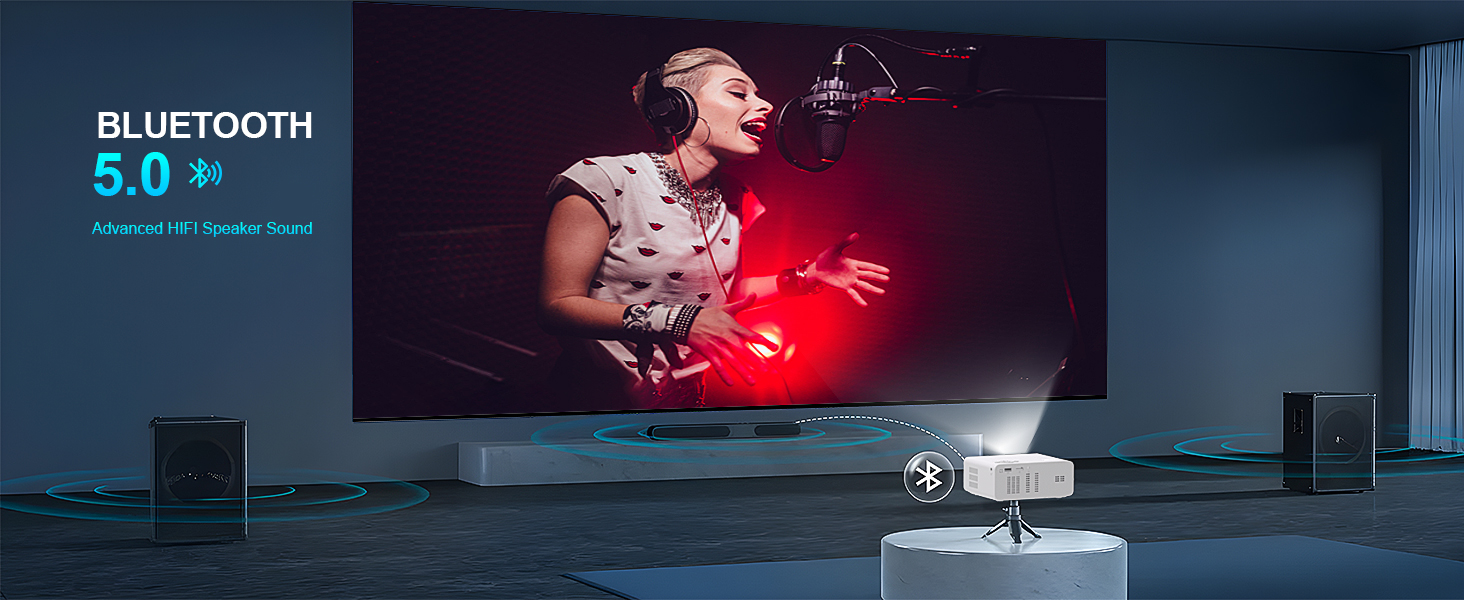
Image 5.2: Projector wirelessly connected to external Bluetooth speakers.
- Go to the Bluetooth settings in the projector's menu.
- Enable Bluetooth and search for devices.
- Put your Bluetooth speaker/headphone into pairing mode.
- Select your device from the list on the projector to connect.
6. Maintenance
Proper maintenance ensures the longevity and optimal performance of your projector.
- Cleaning the Lens: Use a soft, lint-free cloth specifically designed for optical lenses. Do not use abrasive cleaners or cloths.
- Dust Removal: Regularly clean the air vents to prevent dust buildup, which can affect cooling and performance. Use a soft brush or compressed air.
- Storage: When not in use for extended periods, store the projector in a cool, dry place, away from direct sunlight and extreme temperatures. Use the original packaging or a protective case.
- Lamp Life: The LED lamp has a long life of up to 60,000 hours. Avoid frequent on/off cycles to maximize lamp lifespan.
7. Troubleshooting
If you encounter issues with your projector, refer to the following common problems and solutions:
| Problem | Possible Cause | Solution |
|---|---|---|
| No Power | Power cable not connected; Power outlet issue. | Ensure power cable is securely connected. Try a different power outlet. |
| No Image/Signal | Incorrect input source; Loose HDMI/AV cable; Device not powered on. | Select the correct input source. Check cable connections. Ensure connected device is powered on. |
| Blurry Image | Focus not adjusted; Keystone not adjusted; Projector too far/close. | Adjust the focus ring. Adjust keystone correction. Move projector to optimal distance. |
| No Sound | Volume too low; Muted; External audio device not connected/selected. | Increase volume. Unmute projector. Check external audio connections or Bluetooth pairing. |
| WiFi/Bluetooth Connection Issues | Incorrect password; Device out of range; Network issues. | Re-enter password. Ensure devices are within range. Restart router/projector. |
| Remote Control Not Working | Dead batteries; Obstruction; Not pointing at IR receiver. | Replace batteries. Remove obstructions. Point remote directly at the projector's IR receiver. |
8. Specifications
| Feature | Detail |
|---|---|
| Brand | ZDK |
| Model | ZDK 12000L Projector |
| Brightness | 12000 Lumens |
| Native Resolution | 1920 x 1080 (Full HD) |
| Supported Resolution | Up to 4K |
| Projection Size | 30-300 inches |
| Projection Distance | 0.8-5 meters (2.6-16.4 feet) |
| Aspect Ratio | 16:9 (Standard), 4:3 (Compatible) |
| Connectivity Technology | WiFi (Screen Mirroring), Bluetooth, HDMI, USB, AV |
| Lamp Life | Up to 60,000 hours |
| Item Weight | 2.16 pounds |
| Product Dimensions | 5 x 2 x 3 inches |
| Color | White |
| Special Features | Built-in Speakers, Low Noise Cooling System |

Image 8.1: ZDK Projector's brightness (12000 Lumens) and 1080P support compared to other projectors.
9. Warranty and Support
ZDK is committed to providing excellent after-sales service. If you encounter any problems or have questions regarding your ZDK 12000L Projector, please do not hesitate to contact us. We aim to respond to all inquiries within 24 hours.
For support, please refer to the contact information provided with your purchase or visit the official ZDK support website.
Related documentsZDK 12000L Projector


Ask a question about this manual
Ask about setup, troubleshooting, compatibility, parts, safety, or missing instructions. Manuals+ will review the question and use this page’s manual context to help answer it.