
LOFREE OE920
LOFREE Edge Low Profile Mechanical Keyboard User Manual
Model: OE920 | Brand: LOFREE
Introduction
This manual provides detailed instructions for the LOFREE Edge Low Profile Mechanical Keyboard. It covers setup, operation, maintenance, and troubleshooting to ensure optimal performance and longevity of your device.
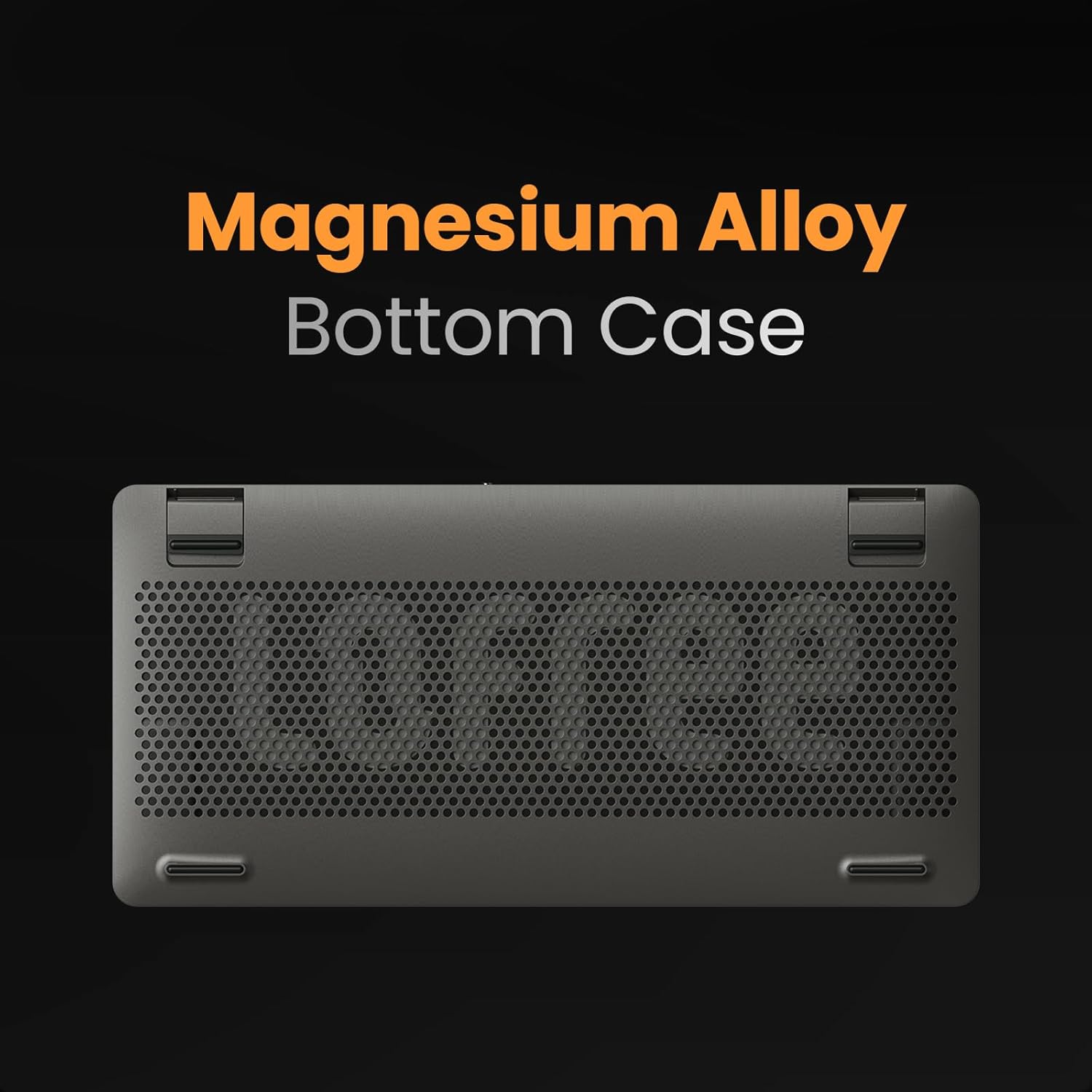
The LOFREE Edge keyboard is designed for portability and a premium typing experience, featuring an ultra-thin profile, carbon fiber and magnesium alloy construction, and advanced Kailh POM Switches 2.0.
Package Contents
- LOFREE Edge Low Profile Mechanical Keyboard
- USB Cable
- Lofree "Zero" Panel Mount (Carbon Fiber Keyboard Stand)
Setup
Initial Charging
Before first use, fully charge the keyboard using the provided USB-C cable. Connect the cable to the USB-C port on the keyboard and to a power source (e.g., computer USB port, USB wall adapter). A full charge takes approximately 3 hours and provides up to 130 hours of non-stop working time.

Connecting the Keyboard
The LOFREE Edge supports both wired USB-C and Bluetooth connections.
Wired Connection
Connect the provided USB-C cable from the keyboard to your computer's USB port. The keyboard will automatically switch to wired mode and operate with a 1000Hz polling rate, ensuring minimal latency.

Bluetooth Connection
- Ensure the keyboard is charged.
- Toggle the switch on the side of the keyboard to the Bluetooth (BT) position.
- On your device (Laptop, PC, Tablet), enable Bluetooth and search for new devices.
- Select "LOFREE Edge" from the list of available devices to pair.
- The keyboard can store up to 3 paired Bluetooth devices. Switch between them using Fn + 1/2/3.

Operating Instructions
Key Functions and Layout
The LOFREE Edge features an 84-key layout with low-profile keycaps and Kailh POM Switches 2.0 for a comfortable typing experience.

System Function Keys
- Fn + N: Triggers corresponding system function keys for Windows/Android.
- Fn + M: Triggers corresponding system function keys for Mac/iOS.
Backlighting
The keyboard features single-color backlighting. Adjust brightness or toggle effects (e.g., breathing light, steady) using the dedicated function keys (refer to keyboard legends for specific key combinations, typically Fn + arrow keys or dedicated light keys).

Adjustable Kickstands
The keyboard is equipped with adjustable kickstands on the bottom, allowing for two typing angles (3° and 6°) to enhance ergonomic comfort.

Maintenance
Cleaning the Keyboard
To clean your LOFREE Edge keyboard, use a soft, lint-free cloth. For stubborn dirt, slightly dampen the cloth with water or a mild cleaning solution. Avoid excessive moisture and harsh chemicals.
Keycap Removal and Replacement
The keyboard features ultra-thin OEM keycaps. While designed for durability, they can be carefully removed for cleaning or replacement using a keycap puller. Exercise caution to avoid damaging the switches.
Storage
When not in use, store the keyboard in a dry, cool place. For travel, consider using a protective sleeve to prevent scratches and damage.
Troubleshooting
| Problem | Possible Cause | Solution |
|---|---|---|
| Keyboard not responding (Wired) | Loose cable connection, faulty USB port. | Ensure USB-C cable is securely connected. Try a different USB port or cable. |
| Keyboard not responding (Bluetooth) | Low battery, not paired, out of range, interference. | Charge the keyboard. Re-pair the device. Ensure keyboard is within Bluetooth range. Minimize interference from other wireless devices. |
| Keys not registering or double-typing | Dust/debris under keycap, switch issue. | Carefully remove keycap and clean around the switch. If issue persists, contact support. |
| Backlighting not working | Backlight turned off, low battery. | Press Fn + relevant key to turn on/adjust brightness. Charge the keyboard. |
Specifications
- Model: OE920
- Dimensions: 12.25 x 6.06 x 0.59 inches
- Weight: 1.07 pounds (485g)
- Connectivity: Bluetooth, USB-C
- Keyboard Type: Mechanical
- Switches: Kailh POM Switch 2.0 (2.4mm total travel)
- Keycaps: Ultra-thin OEM PBT Keycaps
- Construction: Carbon Fiber Top Case, Magnesium Alloy Bottom Case
- Battery: 1 Lithium Polymer battery (included)
- Battery Life: Up to 130 hours (non-stop working)
- Charging Time: Approximately 3 hours
- Polling Rate (Wired): 1000Hz
- Backlighting: Single Color, adjustable brightness
- Compatible Devices: Laptop, PC, Tablet (Windows, Mac OS, Android, iOS)


Warranty and Support
Warranty Information
LOFREE products typically come with a limited manufacturer's warranty. Please refer to the warranty card included in your product packaging or visit the official LOFREE website for detailed warranty terms and conditions. Keep your purchase receipt as proof of purchase for warranty claims.
Customer Support
For technical assistance, product inquiries, or warranty support, please contact LOFREE customer service through their official website or the contact information provided in your product documentation. You can also visit the LOFREE Store on Amazon for additional resources and product information.
Related documentsOE920


Ask a question about this manual
Ask about setup, troubleshooting, compatibility, parts, safety, or missing instructions. Manuals+ will review the question and use this page’s manual context to help answer it.