
1. Product Overview
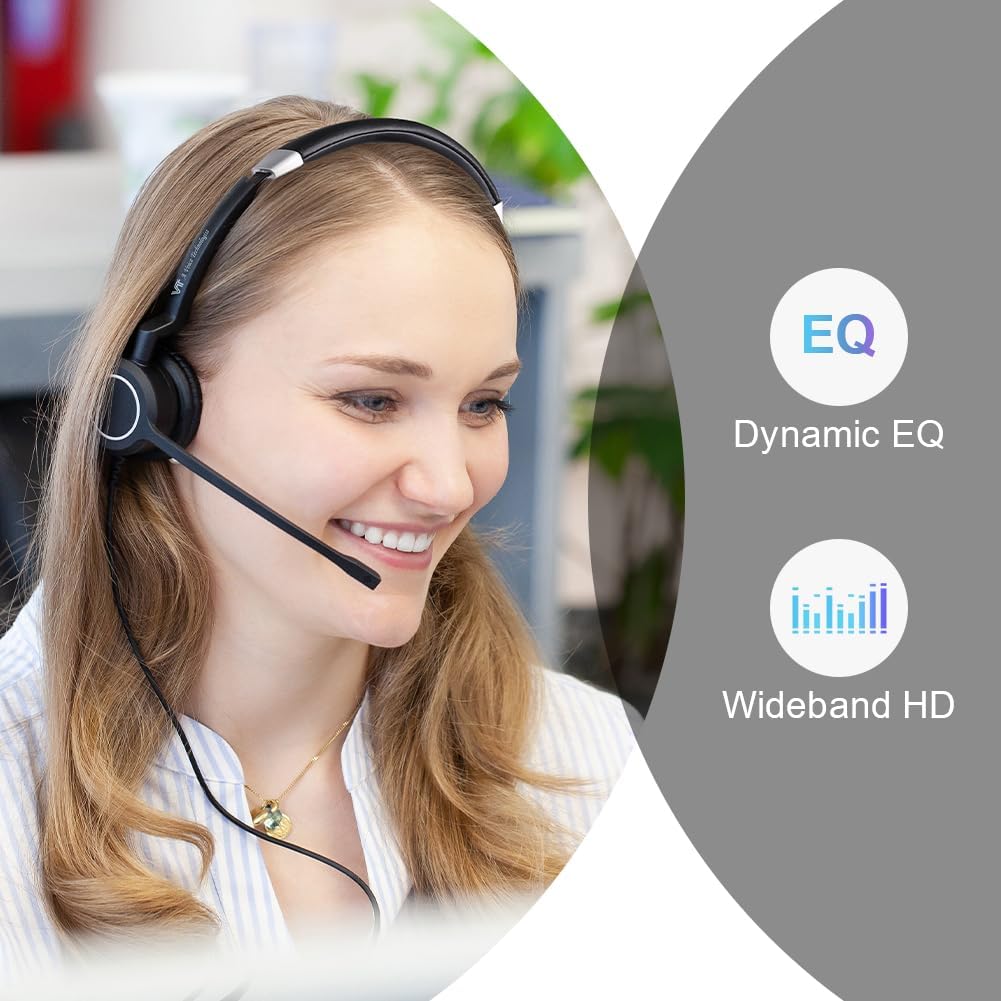
The VT VTX120UNC is a wired Unified Communications (UC) headset designed for professional use in various environments, including home offices and bustling workplaces. It features advanced dual-microphone AI noise-cancelling technology to ensure clear audio transmission and reception. The headset offers versatile connectivity with both USB-A and USB-C interfaces, making it compatible with a wide range of devices and UC platforms.
Key features include:
- Dual-Microphone AI Noise-Cancelling: Eliminates background noise for crystal-clear calls.
- HD Audio: Delivers high-definition sound quality.
- UC Platform Compatibility: Optimized for Microsoft Teams, and compatible with 3CX, Cisco Jabber, Bria, Avaya Workplace, Zoom, Google Meet, RingCentral, and more.
- USB-A/C Connectivity: Includes a USB-A connector and a USB A-C adapter for broad device compatibility.
- Intuitive In-line Controls: Easy management of calls and volume.
- Comfortable Design: Lightweight with a soft-padded headband and leatherette ear cushions for extended wear.

2. What's in the Box
Upon opening your VT VTX120UNC headset package, you should find the following items:
- 1 x VT VTX120UNC Headset
- 1 x USB A-C Adapter
- 1 x Cloth Clip
- 1 x User Manual (this document)
3. Setup
Follow these steps to set up your VT VTX120UNC headset:
- Connect the Headset: Plug the USB-A connector of the headset into an available USB-A port on your computer, laptop, or compatible IP phone. If your device only has a USB-C port, use the provided USB A-C adapter.
- Adjust the Headband: Gently extend or retract the headband to ensure a comfortable and secure fit on your head. The soft-padded headband is designed for extended wear.
- Position the Microphone: Rotate the microphone boom arm to position the microphone approximately 1-2 inches (2.5-5 cm) from your mouth. The boom arm is flexible and can be adjusted to your preferred position for optimal voice pickup.
- Software Recognition: Your operating system (Windows, macOS) or UC platform (Microsoft Teams, Zoom, etc.) should automatically detect the headset. No additional drivers are typically required for basic functionality.


4. Operating Instructions
The VTX120UNC headset features intuitive in-line controls for managing your calls and audio settings.
4.1 In-line Call Controls

- Answer/End Call Button: Press the Hook on/off button (typically with a phone icon) to answer an incoming call or end an active call.
- Volume Up/Down Buttons: Use the + and - buttons to adjust the listening volume. These controls will synchronize with your computer or device's volume settings.
- Mute Button: Press the Mute button (typically with a microphone icon) to mute or unmute your microphone during a call.
4.2 UC Platform Compatibility
The headset supports native answer/end call functionality for Microsoft Teams without requiring additional drivers. It is also compatible with a range of other UC platforms:
- Microsoft Teams
- 3CX
- Cisco Jabber
- Bria
- Avaya Workplace (requires VT UC Bridge - contact customer service for details)
- Zoom
- Google Meet
- RingCentral
- And other similar platforms.

4.3 USB-enabled IP Phone Compatibility
The VTX120UNC headset supports leading desk phones. Please note some known synchronization behaviors:
- Yealink SIP-T54S/SIP-T41S: Mute function may not synchronize.
- Grandstream GRP2615/2616: Fully supported.
- Fanvil X210/X7C: Mute function may not synchronize.
- Fanvil X7C-V2/X4U-V2: Volume function may not synchronize.
- Fanvil X5U-V2: Volume cannot be adjusted.
- Fanvil X6U/X7A: Mute function may not synchronize.
- Fanvil V63/V64/V65: Volume function may not synchronize.
- Fanvil V67: Fully supported.
VT is continuously exploring and updating compatibility solutions for IP phones.
4.4 Noise-Cancelling Feature
The headset's dual-microphone AI noise-cancelling technology actively reduces ambient background noise, ensuring your voice is transmitted clearly to the other party. Passive noise cancellation from the ear cushions further enhances your listening experience by reducing surrounding sounds.

For a demonstration of the unboxing, features, and noise cancellation, please watch the official product video:
Video 1: Unboxing and Features of VT X120 UC Headset. This video demonstrates the unboxing process, key features, and the effectiveness of the noise-cancelling microphones in a noisy environment.
5. Maintenance
Proper maintenance ensures the longevity and optimal performance of your headset.
- Cleaning: Use a soft, dry cloth to wipe down the headset, ear cushions, and microphone boom. For deeper cleaning, a slightly damp cloth with mild soap can be used on non-electrical parts, ensuring no moisture enters the microphone or speaker grilles.
- Storage: Store the headset in a clean, dry place away from extreme temperatures and direct sunlight. Avoid placing heavy objects on top of the headset.
- Cable Care: Do not pull on the cable to disconnect the headset. Always grasp the USB connector. Avoid sharp bends or kinks in the cable to prevent internal damage.
- Ear Cushions: The leatherette ear cushions are designed for durability. If they become worn or damaged, contact customer support for replacement options.
6. Troubleshooting
If you encounter issues with your VT VTX120UNC headset, try the following troubleshooting steps:
- No Sound/Microphone Not Working:
- Ensure the headset is securely plugged into the USB port.
- Check your computer's audio settings to confirm the VT VTX120UNC is selected as the default playback and recording device.
- Verify that the mute button on the in-line control is not activated.
- Test the headset with a different USB port or another computer/device to rule out port or device-specific issues.
- For UC platforms, check the audio settings within the application (e.g., Microsoft Teams, Zoom) to ensure the headset is selected.
- In-line Controls Not Responding:
- Ensure the headset is properly connected.
- Restart the application or computer.
- For specific IP phone models, be aware of known synchronization limitations for mute or volume controls as detailed in Section 4.3.
- Poor Audio Quality:
- Adjust the microphone boom arm to ensure it is correctly positioned near your mouth.
- Check for any physical obstructions around the microphone.
- Ensure your operating system and UC applications are up to date.
- If experiencing echo, try reducing your speaker volume or adjusting microphone sensitivity in your device's sound settings.
If these steps do not resolve the issue, please refer to the Support section for further assistance.
7. Specifications
| Feature | Detail |
|---|---|
| Brand | VT |
| Model Number | VTX120UNC |
| Color | Black |
| Ear Placement | On Ear |
| Form Factor | On Ear |
| Noise Control | Sound Isolation, 2-Mic AI Noise Cancelling |
| Connectivity Technology | USB-A & USB A-C Adapter (Wired) |
| Headphone Jack | USB-A |
| Control Type | Call Control (Touch) |
| Frequency Range | 200 Hz - 8 kHz |
| Compatible Devices | Desktop Computer, Laptops, USB-enabled IP Phones |
| Material | Leather, Polyurethane (PU), Stainless Steel |
| Item Weight | 195 Grams |
8. Warranty
The VT VTX120UNC headset comes with a 2-year warranty from the date of purchase. This warranty covers manufacturing defects and ensures the product meets its specified performance standards. Please retain your proof of purchase for warranty claims.
9. Support
For further assistance, technical support, or inquiries regarding the VT UC Bridge for Avaya Workplace compatibility, please contact VT customer service. You can also visit the official VT store for more product information and resources.