
1. Introduction
This manual provides instructions for the Acer Nitro V 15 Gaming Laptop, model ANV15-51-99DR. This laptop is equipped with an Intel Core i9-13900H processor, NVIDIA GeForce RTX 4060 Laptop GPU, a 15.6-inch Full HD IPS display with a 144Hz refresh rate, 16GB DDR5 RAM, and a 512GB Gen 4 SSD. It is designed for gaming and demanding computing tasks.

Figure 1: Acer Nitro V Gaming Laptop.
2. What's in the Box
Verify that all items are present upon unboxing:
- Acer Nitro V Gaming Laptop
- AC Adapter
- Power Cord
3. Initial Setup
- Connect Power: Plug the AC adapter into the laptop's DC-in jack and then into a power outlet.
- First Boot: Open the laptop lid and press the power button. The system will guide you through the initial Windows 11 Home setup process.
- Network Connection: Follow the on-screen prompts to connect to a Wi-Fi network or use an Ethernet cable for a wired connection.
- Software Updates: After initial setup, ensure all operating system and driver updates are installed for optimal performance and security.
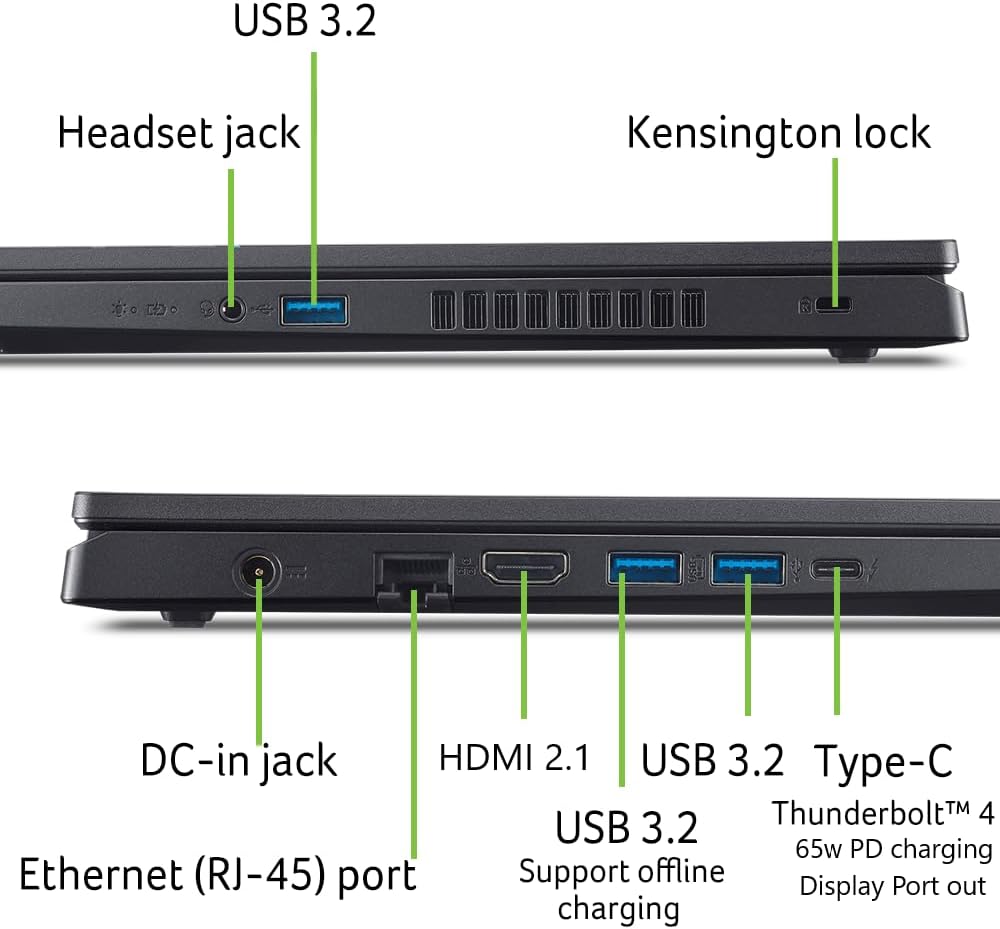
Figure 2: Laptop ports including DC-in jack.
4. Operating Instructions
4.1. Powering On/Off
- Power On: Press the power button located on the keyboard deck.
- Shut Down: Click the Start button, then Power, and select 'Shut down'.
- Sleep Mode: Close the laptop lid or click the Start button, then Power, and select 'Sleep'.
4.2. Display and Graphics
The laptop features a 15.6-inch Full HD (1920x1080) IPS display with a 144Hz refresh rate for smooth visuals. The NVIDIA GeForce RTX 4060 Laptop GPU provides dedicated graphics processing.
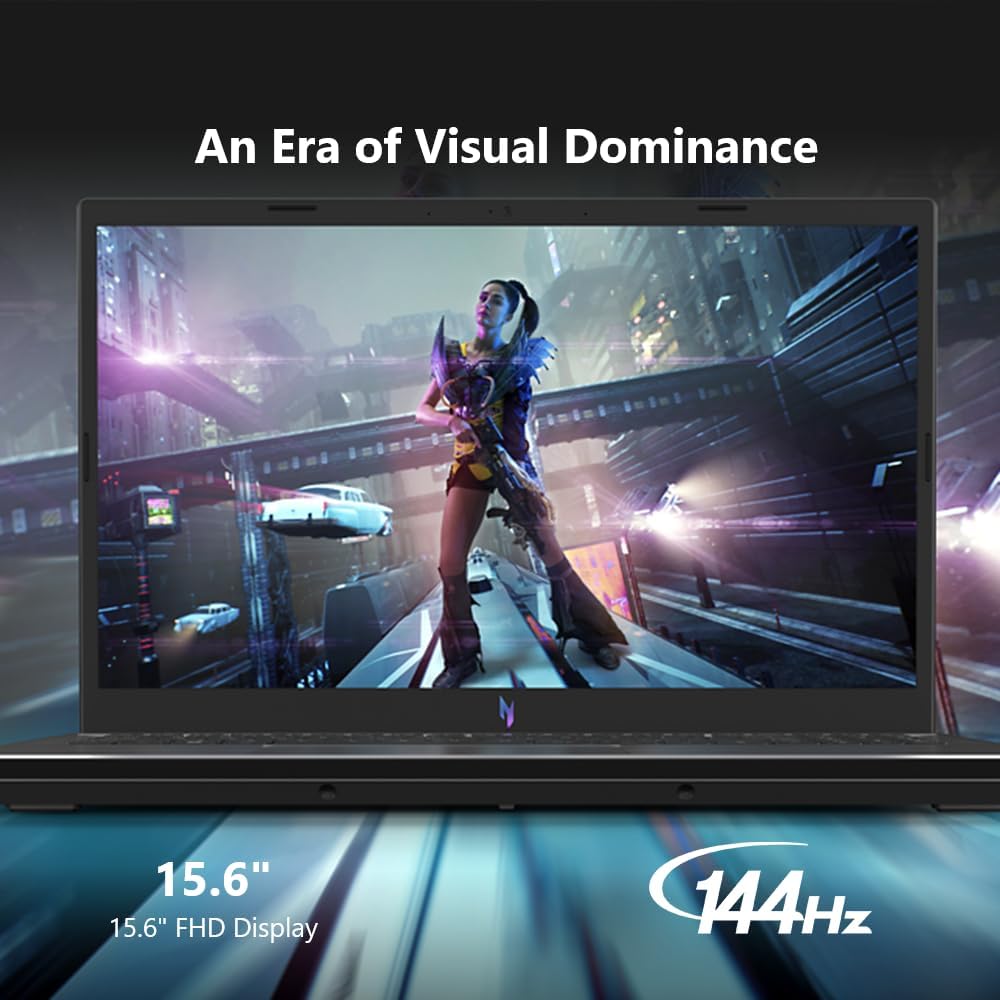
Figure 3: 15.6-inch FHD 144Hz IPS Display.
4.3. Connectivity
The Nitro V 15 offers various connectivity options:
- Wi-Fi 6 (802.11ax): For high-speed wireless internet access.
- Gigabit Ethernet: For stable wired network connections via the RJ-45 port.
- Bluetooth: For connecting wireless peripherals.
- Thunderbolt 4: A versatile port for power charging, high-speed data transfer, and video output.
- USB 3.0 Ports: Multiple ports for connecting USB devices.
- HDMI 2.1: For connecting to external displays.
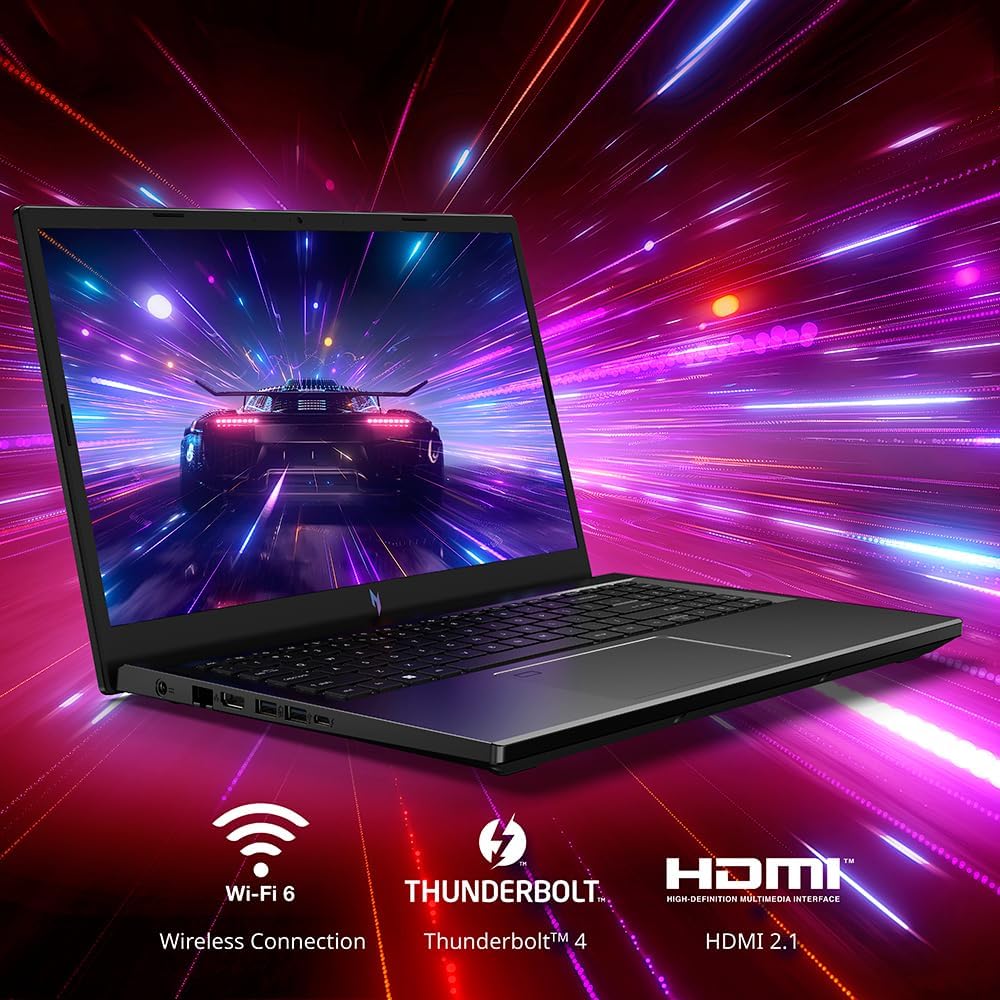
Figure 4: Wireless and Wired Connectivity Options.
4.4. NitroSense Software
Utilize the NitroSense utility to monitor system performance, adjust fan speeds, and fine-tune other settings to optimize your laptop's operation during gaming or multitasking.
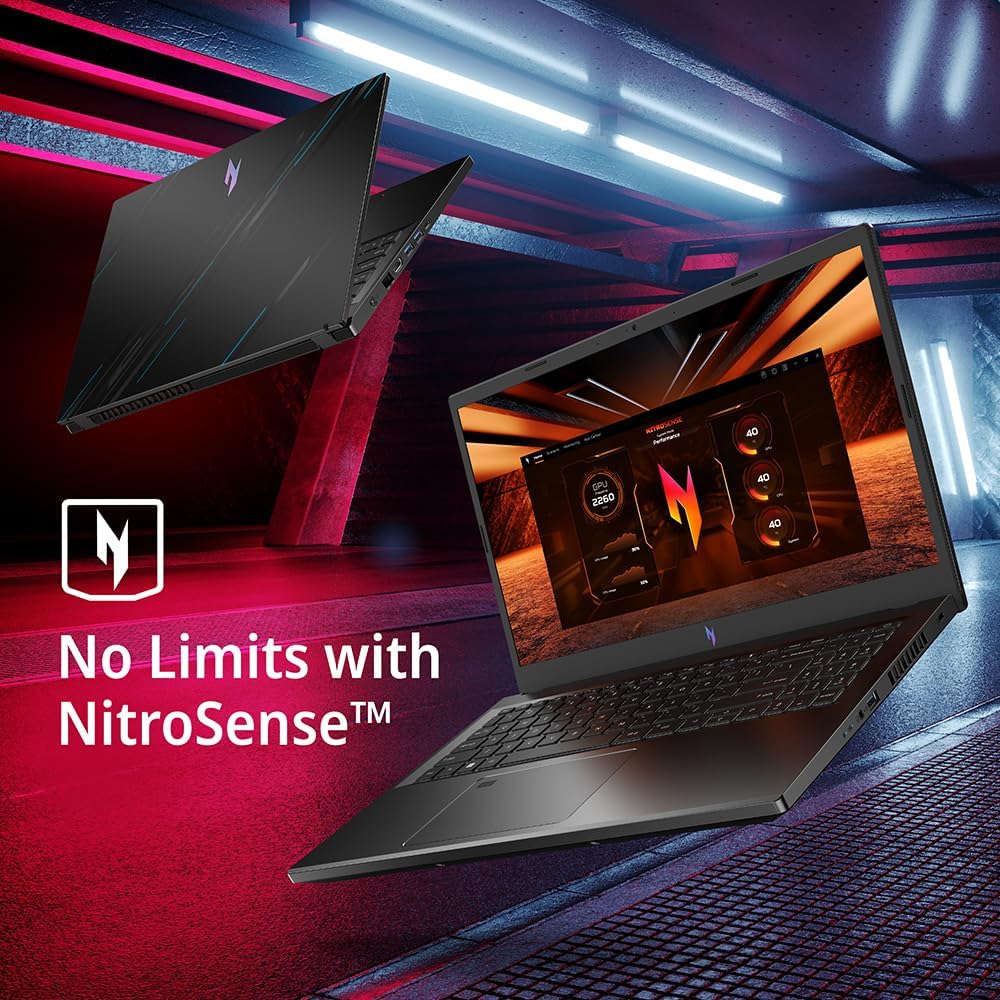
Figure 5: NitroSense Performance Monitoring.
4.5. Audio and Webcam
The laptop features DTS® X: Ultra Audio for enhanced sound. Acer PurifiedVoice provides AI-powered noise reduction for clear communication, and PurifiedView offers an AI-powered webcam for improved video quality.

Figure 6: Audio and Webcam Features.
4.6. Cooling System
The Acer Nitro V 15 incorporates a dual-fan cooling system to manage internal temperatures and maintain performance during intensive use.
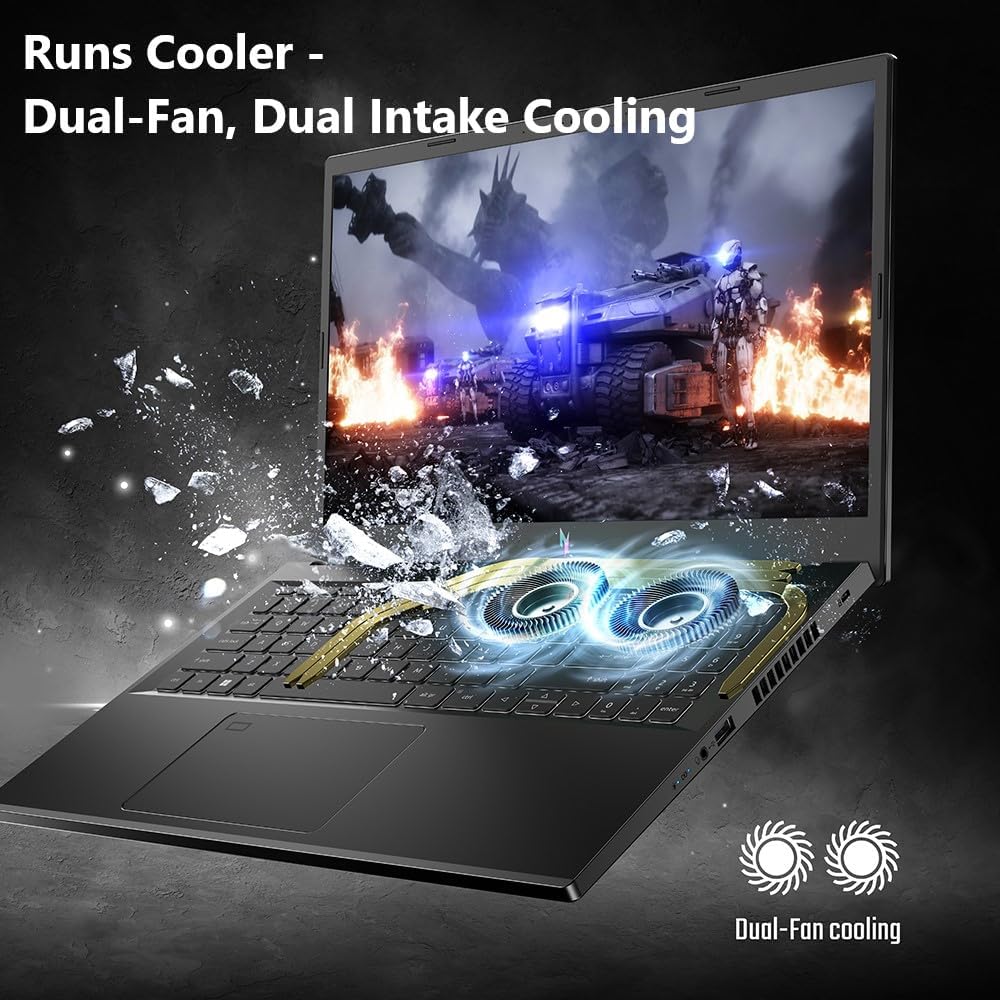
Figure 7: Dual-Fan Cooling System.
4.7. Windows 11 Gaming
The laptop runs on Windows 11 Home, providing access to a wide range of PC games. Features like Game Bar and DirectX 12 Ultimate are integrated for an optimized gaming experience.

Figure 8: Windows 11 Gaming Environment.
5. Maintenance
- Cleaning: Use a soft, lint-free cloth to clean the screen and exterior. Avoid harsh chemicals. For keyboard and vents, use compressed air to remove dust.
- Software Updates: Regularly check for and install operating system updates, driver updates (especially for graphics), and firmware updates to ensure system stability and performance.
- Battery Care: To prolong battery life, avoid consistently discharging the battery completely or keeping it at 100% charge for extended periods. Store the laptop in a cool, dry place.
- Storage: Keep the laptop in a protective sleeve or bag when transporting it to prevent scratches and impacts.
6. Troubleshooting
- Laptop Not Powering On: Ensure the AC adapter is securely connected to both the laptop and a working power outlet. Try a different outlet if necessary.
- No Display: If the laptop powers on but the screen remains black, try connecting an external monitor to check if the display output is working. Restart the laptop.
- Slow Performance: Check for background applications consuming resources. Ensure drivers are updated and consider running a system scan for malware. Use NitroSense to monitor CPU/GPU usage and temperatures.
- Wi-Fi Connectivity Issues: Verify that Wi-Fi is enabled. Restart your router and the laptop. Check network settings in Windows.
- Overheating: Ensure the laptop's vents are not obstructed. Use NitroSense to monitor temperatures and adjust fan speeds. Operating the laptop on a hard, flat surface can improve airflow.
7. Specifications
| Feature | Detail |
|---|---|
| Brand | acer |
| Model Name | Nitro V Gaming Laptop ANV15-51-99DR |
| Operating System | Windows 11 Home |
| Processor | Intel Core i9-13900H (4.1 GHz) |
| Graphics Coprocessor | NVIDIA GeForce RTX 4060 |
| Graphics Card RAM Size | 8 GB |
| Screen Size | 15.6 Inches |
| Screen Resolution | 1920 x 1080 pixels (FHD) |
| Refresh Rate | 144Hz |
| RAM | 16 GB DDR5 |
| Hard Drive | 512 GB SSD (Gen 4) |
| Wireless Type | 802.11ax (Wi-Fi 6), Bluetooth |
| USB 3.0 Ports | 4 |
| Thunderbolt Port | 1 (Thunderbolt 4) |
| HDMI Port | 1 (HDMI 2.1) |
| Average Battery Life | 8 Hours |
| Item Weight | 4.66 pounds |
| Product Dimensions | 14.26 x 0.93 x 9.44 inches |
| Color | Black |
| Special Feature | Backlit Keyboard |
8. Product Video
Video 1: An overview of the Acer Nitro V ANV15-51 Gaming Laptop, highlighting its design and key features.
9. Warranty and Support
For detailed warranty information, please refer to the warranty card included with your product or visit the official Acer support website. Technical support and additional resources can be found on the Acer website.
Protection plans are available for purchase separately to extend coverage beyond the standard warranty period. Please consult the retailer or Acer for details on available protection plans.