
Introduction
Thank you for choosing the Wisoqu 2.7K Full HD Vlogging Camcorder. This manual provides essential information for the proper setup, operation, and maintenance of your new camcorder. Please read it thoroughly before use to ensure optimal performance and longevity of the device.

Image: Front view of the Wisoqu 2.7K Full HD Vlogging Camcorder, showcasing its lens, rotatable screen, and control buttons.
Package Contents
Before proceeding with the setup, please verify that all items listed below are included in your package:
- 1 x Wisoqu 2.7K Camcorder
- 1 x Storage Bag
- 1 x USB Cable
- 1 x Instruction Manual
- 1 x Lithium Battery (NP-40, 1500mAh, built-in)

Image: The Wisoqu camcorder displayed alongside its storage bag and USB cable, illustrating the complete package contents.
Setup Guide
1. Battery Installation and Charging
The camcorder comes with a built-in lithium battery. For initial use, ensure the battery is fully charged. Connect the camcorder to a power source using the provided USB cable.
- Locate the battery compartment on the bottom of the camcorder.
- If the battery is not pre-installed, insert the NP-40 lithium battery into the compartment, ensuring correct polarity.
- Close the battery compartment cover securely.
- Connect the small end of the USB cable to the camcorder's USB port and the other end to a USB power adapter (not included) or a computer's USB port.
- The charging indicator light will illuminate. Charging typically takes a few hours.
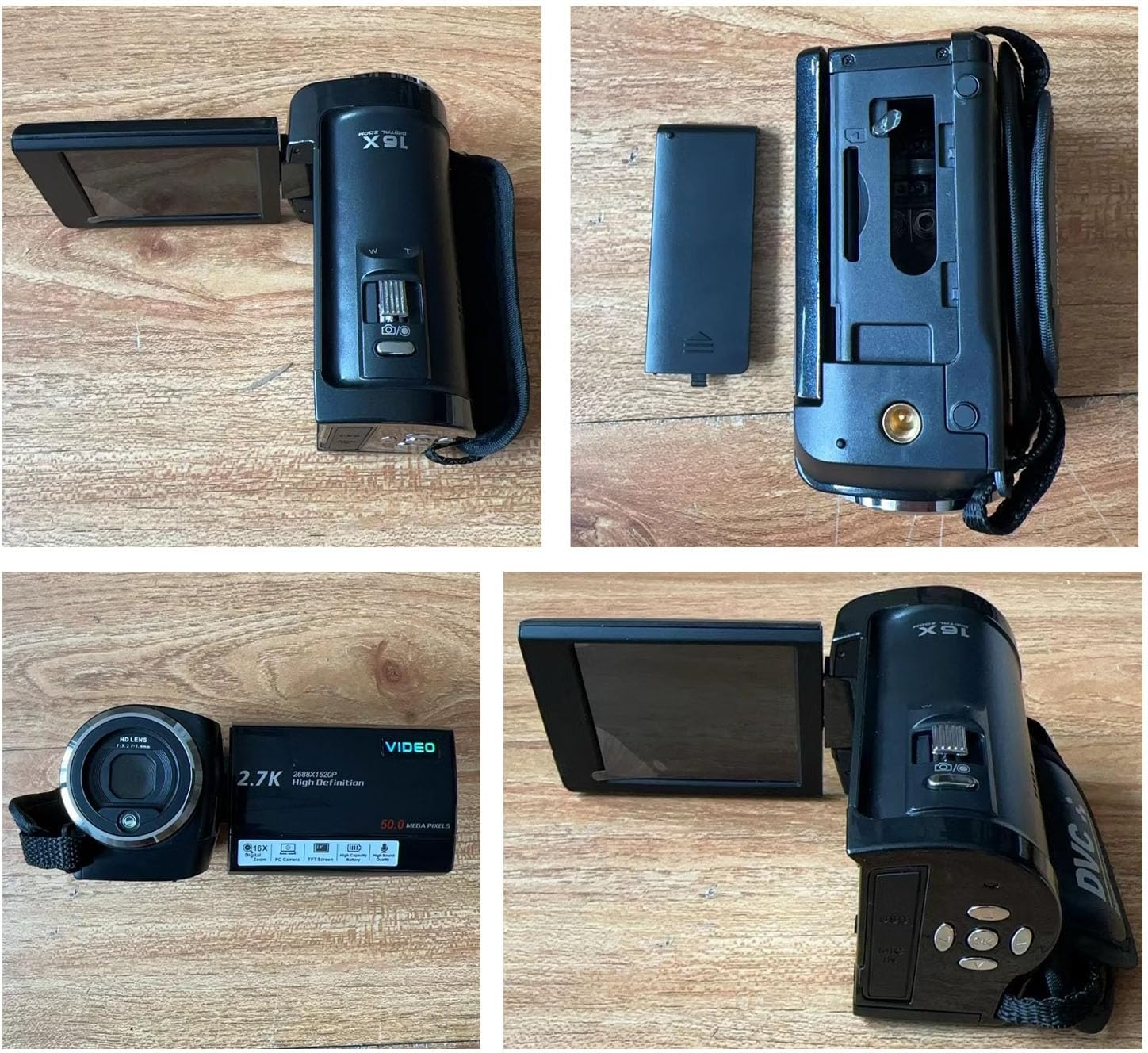
Image: A four-panel image showing the camcorder from different angles, including a clear view of the battery compartment and the removable battery.
2. Memory Card Installation
The camcorder requires a storage card (up to 128GB, not included) to save photos and videos.
- Locate the memory card slot, typically near the battery compartment or on the side of the camcorder.
- Insert a compatible SD card into the slot with the gold contacts facing down until it clicks into place.
- To remove, gently push the card in until it springs out.
3. Attaching to a Tripod
The camcorder features a standard 1/4 inch threaded connector on the bottom, allowing it to be mounted on a tripod for stable recording.

Image: The Wisoqu camcorder shown with text indicating its 1/4 inch threaded connector for tripod mounting and its long-term recording capabilities with the built-in battery.
Operating Instructions
1. Powering On/Off
- To power on, open the rotatable screen. The camcorder will automatically turn on.
- To power off, close the rotatable screen. The camcorder will automatically shut down.
2. Recording Videos
- Ensure the camcorder is in video mode.
- Press the Record button (usually marked with a red dot) to start recording.
- Press the Record button again to stop recording.
- The camcorder supports 2.7K, 1080P, and 720P video resolutions. Adjust settings via the menu.
3. Taking Photos
- Switch the camcorder to photo mode.
- Press the Shutter button to capture a photo.
- The camcorder supports up to 50MP image resolution.
4. Using Digital Zoom
The camcorder features 16x digital zoom. Use the zoom lever (often labeled 'W' for Wide and 'T' for Telephoto) to adjust the zoom level.

Image: The camcorder's 2.8-inch rotatable TFT LCD screen displaying a close-up of blueberries, demonstrating its ability to capture detailed images with 16x digital zoom.
5. Rotatable Screen (2.8 inches TFT LCD)
The 2.8-inch TFT LCD screen can rotate 270 degrees, allowing for flexible viewing angles, especially useful for vlogging and self-recording.
6. Built-in Fill Light
Activate the built-in LED fill light in low-light conditions to improve brightness and clarity of your recordings.
7. Webcam Functionality
The camcorder can be connected to a computer via USB and used as a webcam for video calls or live streaming.

Image: A person using the Wisoqu camcorder, with an overlay explaining its webcam features and connectivity via USB for video calls and live applications.
8. Connecting to External Devices
The camcorder features a USB port for data transfer and charging, and a MIC IN port for connecting an external microphone (not included) for enhanced audio quality.

Image: A side view of the Wisoqu camcorder, highlighting the USB and MIC IN ports for connectivity and external audio input.
Maintenance
- Cleaning the Lens and Screen: Use a soft, lint-free cloth specifically designed for optical surfaces. Do not use abrasive cleaners or solvents.
- General Cleaning: Wipe the camcorder body with a dry, soft cloth. Avoid getting moisture into ports or openings.
- Storage: When not in use for extended periods, store the camcorder in a cool, dry place, away from direct sunlight and extreme temperatures. Remove the memory card if storing for very long durations.
- Battery Care: To prolong battery life, avoid fully discharging the battery frequently. Charge it regularly, even if not in use, to maintain its capacity.
Troubleshooting
| Problem | Possible Cause | Solution |
|---|---|---|
| Camcorder does not power on. | Battery is low or depleted. | Charge the battery fully. |
| Battery not installed correctly. | Reinstall the battery, ensuring correct polarity. | |
| Cannot record video/take photos. | Memory card is full. | Delete unnecessary files or insert a new memory card. |
| Memory card error or not formatted. | Format the memory card (this will erase all data). Try a different memory card. | |
| Poor video/photo quality. | Lens is dirty. | Clean the lens with a soft, lint-free cloth. |
| Insufficient lighting. | Use the built-in fill light or record in better lit environments. | |
| Camcorder freezes or becomes unresponsive. | Temporary software glitch. | Remove and reinsert the battery to reset the device. |
Specifications
| Feature | Specification |
|---|---|
| Image Resolution | 50MP (Maximum) |
| Video Resolution | 2.7K, 1080P, 720P |
| Screen Size | 2.8 Inches (TFT LCD, 270-degree rotation) |
| Digital Zoom | 16x |
| Shutter | Electronic |
| Storage | Maximum Support Storage Card 128G (Not Included) |
| Camera Battery | Lithium Battery (NP-40, 1500mAh, Built-In) |
| Item Weight | 13.5 ounces |
| Package Dimensions | 5.51 x 3.94 x 3.15 inches |
| Model Number | Wisoqum06g89toi4 |
| ASIN | B0D8JH2P5Q |
Warranty and Support
For warranty information or technical support, please refer to the documentation provided with your purchase or contact Wisoqu customer service through the retailer's platform where the product was purchased. Please have your model number (Wisoqum06g89toi4) and ASIN (B0D8JH2P5Q) ready when contacting support.
You can also visit the official Wisoqu store for more information: Wisoqu Store on Amazon