
Introduction
This manual provides essential instructions for the installation, operation, and maintenance of your MZZYG F7-TY05-2DIN-H2-32G Car Multimedia Player. Please read this manual thoroughly before using the product to ensure proper function and safety. Keep this manual for future reference.
Safety Information
- Do not operate the device in a manner that distracts you from driving. Always prioritize road safety.
- Ensure all wiring is correctly connected to prevent short circuits or damage. Consult a professional for installation if unsure.
- Avoid exposing the device to extreme temperatures, direct sunlight for prolonged periods, or excessive moisture.
- Do not attempt to disassemble or modify the unit. This may void the warranty and cause damage.
- Clean the screen and unit with a soft, dry cloth. Avoid abrasive cleaners or solvents.
Package Contents
Verify that all items listed below are included in your package:

Image: Package Contents. This image displays the various components included with the MZZYG Car Multimedia Player. It shows the main head unit (Machine), power cable, microphone (MIC), GPS antenna, metal frame for installation, and various RCA, reversing camera, and USB cables for connectivity. The cables are categorized for different memory configurations (1+16GB, 2+32GB, M200S-M700S).
- Main Unit (Machine)
- Power Cable
- Microphone (MIC)
- GPS Antenna
- Metal Frame
- RCA Cable & Reversing Camera & USB Cable (specific to 1+16GB / 2+32GB models)
- Audio Out & 4G Antenna (specific to M200S-M700S models)
Setup and Installation
Professional installation is recommended. Ensure the vehicle's power is disconnected before beginning installation.
- Remove Existing Unit: Carefully remove your vehicle's existing car stereo or navigation system.
- Connect Wiring: Connect the provided power cable, GPS antenna, and other necessary cables (RCA, USB, microphone) to the corresponding ports on the new multimedia player. Refer to your vehicle's wiring diagram for specific connections.
- Secure Unit: Install the metal frame into the dashboard opening, then slide the multimedia player into the frame until it clicks securely into place.
- Test Functionality: Reconnect the vehicle's power and turn on the unit to test all functions (radio, GPS, Bluetooth, etc.) before fully reassembling the dashboard.
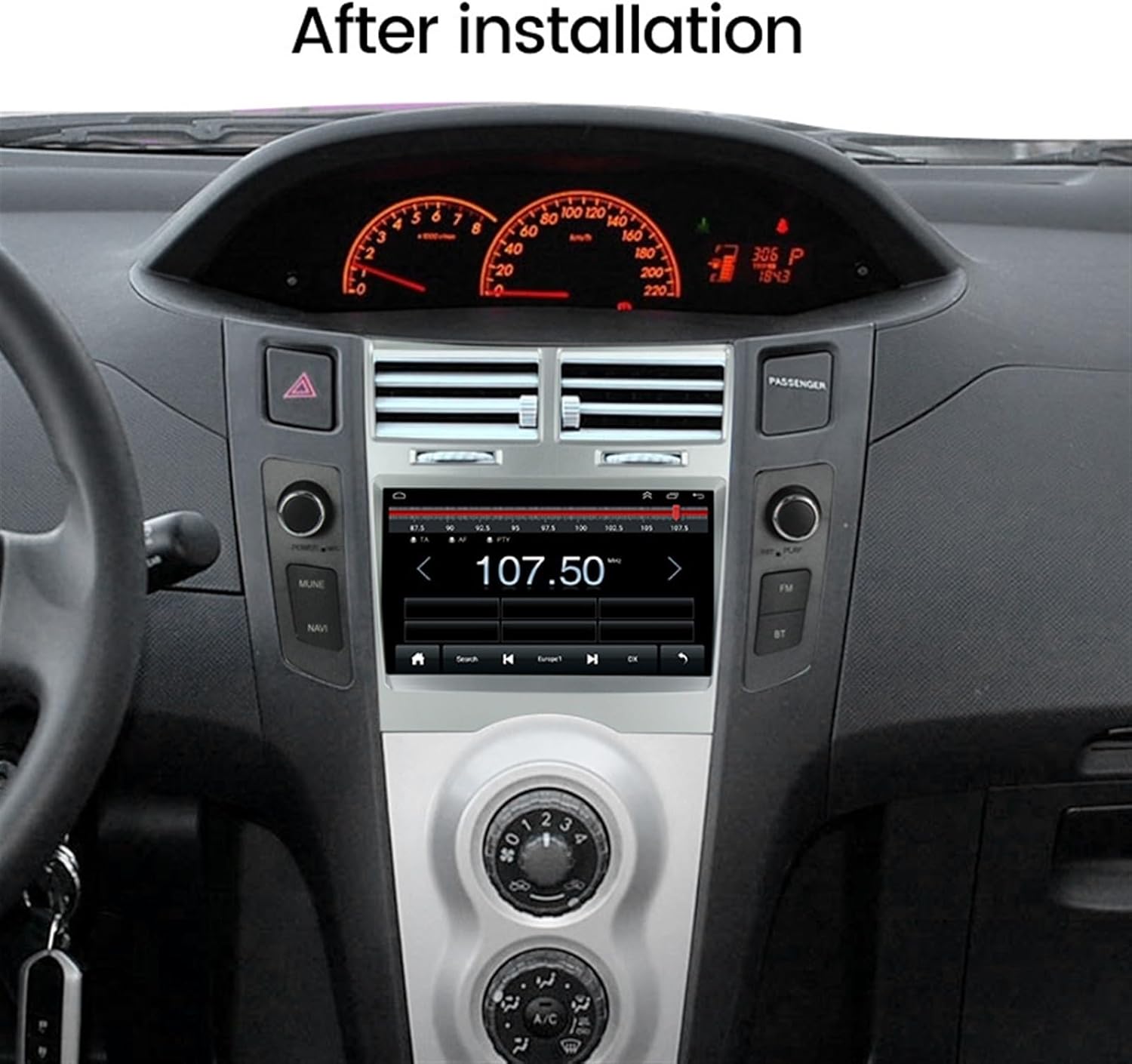
Image: After Installation. This image illustrates the MZZYG Car Multimedia Player seamlessly integrated into a car's dashboard after successful installation. The display shows a radio interface tuned to 107.50 MHz.
Operating Instructions
1. GPS Navigation
The unit features a built-in global positioning system for accurate navigation.

Image: GPS Navigation. This image highlights the GPS navigation capabilities of the multimedia player. The screen shows a map with real-time traffic conditions and positioning, utilizing GPS, BDS, and GLONASS systems for rapid and accurate location services.
- Omni-directional Map Display: Provides a comprehensive view of your route.
- Real-time Traffic: Synchronous display of real-time traffic conditions helps in route optimization.
- Accurate Positioning: Utilizes GPS, BDS, and GLONASS for precise location tracking.
- To access navigation, tap the "NAV" or "GPS" icon on the main menu.
2. Bluetooth (BT) Function
Connect your smartphone via Bluetooth for hands-free calling and audio streaming.

Image: Support BT Function. This image demonstrates the Bluetooth functionality. The display shows options for Bluetooth music, syncing contacts, and synchronous call recording. An overlay illustrates an incoming call interface on a connected smartphone.
- Phonebook: Access your phone's contacts directly from the unit.
- Caller ID: Displays incoming, dialed, and missed calls with caller ID.
- BT Music Streaming: Play audio from your connected device wirelessly.
- To pair, go to the Bluetooth settings on the unit and your phone, then select the unit's name.
3. Built-in CarPlay + Android Auto
Seamlessly integrate your smartphone for a safer and smarter driving experience.

Image: Built-in CarPlay + Auto. This image shows the multimedia player's screen displaying the Apple CarPlay interface, featuring icons for Phone, Music, Maps, Messages, and other applications. A hand holding a smartphone is visible next to the screen, indicating smartphone integration.
- Connect your iPhone via USB for CarPlay or Android phone for Android Auto.
- Access navigation, make calls, send/receive messages, and listen to music directly from the unit's display.
- No additional accessories are required for this function.
4. Radio Operation
- Tuning: Use the on-screen controls to scan for stations or manually tune to a specific frequency.
- Presets: Save your favorite stations for quick access.
Maintenance
- Cleaning: Use a soft, lint-free cloth to clean the screen and exterior. For stubborn marks, slightly dampen the cloth with water. Do not use chemical cleaners.
- Software Updates: Periodically check the manufacturer's website for available software updates to ensure optimal performance and new features.
- Environmental Care: Avoid prolonged exposure to direct sunlight or extreme temperatures to prevent damage to the internal components.
Troubleshooting
| Problem | Possible Cause | Solution |
|---|---|---|
| Unit does not power on. | Incorrect wiring; Blown fuse; Vehicle power issue. | Check power connections; Inspect vehicle fuses; Consult a professional. |
| No sound. | Volume too low; Mute activated; Speaker wiring issue. | Increase volume; Deactivate mute; Check speaker connections. |
| GPS signal lost or inaccurate. | GPS antenna not properly connected or obstructed; Poor satellite reception. | Ensure GPS antenna is securely connected and has a clear view of the sky. |
| Bluetooth connection issues. | Device not paired; Bluetooth off on phone/unit; Interference. | Ensure Bluetooth is enabled on both devices and re-pair; Move closer to the unit. |
| Touch screen unresponsive. | Temporary software glitch; Screen calibration needed. | Restart the unit; Perform a factory reset (refer to advanced settings). |
Specifications
| Brand | MZZYG |
| Model | F7-TY05-2DIN-H2-32G |
| Memory Capacity | 32 GB |
| Screen Resolution | 1024 x 600 |
| Compatible Devices | Smartphone |
| Product Weight | 50 g |
| Package Dimensions | 2.54 x 2.54 x 2.54 cm |
Warranty and Support
This product comes with a standard manufacturer's warranty. Please refer to the warranty card included in your package for specific terms and conditions. For technical support, troubleshooting assistance, or warranty claims, please contact MZZYG customer service through their official website or the retailer where the product was purchased.
For further assistance, visit: www.mzzyg.com (Note: This is a placeholder URL as no official support link was provided.)