
1. Introduction
Thank you for choosing the MZZYG Car Satellite Navigation Multimedia Player, Model 1005005311060377. This advanced car radio system is designed to provide a comprehensive in-car entertainment and navigation experience. It features a high-resolution 9-inch touchscreen, integrated GPS, Bluetooth, Wi-Fi, and 4G connectivity, ensuring you stay connected and entertained on the road.
This manual provides detailed instructions for the installation, operation, and maintenance of your new multimedia player. Please read it thoroughly before use to ensure proper functionality and to maximize your enjoyment of the product.
Key Features:
- High-fidelity sound reproduction for an enhanced audio experience.
- 9-inch touchscreen display with 1280*720 or 2000*1200 resolution.
- Support for steering wheel controls (volume, Bluetooth, voice commands).
- 4G connectivity for live streaming, online music, games, and movies.
- 360° 3D/2D panoramic mode for safer parking and reversing.
- Integrated speaker/microphone, Wi-Fi, and 3G/4G network support.
- Plug-and-play interface for simplified installation.
- Supports MP3, MP4, WMA, and JPEG digital media formats.
- Available with 32G, 64G, 128G, or 256G ROM and 8G RAM.
- TF/Micro SD slot for external memory up to 256G.
- Built-in cooling fan to prevent overheating and ensure stable operation.
- Customizable button lighting with various color options.
- Fully laminated screen for excellent visibility in bright conditions, reducing glare by 40%.
2. Setup and Installation
This multimedia player features a plug-and-play interface for straightforward installation. However, professional installation is recommended to ensure correct wiring and optimal performance, especially for advanced features like camera integration and steering wheel controls.
2.1 Package Contents
Verify that all components are present in the package:
- MZZYG Car Satellite Navigation Multimedia Player unit
- Power harness and necessary cables
- GPS antenna
- USB cables
- User Manual
- Optional accessories (e.g., 4K AHD Camera, 1080P ADAS DVR, Microphone, Tools, Clean Cloth)

Figure 1: Main unit and included accessories (some items may be optional gifts).
2.2 Basic Installation Steps
- Preparation: Disconnect the vehicle's battery before starting any electrical work.
- Remove Old Unit: Carefully remove your existing car radio or dashboard panel to access the wiring harness.
- Connect Wiring: Connect the provided power harness, speaker wires, and other necessary cables to the corresponding ports on the new multimedia player and your vehicle's wiring. Ensure all connections are secure.
- GPS Antenna: Mount the GPS antenna in a location with a clear view of the sky, typically on the dashboard or under the windshield, away from metal obstructions.
- Optional Connections: Connect any optional accessories such as the rear view camera, DVR, or external microphone as per their specific instructions.
- Test Functionality: Before fully reassembling the dashboard, reconnect the vehicle's battery and power on the unit to test basic functions like power, sound, and touchscreen response.
- Secure Unit: Once tested, securely mount the multimedia player into the dashboard and reassemble any removed panels.
2.3 Network and Connectivity Setup
- Wi-Fi: Access the system settings to connect to an available Wi-Fi network. This enables online features, app downloads, and software updates.
- 4G/3G Network: If your unit supports a SIM card slot (check specifications), insert a compatible SIM card to enable 4G/3G cellular data connectivity.
- Bluetooth Pairing: Go to Bluetooth settings on the unit and enable Bluetooth. Search for your mobile device and pair them to enable hands-free calling and audio streaming.
3. Operating Instructions
This section details the primary functions and operations of your MZZYG multimedia player.
3.1 Basic Controls
- Power On/Off: The unit typically powers on automatically with the vehicle's ignition. Press and hold the power button (if available) to manually turn it off or on.
- Volume Control: Adjust volume using the physical buttons on the unit, steering wheel controls, or the on-screen interface.
- Touchscreen Interface: Navigate through menus and applications by tapping, swiping, and pinching on the 9-inch touchscreen.
3.2 Navigation System
The integrated GPS system provides reliable navigation. Ensure the GPS antenna is properly installed for optimal signal reception.
- Launching Navigation: Tap the 'Navigation' or 'Maps' icon on the home screen to open the navigation application.
- Setting Destination: Enter your destination using the on-screen keyboard or voice input.
- Route Guidance: Follow the voice prompts and on-screen directions for turn-by-turn guidance.
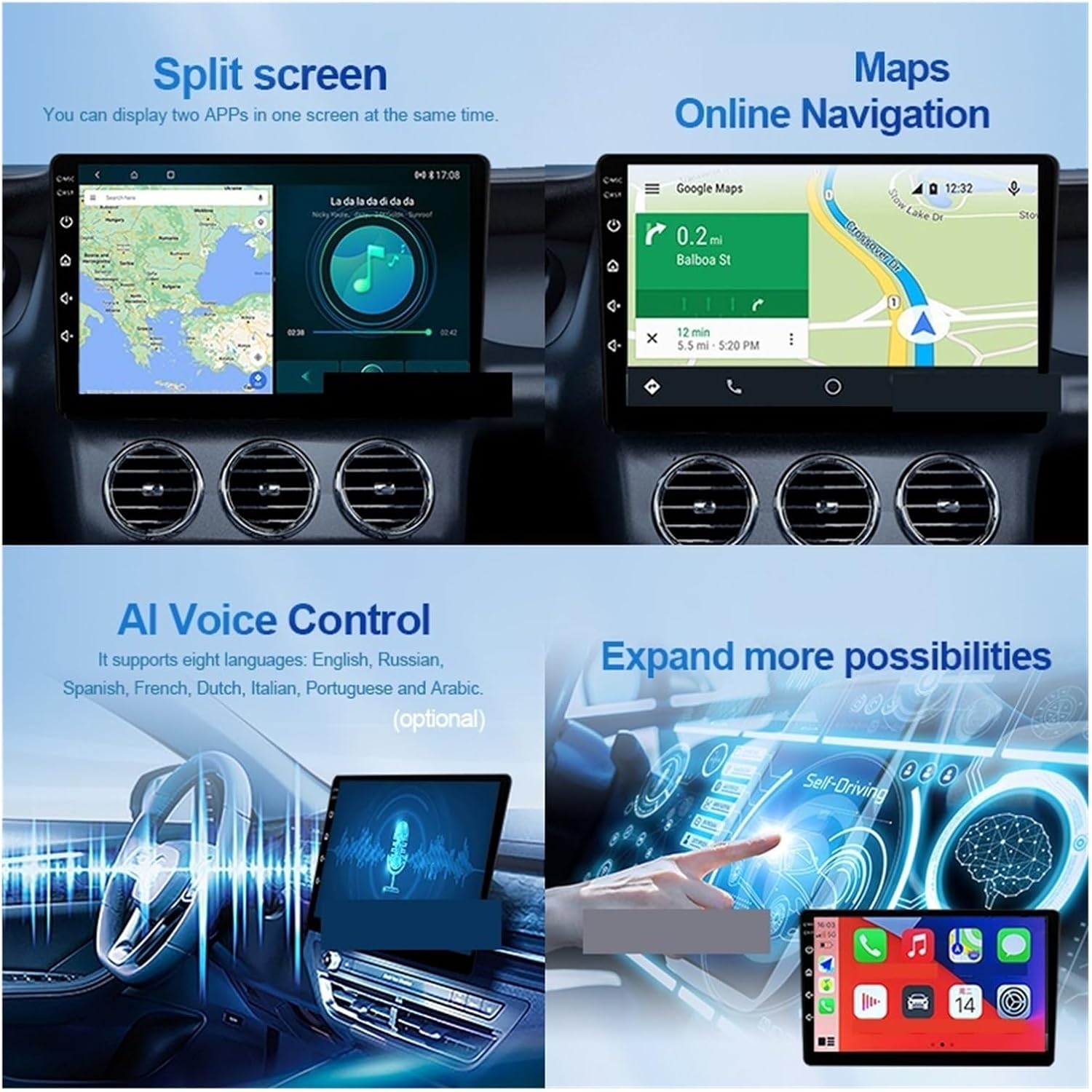
Figure 2: Split screen mode and online navigation capabilities.
3.3 Multimedia Playback
The unit supports various digital media formats including MP3, MP4, WMA, and JPEG.
- Audio/Video Playback: Access music and video files from internal storage, a connected USB device, or a Micro SD card.
- Radio: Tune into FM/AM radio stations using the built-in tuner.
- Bluetooth Audio: Stream audio wirelessly from your paired smartphone or other Bluetooth devices.
3.4 Advanced Features
- Split Screen: Utilize the split screen function to run two applications simultaneously, such as navigation and music playback.
- AI Voice Control: Use voice commands for hands-free operation. The system supports multiple languages.
- Steering Wheel Control: Program the unit to respond to your vehicle's steering wheel buttons for convenient control of volume, tracks, and calls.
- Customizable Button Light: Change the color of the physical buttons to match your vehicle's interior lighting or personal preference.
- DTS Tuning System: For models equipped with the DTS Tuning System (H6 version), adjust sound settings with the TDA7850 DSP chip and 48-band EQ for optimized audio quality and sound field control.

Figure 3: DTS Tuning System for advanced audio customization.
3.5 Camera and DVR Functions
The unit supports external cameras and DVR systems for enhanced safety and recording.
- Rear View Camera (AHD): When connected, the display automatically switches to the rear view when the vehicle is in reverse. Supports dynamic track and night vision.
- Car DVR (ADAS): The 1080P ADAS Driving Assistance System records footage and provides safety warnings.
- 360° Panoramic Camera: For units with 360° camera support, this mode provides a comprehensive view around the vehicle, assisting with parking and maneuvering in tight spaces.

Figure 4: Sony AHD Camera and Car DVR features.

Figure 5: Customizable interface and 360° camera system overview.
4. Maintenance
Proper maintenance ensures the longevity and optimal performance of your multimedia player.
- Screen Cleaning: Use a soft, lint-free cloth to gently wipe the touchscreen. For stubborn smudges, slightly dampen the cloth with water or a screen-safe cleaner. Avoid harsh chemicals or abrasive materials.
- Software Updates: Periodically check for software updates via the system settings (requires Wi-Fi or 4G connection). Keeping the software updated can improve performance and add new features.
- Cooling Fan: The built-in cooling fan helps manage internal temperatures. Ensure the ventilation areas around the unit are not obstructed to allow for proper airflow.
- General Care: Avoid exposing the unit to extreme temperatures, direct sunlight for prolonged periods, or excessive moisture.
5. Troubleshooting
If you encounter issues with your multimedia player, refer to the following troubleshooting guide. For problems not listed here, please contact customer support.
- No Power:
- Check all power connections and ensure they are securely plugged in.
- Verify the vehicle's battery is charged and the ignition is on.
- Check the fuse in the vehicle's fuse box and the unit's power harness.
- No Sound:
- Ensure the volume is not muted or set to minimum.
- Check speaker wire connections.
- Verify the audio source is correctly selected.
- GPS Signal Loss/Inaccurate:
- Ensure the GPS antenna is properly connected and mounted in a location with a clear view of the sky.
- Avoid parking in areas with tall buildings or dense foliage that may obstruct the signal.
- Touchscreen Unresponsive/Abnormal Operation:
- Restart the unit by turning off the vehicle's ignition and then restarting it.
- High temperatures can cause abnormal operation. The built-in cooling fan helps, but ensure the unit is not exposed to excessive heat.
- Perform a factory reset (refer to system settings, note this will erase all user data).
- Bluetooth Connectivity Issues:
- Ensure Bluetooth is enabled on both the unit and your mobile device.
- Delete previous pairings and attempt to re-pair the devices.
- Move the mobile device closer to the unit.
6. Specifications
| Feature | Specification |
|---|---|
| Brand | MZZYG |
| Model Name | 1005005311060377 |
| Screen Size | 9 inches |
| Resolution | 1280*720 / 2000*1200 |
| Processor Type | 4/8 Core |
| RAM | 8G |
| ROM Options | 32G / 64G / 128G / 256G |
| External Memory Support | Up to 256G (TF/Micro SD slot) |
| Operating Voltage | 24V |
| Item Weight | 50 Grams |
| Special Features | Built-in Speaker/Microphone, Wi-Fi Function, Steering Wheel Control Support, 3G/4G Network Support |
| Digital Media Format Support | MP3, MP4, WMA, JPEG |
| Country of Origin | China |
7. Warranty and Support
For warranty information, please refer to the terms and conditions provided by your retailer or the MZZYG official website. Warranty periods and coverage may vary depending on your region and point of purchase.
If you require technical assistance or have questions regarding your MZZYG Car Satellite Navigation Multimedia Player, please contact the seller or MZZYG customer support through their official channels. Have your model number (1005005311060377) and purchase details ready when contacting support.