
Introduction
This manual provides essential information for setting up, operating, maintaining, and troubleshooting your ASUS ROG Strix 17.3-inch Gaming Laptop. Please read this guide thoroughly to ensure optimal performance and longevity of your device.
1. Setup
1.1 Unboxing and Initial Inspection
Carefully remove the laptop and all accessories from the packaging. Inspect the laptop for any signs of damage during transit. The package should contain the ASUS ROG Strix laptop, power adapter, and any bundled accessories.
1.2 Connecting the Power Adapter
Connect the power adapter to the laptop's power input port and then plug the adapter into a grounded electrical outlet. It is recommended to fully charge the battery before initial use.
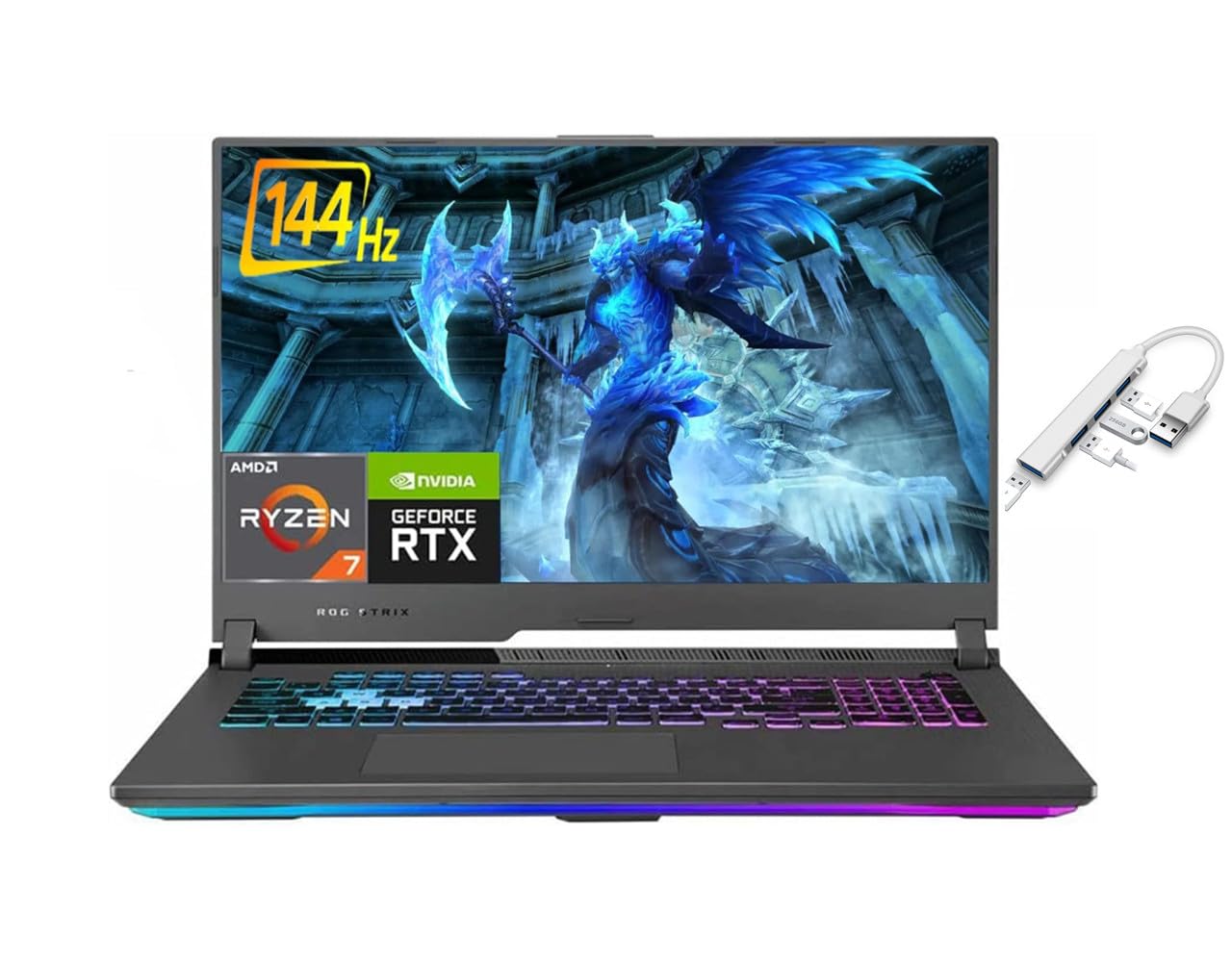
Figure 1: ASUS ROG Strix laptop powered on, showing the Windows 10 desktop environment. This image illustrates the laptop's display and keyboard layout.
1.3 Powering On and Initial Windows Setup
Press the power button located on the laptop to turn it on. The laptop will guide you through the initial Windows 10 Home setup process. Follow the on-screen instructions to configure your language, region, network settings, and user account.
2. Operating Your Laptop
2.1 Keyboard and Touchpad
The ASUS ROG Strix features a full-sized backlit keyboard. The touchpad supports multi-touch gestures for navigation. Refer to Windows settings for customizing touchpad sensitivity and gestures.

Figure 2: Detailed view of the ASUS ROG Strix keyboard, highlighting the RGB backlighting and key layout. This image shows the dedicated numeric keypad and function keys.
2.2 Connecting External Devices
Your laptop is equipped with various ports for connecting external devices:
- USB 3.2 Gen 2 Type-C: For high-speed data transfer and display output.
- USB 3.2 Gen 1 Type-A: For connecting standard USB devices like mice, keyboards, and external drives.
- HDMI 2.0b: For connecting to external monitors or TVs.
- Ethernet (RJ45): For wired network connections.
- Mic/Headphone Combo Jack: For connecting headsets or external microphones.

Figure 3: Left side of the ASUS ROG Strix laptop, illustrating the placement of USB ports and the audio jack. This view helps identify connection points for peripherals.

Figure 4: Right side of the ASUS ROG Strix laptop, showing additional USB ports and ventilation. This image provides a comprehensive look at the laptop's connectivity options.
2.3 Network Connectivity
The laptop supports Wi-Fi 6 (802.11ax) for wireless internet access and Bluetooth 5.1 for connecting wireless peripherals. To connect to a Wi-Fi network, click the Wi-Fi icon in the taskbar, select your network, and enter the password. For Bluetooth devices, go to Windows Settings > Devices > Bluetooth & other devices to pair.
3. Maintenance
3.1 Cleaning Your Laptop
To maintain optimal performance and appearance:
- Use a soft, lint-free cloth to clean the screen and chassis.
- For stubborn smudges, slightly dampen the cloth with water or a screen cleaner.
- Avoid spraying liquids directly onto the laptop.
- Regularly clean the keyboard and touchpad to remove dust and debris.
- Ensure ventilation grilles are clear of obstructions to prevent overheating.
3.2 Battery Care
To prolong battery life:
- Avoid extreme temperatures.
- Do not fully discharge the battery frequently.
- If storing the laptop for an extended period, charge the battery to about 50-60%.
- For optimal performance during gaming or intensive tasks, keep the laptop plugged into the power adapter.
3.3 Software Updates
Regularly update your Windows operating system, drivers, and ASUS utilities to ensure system stability, security, and performance. You can check for Windows updates via Settings > Update & Security > Windows Update.
4. Troubleshooting
This section addresses common issues you might encounter with your ASUS ROG Strix laptop.
4.1 Power Issues
- Laptop does not turn on: Ensure the power adapter is securely connected to both the laptop and a working power outlet. Check if the power adapter's indicator light is on. Try a different outlet.
- Battery not charging: Verify the power adapter connection. Check the battery status in Windows. If the issue persists, contact support.
4.2 Display Issues
- No display on screen: Connect an external monitor via HDMI to check if the issue is with the laptop's internal display. If the external monitor works, the internal display or its connection may be faulty.
- Flickering or distorted display: Update your NVIDIA GeForce RTX 3060 graphics drivers. Adjust display refresh rate settings in Windows.
4.3 Performance Issues
- Slow performance: Close unnecessary applications. Check Task Manager for high CPU/RAM usage. Ensure adequate ventilation to prevent thermal throttling. Run a virus scan.
- Overheating: Ensure ventilation grilles are clear. Use the laptop on a hard, flat surface. Consider using a cooling pad for extended heavy use.
4.4 Audio Issues
- No sound: Check volume levels in Windows and ensure speakers/headphones are properly connected. Verify audio drivers are installed and up to date.
5. Specifications
Key technical specifications for the ASUS ROG Strix 17.3-inch Gaming Laptop:
| Feature | Specification |
|---|---|
| Model | ASUS ROG Strix |
| Display | 17.3-inch Full HD (1920 x 1080) IPS, 144Hz Refresh Rate |
| Processor | AMD Ryzen 7 4800H (2.9 GHz base, up to 4.2 GHz boost) |
| Graphics | NVIDIA GeForce RTX 3060 (6 GB GDDR6) |
| RAM | 32 GB DDR4 |
| Storage | 512 GB SSD |
| Operating System | Windows 10 Home |
| Wireless Connectivity | Wi-Fi 6 (802.11ax), Bluetooth 5.1 |
| Ports | 1x USB 3.2 Gen 2 Type-C, 3x USB 3.2 Gen 1 Type-A, 1x HDMI 2.0b, 1x Ethernet (RJ45), 1x Mic/Headphone Combo Jack |
| Battery | 4-cell Lithium Ion, 90WHrs |
| Dimensions (LxWxH) | 15.55 x 11.1 x 1.11 inches |
| Weight | 5.95 lbs |
6. Warranty and Support
6.1 Warranty Information
Your ASUS ROG Strix laptop comes with a limited manufacturer's warranty. Please refer to the warranty card included in your product packaging or visit the official ASUS support website for detailed terms and conditions. Keep your proof of purchase for warranty claims.
6.2 Technical Support
For technical assistance, driver downloads, or further troubleshooting, please visit the official ASUS support website or contact ASUS customer service. You will need your laptop's serial number, which can usually be found on a sticker on the bottom of the laptop or in the BIOS/UEFI settings.
ASUS Support Website: https://www.asus.com/support/