
Soufyuane v519
Soufyuane V519 OBD2 Scanner User Manual
Professional Mechanic Diagnostic Code Reader Tool
1. Introduction
The Soufyuane V519 OBD2 Scanner is a professional diagnostic tool designed to help users identify and resolve issues with their vehicle's engine and emissions systems. This manual provides comprehensive instructions for setting up, operating, and maintaining your V519 scanner.
It is compatible with most vehicles manufactured after 1996 (US-Based), 2000 (EU-Based), and Asian cars that feature a 16-pin OBD2 port. The device supports 10 languages, including English, French, Spanish, German, Russian, Italian, Portuguese, Dutch, Japanese, and Chinese.
2. Package Contents
Upon opening the package, verify that all items are present:
- Soufyuane V519 OBD2 Scanner Unit
- Canvas Storage Bag
- Type-C Cable (for computer connection and updates)
- User Manual (this document)
3. Product Overview
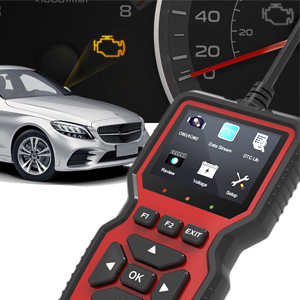
The V519 OBD2 Scanner features a user-friendly interface with a 2.8-inch color screen and intuitive button layout. It is designed for easy handling and operation.

This image displays the V519 OBD2 Scanner, showcasing its compact design and the main interface. The screen shows various diagnostic options like Read Codes, Erase Codes, View Freeze Frame, Live Data, and DTC Lookup. Below the screen are navigation buttons (up, down, left, right, OK) and function keys (F1, F2, EXIT). The OBD2 connector cable is visible at the top.

This image illustrates the V519 scanner's capabilities, listing features such as Read Codes, Erase Codes, View Freeze Frame, I/M Readiness, Vehicle Info, Data Stream, Battery Voltage Reading, Oxygen Sensor Test, and a 35,901 fault code library. It also highlights support for 9 languages, including English, German, French, Spanish, Italian, Dutch, Japanese, Chinese, and Portuguese.
4. Setup and Initial Use
4.1 Connecting the Scanner to Your Vehicle
- Locate the OBD2 port in your vehicle. This port is typically found under the dashboard on the driver's side. Refer to your vehicle's owner's manual if you cannot locate it.
- Ensure the vehicle's ignition is in the OFF position before connecting the scanner.
- Plug the V519 scanner's OBD2 connector firmly into the vehicle's OBD2 port.
- Turn the vehicle's ignition to the ON position (engine off). The scanner will power on automatically.

This image shows a hand plugging the V519 OBD2 scanner's cable into the vehicle's OBD2 diagnostic port, typically located under the dashboard. This is the first step in establishing communication between the scanner and the car's onboard computer.
4.2 Initial Settings
After connecting, you may need to configure basic settings:
- Language: Navigate to the "Setup" menu to select your preferred language. The V519 supports 10 languages.
- Units of Measure: Choose between metric or imperial units for data display.
- Contrast/Brightness: Adjust the screen's visual settings for optimal readability.
- Beep: Enable or disable audible feedback for button presses.
This video provides a visual guide on how to connect the V519 scanner to a vehicle and navigate through its initial setup options, such as selecting the display language and adjusting other system settings. It shows the user interacting with the device's menu to customize preferences.
5. Operating Instructions
5.1 Reading Diagnostic Trouble Codes (DTCs)
To read stored fault codes:
- From the main menu, select "OBD/EOBD" or "Read Codes".
- The scanner will communicate with the vehicle's ECU and display any active or pending DTCs.
- Use the up/down arrows to scroll through the codes. The V519 has a built-in DTC lookup library of over 35,901 codes, providing detailed definitions.

This image shows the V519 scanner displaying "Trouble Codes" such as P2029 (Fuel heater disabled) and explaining how to "Read Codes" using the F1 button for quick response. It also illustrates the "I/M Readiness" function, which instantly diagnoses car issues like MIL, DTC, EVAP, O2 Sensor, and more, to assess the car's status.
5.2 Erasing Diagnostic Trouble Codes (DTCs)
After addressing the underlying issue, you can clear the DTCs:
- From the main menu, select "Erase Codes".
- Confirm your selection when prompted.
- The scanner will clear the codes from the vehicle's ECU and turn off the Check Engine Light (MIL).
5.3 Viewing Live Data Stream
The Live Data Stream function allows you to view real-time sensor data from the vehicle:
- From the main menu, select "Data Stream".
- The scanner will display various parameters such as engine RPM, vehicle speed, oxygen sensor readings, fuel system status, and more.
- Use the up/down arrows to scroll through the data.
5.4 I/M Readiness Status
The I/M Readiness function checks the status of the vehicle's emission-related monitoring systems:
- From the main menu, select "I/M Readiness".
- The scanner will display whether various monitors (e.g., Misfire Monitor, Fuel System Monitor, O2 Sensor Monitor) have completed their diagnostic cycles.
- A "Ready" status indicates that the system has completed its self-test.
5.5 DTC Lookup
If you have a specific DTC and want to know its definition:
- From the main menu, select "DTC Lib" or "DTC Lookup".
- Enter the DTC using the navigation buttons.
- The scanner will display the detailed definition of the code.
5.6 Other Functions
- View Freeze Frame: Captures a snapshot of vehicle conditions at the moment a fault code is set.
- Vehicle Info: Displays the vehicle identification number (VIN), calibration ID, and calibration verification number.
- Voltage: Reads the current battery voltage.
- O2 Sensor Test: Retrieves oxygen sensor monitor test results.
- Mode 6 Test: Retrieves test results for emission-related powertrain components and systems that are not continuously monitored.
- Mode 8 Test: Retrieves test results for on-board diagnostic monitoring of specific components/systems.
6. Maintenance and Updates
6.1 Cleaning the Device
Wipe the scanner with a soft, damp cloth. Do not use abrasive cleaners or solvents.
6.2 Software Updates
The V519 OBD2 Scanner offers lifetime free software upgrades to ensure you always have access to the latest features and vehicle compatibility. To update the device:
- Connect the scanner to your computer using the provided Type-C cable.
- Visit the official Soufyuane website to download the update software and instructions.
- Follow the on-screen prompts of the update software to complete the process.
This image shows the V519 OBD2 scanner connected to a laptop via its Type-C cable, with a printer in the background. This setup is used for printing diagnostic reports or for performing software updates on the device.
6.3 Data Printing
You can print fault data and diagnostic reports by connecting the scanner to your computer:
- Connect the V519 scanner to your computer using the Type-C cable.
- Access the printing function through the update software or a dedicated printing utility (refer to the software's instructions).
- Print the desired fault data or live data streams.
7. Troubleshooting
| Problem | Possible Cause | Solution |
|---|---|---|
| Scanner does not power on. |
|
|
| "Link Error" or "Communication Error" message. |
|
|
| Cannot clear codes. |
|
|
8. Specifications
- Model: V519
- Display: 2.8-inch Color Screen
- Operating Voltage: 9-16V (from vehicle OBD2 port)
- Supported Protocols: All OBDII protocols (ISO9141, KWP2000, J1850 PWM, J1850 VPW, CAN)
- DTC Library: Built-in 35,901 DTCs
- Supported Languages: English, French, Spanish, German, Russian, Italian, Portuguese, Dutch, Japanese, Chinese
- Connectivity: OBD2 16-pin connector, Type-C USB port
- Dimensions: 6.1 x 3.42 x 0.94 inches (15.5 x 8.7 x 2.4 cm)
- Weight: 11.3 ounces (320g)
- Operating Temperature: 0°C to 60°C (32°F to 140°F)
- Storage Temperature: -20°C to 70°C (-4°F to 158°F)
9. Warranty and Support
Soufyuane offers a 60-day return policy and a 3-year replacement service for the V519 OBD2 Scanner. For technical support, warranty claims, or further assistance, please contact Soufyuane customer service through the retailer's platform or the official brand website.
Please retain your purchase receipt for warranty validation.
Ask a question about this manual
Ask about setup, troubleshooting, compatibility, parts, safety, or missing instructions. Manuals+ will review the question and use this page’s manual context to help answer it.