
Introduction
Thank you for purchasing the TOPCHANCES Retro Game Console. This device is designed to provide versatile entertainment for all ages, pre-loaded with over 20,000 classic and modern titles across 9 emulators. Experience crystal-clear graphics with 1080p HDMI output and enjoy multiplayer fun with two 2.4GHz wireless controllers. This manual will guide you through the setup, operation, maintenance, and troubleshooting of your new game console.
Setup Instructions
Follow these steps to set up your TOPCHANCES Retro Game Console and begin playing:
- Insert TF Card: Ensure the 64GB TF card is securely inserted into the game stick.
- Connect Wireless Receiver: Plug the wireless signal receiver into the USB-A port on the game stick.
- Connect HDMI: Insert the game stick into an available HDMI port on your television. If space is limited, use the provided short HDMI extension cable.
- Power the Console: Connect the USB power cable to the micro USB port on the game stick and plug the other end into a USB power source (e.g., a USB port on your TV or a 5V/1A, 5V/2A, or 5V/0.5A power adapter).
- Install Controller Batteries: Open the battery compartment on each wireless controller and insert two AAA batteries (not included). Close the compartment securely.
- Power On Controllers: Turn on the power switch on each controller. The indicator light should illuminate, signifying a successful connection to the wireless receiver.
- Select TV Input: Turn on your television and use your TV remote to select the correct HDMI input source where the game stick is connected. The game menu should appear on your screen.

Image: The game stick connected to a TV via HDMI and powered by a USB cable, illustrating the plug-and-play setup.
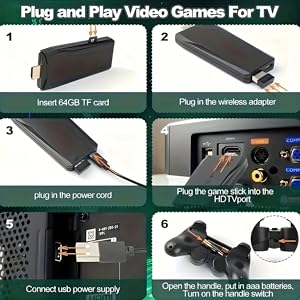
Image: A visual guide demonstrating the steps to connect the game stick, including inserting the TF card, connecting the wireless adapter, plugging in the power cord, and inserting the game stick into the TV's HDMI port.
Video: An official seller video demonstrating the setup process for the TOPCHANCES Retro Game Console, including connecting the game stick and controllers to a TV.
Operating Instructions
Once the console is set up and powered on, you can navigate the game menu and start playing.
Controller Functions

Image: A detailed diagram of the 2.4GHz wireless controller, labeling its various buttons and joysticks for easy identification and use.
- Directional Pad (D-Pad): Navigate through menus and control character movement.
- Analog Sticks: Provide alternative control for character movement in supported games.
- Action Buttons (A, B, X, Y): Perform in-game actions such as jumping, attacking, or confirming selections.
- SELECT Button: Used for various functions depending on the game, often for in-game menus or mode switching.
- START Button: Pause games, confirm selections, or begin gameplay.
- HOME Button: Return to the main menu or exit a game.
- L1/R1/L2/R2 Buttons: Shoulder buttons for additional in-game actions.
Navigating the Game Menu
- Use the D-Pad or analog sticks to browse through the list of pre-loaded games.
- Press the A button to select a game.
- To search for a specific game, navigate to the 'Search' option in the menu and enter the game name using the on-screen keyboard.
- To change language settings, access the 'Settings' menu and select your preferred language (24 language settings supported).
- To save game progress or exit a game, press and hold the HOME button to bring up the in-game menu.
Video: A seller video demonstrating how to navigate the game menu, select games, and adjust language settings on the retro game console.
Maintenance
Proper maintenance ensures the longevity and optimal performance of your game console.
- Cleaning: Use a soft, dry cloth to clean the game stick and controllers. Avoid using liquid cleaners or abrasive materials.
- Storage: Store the console and accessories in a cool, dry place away from direct sunlight and extreme temperatures.
- Battery Care: Remove batteries from the controllers if they will not be used for an extended period to prevent leakage.
- Cable Management: Ensure all cables are neatly organized and not kinked or strained to prevent damage.
Troubleshooting
If you encounter any issues with your TOPCHANCES Retro Game Console, please refer to the following troubleshooting tips:
- No Signal on TV:
- Ensure the game stick is securely plugged into the TV's HDMI port.
- Verify that your TV is set to the correct HDMI input source.
- Check if the USB power cable is properly connected to the game stick and a working power source.
- Try a different HDMI port or a different TV if possible.
- Controllers Not Responding:
- Check if the controllers have fresh batteries and are turned on.
- Ensure the wireless signal receiver is firmly plugged into the game stick's USB-A port.
- If the controllers lose connection, try turning them off and on again.
- Ensure there are no obstructions between the controllers and the receiver.
- Games Freezing or Lagging:
- Ensure the TF card is properly inserted.
- Restart the game stick by unplugging and re-plugging the USB power cable.
- Some games may have performance variations due to emulation.
Specifications
| Feature | Detail |
|---|---|
| Brand Name | TOPCHANCES |
| Model Number | DoubleTVGameConsole1 |
| Number of Players | 2 |
| Controller Type | Button Control |
| Power Source | Battery Powered (for controllers) |
| Display Type | Digital |
| Memory Storage Capacity | 64 GB |
| Form Factor | Mini |
| Platform | TV Plug & Play |
| Color | Black |
| Item Weight | 0.32 Kilograms |
| Item Dimensions | 6.5 x 4.9 x 4.1 inches |
| Material Type | High Advanced Aluminum+PP |
| Included Components | 2×Wireless Handle, 1×Game Console, 1×Wireless Signal Receiver, 1×USB Charging Data Cable, 1×HD cable, 1×English Manual |
Warranty Information
For information regarding product warranty, please refer to the documentation included in your product packaging or contact TOPCHANCES customer support directly.
Customer Support
If you require further assistance or have questions not covered in this manual, please contact TOPCHANCES customer support through the retailer where you purchased the product or visit the official TOPCHANCES store page for contact details.