
Introduction
The Mesqool MEU-1024 is a versatile digital alarm clock designed to enhance your daily routine. This device combines a digital alarm clock, an FM radio, and a night light into one compact unit. It features a 320-degree rotatable projector to display time on your ceiling or wall, dual alarms with flexible scheduling, a snooze function, and adjustable display brightness. Additionally, it includes a humidity monitor, thermometer, and convenient USB/Type-C charging ports for your mobile devices. A battery backup system ensures your settings are preserved during power interruptions.

Image: The Mesqool MEU-1024 Multifunctional Projection Alarm Clock displaying its various features.
Setup
Power Connection
Connect the provided power adapter to the DC 5V port on the back of the alarm clock and plug it into a standard electrical outlet. The display will light up, indicating the device is receiving power.

Image: The alarm clock being connected to a power source.
Battery Backup Installation
For battery backup, insert two AAA batteries (not included) into the battery compartment located on the bottom of the unit. This ensures that time, date, and alarm settings are retained in case of a power outage.

Image: Installation of AAA batteries for backup power.
Operating Instructions
Setting Time and Date
- Press and hold the 'TIME SET' button to enter time setting mode.
- Use the '+' or '-' buttons to adjust the hour, then press 'TIME SET' to confirm.
- Repeat for minutes, year, month, and day. Note: The date format is Month-Day-Year.
- Press the '12/24H' button to switch between 12-hour and 24-hour formats.
- Press the 'DST' button to activate or deactivate Daylight Saving Time.

Image: The alarm clock display illustrating the Day-Month-Year format.
Setting Alarms
The clock supports two independent alarms (Alarm 1 and Alarm 2).
- Press and hold the 'ALARM 1' or 'ALARM 2' button to enter alarm setting mode.
- Use the '+' or '-' buttons to set the desired alarm time, then press the respective alarm button to confirm.
- Select the alarm mode: Monday-Sunday, Monday-Friday, Saturday-Sunday, or One Time.
- Choose your alarm sound: FM radio or buzzer.
- To activate/deactivate an alarm, short press the 'ALARM 1' or 'ALARM 2' button. An alarm icon will appear/disappear on the display.
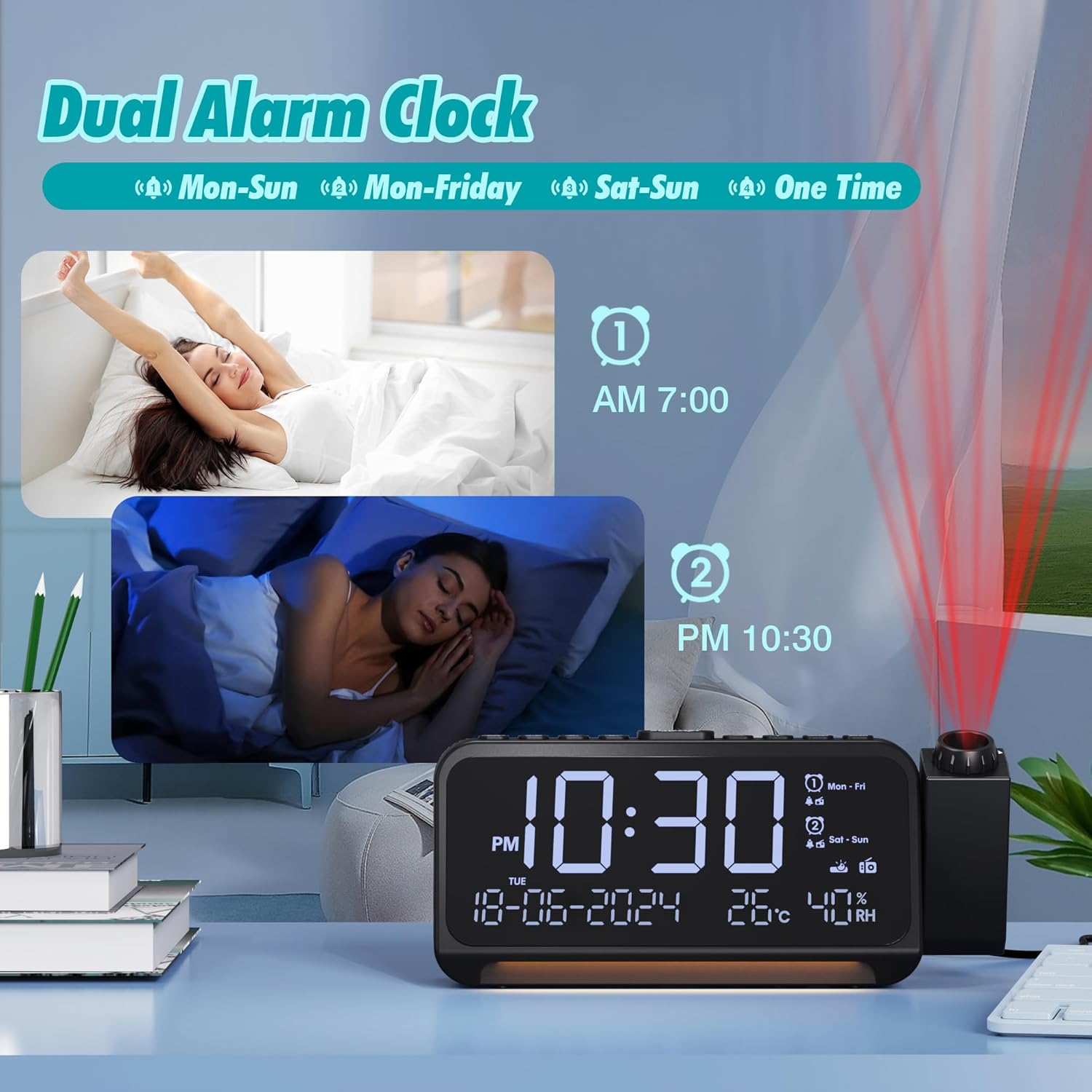
Image: Illustration of setting dual alarms with different schedules.
Snooze Function
When an alarm sounds, press the 'SNOOZE/OK' button on top of the clock to activate the snooze function. The alarm will pause for 9 minutes and then sound again.

Image: Activating the snooze function by pressing the 'SNOOZE/OK' button.
Projection Feature
The projector can rotate 320 degrees. To activate the projection, press the 'PROJECTOR' button. You can adjust the projection brightness through 5 levels. Rotate the focus ring on the projector lens to sharpen the projected time. The projected time can be flipped 180 degrees for optimal viewing.

Image: The alarm clock projecting time onto a surface, demonstrating the 180-degree flip feature.
FM Radio Operation
- Press the 'FM' button to turn on the radio.
- Press and hold the 'FM' button to auto-scan and save available stations (87.5 MHz - 108.0 MHz).
- Use the '+' or '-' buttons to switch between saved stations.
- Adjust the volume using the 'VOL' buttons.
- To set a sleep timer, press the 'SLEEP' button repeatedly to cycle through 15, 30, 60, or 90 minutes. The radio will automatically turn off after the set time.

Image: The alarm clock showing FM radio functionality and the sleep timer feature.
Night Light
The clock features a night light located at its base. Press the 'LIGHT' button to turn it on or off. The warm light provides a soft ambiance and can be completely deactivated for a dark sleeping environment.

Image: The alarm clock's night light feature providing illumination.
Charging Ports
The clock is equipped with a USB-A charging port and a Type-C charging port, allowing you to charge two devices simultaneously. Connect your devices using appropriate charging cables.

Image: The alarm clock's USB and Type-C ports being used to charge devices.
Display Brightness
The main display brightness can be adjusted through 5 levels using the 'DIMMER' button to suit your preference and ambient light conditions.

Image: Various brightness levels of the alarm clock's main display.
Temperature and Humidity Display
The clock displays indoor temperature and humidity. You can switch between Celsius and Fahrenheit by pressing the 'TEMP' button.
Maintenance
To maintain your Mesqool MEU-1024 alarm clock, wipe the unit with a soft, dry cloth. Avoid using abrasive cleaners or solvents, as these can damage the surface. Ensure the device is unplugged before cleaning.
Troubleshooting
- Incorrect Day of the Week Display: If the day of the week appears incorrect after setting the time, verify that the date format (Month-Day-Year) is correctly entered. The device calculates the day of the week based on the set date.
- No Display/Power: Ensure the power adapter is securely connected to both the clock and a working electrical outlet. Check if the outlet is functional. If using battery backup, ensure batteries are correctly inserted and not depleted.
- Alarm Not Sounding: Verify that the alarm is activated (alarm icon visible on display) and the volume is set to an audible level. Check that the alarm time and mode are correctly configured.
- Poor Radio Reception: Extend the FM antenna fully. Try repositioning the clock to improve signal reception. Perform an auto-scan to find stronger stations.
- Projection Unclear: Adjust the focus ring on the projector lens. Ensure the projection distance is within the optimal range (approximately 1.5 to 3 meters).
Specifications
| Feature | Detail |
|---|---|
| Model Number | MEU-1024 |
| Brand | Mesqool |
| Display Type | Digital |
| Special Features | Projection Clock, Adjustable Brightness, USB/Type-C Charging Ports, FM Radio, Adjustable Volume, Night Light, Humidity/Temperature Display |
| Power Source | Wired Electric, Battery Powered (2x AAA, not included) |
| Product Dimensions | 8.7l x 6H centimeters |
| Material | Acrylonitrile Butadiene Styrene (ABS) Plastic |
| Connectivity Technology | USB |
| Alarm Function | Yes, Dual Alarms with Snooze |
| Movement Type | Quartz |
Warranty and Support
Mesqool is committed to providing high-quality products. While specific warranty details are not provided in this manual, we assure you that technical support will always be available for your Mesqool MEU-1024 Projection Alarm Clock Radio. For assistance, please refer to the contact information provided with your purchase or visit the official Mesqool website.


