1. Introduction
This user manual provides detailed instructions for the UGREEN USB Microphone, designed for high-quality audio capture in various applications such as streaming, gaming, podcasting, and recording. Please read this manual thoroughly to ensure proper setup and operation of your device.

Image: UGREEN USB Microphone, showcasing its sleek design and RGB lighting.
2. Product Features
- Exceptional Sound Quality: Supports up to 96KHz/24bit sampling rate with advanced DSP noise reduction and a cardioid polar pattern for clear, focused audio capture. Optimal audio input distance is within 3.3 feet.
- Dynamic RGB Lights: Features 7 customizable RGB lighting modes, including dynamic effects, 5 single colors, and a rainbow effect, to enhance your recording or streaming environment.
- Convenient Control Design: Equipped with a multi-function key to switch between microphone, headphone, and RGB light modes. A gain control knob adjusts volume and RGB effects, and a top-mounted mute button provides instant audio control.
- Ideal for Streaming and Gaming: Includes a headphone jack for latency-free audio monitoring, improving gaming and content creation experiences.
- Wide Compatibility: Plug-and-play functionality with no drivers required. Compatible with computers (PC, Mac), PS4/PS5, Switch, iPhone 15/16 (requires USB-C to C cable), and platforms like YouTube and Zoom. Note: This microphone does not support external speakers.

Image: Natural Audio Clarity - A user experiences high-fidelity sound with the UGREEN microphone.

Image: Clear and Crisp Sound - Illustrates the DSP chip and cardioid pickup for noise reduction.
3. Package Contents
The UGREEN USB Microphone package includes the following items:
- UGREEN USB Microphone (Model: 35629)
- USB-C to USB-A Cable
- User Manual

Image: Contents of the UGREEN USB Microphone package.
4. Setup
Setting up your UGREEN USB Microphone is straightforward due to its plug-and-play design.
- Unpack: Carefully remove the microphone and all accessories from the packaging.
- Connect to Device: Plug the USB-C end of the provided cable into the USB-C port at the bottom of the microphone. Connect the USB-A end of the cable to an available USB port on your computer (PC, Mac), PS4/PS5, or Switch. For iPhone 15/16, use a compatible USB-C to USB-C data cable (not included).
- System Recognition: Your operating system should automatically detect and install the necessary drivers. No manual driver installation is typically required.
- Audio Output (Optional): If you wish to monitor your audio in real-time, plug your headphones into the 3.5mm headphone jack located on the back of the microphone.
- Positioning: Place the microphone on a stable surface using its integrated stand. The stand allows for 360-degree rotation to optimize microphone angle. For alternative mounting, the microphone features a standard 3/8-inch thread at the bottom for compatibility with external stands (not included).

Image: Plug and Play Design - Simple connection to your device.

Image: Compatibility with 3/8-inch devices and 360-degree rotation.
5. Operating Instructions
5.1 Controls Overview

Image: Multi-Functional Design - Labeled components of the microphone.
5.2 Mute Button
The mute button is located on the top of the microphone. It is a touch-sensitive sensor switch.
- Single-tap: Mutes or unmutes the microphone. The RGB light will briefly change to red when muted and green when unmuted (or return to previous color if noise-cancelling is active).
- Press and hold for 2 seconds: Toggles noise-cancelling On/Off.

Image: One-Touch Mute - Easily mute or unmute your audio.
5.3 Mode Switching Button
Located on the front of the microphone, this button allows you to cycle through different operational modes.
- Short-press: Switches between Microphone mode, Headphone mode, and RGB light mode.
5.4 Adjustment Knob
The knob at the base of the microphone is multi-functional, adjusting settings based on the currently selected mode.
- Rotate: Adjusts microphone volume, earphone volume, or RGB light effects depending on the active mode.

Image: Multifunction Knob - Controls volume and RGB effects.
5.5 RGB Lighting Modes
The microphone features dynamic RGB lighting to enhance your setup. Use the mode switching button to enter RGB light mode, then use the adjustment knob to cycle through the 7 available lighting effects:
- Dynamic Effect
- 5 Single Colors
- Rainbow Colors Effect
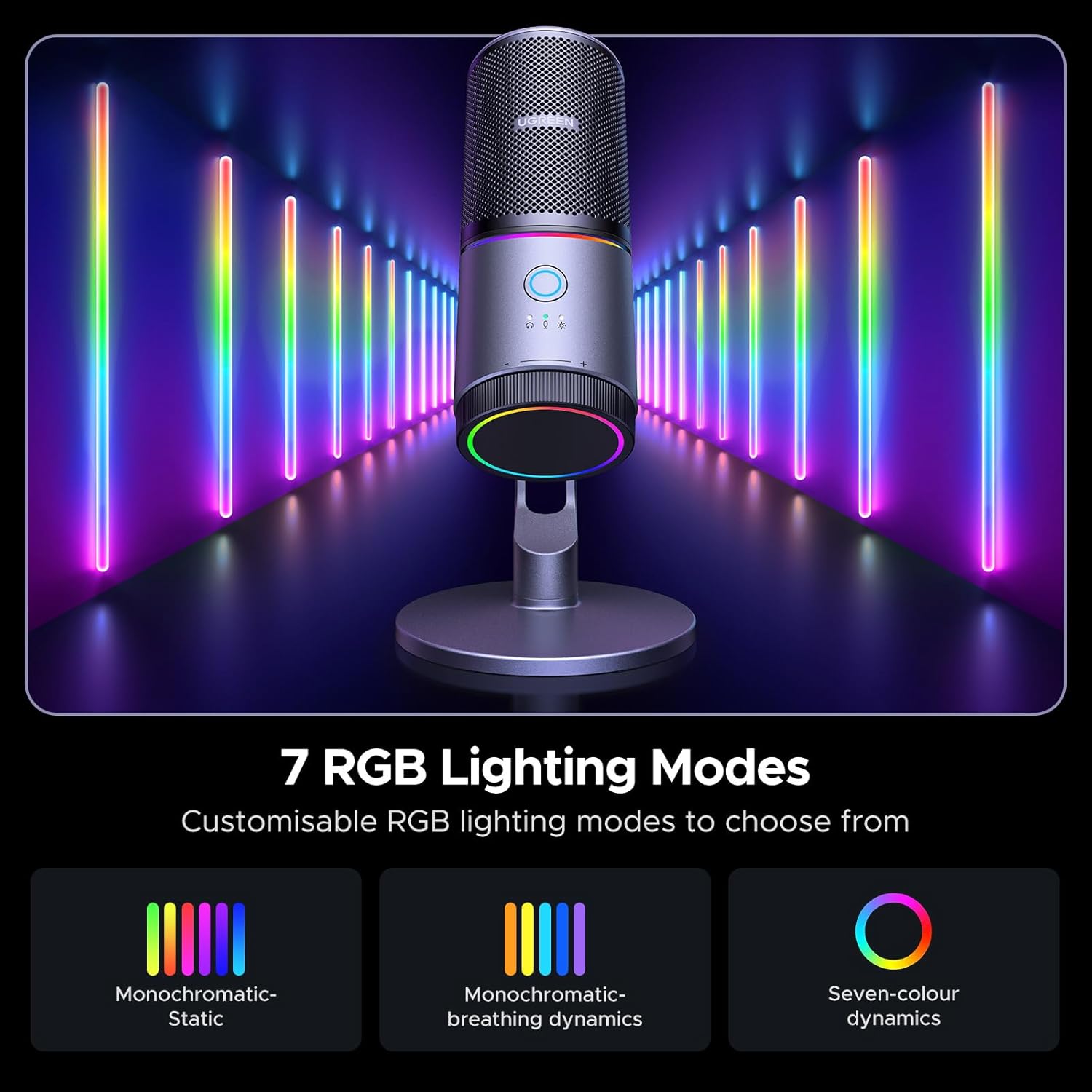
Image: 7 RGB Lighting Modes - Customize your visual experience.
5.6 Real-time Monitoring
The 3.5mm headphone jack allows for real-time, latency-free monitoring of your audio input, which is crucial for live streaming, recording, and gaming.

Image: Latency-Free Monitor - For superior live streaming and recording.
5.7 Usage Scenarios
The UGREEN USB Microphone is versatile and suitable for various applications:
- Recording: Capture clear vocals for music, voiceovers, or podcasts.
- Podcasting: Produce professional-sounding podcasts with crisp audio.
- Gaming: Communicate clearly with teammates and enhance your gaming experience.
- Streaming: Deliver high-quality audio for your live streams on platforms like Twitch and YouTube.
- Online Meetings: Ensure clear communication during Zoom, Google Meet, or Skype calls.
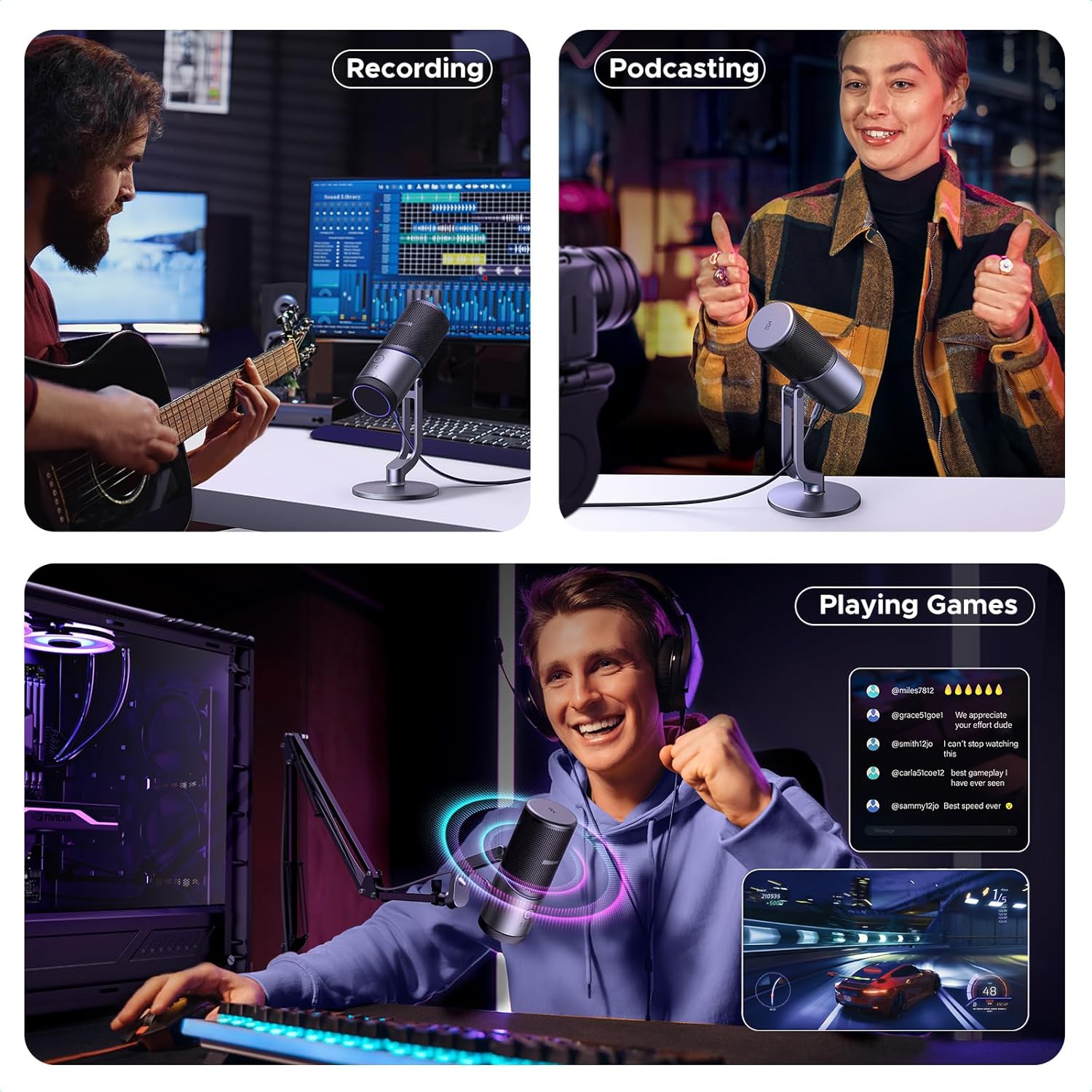
Image: Versatile applications including recording, podcasting, and gaming.
5.8 Official Product Video
Video: UGREEN Microphone for PC with RGB Lights. This video provides a visual overview of the microphone's features and functionality, demonstrating its RGB lighting and ease of use.
6. Maintenance
To ensure the longevity and optimal performance of your UGREEN USB Microphone, follow these simple maintenance guidelines:
- Cleaning: Use a soft, dry cloth to wipe the exterior of the microphone. Avoid using abrasive cleaners, solvents, or strong chemicals, as these can damage the finish or internal components.
- Storage: When not in use, store the microphone in a cool, dry place away from direct sunlight and extreme temperatures.
- Handling: Handle the microphone with care to prevent drops or impacts, which could damage the internal sensitive components.
- Cable Care: Avoid bending or crimping the USB cable excessively, as this can lead to internal wire damage.
7. Troubleshooting
If you encounter issues with your UGREEN USB Microphone, refer to the following common troubleshooting steps:
7.1 No Sound Output/Input
- Check Connection: Ensure the USB cable is securely connected to both the microphone and your device. Try a different USB port.
- System Settings: Verify that the UGREEN microphone is selected as the default input device in your operating system's sound settings (e.g., Windows Sound Control Panel, macOS Sound Preferences).
- Application Settings: Check the audio input settings within the application you are using (e.g., Zoom, OBS, Discord) to ensure the UGREEN microphone is selected.
- Mute Status: Confirm that the microphone is not muted. Tap the mute button on top of the microphone to toggle its status. The indicator light should not be red.
- Volume Levels: Adjust the gain control knob on the microphone and check the input volume levels in your system settings.
7.2 Poor Sound Quality
- Microphone Distance: Ensure you are speaking within 3.3 feet of the microphone for optimal sound quality.
- Background Noise: While the microphone has DSP noise reduction, excessive background noise can still affect quality. Try to use the microphone in a quieter environment.
- Noise-Cancelling: Experiment with toggling the noise-cancelling feature (press and hold mute button for 2 seconds) to see if it improves clarity in your environment.
- Gain Adjustment: Adjust the gain control knob. Too high gain can introduce distortion, while too low can make your voice faint.
7.3 RGB Lights Not Working
- Mode Selection: Ensure the microphone is in RGB light mode using the mode switching button.
- Adjustment Knob: Rotate the adjustment knob to cycle through different RGB effects and ensure it's not set to 'Off'.
- Power: Confirm the microphone is receiving power via the USB connection.
7.4 Compatibility Issues
- Operating System: Ensure your operating system is up-to-date.
- USB-C to C Cable: For iPhone 15/16, confirm you are using a data-transfer capable USB-C to USB-C cable, not just a charging cable.
If problems persist, please refer to the official User Manual PDF or contact UGREEN customer support.
8. Specifications
| Specification | Value |
|---|---|
| Brand | UGREEN |
| Model Name | 35629 |
| Connectivity Technology | USB |
| Connector Type | USB Type-C, 3.5 mm Jack |
| Polar Pattern | Hyper Cardioid |
| Audio Sensitivity | 34 dB |
| Signal-to-Noise Ratio | 70 dB |
| Power Source | Corded Electric |
| Material | Aluminum, Acrylonitrile Butadiene Styrene |
| Item Weight | 1.15 pounds |
| Package Dimensions | 9.53 x 4.29 x 4.21 inches |
| Color | Black |
| Manufacturer | Ugreen Group Limited |
9. Warranty & Support
9.1 Return Policy
This product is eligible for a 30-day refund/replacement return policy from the date of purchase. Please refer to your retailer's specific return guidelines for detailed information.
9.2 Additional Support
For further assistance, detailed product information, or to download the official PDF user manual, please visit the UGREEN official website or refer to the provided PDF document:
Download Official User Manual (PDF)
You may also contact UGREEN customer support directly for any technical queries or warranty claims.