
1. Introduction
The i-tec Thunderbolt 4 Dock TB4DUALDPDOCKPDPRO is a versatile docking station designed to expand the connectivity of your Thunderbolt 3/4, USB4, or USB-C enabled laptop or tablet. It provides multiple display outputs, high-speed USB ports, a 2.5 Gigabit Ethernet port, and power delivery capabilities, transforming your device into a powerful workstation. This manual provides instructions for setup, operation, maintenance, and troubleshooting to ensure optimal performance.
2. Setup
Follow these steps to set up your i-tec Thunderbolt 4 Dock:
- Connect Power: Connect the provided power adapter to the dock's power input and then to a wall outlet. The dock requires external power to function.
- Connect to Host Device: Use the included 1-meter certified Thunderbolt 4 cable to connect the dock's Thunderbolt 4 upstream port (marked with a computer icon) to your laptop or tablet's Thunderbolt 3/4, USB4, or USB-C port. Ensure your host device supports DisplayPort Alt Mode for video output and USB-C Power Delivery for charging.
- Connect Displays:
- For a single display, connect your monitor to either of the DisplayPort 8K ports or the downstream Thunderbolt 4 port.
- For dual displays, connect two monitors to the DisplayPort 8K ports.
- The dock supports up to 8K/30Hz for a single display or 2x 4K/60Hz for dual displays.
- Connect Peripherals:
- USB Devices: Connect your USB peripherals (keyboard, mouse, external drives) to the available USB ports (1x USB-C 10Gbps, 2x USB-A 10Gbps, 2x USB-A 5Gbps, 1x USB-A 2.0).
- Ethernet: Connect an Ethernet cable from your router or network switch to the dock's 2.5GLAN port for a wired internet connection.
- Audio: Connect headphones or speakers to the combined 3.5mm audio input/output jack.
- Memory Cards: Insert SD or TF cards into the respective slots for data access.

Figure 2.1: Overview of the i-tec Thunderbolt 4 Dock with all available ports and typical connections. This diagram illustrates how various devices like monitors, USB peripherals, and network cables connect to the dock.
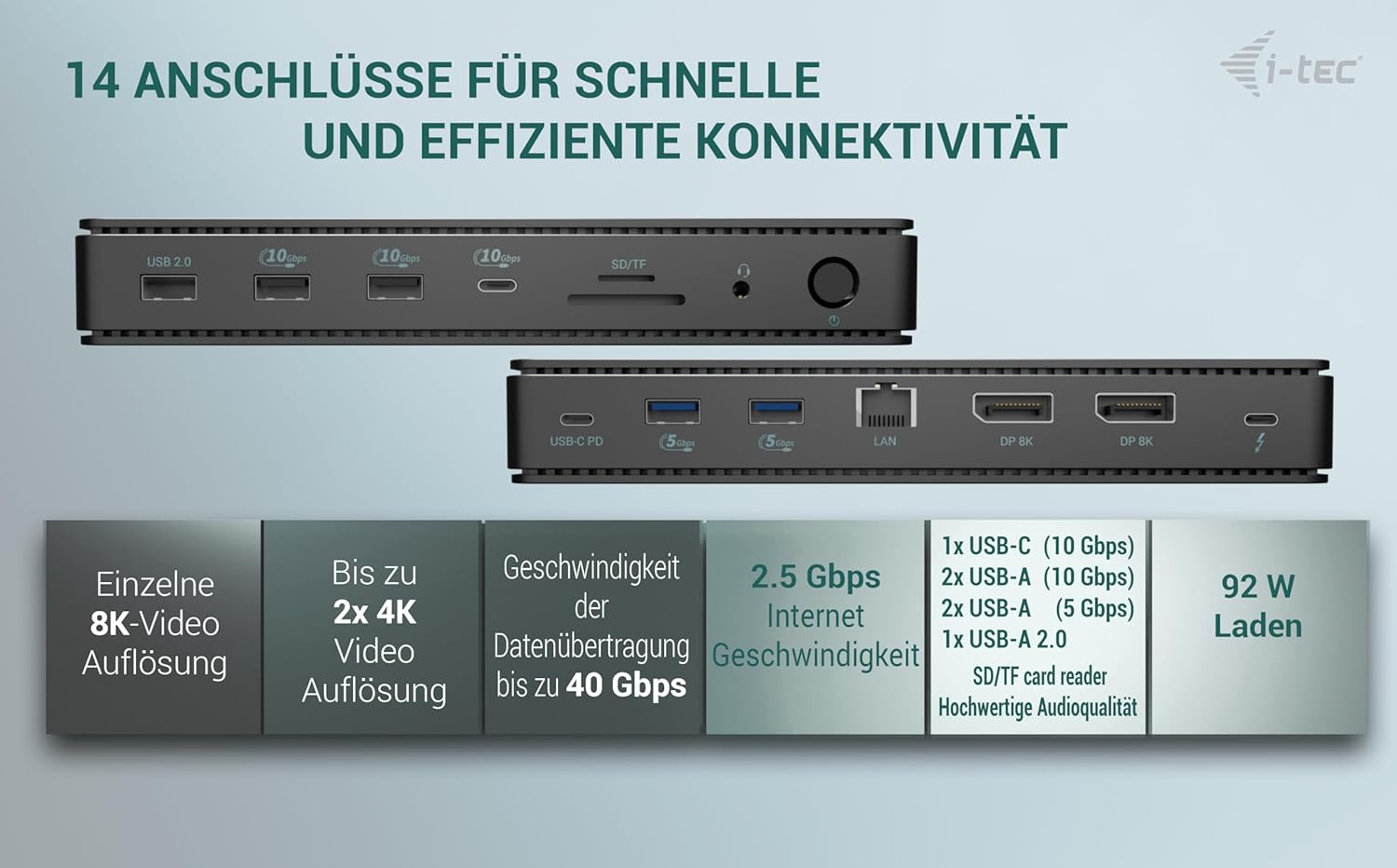
Figure 2.2: The i-tec Thunderbolt 4 Dock highlighting its 14 ports for fast and efficient connectivity, including USB, DisplayPort, LAN, and card reader slots.
3. Operation
3.1 Power On/Off
Once connected to power and your host device, the dock should power on automatically. Some models may feature an ON/OFF button. Press this button to toggle the dock's power state.
3.2 Display Configuration
Your operating system (Windows, macOS, ChromeOS) will typically detect connected displays automatically. You can configure display settings (resolution, orientation, extended/mirror mode) through your system's display settings.
- Single Display: Up to 8K resolution at 30Hz.
- Dual Displays: Up to 4K resolution at 60Hz per display.
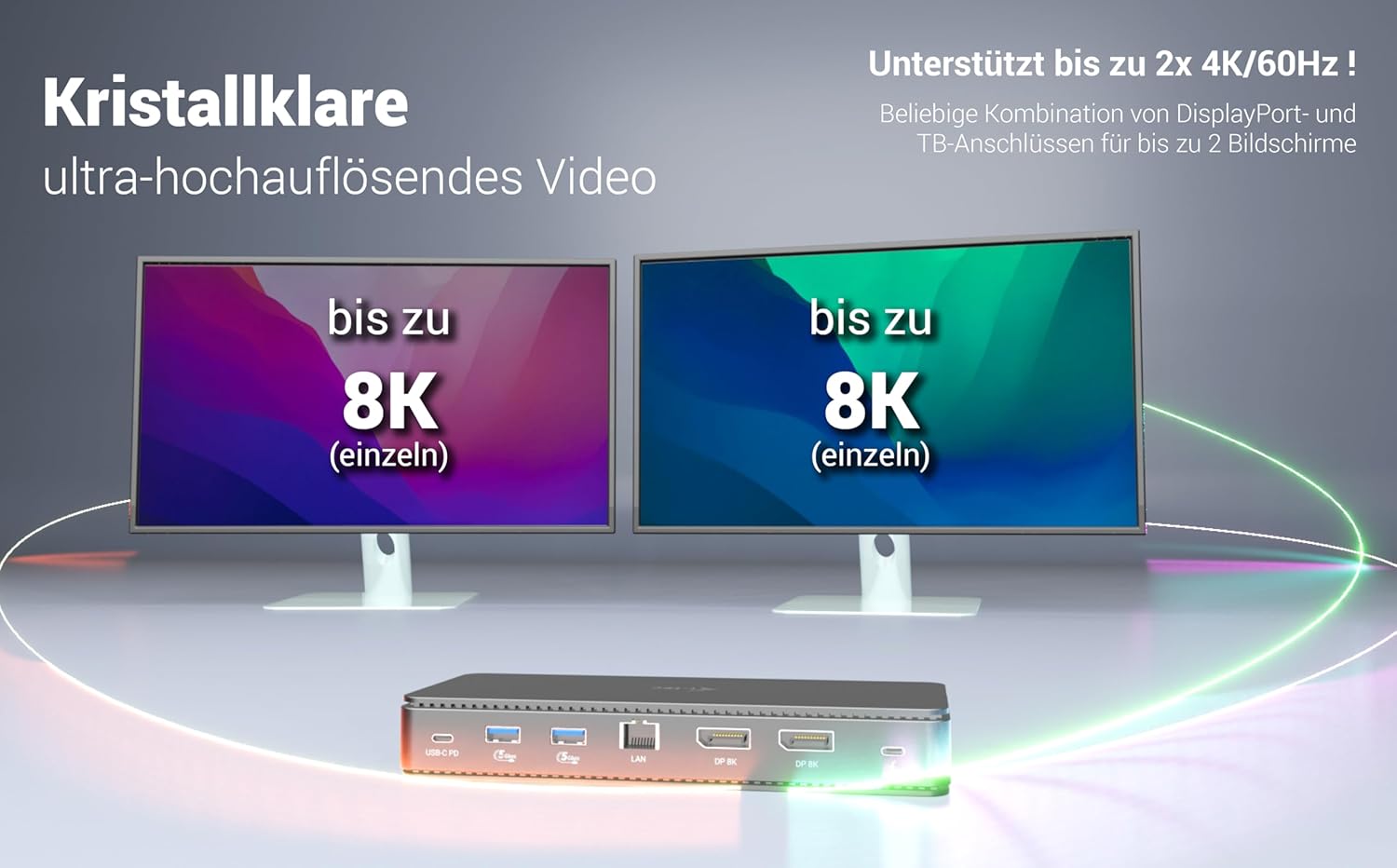
Figure 3.1: Visual representation of the dock's display capabilities, showing support for up to 8K resolution on a single monitor or two 4K monitors simultaneously.
3.3 Power Delivery
The dock provides up to 92W Power Delivery to compatible USB4, USB-C, and Thunderbolt laptops and tablets connected via the upstream Thunderbolt 4 port. This allows your host device to charge while connected to the dock, eliminating the need for a separate charger.

Figure 3.2: An illustration of the dock charging a laptop with up to 92W Power Delivery.
The dock can also charge other USB devices through its various USB ports.

Figure 3.3: The dock's capability to charge other devices, potentially replacing multiple USB chargers.
3.4 Network Connectivity
The 2.5GLAN Ethernet port provides a stable and high-speed wired internet connection, supporting speeds of 10/100/1000/2500 Mbps.
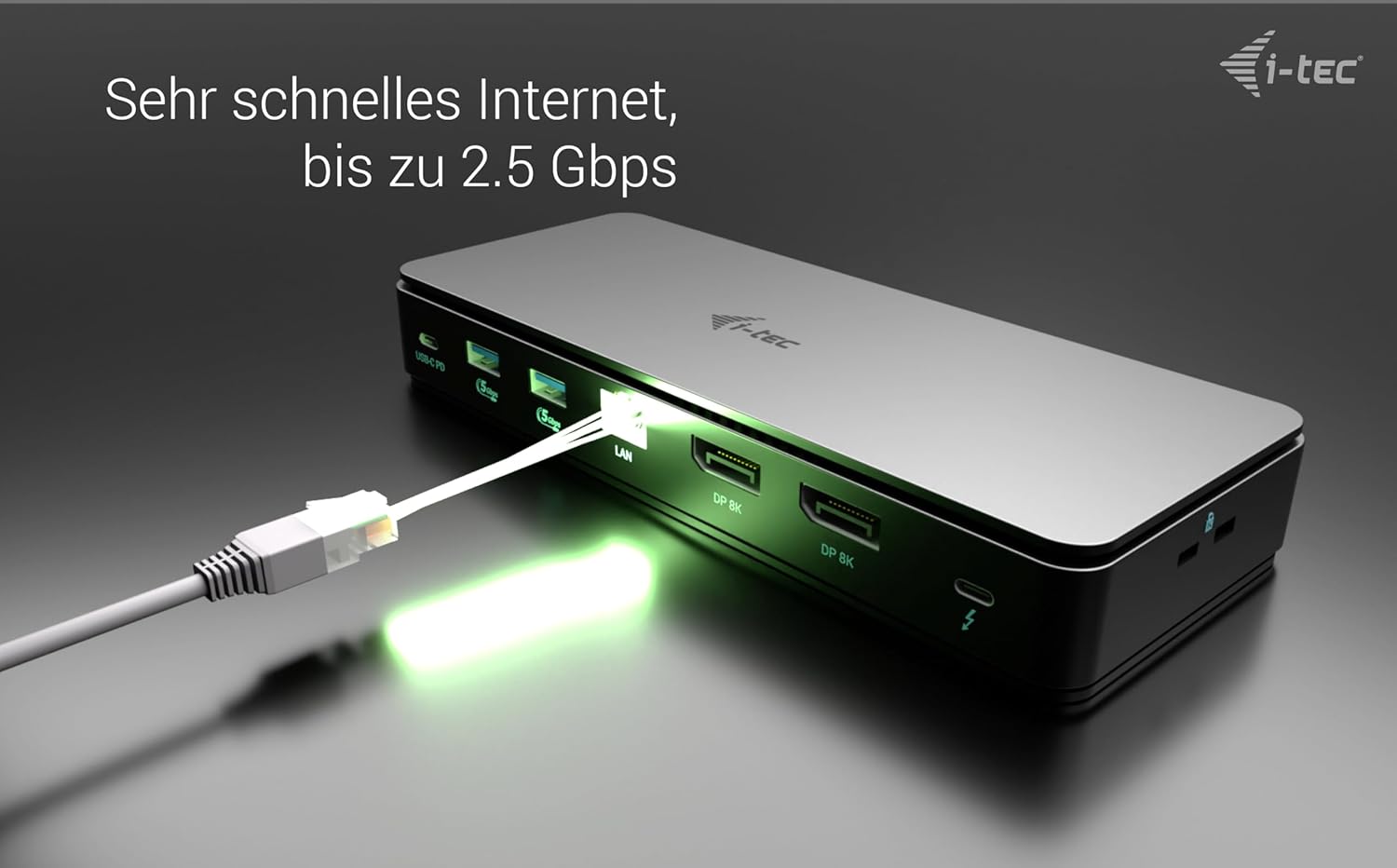
Figure 3.4: The dock providing a fast internet connection via its 2.5 Gbps Ethernet port.
3.5 High-Speed Data Transfer
The Thunderbolt 4 port offers data transfer speeds of up to 40Gbps, enabling rapid transfer of large files. Other USB ports provide speeds up to 10Gbps and 5Gbps for various peripherals.

Figure 3.5: The Thunderbolt 4 port's capability for extremely fast data transfer, up to 40 Gbps.
4. Maintenance
To ensure the longevity and optimal performance of your i-tec Thunderbolt 4 Dock, follow these maintenance guidelines:
- Cleaning: Disconnect the dock from power and all devices before cleaning. Use a soft, dry, lint-free cloth to wipe the exterior. Do not use liquid cleaners, aerosols, or solvents.
- Ventilation: Ensure the dock is placed in a well-ventilated area. Do not block any ventilation openings. The dock features passive precision cooling, which is fanless and quiet.
- Storage: When not in use for extended periods, store the dock in a cool, dry place away from direct sunlight and extreme temperatures.
- Cable Management: Avoid bending or crimping cables excessively. Use proper cable management to prevent strain on ports and cables.

Figure 4.1: The dock's design incorporates passive precision cooling for quiet and efficient heat dissipation.
5. Troubleshooting
If you encounter issues with your i-tec Thunderbolt 4 Dock, refer to the following troubleshooting tips:
- No Power/Dock Not Responding:
- Ensure the power adapter is securely connected to both the dock and a working wall outlet.
- Verify the power outlet is functional.
- If your dock has an ON/OFF button, ensure it is pressed to the 'On' position.
- Display Not Working or Flickering:
- Confirm that the Thunderbolt 4 cable is securely connected between the dock and your host device.
- Ensure your host device's USB-C port supports DisplayPort Alt Mode.
- Check display cables (DisplayPort) are firmly connected to both the dock and the monitor.
- Try a different display cable or port on the dock/monitor.
- Update your graphics drivers on your host device.
- Adjust display settings in your operating system.
- If using multiple displays, ensure the combined resolution and refresh rate do not exceed the dock's capabilities (e.g., 2x 4K/60Hz).
- USB Devices Not Detected:
- Ensure the USB device is properly connected to the dock.
- Try connecting the USB device to a different USB port on the dock.
- Connect the USB device directly to your host device to verify its functionality.
- Restart your host device.
- No Network Connection (LAN):
- Verify the Ethernet cable is securely connected to the dock's 2.5GLAN port and your router/switch.
- Check the network status lights on the dock and your router/switch.
- Ensure your host device's network settings are configured correctly (e.g., DHCP enabled).
- Update network drivers on your host device.
- Some operating systems might default to lower speeds for the Ethernet port. Check your network adapter settings to ensure it's set to 2.5 Gbps or "Auto Negotiation".
- Host Device Not Charging (Power Delivery):
- Confirm your host device supports USB-C Power Delivery via its Thunderbolt 3/4 or USB-C port.
- Ensure the Thunderbolt 4 cable is connected to the correct upstream port on the dock and your host device.
- Verify the power adapter is connected and working.
- Note that some high-power gaming laptops may require their dedicated power adapter in addition to the dock's power delivery.
6. Specifications
6.1 General
- Model: TB4DUALDPDOCKPDPRO
- Brand: i-tec
- Color: Black
- Item Weight: 2.16 pounds
- Manufacturer: I-Tec
- First Available: February 1, 2025
6.2 Connectivity & Performance
- Host Connection: 1x Thunderbolt 4 (upstream, 100 cm cable included)
- Compatibility: Thunderbolt 3/4, USB4, USB-C laptops and tablets (host must support DisplayPort Alt mode)
- Video Output:
- 2x DisplayPort 8K (up to 8K/30Hz single, 2x 4K/60Hz dual)
- 1x Thunderbolt 4 (downstream, supports video output)
- USB Ports:
- 1x USB-C (10Gbps)
- 2x USB-A (10Gbps)
- 2x USB-A (5Gbps)
- 1x USB-A (2.0)
- Ethernet: 1x 2.5GLAN (10/100/1000/2500 Mbps)
- Card Reader: SD/TF slots
- Audio: Combined 3.5 mm audio input and output jack
- Power Delivery: Up to 92W to host device (requires host support for USB-C Power Delivery)
- Data Transfer Speed: Up to 40Gbps (Thunderbolt 4 port)
7. Warranty & Support
i-tec products are designed for reliability and performance. For warranty claims or technical support, please contact i-tec customer service directly. Warranty processing is typically handled by i-tec's service center, which may be located in the Czech Republic. Please refer to the official i-tec website or your product packaging for the most current warranty terms and contact information.
For further assistance, visit the official i-tec website: www.i-tec.pro


