
1. Introduction
This manual provides detailed instructions for the installation, operation, and maintenance of your XMARTO Wireless PTZ Security Camera System. This system features 10X optical zoom, AI auto-tracking, 6MP dual-lens cameras, a 12-inch LCD monitor NVR, and a 1TB HDD for local storage. Please read this manual thoroughly before using the product to ensure proper functionality and safety.
2. Package Contents
Verify that all items listed below are included in your package. If any items are missing or damaged, please contact customer support.

Image: Package Contents Overview
- 10-channel 4K WiFi NVR with 12-inch LCD Monitor (x1)
- Dual-lens PTZ Cameras (x10)
- HDMI Cable (x1)
- 12V 1A Power Adapter for Camera (x10)
- 12V 2A Power Adapter for NVR (x1)
- USB Mouse (x1)
- 3ft Ethernet Cable (x1)
- User Guide (x1)
- Mounting Kits (x10)
- Surveillance Sticker (x2)
3. Product Features
3.1. 10X Hybrid Zoom Dual-Lens Cameras
The cameras are equipped with a dual-lens system: a 2.8mm ultra-wide angle lens for broad coverage and an 8mm telephoto lens for detailed long-distance viewing. This combination enables a 10X hybrid zoom capability, allowing you to zoom in on specific areas without significant loss of clarity.

Image: Dual Lens 10X Zoom Capability
3.2. AI Auto Tracking
The cameras feature advanced AI auto-tracking, which automatically detects and follows human, animal, and vehicle movements within the surveillance area. After tracking, the camera will return to its pre-set home position, ensuring continuous monitoring of critical zones.

Image: AI Automatic Tracking in action
Video: Demonstration of the camera's AI tracking capabilities, showing it following a person in a yard.
3.3. Easy Remote Viewing
Access your camera feeds from anywhere using the free mobile applications available for iOS, Android, PC, Mac, and Alexa-enabled devices. View multiple cameras simultaneously and control PTZ functions remotely.

Image: Remote Viewing on Multiple Devices
Video: Overview of the XMARTO SYS-60104 WiFi Camera System, demonstrating its features and ease of use.
3.4. Two-Way Audio and Deterrence
Each camera includes a built-in microphone and speaker, enabling two-way communication. You can hear audio from the camera's location and speak through the camera using the mobile app. A siren function is also available to deter unwanted visitors.

Image: Two-Way Audio and Siren Functionality
3.5. IR and Color Night Vision
The cameras offer both infrared (IR) and color night vision modes. IR LEDs provide clear black-and-white vision up to 100ft in complete darkness, while integrated floodlights enable color night vision for areas within 20ft. You can configure the system to use either mode or switch automatically based on lighting conditions.

Image: IR and Color Night Vision Modes
Video: Sample footage demonstrating both daytime and night vision views, including AI tracking functionality.
3.6. WiFi 6 and Long-Range Connectivity
The system utilizes WiFi 6 technology for enhanced wireless performance and extended range. This allows for reliable connection between the cameras and the NVR, even across significant distances, up to 1300ft line of sight.

Image: WiFi 6 Long-Range Connectivity
3.7. 1TB Local Storage
The NVR includes a pre-installed 1TB hard disk drive (HDD), providing ample local storage for continuous recording without monthly fees. The system supports H.265 encoding, which efficiently compresses video files to maximize storage capacity.

Image: 1TB Local Storage and NVR
4. Setup Guide
4.1. Identifying Camera Components
Familiarize yourself with the various parts of the PTZ camera:

Image: XMARTO Camera Components
- Antenna: For wireless signal reception.
- Detachable Mounting Bracket: For installation.
- 2.8mm Ultra-wide angle Lens: Provides a wide field of view.
- 8mm Telephoto Lens: For zoomed-in views.
- Infrared & Spotlight 2-in-1 LEDs: For night vision and illumination.
- Microphone: For audio input.
- 12V DC Power Port: For power connection.
- Speaker: For two-way audio output and siren.
- Reset Key & Micro SD Card Slot: For system reset and local storage expansion.
4.2. Identifying NVR Components
Familiarize yourself with the various parts of the NVR:

Image: XMARTO NVR Components
- 12.1-inch HD Screen: Integrated display for live view and playback.
- Power indicator: Shows power status.
- Screen ON/OFF: Button to control the display.
- Hard drive indicator: Shows HDD activity.
- Stand: For desktop placement.
- WiFi 6 antennas: For wireless connectivity.
- Speaker: For audio output.
- 12V DC in: Power input for the NVR.
- USB port: For mouse, USB backup, or firmware updates.
- HDMI video output: To connect to an external monitor or TV.
- RJ45 network port: For wired network connection.
- Reset: Button to reset NVR settings.
- Micro SD card slot: For additional storage.
- SATA hard drive dock: For internal HDD.
- Wall-mounting hole: For wall installation.
4.3. Initial Setup Steps
- Power Connection: Connect the 12V 2A power adapter to the NVR and plug it into an electrical outlet. Connect each camera to its respective 12V 1A power adapter and plug them into outlets.
- NVR Boot-up: The NVR will power on automatically. The integrated 12-inch LCD monitor will display the live camera feeds once the cameras connect wirelessly.
- Mouse Connection: Connect the USB mouse to the NVR's USB port for navigation and configuration.
- Network Connection (Optional): For remote viewing and firmware updates, connect the NVR to your router using the Ethernet cable or configure WiFi settings via the NVR menu.
- Mobile App Setup: Download the XMARTO mobile application (WallPixel App) from your device's app store. Follow the in-app instructions to add your NVR system for remote access.
5. Operating Instructions
5.1. Live View and Playback
- On NVR Monitor: The NVR's integrated screen displays live feeds. Use the USB mouse to navigate menus, switch views (single camera, multi-camera), and access playback options.
- On External Monitor/TV: Connect an external monitor or TV to the NVR via the HDMI port for a larger display.
- On Mobile App: Open the XMARTO app on your smartphone or tablet. Select the desired camera to view live footage or access recorded events.
5.2. PTZ Control and Zoom
Pan, Tilt, and Zoom (PTZ) functions can be controlled via the NVR interface or the mobile application. Use the on-screen controls to adjust the camera's direction and utilize the 10X hybrid zoom to focus on specific details.
5.3. Two-Way Audio and Siren
From the mobile app, you can activate the microphone to listen to audio near the camera or use the speaker to speak through the camera. The siren function can be triggered manually from the app to deter intruders.
5.4. Recording and Storage
The system continuously records footage to the pre-installed 1TB HDD. Motion-triggered recordings are also supported. Access recorded footage through the NVR's playback menu or the mobile app's playback feature.
6. Maintenance
- Cleaning: Regularly clean the camera lenses with a soft, dry cloth to ensure clear image quality. Do not use harsh chemicals.
- Firmware Updates: Check for and install firmware updates periodically to ensure optimal performance and access to new features. Updates can typically be performed via the NVR's system settings or the mobile app.
- Hard Drive Management: The 1TB HDD will overwrite the oldest footage when full. If you require longer retention, consider backing up important footage or upgrading the HDD (if supported by the NVR model).
- Power Supply: Ensure all power adapters are securely connected and free from damage.
7. Troubleshooting
- No Image on Screen:
- Check if the NVR and cameras are powered on.
- Ensure the NVR's screen is turned on.
- If using an external monitor, verify the HDMI cable connection and monitor input source. - Poor Wireless Connection:
- Ensure cameras are within the NVR's WiFi range. Obstacles like thick walls can reduce signal strength.
- Reposition antennas on both NVR and cameras for better reception.
- Reduce interference from other wireless devices. - AI Tracking Not Working:
- Ensure the AI tracking feature is enabled in the camera settings.
- Verify that the camera's field of view is clear and not obstructed.
- Adjust motion detection sensitivity if necessary. - No Audio/Poor Audio Quality:
- Check microphone and speaker settings in the NVR or mobile app.
- Ensure there are no physical obstructions blocking the microphone or speaker on the camera. - Cannot Access Remotely:
- Verify the NVR is connected to the internet (Ethernet or WiFi).
- Ensure the mobile app is correctly configured and linked to your NVR system.
- Check your router's firewall settings if connection issues persist.
8. Specifications
| Feature | Specification |
|---|---|
| Brand | xmartO |
| Connectivity Technology | Wireless |
| Video Capture Resolution | 2K, 4K |
| Special Feature | Night Vision, AI Auto Tracking, 10X Zoom |
| Number of Channels | 10 |
| Memory Storage Capacity | 1 TB (HDD Included) |
| Power Source | Corded Electric |
| Compatible Devices | Cameras, iOS, Android, PC, Mac, Alexa |
| Low Light Technology | Night Vision |
| Night Vision Range | 100 Feet (IR) |
| Frame Rate | 30 fps |
| Recording Mode | Continuous, Motion-activated |
| Hardware Interface | 802.11 ac/b/g/n (WiFi 6) |
| Lens Type | Dual-Lens (2.8mm, 8mm) |
| Video Input | HDMI, IP |
9. Warranty and Support
XMARTO provides comprehensive after-sales support for your security camera system:
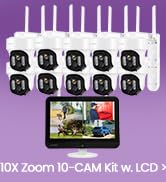
Image: After-sales Support Overview
- 30-Day Money Back Guarantee: If you are not satisfied with your purchase, you may return it within 30 days for a full refund.
- 1-Year Limited Warranty: The product is covered by a 1-year limited warranty against manufacturing defects.
- 24/7 Online Support: Access 1-on-1 online support for any technical assistance or inquiries.
For further assistance, please visit the official XMARTO website or contact their customer service directly.


