
1. Introduction
Thank you for choosing the MangoKit SR20 Smart Internet Radio. This manual provides detailed instructions for setting up and operating your new device. Please read this manual thoroughly before use to ensure proper functionality and to maximize your listening experience. The SR20 combines Internet Radio, Podcast playback, Bluetooth connectivity, FM radio, dual alarms, and a color display, offering versatile audio entertainment.
2. Package Contents
Please check the box for the following items:
- MangoKit SR20 Smart Internet Radio
- User Manual
- Quick Start Guide
- Power Supply
- USB C Cable
3. Product Overview
The MangoKit SR20 is a compact and versatile audio device designed for various listening preferences. It features a color display, intuitive controls, and dual front-facing speakers for stereo sound.
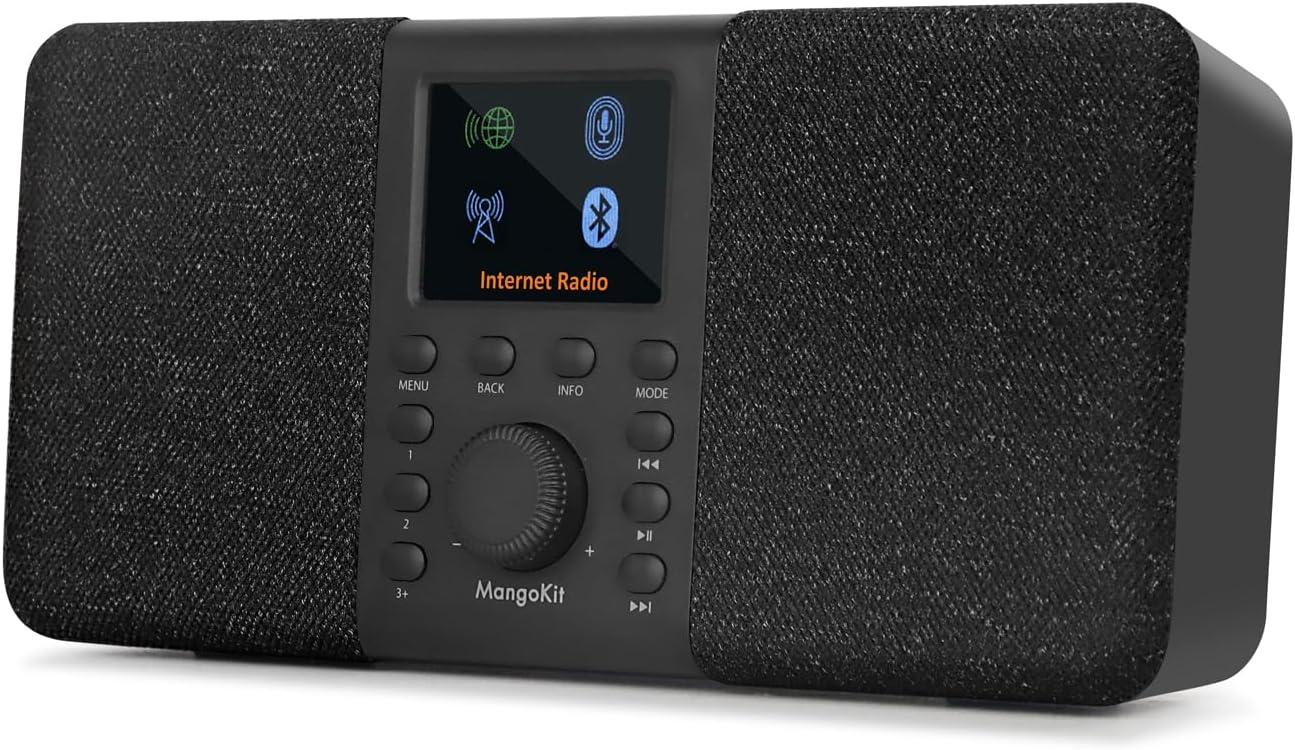
Figure 3.1: Front view of the MangoKit SR20 Smart Internet Radio, showcasing its display and control buttons.
3.1. Controls and Display
The SR20 features a central rotary knob for navigation and volume, surrounded by buttons for menu, back, info, mode, and playback controls. The color display provides clear information about the current mode, station, and settings.

Figure 3.2: The SR20 radio placed on a shelf, illustrating its compact size and various functionalities including Internet Radio, Podcast, FM Radio, Wireless Speaker, Headphone output, Dual Alarms, Clock, and Stereo Sound.
3.2. Specifications
- Product Dimensions: 9.3 x 3.6 x 4.4 inches
- Item Weight: 1.9 pounds
- Connectivity Technology: Bluetooth, Wi-Fi
- Tuner Technology: FM & Internet Radio
- Power Source: Mains and Battery Powered (4AA batteries not included)
- Special Feature: Portable Stereo Sound WIFI Internet Radio/Podcast Player/FM Radio, Bluetooth 5.0/Private EQ Setting
4. Setup
4.1. Powering On
The SR20 can be powered via the included Type C USB mains power supply or by 4 AA batteries (not included) for portability. Ensure batteries are inserted correctly if using battery power. The radio cannot charge rechargeable batteries.

Figure 4.1: The SR20 radio used outdoors, demonstrating its portability with battery power. It can also be powered by mains.
4.2. Network Connection (Wi-Fi)
To access Internet Radio and Podcasts, the SR20 requires a Wi-Fi connection.
- Navigate to the Network settings menu.
- Select Network wizard to start the connection setup.
- Choose your desired Wi-Fi network from the list of available networks.
- Input the Wi-Fi network password using the rotary knob and buttons. Alternatively, use the WPS button on your router if supported.
- Once connected, a tick mark will appear on the display.
Video 4.1: This video demonstrates the process of connecting the SR20 to a Wi-Fi network and setting up presets for internet radio stations. It shows how to navigate the menu, select a network, input the password, and confirm successful connection.
5. Operating Instructions
5.1. Internet Radio and Podcast Playback
Once connected to Wi-Fi, you can access thousands of Internet Radio and Podcast stations worldwide. Use the mode button to switch to Internet Radio or Podcast mode, then navigate through categories or search for specific stations.

Figure 5.1: The SR20 radio on a table, emphasizing its Smart Radio WiFi capabilities for streaming over 30,000 radios and Podcasts.
Video 5.1: This video provides an overview of the SR20 Stereo Internet Radio with WiFi, demonstrating its core features and user interface for accessing online content.
5.2. Bluetooth Speaker Functionality
The SR20 can function as a Bluetooth speaker, allowing you to stream audio from your smartphone or other Bluetooth-enabled devices. Note that this radio does not have Bluetooth transmission functionality, so it cannot connect to Bluetooth earphones.
- Switch the mode to Bluetooth.
- On your smartphone, enable Bluetooth and search for "Stereo Smart Radio".
- Select the device to pair. A confirmation message will appear on the radio's display once connected.

Figure 5.2: The SR20 radio connected via Bluetooth to a smartphone, illustrating seamless wireless music streaming.
Video 5.2: This video highlights the Bluetooth connectivity feature of the MangoKit SR20, showing how to pair it with a device for audio playback.
5.3. FM Radio
Enjoy local FM radio stations with crystal-clear voice and high-quality sound. Extend the 360-degree rotating telescopic antenna for optimal signal reception.

Figure 5.3: The SR20 radio in FM Radio mode, ready to tune into local broadcasts.
5.4. Presets
The SR20 allows you to store your favorite stations for quick access. There are dedicated preset buttons (1, 2, 3+) for easy recall.
- To Store a Preset (1, 2, or 3+): Long press the desired preset button (1, 2, or 3+). For 3+, use the rotary knob to select a preset number (3-40) and press the knob to confirm. The display will show "Preset stored" upon success.
- To Recall a Preset (1, 2, or 3+): Short press the desired preset button (1, 2, or 3+). For 3+, use the rotary knob to select the stored preset number and press the knob to recall the station.
5.5. Dual Alarms and Sleep Timer
Set dual alarms for different times, such as working days and weekends. You can choose your favorite radio stations as ringtones. The sleep timer automatically turns off the radio after a set duration (OFF/15/30/45/60 minutes).

Figure 5.4: The SR20 radio on a bedside table, illustrating its dual alarm and sleep timer functions for personalized wake-up and sleep routines.
Video 5.3: This video demonstrates how to set alarms and adjust time settings on the internet radio, ensuring you can customize your wake-up experience.
5.6. Private My EQ Setting
Customize your audio experience with the Private My EQ setting, accessible within the MENU. Choose from various music styles like NORMAL, FLAT, JAZZ, ROCK, MOVIE, CLASSIC, POP, or NEWS to optimize sound for any content.
5.7. App Control
Control your SR20 wirelessly using the OKTIV App. This allows you to switch between Internet radio, Podcast, FM radio, and Bluetooth sources conveniently from your smartphone. Download the OKTIV application to utilize this feature.
6. Maintenance
To ensure the longevity and optimal performance of your MangoKit SR20, follow these maintenance guidelines:
- Cleaning: Use a soft, dry cloth to clean the exterior of the radio. Do not use abrasive cleaners, waxes, or solvents as they may damage the finish.
- Storage: If storing the radio for an extended period, remove the batteries to prevent leakage. Store in a cool, dry place away from direct sunlight and extreme temperatures.
- Antenna Care: Handle the telescopic antenna gently to avoid bending or breaking.
- Liquid Exposure: Avoid exposing the radio to water or excessive moisture. If liquid spills on the device, immediately disconnect power and allow it to dry completely before re-use.
7. Troubleshooting
If you encounter issues with your SR20, please refer to the following common solutions:
| Problem | Possible Cause | Solution |
|---|---|---|
| No Power | Power adapter not connected; Batteries drained or incorrectly inserted. | Ensure power adapter is securely plugged in. Check battery orientation and replace if drained. |
| Cannot connect to Wi-Fi | Incorrect password; Router too far; Network issues. | Double-check Wi-Fi password. Move radio closer to router. Restart router. |
| Poor FM reception | Antenna not extended; Weak signal area. | Fully extend and adjust the telescopic antenna. Try moving the radio to a different location. |
| Bluetooth pairing issues | Radio not in Bluetooth mode; Device not discoverable. | Ensure radio is in Bluetooth mode. Make sure your device's Bluetooth is on and discoverable. Forget previous pairings on your device. |
| No sound | Volume too low; Mute activated; Incorrect source selected. | Increase volume. Check if mute is active. Ensure correct audio source (Internet Radio, FM, Bluetooth) is selected. |
If the problem persists after trying these solutions, please contact customer support.
8. Warranty and Support
MangoKit products are designed for quality and reliability. For information regarding warranty coverage and customer support, please refer to the warranty card included in your product packaging or visit the official MangoKit website. Keep your purchase receipt as proof of purchase for any warranty claims.
For technical assistance or further inquiries, please contact MangoKit customer service through the contact information provided on our website or in your product documentation.