
1. Product Overview
The artfone A400 is a 4G mobile phone designed specifically for seniors, featuring large buttons, high volume, and essential safety functions. It aims to provide a simple, reliable, and accessible communication device.

Figure 1: artfone A400 Mobile Phone with Charging Dock.
Key features include a bright 2.4-inch screen, a backlit keyboard, an SOS button for emergencies, and a long-lasting 1800mAh battery.
2. Setup Guide
2.1 Package Contents
Ensure all items are present in the box:
- artfone A400 Mobile Phone
- Charging Dock
- USB Cable
- User Manual (this document)
2.2 Charging the Battery
Before first use, fully charge the phone's battery. The phone comes with an 1800mAh Lithium-Ion battery.
- Connect the USB cable to the charging dock.
- Plug the other end of the USB cable into a compatible USB power adapter (not included) or a computer USB port.
- Place the artfone A400 phone into the charging dock, ensuring it is seated correctly. The phone will display a charging indicator.
- Alternatively, you can connect the USB cable directly to the phone's charging port.

Figure 2: Charging the artfone A400 using the charging dock.
2.3 Inserting SIM Cards and Micro SD Card
The artfone A400 supports dual Nano SIM cards and a Micro SD card for expanded storage.
- Carefully remove the back cover of the phone.
- Locate the SIM card slots (SIM1 and SIM2) and the Micro SD card slot.
- Insert your Nano SIM cards into the designated slots with the gold contacts facing down.
- Insert a Micro SD card (optional) into its slot.
- Replace the back cover securely.
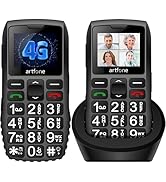
Figure 3: SIM and Micro SD card insertion points.
3. Operating Instructions
3.1 Powering On/Off
- To power on: Press and hold the red End Call/Power button until the screen lights up.
- To power off: Press and hold the red End Call/Power button, then confirm power off on the screen.
3.2 Basic Navigation
The phone features a user-friendly interface with clear icons and large fonts.
- Use the navigation keys (up, down, left, right) to move through menu options.
- Press the "OK" or "Select" button (center navigation key) to confirm a selection.
- Press the "Back" or "Clear" button to go back to the previous screen or delete characters.

Figure 4: User Interface and Menu Options.
3.3 Making and Receiving Calls
- To dial: Enter the phone number using the large keypad. The backlit keyboard improves visibility in low light.
- Press the green Call button to initiate the call.
- To answer: Press the green Call button when the phone rings.
- To end call: Press the red End Call button.
- The phone features a powerful speaker for clear audio during calls.

Figure 5: Large Keypad for Easy Dialing.

Figure 6: Speaker and Receiver for Enhanced Audio.
3.4 SOS Emergency Function
The SOS button provides immediate assistance in emergencies. You can configure up to 5 emergency contact numbers.
- To activate: Press and hold the SOS button located on the back of the phone.
- The phone will automatically dial the pre-set emergency numbers in sequence until one is answered.
- It will also send an emergency SMS message to these contacts.

Figure 7: SOS Button and Emergency Contact Setup.
3.5 Voice Time Announcement
The phone can announce the current time in multiple languages, which is beneficial for users with visual impairments.
- To hear the time: Press the dedicated time reporting button (often a side button or a specific key combination, refer to on-screen prompts).

Figure 8: Time Reporting Button.
3.6 Contacts and Messaging
- The phone supports up to 1000 contacts.
- Photo contacts: Assign photos to contacts for easier identification of incoming calls.
- Speed Dial: Set up quick dial numbers for frequently called contacts.
- T9 Input: Use the T9 input method for efficient text messaging.
- Blacklist: Add up to 50 numbers to a blacklist to block unwanted calls.
3.7 Multimedia and Connectivity
- Camera: The phone includes a 2MP camera for capturing photos (video capture resolution up to 1280x720).
- FM Radio: Listen to FM radio stations.
- Bluetooth: Connect to wireless headphones or other Bluetooth devices.
- Flashlight: Activate the integrated flashlight using a dedicated button or menu option.
4. Maintenance
- Keep the phone dry and away from extreme temperatures.
- Clean the screen and keypad with a soft, dry cloth.
- Avoid dropping the phone, although it has a robust design.
- Ensure the charging contacts on the phone and dock are clean for efficient charging.
5. Troubleshooting
| Problem | Possible Cause / Solution |
|---|---|
| Phone does not turn on. | Battery might be depleted. Charge the phone for at least 30 minutes. Ensure the battery is properly inserted (if removable). |
| Cannot make or receive calls. | Check if SIM card is properly inserted. Ensure you have network signal. Contact your service provider. |
| Poor call quality. | Move to an area with better network coverage. Ensure the speaker and microphone are not obstructed. |
| SOS function not working. | Verify that emergency numbers are correctly configured in the settings. Ensure the phone has network signal. |
| Phone not charging. | Check USB cable and power adapter connections. Ensure phone is correctly placed in the charging dock. Clean charging contacts. |
6. Technical Specifications
| Feature | Specification |
|---|---|
| Brand | artfone |
| Model Name | A400 |
| Model Number | A400 Silver |
| Dimensions | 15.2 x 11.9 x 5.8 cm; 280 g |
| Operating System | artfone OS |
| Display Size | 2.4 Inches |
| Display Type | LCD |
| Max Resolution | 320 x 240 |
| RAM Installed Size | 48 MB |
| Flash Memory Installed Size | 128 MB |
| Digital Storage Capacity | 128 MB |
| Battery Capacity | 1800 mAh |
| Battery Composition | Lithium Ion |
| GSM Technology | 4G, 3G, 2G (LTE) |
| Connectivity Technology | Bluetooth, USB |
| Human Interface Input | Compact Keypad |
| Form Factor | Bar |
| Video Capture Resolution | 640 x 480 or 1280 x 720 |
| Included Components | USB Cable |
7. Warranty and Support
Information regarding specific warranty terms and customer support contact details is not available in the provided product data. Please refer to the product packaging or the manufacturer's official website for warranty information and support contacts.
For general inquiries, you may visit the artfone Brand Store on Amazon.


