
1. Introduction
Welcome to the LEFANT M310 Robot Vacuum Cleaner user manual. This guide provides essential information for setting up, operating, and maintaining your robot vacuum to ensure optimal performance and longevity. The LEFANT M310 features 4500 Pa suction power, precise PSD obstacle avoidance, a 180-minute runtime, and a HEPA filter, making it ideal for homes with pets and various floor types.
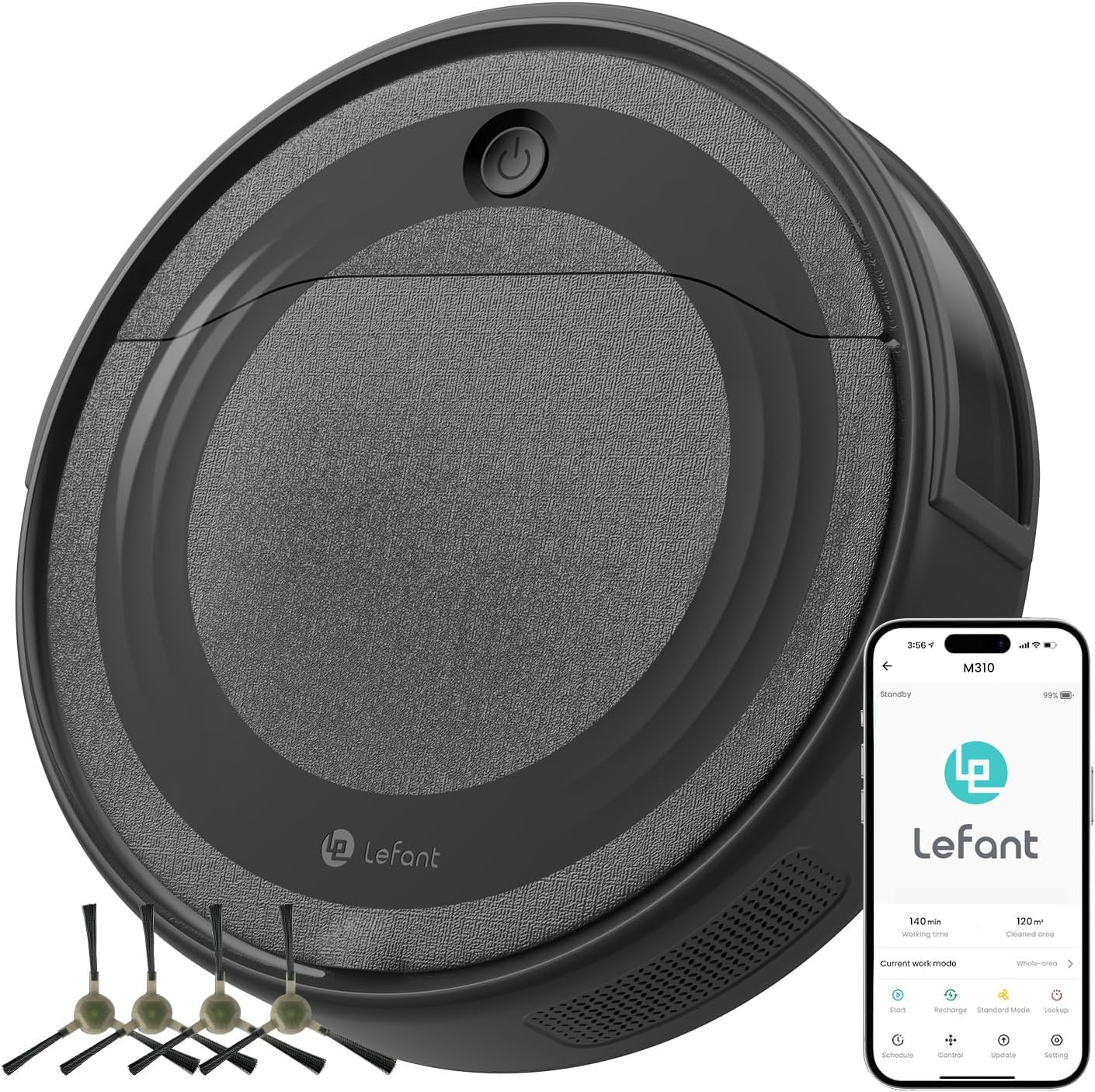
The LEFANT M310 Robot Vacuum Cleaner, shown alongside its mobile application interface, highlighting its smart capabilities.
2. What's in the Box
Please check the package contents to ensure all items are present:
- LEFANT M310 Robot Vacuum Cleaner
- Charging Station
- Power Adapter
- 550 ml Dustbin
- 2 HEPA Filters (1 pre-installed, 1 spare)
- 4 Side Brushes (2 pre-installed, 2 spare)
- Cleaning Brush
- User Manual

An overview of the LEFANT M310 Robot Vacuum Cleaner and its accessories, including the charging station, dustbin, filters, and brushes.
3. Setup Guide
3.1 Unpacking and Initial Placement
- Remove all packaging materials and protective films from the robot and charging station.
- Place the charging station against a wall in an open area, ensuring there are no obstacles within 1 meter (3 feet) to the front and 0.5 meters (1.5 feet) to the sides.
- Connect the power adapter to the charging station and plug it into a power outlet.
3.2 Initial Charging
Place the robot vacuum onto the charging station. Ensure the charging contacts on the robot align with those on the station. The indicator light on the robot will show charging status. Fully charge the robot before its first use (approximately 3-4 hours).
3.3 Connecting to the Lefant App
The Lefant app allows you to control your robot vacuum remotely, set schedules, and monitor its status. The robot only supports 2.4 GHz Wi-Fi networks.
- Press the robot's power button for 3 seconds to turn it on.
- Download the 'Lefant' app from your mobile device's App Store (Download Link).
- Open the app and register/log in.
- Press the robot's power button for 6 seconds until the indicator light blinks rapidly, indicating pairing mode.
- In the app, follow the instructions to add your M310 robot vacuum.
- Connect your phone to a 2.4 GHz Wi-Fi network and enter the Wi-Fi password in the app.
- Wait for the successful connection confirmation in the app.

Visual guide for connecting the LEFANT M310 to the Lefant mobile application.
3.4 Voice Assistant Integration (Alexa & Google Assistant)
You can control your LEFANT M310 using voice commands through Amazon Alexa or Google Assistant.
- Ensure your Alexa or Google Assistant device is connected to the internet and properly set up.
- In the Lefant app, navigate to 'Mine' and then search for 'Google Assistant/Alexa'.
- Select 'Alexa' or 'Google Assistant' and choose 'One-Click Binding'.
- Follow the prompts to link your Amazon or Google account. This typically involves tapping 'LINK' and confirming.
- Once successfully bound, you can open the Amazon Alexa or Google Home app to view and manage your LEFANT M310 device.

Instructions for integrating the LEFANT M310 with Amazon Alexa for voice control.
4. Operating Instructions
4.1 Starting and Stopping
- Manual Start/Stop: Press the power button on the robot once to start or pause cleaning.
- App Control: Use the Lefant app to start, pause, or stop cleaning, and select cleaning modes.
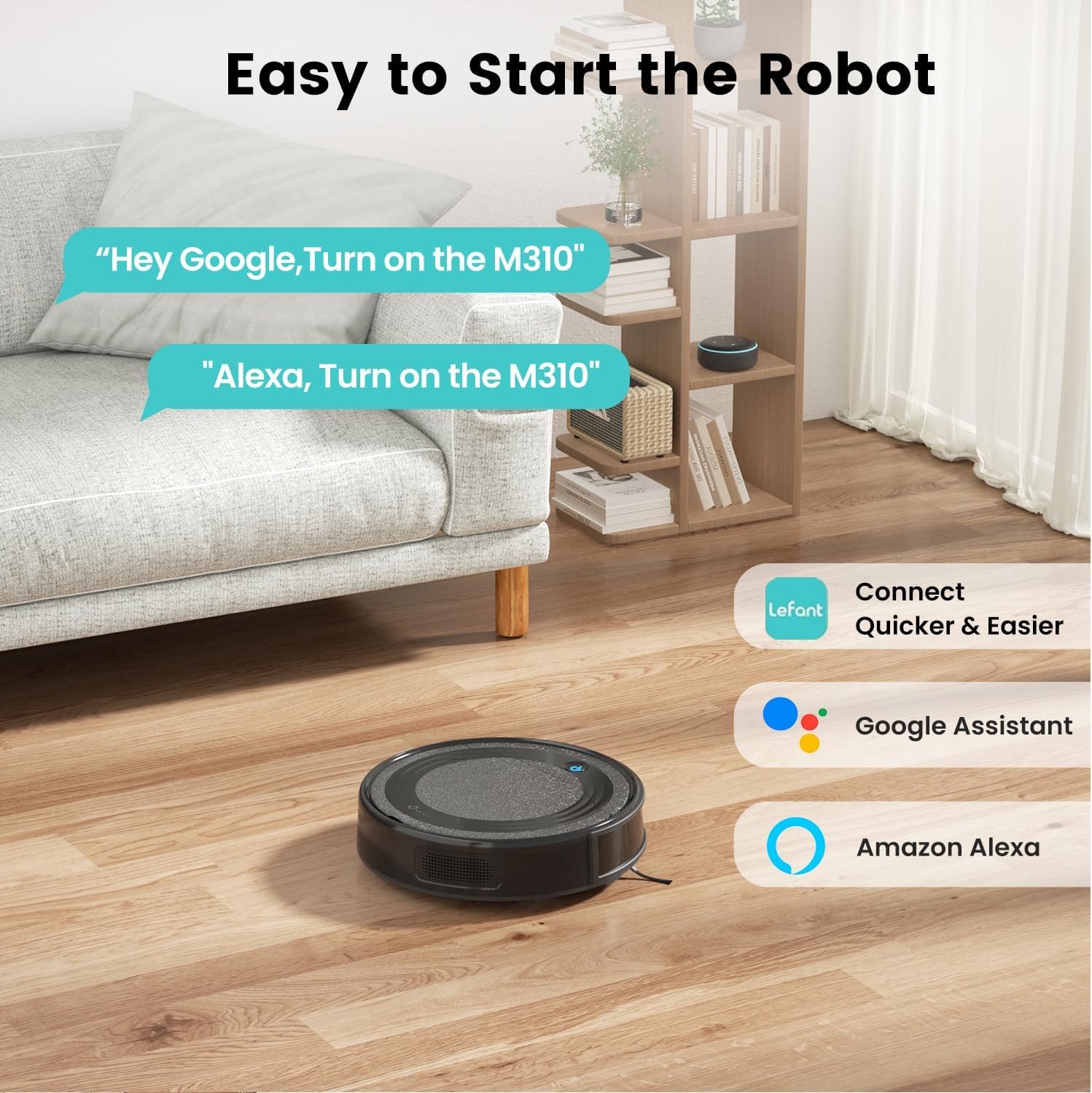
- Voice Control: Use commands like "Hey Google, turn on the M310" or "Alexa, turn on the M310" (after successful integration).

The LEFANT M310 can be easily started using voice commands through Google Assistant or Amazon Alexa.
4.2 Cleaning Modes
The M310 offers multiple cleaning modes to suit different needs:
- Zigzag Mode: For general cleaning of large, open areas, ensuring systematic coverage.
- Edge Mode: Cleans along walls and furniture edges.
- Spot Mode: Concentrates cleaning in a specific area for localized dirt.
- Random Mode: Cleans randomly, suitable for smaller, cluttered spaces.

The LEFANT M310 offers multiple cleaning modes, including Zigzag, Edge, Random, and Spot, to adapt to different cleaning requirements.

The robot vacuum efficiently cleans large areas using a zigzag path.

The robot vacuum effectively cleans along walls and furniture in Edge Mode.

For concentrated cleaning, the robot uses Spot Mode to tackle localized messes.
4.3 Precise Obstacle Avoidance (PSD Technology)
The M310 utilizes advanced PSD (Position Sensitive Detector) technology with 8 front triangular sensors to detect and avoid obstacles with a field of view greater than 180°. This protects your furniture and prevents the robot from getting stuck.

The robot vacuum's PSD technology allows it to detect and avoid obstacles, protecting furniture and ensuring smooth operation.
4.4 Scheduling
Use the Lefant app to set cleaning schedules for automatic cleaning at your preferred times. This feature allows for hands-free cleaning tailored to your routine.

The Lefant app provides options to schedule cleaning times for automated operation.
4.5 Automatic Charging
When the battery level is low, the M310 will automatically return to its charging station to recharge, ensuring it's always ready for the next cleaning cycle. It can clean up to 180 minutes on a single charge, covering areas up to 180 m².

The robot vacuum automatically navigates back to its charging station when its battery is low.
5. Maintenance
Regular maintenance ensures your LEFANT M310 operates efficiently and extends its lifespan.
5.1 Dustbin and Filter Cleaning
- Press the dustbin release button and pull out the dustbin.
- Open the dustbin cover and empty its contents into a trash can.
- Remove the filters (metal pre-filter and HEPA filter). The metal pre-filter can be washed with water; ensure it is completely dry before re-inserting.
- The HEPA filter is not washable. Tap it gently to remove dust or use the cleaning brush. Replace the HEPA filter every 3-6 months, depending on usage.
- Clean the inside of the dustbin with the provided cleaning brush or a dry cloth.
- Reassemble the filters and dustbin, then re-insert into the robot.
Instructions for emptying the 550ml dustbin and cleaning the metal and HEPA filters.
5.2 Side Brush Cleaning
Periodically check the side brushes for tangled hair or debris. Use the cleaning brush to remove any obstructions. If brushes are worn, replace them with new ones.
5.3 Sensor Cleaning
Wipe the anti-drop sensors, obstacle avoidance sensors, and charging contacts on the robot and charging station with a clean, dry cloth to ensure proper function.
6. Troubleshooting
If you encounter issues with your LEFANT M310, please refer to the following common problems and solutions:
| Problem | Possible Cause | Solution |
|---|---|---|
| Robot does not turn on | Low battery; Power button not pressed long enough | Place on charging station; Press and hold power button for 3 seconds |
| Robot does not charge | Charging contacts dirty; Charging station unplugged | Clean charging contacts; Ensure charging station is plugged in |
| Robot gets stuck frequently | Too many obstacles; Sensors dirty | Clear clutter from floor; Clean obstacle avoidance sensors |
| Cannot connect to Wi-Fi | Incorrect Wi-Fi band (not 2.4GHz); Incorrect password; Robot not in pairing mode | Ensure 2.4GHz Wi-Fi; Verify password; Put robot in pairing mode (6s button press) |
| Suction power is weak | Dustbin full; Filters clogged; Side brushes tangled | Empty dustbin; Clean/replace filters; Clean side brushes |
If the problem persists, please contact LEFANT customer support for further assistance.
7. Specifications
| Feature | Detail |
|---|---|
| Brand | LEFANT |
| Model Number | M310 |
| Color | Black |
| Dimensions (L x W x H) | 28 x 28 x 7.9 cm (11 x 11 x 3.1 inches) |
| Weight | 3.25 kg (7.16 lbs) |
| Suction Power | 4500 Pa |
| Battery Runtime | Up to 180 minutes |
| Dustbin Capacity | 550 ml |
| Filter Type | HEPA |
| Connectivity | Wi-Fi (2.4 GHz only), Google Assistant, Amazon Alexa |
| Special Features | PSD Precise Obstacle Avoidance, Anti-Tangle Suction, Ultra-Thin Design |
| Recommended Surface | Wood, Carpet, Tile |
8. Warranty & Support
Your LEFANT M310 Robot Vacuum Cleaner comes with a standard manufacturer's warranty. Please refer to the warranty card included in your package for specific terms and conditions, including coverage duration and claim procedures.
For technical support, troubleshooting assistance, or to inquire about replacement parts, please visit the official LEFANT store or contact their customer service directly.
Visit the LEFANT Brand Store for more information and support.


