1. Introduction
This manual provides detailed instructions for the installation, operation, and maintenance of your YAXRO Tuya Wifi Smart Lock A6. This electronic outdoor gate lock offers multiple unlocking methods, including fingerprint, password, IC card, and mobile application, along with an IP65 waterproof rating for outdoor use.
2. Product Features
- Waterproof IP65 Rating: Ensures durability and reliable operation in outdoor environments, protecting against dust and water ingress.
- Multiple Unlocking Methods: Supports double-sided fingerprint recognition, numeric passcodes, IC cards, and control via the Tuya mobile application. Mechanical keys are also provided for emergency access.
- 8-Language Speaker: Provides voice prompts in English, Vietnamese, Portuguese, Arabic, Russian, Thai, Spanish, and Indonesian.
- Tuya App Integration: Allows for remote control, user management, dynamic password generation, and access record viewing.
- Emergency Power: Equipped with a Micro USB port for emergency charging if batteries are depleted.

Figure 2.1: The YAXRO A6 Smart Lock supports multiple unlocking methods for convenience and security.
3. Package Contents
Verify that all components are present in the package before installation:
- Outdoor Panel (with fingerprint reader, keypad, card reader)
- Indoor Panel (with battery box)
- Lock Cylinder
- Waterproof Pad
- IC Cards
- Mechanical Keys
- Mounting Screws and Accessories
- User Manual (this document)

Figure 3.1: Components included with the YAXRO A6 Smart Lock.
4. Specifications
| Material | Zinc Alloy |
| Color | Grey |
| Panel Dimensions (Outdoor) | 168mm (Height) x 60mm (Width) |
| Panel Dimensions (Indoor) | 165mm (Height) x 35mm (Width) x 100mm (Depth) |
| Unlock Modes | Fingerprint, Password, IC Card, APP, Mechanical Key |
| Supported App | Tuya App, TTlock App |
| Fingerprint Recognition Time | 0.5 seconds |
| User Capacity (Fingerprint) | Up to 100 |
| User Capacity (IC Card) | Up to 100 |
| User Capacity (Password) | Up to 100 |
| Power Supply | 4 x AA batteries or 12V DC |
| Emergency Charging | Micro USB port |
| Suitable Door Thickness | 20-65mm (Wooden, Steel, Iron, other metal doors) |

Figure 4.1: Dimensions and supported languages of the YAXRO A6 Smart Lock.
5. Setup and Installation
5.1 Component Identification
Familiarize yourself with the main components of the lock:
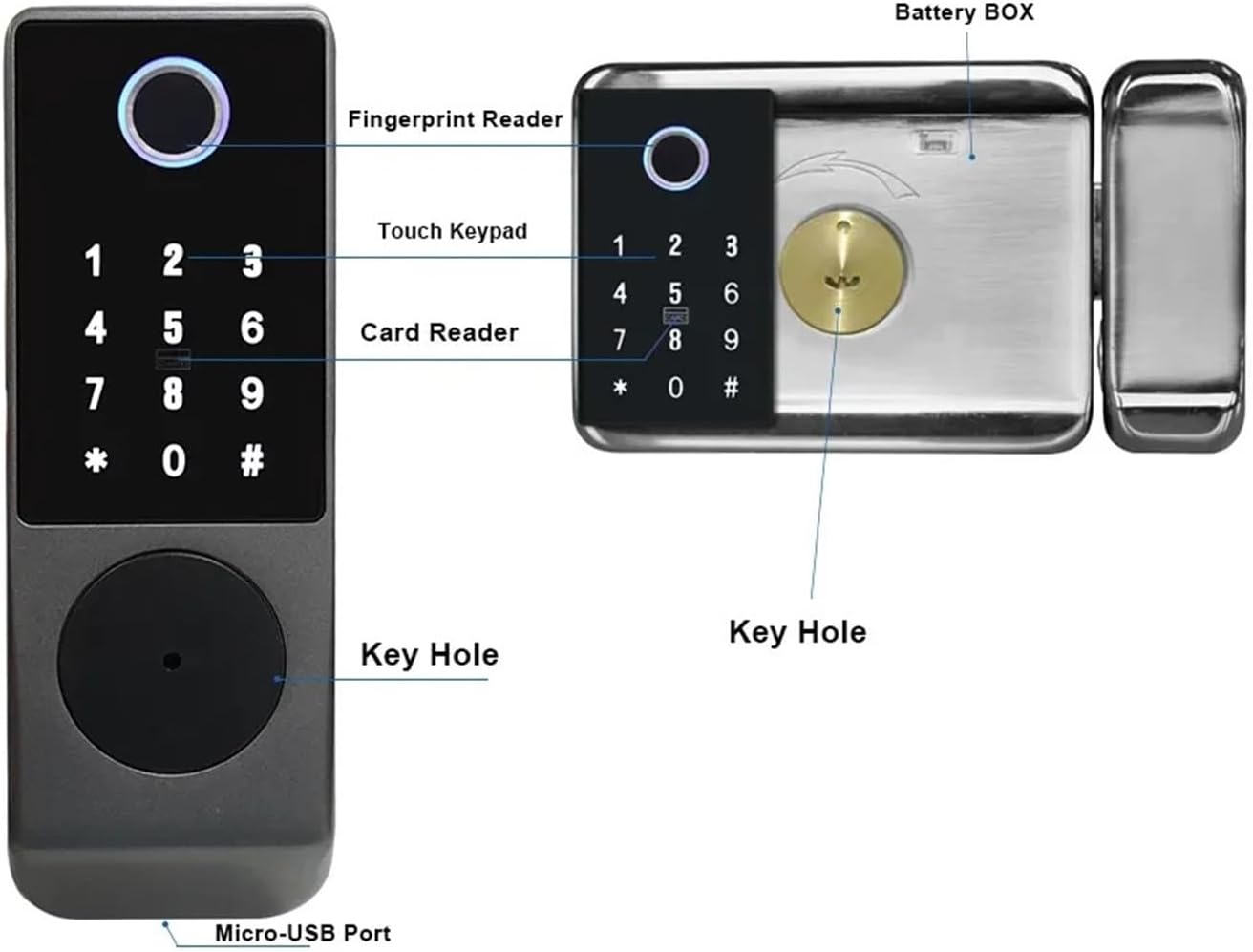
Figure 5.1: Key components of the YAXRO A6 Smart Lock.
5.2 Mechanical Installation
- Ensure your door thickness is between 20-65mm.
- Prepare the door according to the provided template (if applicable, not explicitly in JSON but standard for locks).
- Install the lock cylinder into the door.
- Attach the waterproof pad to the outdoor panel before mounting.
- Mount the outdoor panel and indoor panel, ensuring proper alignment and securing with screws.
- Connect the necessary cables between the outdoor and indoor units.
5.3 Battery Installation
- Open the battery compartment on the indoor panel.
- Insert 4 AA batteries, ensuring correct polarity.
- Close the battery compartment.
5.4 Initial Language Selection
Upon initial power-up, the lock will prompt for language selection. Enter the corresponding code:
- 555666880: English
- 555666881: Vietnamese
- 555666882: Portuguese
- 555666883: Arabic
- 555666884: Russian
- 555666885: Thai
- 555666886: Spanish
- 555666887: Indonesian
5.5 Tuya App Setup
- Download the "Tuya Smart" or "TTlock" app from your mobile device's app store.
- Register an account and log in.
- Follow the in-app instructions to add your YAXRO A6 Smart Lock. This typically involves putting the lock into pairing mode and connecting it to your home Wi-Fi network.
- Once connected, you can manage the lock remotely.

Figure 5.2: Tuya App interface for smart lock management.
6. Operating Instructions
6.1 Unlocking the Lock
- Fingerprint: Place your registered finger on the fingerprint reader. The lock will unlock upon successful recognition.
- Password: Enter your registered numeric passcode on the touch keypad, followed by the '#' key.
- IC Card: Present your registered IC card to the card reader area.
- Tuya App: Use the remote unlock function within the Tuya app. You can also generate dynamic or temporary passwords.
- Mechanical Key: Insert the mechanical key into the keyhole and turn to unlock in case of emergency or power failure.
6.2 User Management (via Tuya App)
The Tuya app allows comprehensive management of lock users:
- Add Fingerprints: Follow app prompts to register new fingerprints (up to 100).
- Add Passwords: Create and manage permanent, timed, or one-time passwords (up to 100).
- Add IC Cards: Register new IC cards (up to 100).
- View Unlock Records: Access a history of all lock and unlock events.
- Remote Unlock: Unlock the door from anywhere with an internet connection.
- Dynamic Passwords: Generate time-sensitive passwords for guests or service providers.
7. Maintenance
- Battery Replacement: Replace all 4 AA batteries when the low battery warning is issued. Do not mix old and new batteries.
- Emergency Charging: If batteries are completely depleted, connect a power bank to the Micro USB port on the outdoor panel for temporary power to unlock the door.
- Cleaning: Wipe the lock panels with a soft, dry cloth. Avoid using abrasive cleaners or solvents.
- Firmware Updates: Regularly check the Tuya app for available firmware updates to ensure optimal performance and security.
8. Troubleshooting
- Lock not responding: Check battery levels. If low, replace batteries or use emergency Micro USB power.
- Fingerprint not recognized: Ensure your finger is clean and dry. Re-register your fingerprint if issues persist.
- App connectivity issues: Verify your Wi-Fi connection and ensure the lock is within range. Restart the app and the lock if necessary.
- Voice prompts in wrong language: Refer to Section 5.4 for initial language selection codes.
- Lock mechanism jammed: Do not force the lock. Use the mechanical key for access and inspect for obstructions.
9. Support
For further assistance, technical support, or warranty inquiries, please contact the retailer or manufacturer directly. Refer to your purchase documentation for specific contact information.


