1. Introduction
Thank you for choosing the GOWENIC 4K Webcam. This high-definition USB PC camera is designed to provide superior video and audio quality for your online communications, streaming, and recording needs. Featuring a 3840x2140 resolution, a built-in microphone, super bright fill light, and an auto beauty function, this webcam offers a comprehensive solution for clear and vibrant visual experiences. This manual provides detailed instructions for setup, operation, maintenance, and troubleshooting to ensure optimal performance of your device.
2. Safety Information
- Do not expose the webcam to water or excessive moisture.
- Avoid dropping or subjecting the webcam to strong impacts.
- Do not attempt to disassemble or repair the webcam yourself. Contact customer support for assistance.
- Keep the webcam away from extreme temperatures and direct sunlight.
- Use only the provided USB cable for connection.
3. Package Contents
Please check the package for the following items:
- GOWENIC 4K Webcam (Model: GOWENICd7g5q3f2rb)
- USB 2.0 Cable (integrated)
- Instruction Manual
4. Product Overview
Familiarize yourself with the main components of your GOWENIC 4K Webcam:
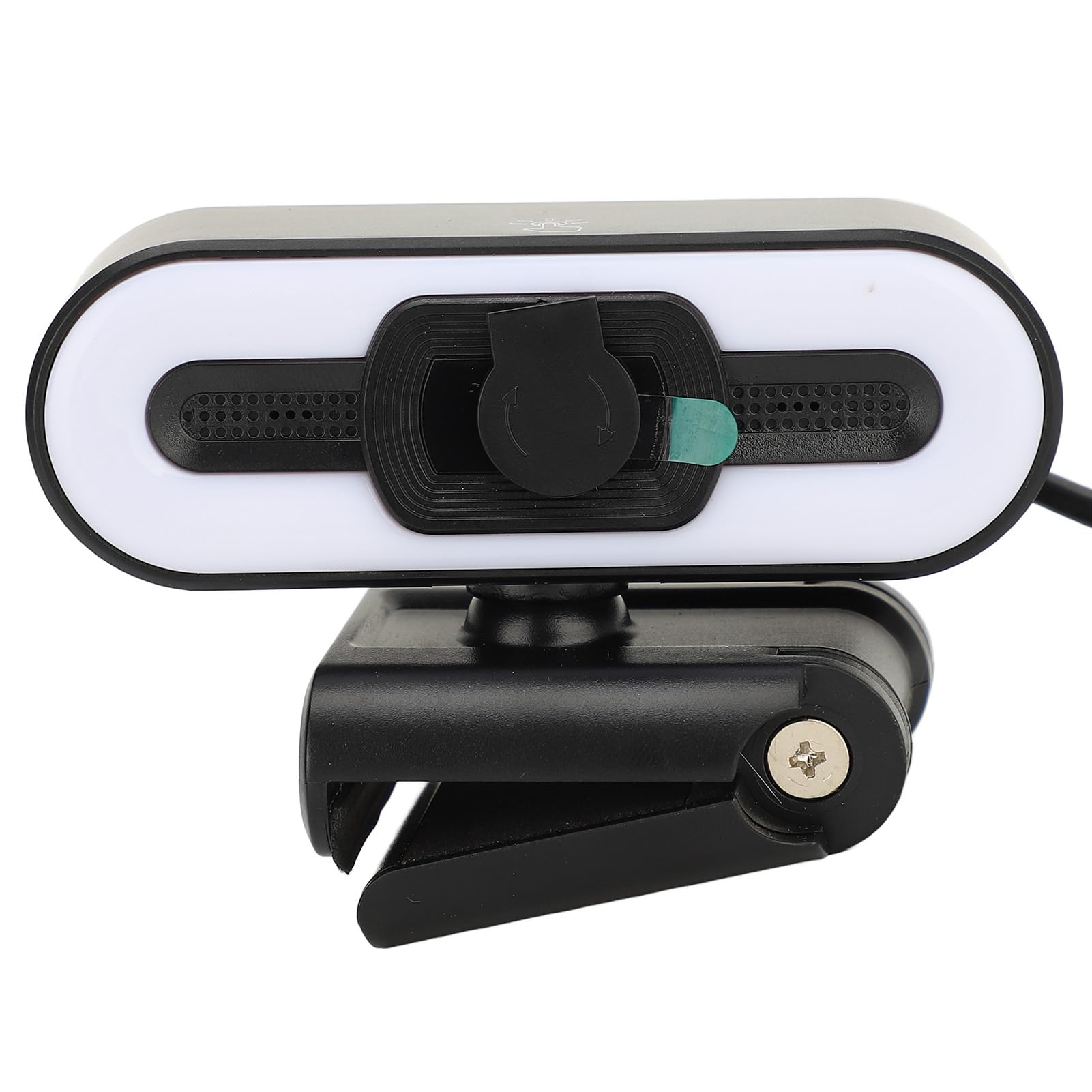

- 4K Lens: High-resolution lens for clear video capture.
- Built-in Microphone: Captures clear audio during calls and recordings.
- Super Bright Fill Light: Provides illumination for optimal picture quality in low-light conditions. Activated by a touch sensor.
- Privacy Cover: A physical slider to cover the lens when not in use, ensuring privacy.
- Adjustable Mounting Clip: Securely attaches the webcam to monitors, laptops, or stands.
- USB 2.0 Cable: Integrated cable for power and data connection to your computer.
5. Setup
The GOWENIC 4K Webcam is designed for plug-and-play functionality, requiring no additional driver installation for most operating systems.
5.1 Connecting the Webcam
- Mount the Webcam: Open the adjustable mounting clip and place the webcam securely on top of your computer monitor, laptop screen, or a compatible tripod. Ensure the webcam is stable and the lens is facing you.
- Connect to Computer: Plug the integrated USB 2.0 cable into an available USB port on your computer.
- System Recognition: Your computer should automatically detect and install the necessary drivers for the webcam. This process may take a few moments.


5.2 Software Configuration
Once connected, you can select the GOWENIC 4K Webcam as your primary video and audio device within your preferred video conferencing, streaming, or recording software (e.g., Zoom, Skype, OBS, Windows Camera app, macOS Photo Booth).
- Open your application's settings or preferences.
- Navigate to the 'Video' or 'Camera' section and select 'GOWENIC 4K Webcam'.
- Navigate to the 'Audio' or 'Microphone' section and select 'GOWENIC 4K Webcam' or 'USB Audio Device'.
6. Operating Instructions
6.1 Using the 4K Resolution
The webcam supports 3840x2140 resolution. To utilize this, ensure your software settings are configured to capture or stream at 4K. Performance may vary based on your computer's specifications and internet bandwidth.
6.2 Built-in Microphone
The integrated microphone automatically activates when the webcam is selected as the audio input device in your software. No additional setup is required for basic use.
6.3 Super Bright Fill Light
The webcam features an integrated fill light to improve illumination in dim environments.
- Activation: Gently touch the designated sensor area on top of the webcam (indicated by a light bulb icon) to turn the fill light on or off.
- Adjustment: Repeatedly touch the sensor to cycle through different brightness levels or color temperatures, if available. Refer to Figure 6.1 for the sensor location.


6.4 Auto Beauty Function
The webcam includes an automatic beauty enhancement function that subtly refines your appearance during video calls, providing a more polished look. This feature is typically enabled by default and operates automatically.
6.5 Privacy Cover
To ensure your privacy, slide the physical cover over the lens when the webcam is not in use. Slide it back to expose the lens when you need to use the camera.
7. Maintenance
7.1 Cleaning the Lens
To maintain optimal image quality, gently clean the webcam lens with a soft, lint-free cloth. Do not use harsh chemicals or abrasive materials.
7.2 General Care
- Keep the webcam free from dust and debris.
- Store the webcam in a cool, dry place when not in use.
- Always use the privacy cover when the webcam is not active.
8. Troubleshooting
If you encounter issues with your GOWENIC 4K Webcam, please refer to the following common solutions:
| Problem | Possible Solution |
|---|---|
| Webcam not detected by computer. |
|
| No video or black screen. |
|
| No audio or poor audio quality. |
|
| Fill light not working. |
|
9. Specifications
Detailed technical specifications for the GOWENIC 4K Webcam:
| Feature | Specification |
|---|---|
| Model Name | GOWENICd7g5q3f2rb |
| Resolution | 3840x2140 (4K) |
| Connectivity | USB 2.0 |
| Microphone | Built-in |
| Lighting | Super Bright Fill Light |
| Special Features | Auto Beauty Function, Adjustable Clip |
| Photo Sensor Technology | CMOS |
| Item Weight | 4.9 ounces (140 Grams) |
| Package Dimensions | 4.33 x 3.54 x 2.76 inches |
| Date First Available | June 27, 2024 |
10. Warranty and Support
GOWENIC products are manufactured to high-quality standards. For warranty information, technical support, or any inquiries regarding your webcam, please refer to the contact information provided with your purchase or visit the official GOWENIC website. Please retain your proof of purchase for warranty claims.