
1. Introduction
The TP-Link POE380S is a 10GE PoE++ Injector designed to convert non-PoE network connections into Power over Ethernet (PoE) connections. This device complies with IEEE 802.3af, 802.3at, and 802.3bt standards, providing up to 90W of PoE power. It enables simultaneous transmission of data and power over a single Ethernet cable, simplifying network infrastructure for compatible devices. The POE380S is suitable for wall-mounting or desktop placement and features a plug-and-play design for easy installation. Please note that the POE380S is incompatible with Passive PoE and other non-standard PoE devices.
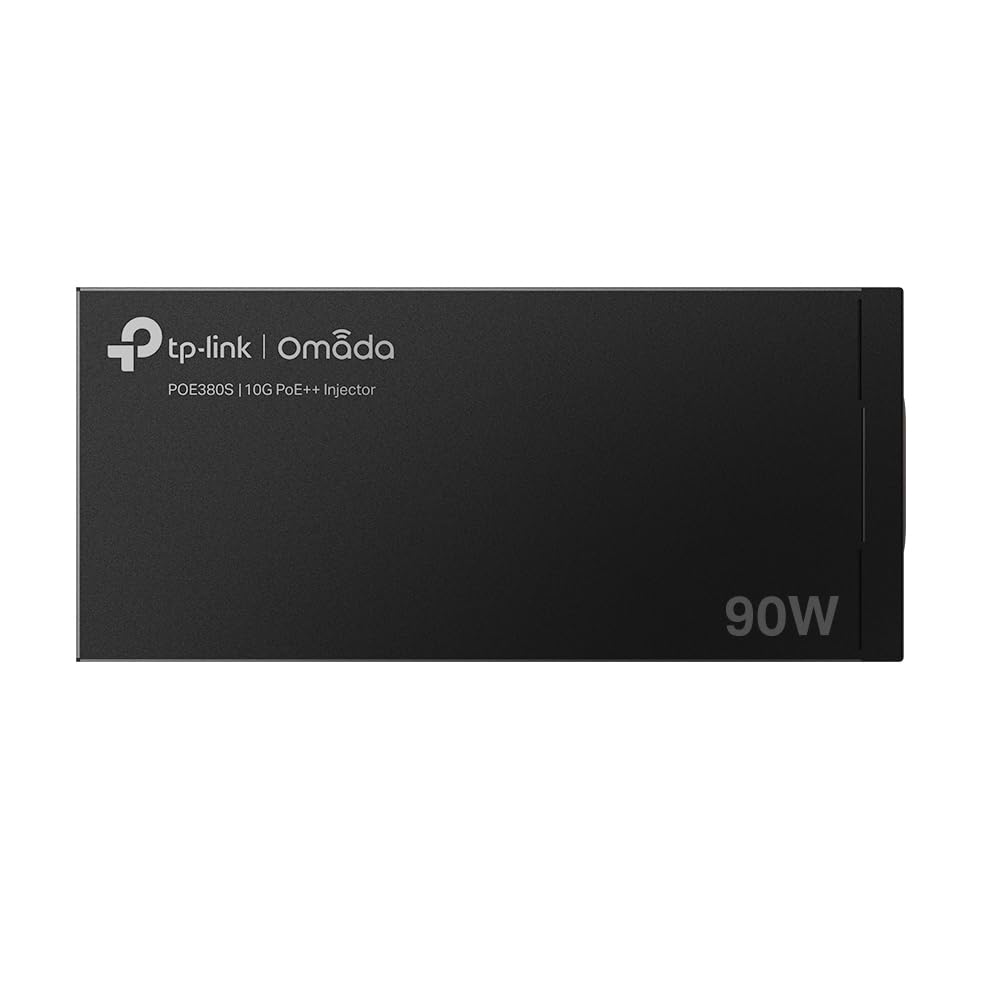
Image: Top-down view of the TP-Link POE380S 10GE PoE++ Injector.
2. Package Contents
Verify the following items are included in your package:
- TP-Link POE380S 10GE PoE++ Injector
- Power Cord
- Installation Guide

Image: The TP-Link POE380S injector shown within its retail packaging.
3. Product Overview
The POE380S injector features two RJ45 ports and LED indicators for status monitoring.
3.1 Front Panel

Image: Front panel of the POE380S, showing the PoE and PWR LEDs, the PWR+DATA OUT port, and the DATA IN port.
- PoE LED: Indicates the Power over Ethernet status.
- PWR LED: Indicates the power status of the injector.
- PWR+DATA OUT Port: This RJ45 port provides both data and Power over Ethernet (PoE++) to a compatible device. It supports speeds up to 10 Gbps and supplies up to 90W.
- DATA IN Port: This RJ45 port connects to your non-PoE network device (e.g., router, switch) for data input. It supports speeds up to 10 Gbps.
3.2 Rear Panel

Image: Rear panel of the POE380S, showing the AC Power Input Socket.
- AC Power Input Socket: Connects to the included power cord for electrical power. Supports 100-240V ~ 50/60Hz 1.6A.
4. Setup
The POE380S is designed for simple plug-and-play installation. Follow these steps to set up your PoE injector:
- Connect to Power: Plug the included power cord into the AC Power Input Socket on the rear of the POE380S and then into a standard electrical outlet. The PWR LED should illuminate.
- Connect to Network: Connect an Ethernet cable from your non-PoE network device (e.g., router, network switch) to the DATA IN port on the POE380S.
- Connect to PoE Device: Connect another Ethernet cable from the PWR+DATA OUT port on the POE380S to your PoE-compatible device (e.g., Wi-Fi 7 Access Point, IP Camera, Video IP Phone). Ensure your device supports IEEE 802.3af/at/bt standards.

Image: A diagram illustrating the plug-and-play setup process, showing connections from a power outlet to the injector, from the injector's DATA IN port to a network switch, and from the injector's PWR+DATA OUT port to a PoE-powered device like a Wi-Fi 7 AP, Video IP Phone, or PTZ IP Camera.
Once connected, the PoE LED should illuminate, indicating that power is being supplied to the connected PoE device. The injector automatically detects and supplies the exact power required by the device, up to 90W.
5. Operating Instructions
The TP-Link POE380S operates automatically once connected. No software configuration is required.
- Power On: Connect the power cord to the injector and a power outlet. The PWR LED will light up.
- PoE Power Delivery: When a compatible PoE device is connected to the PWR+DATA OUT port, the PoE LED will light up, indicating that power is being supplied. The injector will automatically negotiate the required power level (up to 90W) based on the connected device's needs and IEEE 802.3af/at/bt standards.

Image: Illustration of the POE380S automatically detecting and supplying up to 90W of power to a connected device, such as a security camera, in compliance with 802.3af/at/bt standards.
- Data Transmission: Data will be transmitted at speeds up to 10 Gbps through both the DATA IN and PWR+DATA OUT ports. The injector supports auto-negotiation for various speeds.

Image: Diagram demonstrating a 10 Gbps speed connection from the POE380S to a Wi-Fi 7 Access Point, highlighting the high-speed data transfer capability.
5.1 Wall-Mounting
The POE380S is designed to be wall-mountable. Use appropriate screws and anchors (not included) to secure the device to a wall. Ensure the mounting location allows for proper ventilation and access to ports.
6. Maintenance
To ensure optimal performance and longevity of your TP-Link POE380S, follow these maintenance guidelines:
- Cleaning: Regularly clean the exterior of the device with a soft, dry cloth. Do not use liquid or aerosol cleaners.
- Ventilation: Ensure the device is placed in a well-ventilated area. Do not block any ventilation openings.
- Environment: Avoid exposing the device to extreme temperatures, humidity, or direct sunlight. Keep it away from water and other liquids.
- Cable Management: Ensure all connected Ethernet and power cables are securely plugged in and not under strain.
- Firmware Updates: Periodically check the TP-Link official website for any available firmware updates for your model.
7. Troubleshooting
If you encounter issues with your POE380S, refer to the following common troubleshooting steps:
- No Power (PWR LED Off):
- Ensure the power cord is securely connected to the injector and a working electrical outlet.
- Test the outlet with another device to confirm it has power.
- No PoE Power (PoE LED Off):
- Verify that the connected device is PoE-compatible and adheres to IEEE 802.3af/at/bt standards. The POE380S does not support Passive PoE.
- Ensure the Ethernet cable from the PWR+DATA OUT port is securely connected to the PoE device.
- Check the PoE device's power requirements to ensure they do not exceed the 90W maximum output of the POE380S.
- No Data Connection:
- Ensure all Ethernet cables are securely connected to both the DATA IN and PWR+DATA OUT ports, as well as to your network device and PoE device.
- Test the Ethernet cables for damage or faults.
- Verify that your network device (router/switch) is functioning correctly.
- Slow Connection Speed:
- Ensure both the connected network device and PoE device support 10GE speeds to achieve maximum performance.
- Use high-quality Ethernet cables (e.g., Cat6a or Cat7) for 10GE connections.
If issues persist, refer to the support section for contact information.
8. Specifications
| Brand | TP-Link |
| Model Number | POE380S |
| PoE Standard | IEEE 802.3af/at/bt |
| PoE Power Output | Up to 90 W |
| Data Transfer Rate | 10 Gbps/5 Gbps/2.5 Gbps/1 Gbps/100 Mbps/10 Mbps |
| Ports | 2x RJ45 (1x DATA IN, 1x PWR+DATA OUT) |
| Input Voltage | 100-240V ~ 50/60Hz 1.6A |
| Dimensions (LxWxH) | 7.48 x 3.74 x 9.84 inches |
| Weight | 2.2 pounds |
| Mounting | Wall-mounting, Desktop |
| Certifications | UL Certified |
9. Safety Information
Please read and follow all safety instructions to prevent damage to the device or injury to yourself:
- Do not attempt to disassemble, repair, or modify the device.
- Use only the power adapter provided with the device.
- Keep the device away from water, fire, humidity, or hot environments.
- Do not use the device where wireless devices are not allowed.
- Install the device according to the instructions in this manual.
- Ensure the power outlet is easily accessible.
10. Warranty and Support
10.1 Warranty Information
This product is covered by TP-Link's standard warranty. For detailed warranty terms and conditions, please refer to the official TP-Link website or the warranty card included with your product.
10.2 Technical Support
For technical support, troubleshooting assistance, or to register your product, please contact TP-Link support through the following channels:
- Phone Support: (866) 225-8139
- Product Registration/Information: myproducts.tp-link.com/us
- Email Support: support.USA@tp-link.com
Additional resources, including FAQs and updated drivers, may be available on the official TP-Link support website.


