
1. Introduction
The Bushnell Golf Phantom 3 Slope GPS is a compact, handheld golf GPS device designed to provide accurate distances on the course. It features a large, easy-to-read touchscreen display, integrated BITE magnetic cart mount, and GreenView with moveable pin placement. This manual provides instructions for setup, operation, maintenance, and troubleshooting to ensure optimal performance of your device.
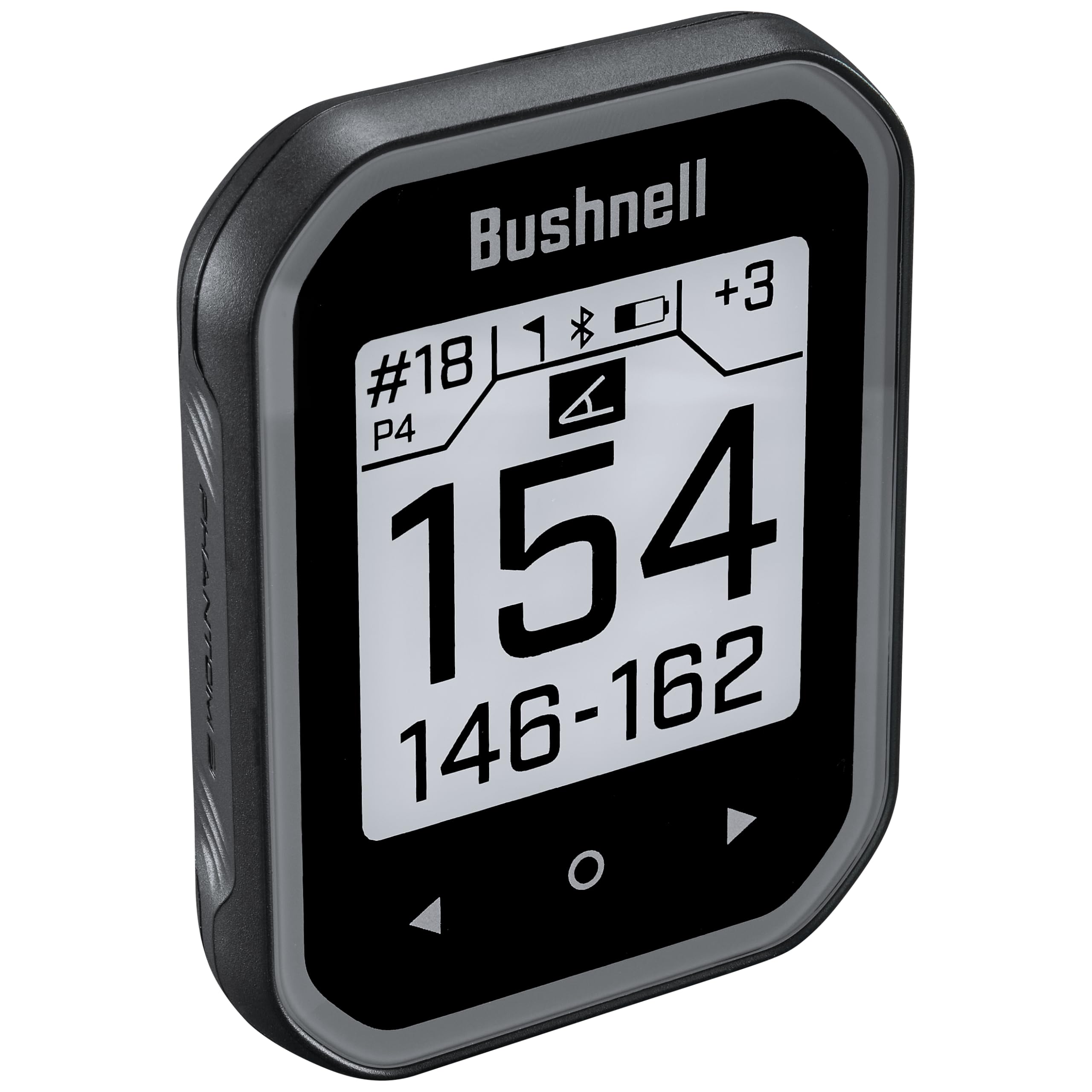
Image 1.1: Front view of the Bushnell Golf Phantom 3 Slope GPS device. The device has a black body with a clear display showing golf course information.
2. What's in the Box
Please check the package contents to ensure all items are present:
- Bushnell Golf Phantom 3 Slope GPS Device
- USB Charging Cable
- Belt Clip
3. Setup
3.1 Charging the Device
Before first use, fully charge your Phantom 3 Slope GPS. Connect the USB charging cable to the device's charging port and plug the other end into a USB power adapter (not included) or a computer's USB port. The battery indicator on the screen will show charging status.
A full charge provides up to 18 hours of battery life, approximately 4 rounds of golf.
3.2 Powering On/Off
- To Power On: Press and hold the Power button (usually located on the side or top edge) until the Bushnell logo appears on the screen.
- To Power Off: Press and hold the Power button until a power-off prompt appears, then confirm your selection on the touchscreen.
3.3 Initial Setup and Course Updates
Your Phantom 3 Slope GPS comes preloaded with over 38,000 worldwide courses. For the latest course data and software updates, it is recommended to connect your device to the Bushnell Golf Mobile App via Bluetooth. The app is available for download on iOS and Android devices.
- Download the Bushnell Golf App from your smartphone's app store.
- Enable Bluetooth on your Phantom 3 Slope GPS (refer to the device settings menu).
- Pair your device with the app following the on-screen instructions in the app.
- Use the app to check for and install any available course or software updates.
3.4 Attaching the Belt Clip
The included belt clip allows for convenient carrying of your device. Attach the clip to the designated slot on the back of the Phantom 3 Slope GPS. Ensure it clicks securely into place.

Image 3.1: The Phantom 3 Slope GPS device attached to a golf bag using its clip, demonstrating portability.
4. Operating Instructions
4.1 Main Screen Navigation
The Phantom 3 Slope GPS features a responsive touchscreen display. Navigate through menus and options by tapping or swiping. The device typically has physical buttons for power and possibly menu navigation, complementing the touchscreen.
4.2 Playing Golf Mode
Once powered on, select "Play Golf" from the main menu. The device will automatically search for nearby golf courses. Select your course from the list.
4.2.1 Viewing Distances (Front, Center, Back)
The primary display shows large, easy-to-read distances to the front, center, and back of the green. The device automatically recognizes the hole you are playing.

Image 4.1: The device display showing distances to the front (146 yards), center (154 yards), and back (162 yards) of the green.
4.2.2 Slope-Adjusted Distances
The patented Bushnell Slope Technology calculates incline and decline, providing more accurate "play-as" yardages. This feature can typically be toggled on or off from the settings menu or directly on the golf screen, depending on tournament rules or personal preference.
4.2.3 GreenView with Moveable Pin Placement
Access the GreenView feature to see the shape of the green. On the touchscreen, you can drag the pin icon to the day's pin location for even more precise distances to the hole.
4.2.4 Hazard Distances
The device can display distances to various hazards on the course. Swipe or tap to access the hazard view, which typically lists up to 6 hazard distances per hole, such as bunkers (LBnk) or water hazards (Wtr).

Image 4.2: The device display showing a list of hazards and their distances, such as a left bunker at 28 yards.
4.2.5 Auto Score Prompt
The Phantom 3 Slope GPS includes an auto score prompt feature, allowing you to easily input your score after each hole directly on the device.
4.3 Magnetic Cart Mount (BITE)
The integrated BITE magnet allows you to securely attach your GPS device to any metal surface, such as a golf cart frame or a club shaft, for quick and convenient viewing during play.
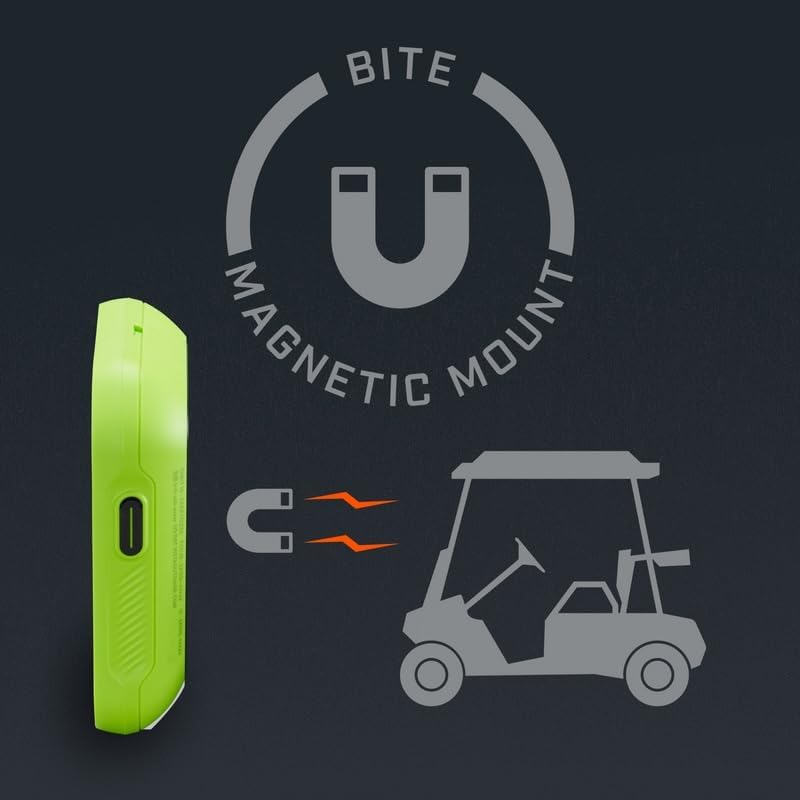
Image 4.3: Diagram illustrating the BITE magnetic mount feature, showing the device magnetically attaching to a golf cart.
4.4 Official Product Overview Video
Watch this official video from Bushnell Golf for a comprehensive overview of the Phantom 3 GPS features and functionality.

Video 4.1: Official Bushnell Golf overview of the Phantom 3 GPS, demonstrating its key features like distances, GreenView, and the magnetic mount.
5. Maintenance
5.1 Cleaning the Device
To clean your Phantom 3 Slope GPS, gently wipe the screen and body with a soft, damp cloth. Do not use abrasive cleaners or solvents, as they may damage the device.
5.2 Battery Care
To prolong battery life, avoid exposing the device to extreme temperatures. Store it in a cool, dry place when not in use. Fully charge the device periodically if it will be stored for an extended period.
5.3 Software Updates
Regularly check for software updates via the Bushnell Golf Mobile App to ensure your device has the latest features and course data. Updates can improve performance and accuracy.
6. Troubleshooting
6.1 Device Not Powering On
- Ensure the device is fully charged. Connect it to the charger for at least 30 minutes.
- Try performing a soft reset by holding the Power button for an extended period (e.g., 10-15 seconds).
6.2 GPS Not Acquiring Signal
- Ensure you are in an open area with a clear view of the sky.
- Wait a few minutes for the device to acquire satellites.
- Ensure the device's software and course data are up to date via the Bushnell Golf App.
6.3 Incorrect Distances
- Verify that the correct course and hole are selected.
- Check for course updates through the Bushnell Golf App.
- Ensure the device has a strong GPS signal.
6.4 Touchscreen Not Responding
- Ensure the screen is clean and free of debris or moisture.
- Restart the device.
- If the issue persists, contact Bushnell customer support.
7. Specifications
| Feature | Detail |
|---|---|
| Model Name | Phantom 3 Slope |
| Model Number | 362401 |
| Screen Size | 3 inches |
| Display Type | LCD |
| Resolution | 280 x 280 |
| Connectivity | Bluetooth |
| Battery Life | Up to 18 hours (approx. 4 rounds) |
| Preloaded Courses | 38,000+ worldwide |
| Special Features | Slope-Adjusted Distances, Touchscreen, BITE Magnetic Cart Mount, GreenView with Moveable Pin |
| Item Weight | 78 g |
8. Warranty Information
The Bushnell Golf Phantom 3 Slope GPS is covered by a 1-Year Manufacturer's Warranty from the date of purchase. This warranty covers defects in materials and workmanship. For full warranty terms and conditions, please refer to the official Bushnell Golf website or contact customer support.
9. Support
For additional support, frequently asked questions, or to contact customer service, please visit the official Bushnell Golf website: