
Introduction
This manual provides essential information for the safe and efficient use of your ViewSonic VX2428A 24-inch Full HD IPS Gaming Monitor. Please read these instructions thoroughly before installation and operation.
Key Features:
- 24-inch Full HD (1920x1080p) IPS display
- 180Hz refresh rate
- 0.5ms (MPRT) response time
- AMD FreeSync technology
- Flicker-Free technology and Blue Light Filter
- HDR10 content support
- HDMI 1.4 and DisplayPort inputs
Setup
1. What's in the Box
Verify that all components are present:
- LCD Display (VX2428A Monitor)
- Power Cable
- AC/DC Adapter
- HDMI Cable
- Quick Start Guide

Image: The image displays the ViewSonic VX2428A monitor along with its included accessories: a power cable, AC/DC adapter, HDMI cable, and a Quick Start Guide.
2. Monitor Assembly
Follow these steps to assemble the monitor stand and attach it to the display panel.

Image: A front view of the ViewSonic VX2428A 24-inch gaming monitor, showcasing its thin bezels and sleek design.

Image: The ViewSonic VX2428A monitor positioned on a desk with a keyboard and mouse, highlighting its narrow stand designed for compact setups.
3. Connecting Your Devices
The VX2428A monitor offers multiple connectivity options:
- HDMI (x2): Connect to devices such as PCs, gaming consoles, or media players using an HDMI cable.
- DisplayPort (x1): Connect to a computer or graphics card for high-resolution and high-refresh-rate output using a DisplayPort cable.
- 3.5mm Audio Out (x1): Connect external speakers or headphones.
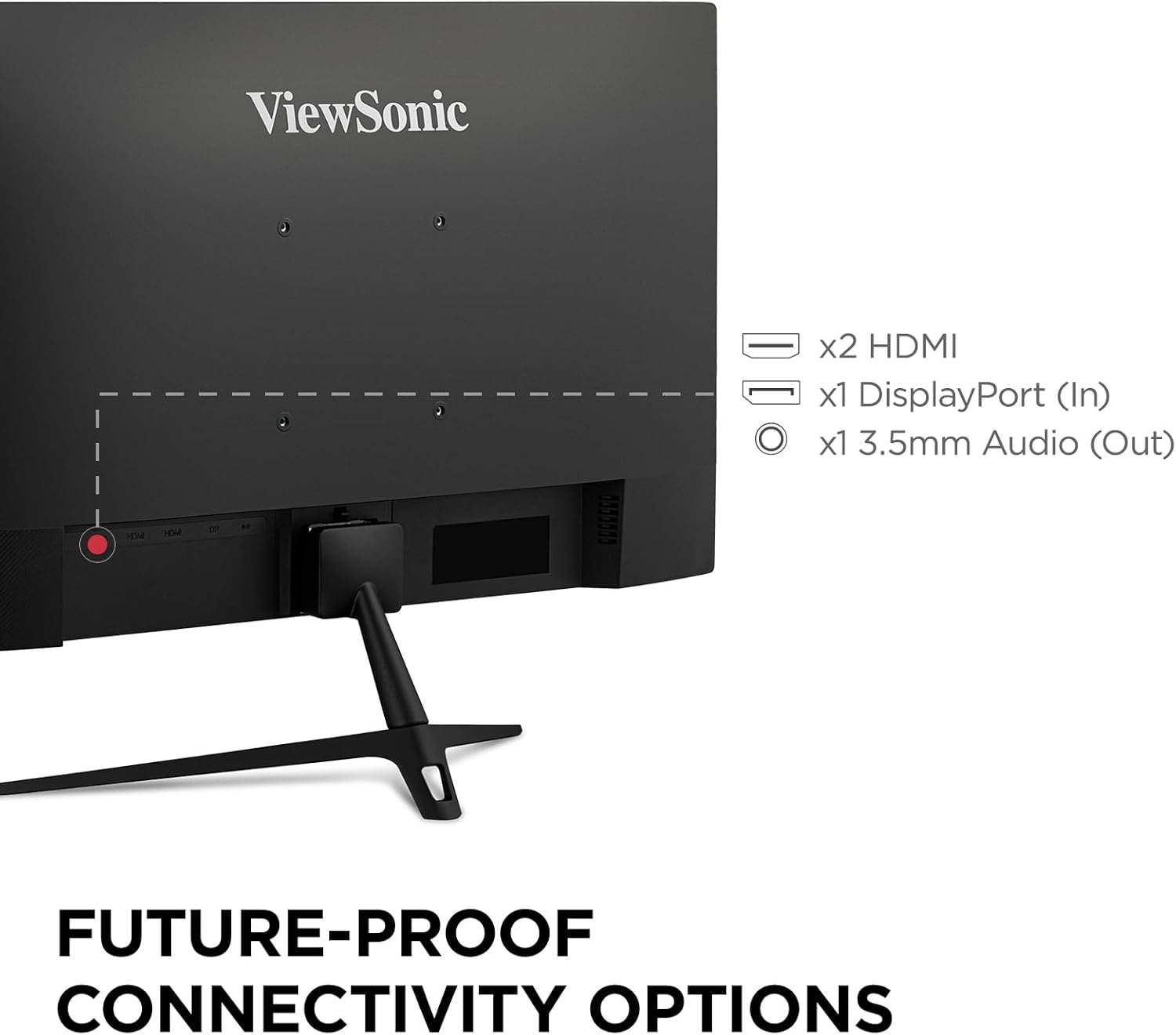
Image: The rear panel of the ViewSonic VX2428A monitor, clearly showing the two HDMI ports, one DisplayPort input, and a 3.5mm audio output jack.

Image: Graphic illustrating the available connectivity options: HDMI, DisplayPort, and Audio Out, with corresponding icons.
4. Power Connection
Connect the AC/DC adapter to the monitor's power input, then plug the power cable into a wall outlet.
5. VESA Mount Compatibility
The monitor supports VESA mounting standard 100 x 100 mm for alternative mounting solutions (e.g., wall mounts, monitor arms).

Image: A monitor mounted on an adjustable arm, indicating its 100 x 100 mm VESA mount compatibility for flexible setup options.
Operating Instructions
1. Power On/Off
Press the power button located on the monitor's bottom right bezel to turn the monitor on or off.
2. On-Screen Display (OSD) Menu
The OSD menu allows you to adjust various monitor settings. Use the buttons on the monitor's bezel to navigate the menu.
Recommended Settings (from user feedback):
- View Mode: Standard
- Contrast: 77
- Brightness: 100
- Color Temperature: User Color (for unbiased temperature)
- Color Range: Full Range (ensure this matches your graphics card settings)
- Blue Light Filter: 25 to 35 (adjust for comfort; higher values may affect white balance)
- Black Stabilization: 70
- Response Time: Advanced (Ultra Fast may introduce artifacts)
- Adaptive Sync (AMD FreeSync): On
- HDR: Set to On when using HDR content; otherwise, keep Off. If HDR is enabled on your device and Off on the monitor, colors may appear washed out. Note that some OSD settings may be greyed out when HDR is active.
3. Gaming Performance Features
The VX2428A is designed for an enhanced gaming experience:
- 180Hz Refresh Rate: Provides smoother motion and reduced input lag.
- 0.5ms (MPRT) Response Time: Minimizes motion blur and ghosting for clear, fast-paced action.
- AMD FreeSync: Synchronizes the monitor's refresh rate with your GPU's frame rate to eliminate screen tearing and stuttering.

Image: A ViewSonic monitor displaying a gaming scene, emphasizing its 180Hz refresh rate, 0.5ms response time, and AMD FreeSync technology for improved gameplay.

Image: A visual comparison demonstrating the reduction in motion blur and improved clarity when using the monitor's 0.5ms response time and 180Hz refresh rate compared to standard settings.

Image: A split image illustrating the difference between FreeSync OFF (showing screen tearing) and FreeSync ON (showing smooth, tear-free visuals) during gameplay.
4. Eye Care Technology
The monitor incorporates Flicker-Free technology and a Blue Light Filter to reduce eye strain during extended use.
Image: A simulated image demonstrating the benefits of eye-care technology, comparing standard flicker and blue light emission with the monitor's reduced output.
Maintenance
Cleaning the Monitor
To clean the monitor screen and casing:
- Turn off the monitor and unplug the power cord.
- Gently wipe the screen with a soft, lint-free cloth. For stubborn marks, lightly dampen the cloth with water or a mild, non-abrasive screen cleaner.
- Wipe the casing with a soft, dry cloth.
- Avoid using harsh chemicals, abrasive cleaners, or spraying liquids directly onto the screen or casing.
Troubleshooting
If you encounter issues with your monitor, refer to the following common problems and solutions:
- No Power: Ensure the power cable and AC/DC adapter are securely connected to both the monitor and a working power outlet.
- No Signal: Verify that the video cable (HDMI or DisplayPort) is correctly connected to both the monitor and your source device. Ensure the correct input source is selected in the OSD menu.
- Washed Out Colors (with HDR): If HDR is enabled on your connected device but set to Off in the monitor's OSD, colors may appear dull. Enable HDR in the monitor's OSD settings. Note that some OSD settings may be inaccessible when HDR is active.
- Image Flickering/Tearing: Ensure AMD FreeSync is enabled on both your monitor (via OSD) and your graphics card settings.
- Motion Artifacts: If you observe ghosting or artifacts during fast motion, check the "Response Time" setting in the OSD. Setting it to "Ultra Fast" may sometimes introduce artifacts; try "Advanced" instead.
- No Sound from Monitor Speakers: Check the audio output settings on your connected device and the monitor's OSD. Ensure external speakers/headphones are properly connected to the 3.5mm audio out port if used.
- Missing HDMI Cable: Please note that while a DisplayPort cable is often included, an HDMI cable may not always be part of the standard package.
Specifications
| Feature | Detail |
|---|---|
| Brand | ViewSonic |
| Model Number | VX2428A (VS19276) |
| Screen Size | 24 Inches (23.8" Viewable) |
| Resolution | 1920 x 1080 (Full HD) |
| Panel Type | IPS |
| Refresh Rate | 180Hz |
| Response Time | 0.5ms (MPRT) |
| Adaptive Sync | AMD FreeSync |
| Aspect Ratio | 16:9 |
| Connectivity | 2x HDMI 1.4, 1x DisplayPort 1.2, 1x 3.5mm Audio Out |
| HDR Support | HDR10 |
| Eye Care Features | Flicker-Free, Blue Light Filter |
| VESA Mount | 100 x 100 mm |
| Dimensions (LxWxH) | 7.2 x 21.3 x 16.6 inches (18.3 x 54.1 x 42.2 cm) |
| Weight | 6.8 pounds (3.08 kg) |
| Color | Black |

Image: The ViewSonic VX2428A monitor shown with its physical dimensions, including screen size (23.8 inches / 60.96 cm), width (21.3 inches / 54.1 cm), and depth (7.2 inches / 18.3 cm).
Warranty and Support
Warranty Information
Your ViewSonic VX2428A monitor is covered by a 3-Year Limited Warranty. This warranty covers defects in materials and workmanship under normal use.
Customer Support
For technical assistance, warranty claims, or product inquiries, please contact ViewSonic's US-based customer support. Refer to the Quick Start Guide or the official ViewSonic website for contact details.
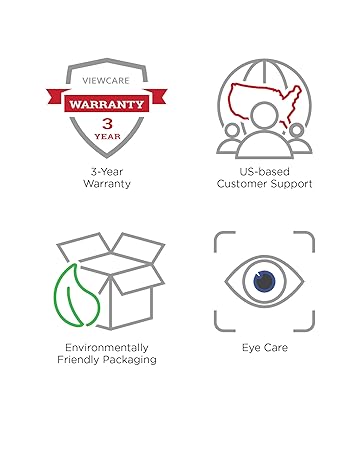
Image: A graphic highlighting key customer benefits: a 3-Year Warranty, access to US-based Customer Support, environmentally friendly packaging, and integrated eye care features.


