
1. Introduction
Thank you for purchasing the XIAOKOA H18H Wireless Dynamic Microphone Set. This system utilizes advanced UHF wireless technology to provide stable signal transmission with minimal delay, making it ideal for various applications such as conferences, lectures, presentations, parties, karaoke, and live performances. This manual provides detailed instructions for setup, operation, maintenance, and troubleshooting to ensure optimal performance and longevity of your device.
2. Package Contents
Please verify that all items listed below are included in your package:
- Microphones (x2)
- Charging Cable (x1)
- Receiver (x1)
- 3.5mm to 6.35mm Conversion Adapter (x1)
- User Manual (English)
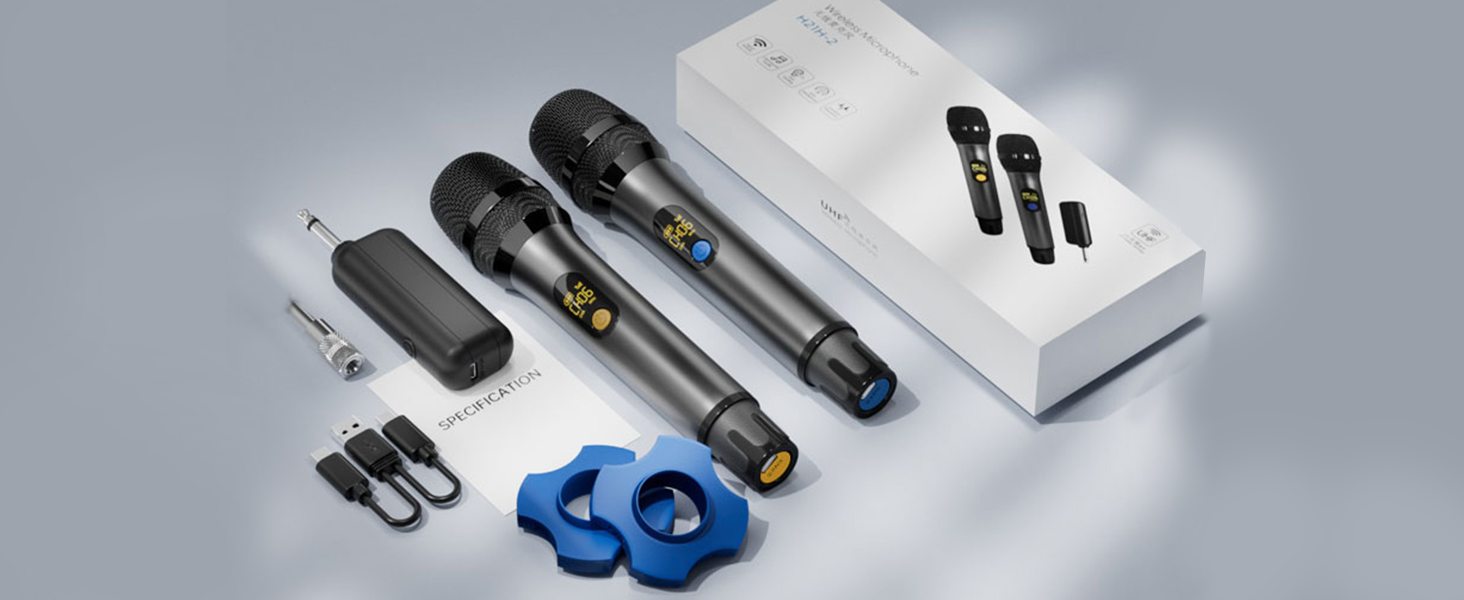
Figure 2.1: Contents of the XIAOKOA H18H package.
3. Product Overview
3.1 Components

Figure 3.1: Overview of microphone and receiver components.
- Microphone: Features an alloy cover, LED display, and a multi-function button for power, mute, and channel switching. Equipped with a Type-C charging port.
- Receiver: Compact unit with a 6.35mm audio plug and a Type-C charging port.
- 3.5mm-6.35mm Conversion Adapter: For wider compatibility with various audio inputs.
3.2 Key Features
- UHF Wireless Transmission: Provides stable signal transmission up to 30 meters in open areas, free from interference from household Wi-Fi signals. Supports up to 12 sets simultaneously.
- High Sound Quality: Designed to withstand strong sound pressure levels, offering deep reverb effects and clear sound reproduction. Features noise reduction to minimize ambient noise.
- Mute Function: A dedicated button on the microphone allows for temporary audio output cessation.
- Automatic Shutdown: The microphone automatically shuts down after 45 minutes of no sound input or activity to conserve power.
- Wide Compatibility: The receiver features a 6.35mm audio plug and includes a 3.5mm conversion adapter, making it compatible with amplifiers, PCs, mixers, PA systems, and speakers that have a MIC port.
- Type-C Rechargeable: Both the microphone and receiver have built-in 1200mAh lithium batteries, providing 8-10 hours of continuous use on a full charge. The digital LED screen displays battery level, signal strength, and channel.
- Durable Construction: Made from aluminum alloy for a comfortable feel and enhanced durability.
4. Setup
4.1 Charging the Devices
- Connect the provided Type-C charging cable to the charging ports on both microphones and the receiver.
- Plug the other end of the charging cable into a standard USB power adapter (not included).
- Allow the devices to charge fully before first use. The LED display on the microphone will indicate charging status.

Figure 4.1: Type-C charging for microphone and receiver.
4.2 Connecting the Receiver
- Identify the MIC input port on your audio equipment (amplifier, mixer, PA system, speaker, etc.).
- Insert the 6.35mm plug of the receiver directly into the MIC input port.
- If your audio equipment has a 3.5mm MIC input, attach the 3.5mm conversion adapter to the receiver's 6.35mm plug before inserting it into the port.

Figure 4.2: Receiver compatibility with various audio systems.
5. Operating Instructions
5.1 Power On/Off
- To Power On: Press and hold the power button on the microphone and the power switch on the receiver until their respective displays or indicator lights turn on.
- To Power Off: Press and hold the power button on the microphone and the power switch on the receiver until their displays or indicator lights turn off.
5.2 Automatic Pairing
The microphone and receiver are designed to pair automatically upon power-on. Once both devices are powered on, the receiver's indicator light will become solid, indicating a successful connection.
5.3 Mute Function
During use, a short press of the power button on the microphone will activate the mute function, temporarily stopping audio output. Press the button again to unmute.

Figure 5.1: Microphone mute function.
5.4 Channel Switching
To change the operating channel of the microphone, double-click the power button. The LED display will show the current channel (CH01-CH12). This feature is useful when using multiple microphone sets simultaneously to avoid interference.
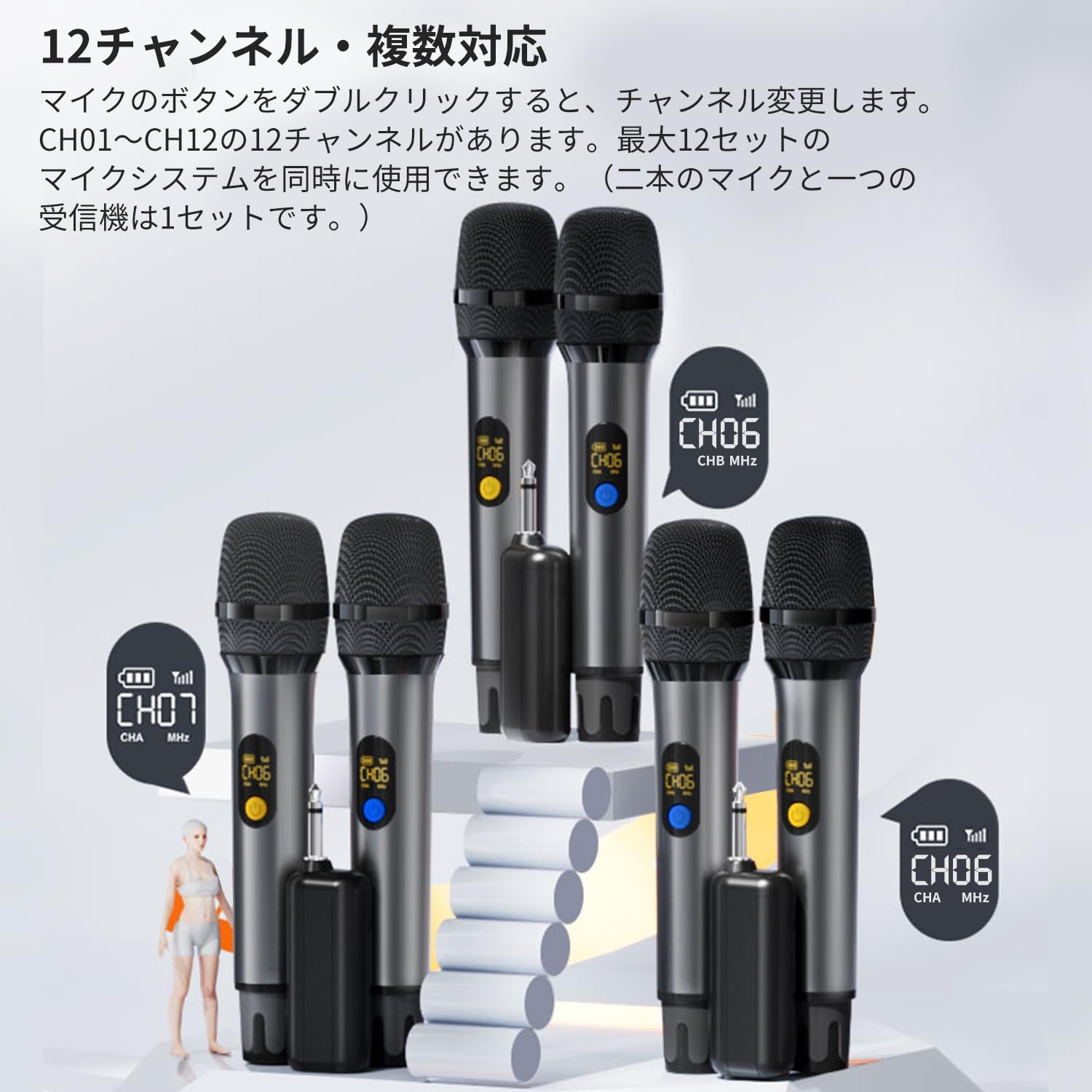
Figure 5.2: Multiple microphones operating on different channels.
5.5 LED Display Information
The microphone's digital LED display provides the following information:
- Signal Indicator: Shows wireless signal strength.
- Battery Level: Displays remaining battery charge.
- Channel Display: Indicates the current operating channel (e.g., CH01).
- Mute Status: An icon will appear when the microphone is muted.
6. Maintenance
- Cleaning: Use a soft, dry cloth to clean the microphone and receiver. Avoid using abrasive cleaners or solvents.
- Storage: Store the devices in a cool, dry place away from direct sunlight and extreme temperatures.
- Battery Care: To prolong battery life, avoid fully discharging the devices frequently. Recharge them regularly, even if not in use for extended periods.
- Handling: The microphones are constructed from durable aluminum alloy, but avoid dropping or subjecting them to strong impacts.
7. Troubleshooting
| Problem | Possible Cause | Solution |
|---|---|---|
| No sound from microphone | Microphone or receiver is off; Mute function is active; Low battery; Receiver not properly connected; Incorrect channel. | Ensure both devices are powered on; Deactivate mute function; Charge devices; Reconnect receiver securely; Double-click power button to change channel. |
| Interference or poor sound quality | Too far from receiver; Obstacles blocking signal; Other wireless devices causing interference; Low battery. | Reduce distance between microphone and receiver (within 30m); Ensure clear line of sight; Change microphone channel; Charge devices. |
| Low volume output | Microphone sensitivity setting; Audio equipment volume too low. | Adjust volume on your audio equipment; Ensure microphone is held correctly and close enough to the sound source. |
| Cannot charge devices | Faulty charging cable or adapter; Charging port damage. | Try a different Type-C charging cable and USB adapter; Contact customer support if ports appear damaged. |
| Microphone automatically shuts down | Automatic shutdown feature activated. | This is a power-saving feature. The microphone will shut down after 45 minutes of inactivity. Power it on again to resume use. |
8. Specifications
| Feature | Detail |
|---|---|
| Brand | XIAOKOA |
| Model Number | H18H |
| Connectivity Technology | UHF Wireless (6.35mm MIC, AUX) |
| Connector Type | 3.5mm Jack, 6.3mm Jack |
| Special Features | Noise Reduction, Mute Function |
| Compatible Devices | PA System, Amplifier, Audio Mixer, Karaoke Machine, Speaker |
| Color | Grey |
| Microphone Form Factor | Handheld |
| Power Source | Battery Powered (3 Lithium Ion batteries included) |
| S/N Ratio | 96 dB |
| Hardware Platform | Karaoke Machine, Desktop PC |
| Number of Channels | 12 |
| Product Exterior Material | Aluminum |
| Frequency Response | 60Hz-18KHz |
| Microphone Sensitivity | -58dB ±3dB |
| Input Sample Rate | 48KHz |
| Bit Rate | 24bit |

Figure 8.1: Microphone technical specifications.
9. Warranty and Support
This product comes with a 1-year manufacturer's warranty. In case of initial defects or malfunctions such as excessive noise, inability to use, or charging issues, a free exchange is available within one month of purchase. For any questions or concerns regarding the product, please do not hesitate to contact our customer support.
For support, please refer to the contact information provided with your purchase or visit the official XIAOKOA website.


