
ORDRO UHD-M5
ORDRO M5 5K Gimbal Camera User Manual
Brand: ORDRO | Model: UHD-M5
1. Introduction and Overview
The ORDRO M5 is a portable 3-axis gimbal camera designed for capturing high-quality video and photos with exceptional stability. It features a 5K video resolution, a rotatable touchscreen, and intelligent tracking capabilities, making it suitable for various recording scenarios.

Image: The ORDRO M5 Portable 3-Axis Gimbal Camera, showcasing its compact design and rotatable screen.
Key Features:
- 5K Video Resolution: Capture stunning 5K video at up to 30 frames per second for incredibly detailed and sharp image quality.
- 3-Axis Gimbal Stabilization: Integrated 3-axis gimbal stabilization ensures smooth and steady footage, even when moving.
- 3.5-inch Rotatable Touchscreen: The rotatable touchscreen allows shooting from any angle and convenient control of your shots.
- Face/Object Tracking: Intelligent face and object tracking automatically keeps your subject in focus for professional-looking shots.
- IR Night Vision: Built-in infrared night vision enables clear and detailed video recording even in low-light conditions.
2. What's in the Box
Verify that all items are present in the package before proceeding with setup.

Image: The ORDRO M5 camera alongside its standard accessories, including a 64GB Micro SDXC card, a USB card reader, and a protective carrying case.
- ORDRO M5 Camera
- 64 GB Micro SDXC Card
- Type-C Cable
- User Manual (this document)
3. Setup Guide
3.1 Charging the Battery
The ORDRO M5 comes with an internal rechargeable Lithium-ion battery. Fully charge the device before first use.
- Connect the included Type-C cable to the camera's charging port.
- Connect the other end of the cable to a USB power adapter (not included) or a computer's USB port.
- The charging indicator light will illuminate. It will turn off or change color once charging is complete.
- A full charge typically takes approximately 2-3 hours.
3.2 Inserting the Micro SD Card
The camera requires a Micro SD card for storing photos and videos. A 64GB Micro SDXC card is included.
- Locate the Micro SD card slot on the side of the camera.
- Insert the Micro SD card with the gold contacts facing down until it clicks into place.
- To remove the card, gently push it in until it clicks, then release to eject.
3.3 Powering On/Off
- To Power On: Press and hold the Power button for a few seconds until the screen illuminates.
- To Power Off: Press and hold the Power button until the shutdown prompt appears, then confirm.
4. Operating Instructions
4.1 3.5-inch Rotatable Touchscreen
The camera features a versatile 3.5-inch touchscreen that can be rotated for flexible horizontal and vertical shooting, making it ideal for various content formats like YouTube videos or social media shorts.

Image: The ORDRO M5 camera demonstrating its 3.5-inch rotatable screen, allowing for easy switching between 16:9 landscape and 9:16 portrait orientations.

Image: The ORDRO M5 camera demonstrating its 3.5-inch rotatable screen, allowing for easy switching between 16:9 landscape and 9:16 portrait orientations.
- Rotation: Gently rotate the screen to switch between landscape (16:9) and portrait (9:16) modes.
- Touch Control: Navigate menus, adjust settings, and control recording functions directly on the touchscreen.
4.2 3-Axis Gimbal Stabilization
The integrated 3-axis gimbal provides superior stabilization, ensuring your footage remains smooth and steady even during dynamic movements. This is crucial for professional-looking videos, eliminating shakiness often seen with electronic stabilization.
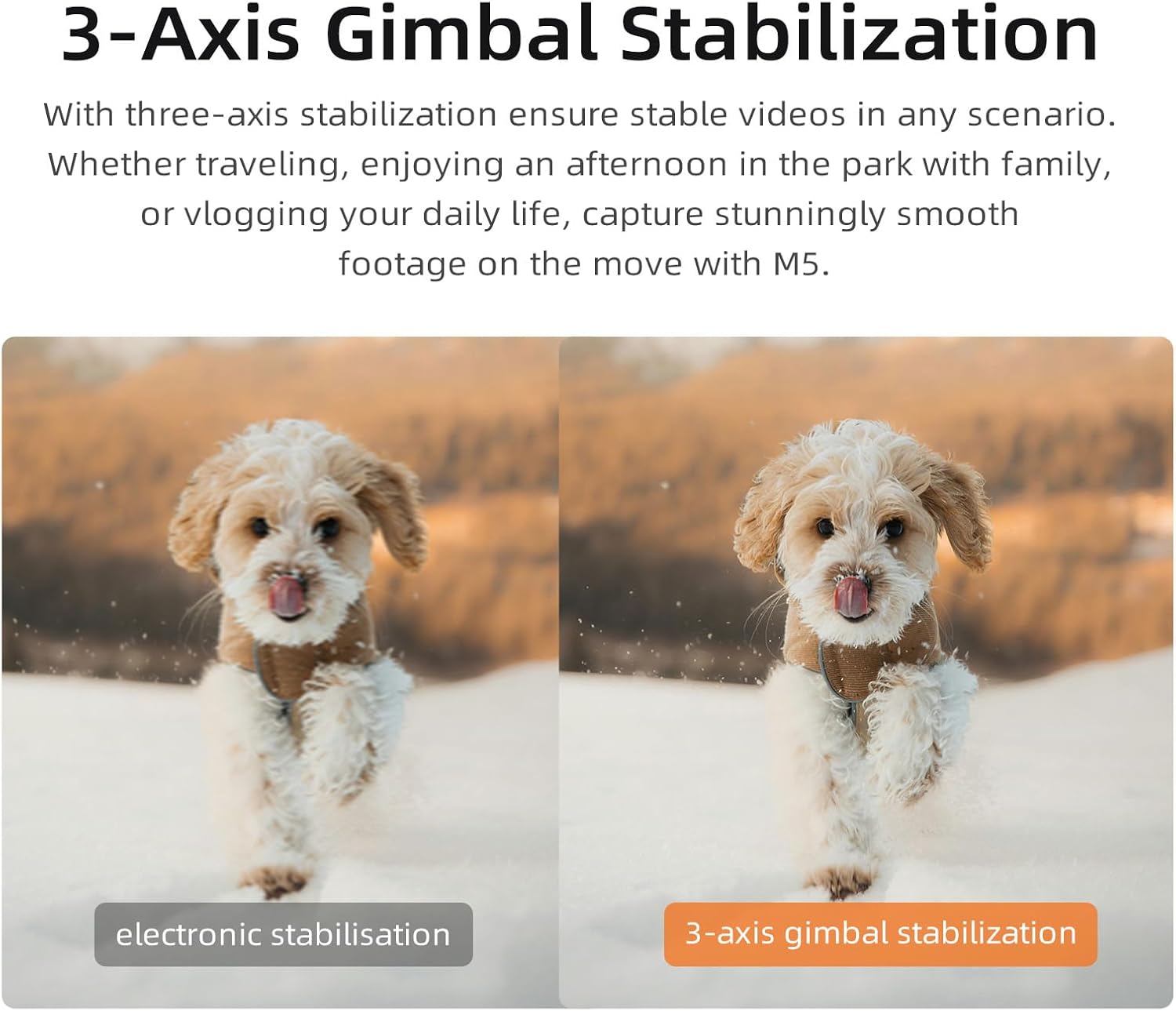
Image: A visual comparison demonstrating the superior smoothness achieved with 3-axis gimbal stabilization compared to electronic stabilization, featuring a dog running.

Image: Two individuals walking outdoors, illustrating the ultra-steady footage achieved with the ORDRO M5's 3-axis gimbal stabilization, suitable for various activities like dancing or hiking.
Gimbal Modes:

Image: An illustration detailing the various 3-axis gimbal modes available on the ORDRO M5, including Pan Following (PF), Tilt Following (TF), Lock Mode (L), Full Following (POV), and PTZ (Pan-Tilt-Zoom) with speed options.
- PF Mode (Pan Following): The camera pans horizontally while the tilt and roll axes are locked.
- TF Mode (Tilt Following): The camera tilts vertically while the pan and roll axes are locked.
- L Mode (Lock Mode): All three axes are locked, keeping the camera pointed in a fixed direction.
- POV Mode (Full Following): All three axes follow your movements, providing a dynamic first-person perspective.
- PTZ (Pan-Tilt-Zoom): Allows manual control over pan, tilt, and zoom functions with adjustable speeds (Smooth, Regular, Sport).
4.3 5K Video Recording
The ORDRO M5 captures video at a stunning 5K resolution (up to 30fps), providing exceptional clarity and detail for your footage. This high resolution allows for greater flexibility in post-production, such as cropping without significant loss of quality.
- Recording: From the main screen, tap the record button to start/stop video recording.
- Resolution Settings: Access video settings via the touchscreen menu to select your desired resolution (e.g., 5K@30fps, 4K@60fps).
4.4 Face and Object Tracking
The intelligent tracking feature allows the camera to automatically follow a selected face or object, keeping it centered in the frame. This is ideal for vlogging, action shots, or any scenario where the subject is moving.

Image: The ORDRO M5 camera actively tracking a child's face within a group, highlighting its intelligent face tracking capability.

Image: The ORDRO M5 camera actively tracking a child's face within a group, highlighting its intelligent face tracking capability, ensuring the subject remains in focus.
- Activate Tracking: Tap on the desired face or object on the touchscreen to initiate tracking. A green box will appear around the tracked subject.
- Deactivate Tracking: Tap the screen again or press the tracking button (if available) to stop tracking.
4.5 IR Night Vision Function
The built-in infrared night vision allows the ORDRO M5 to capture clear black-and-white images and videos even in complete darkness or very low-light conditions. This feature is useful for nocturnal observations, security, or creative low-light filming.

Image: The ORDRO M5 camera's IR Night Vision Function in action, capturing a clear image of a cat sleeping in a dark room.

Image: A comparison illustrating the effectiveness of the IR Night Vision Function, showing clear black-and-white images of a deer in darkness, suitable for outdoor, hunting, or pet observation.
- Activate IR: Locate the IR Night Vision toggle in the camera's settings menu or a dedicated button (refer to the on-screen interface).
- Usage: Once activated, the camera will switch to black-and-white mode and utilize infrared light for illumination.
4.6 WDR (Wide Dynamic Range)
WDR technology helps the camera capture more light details in scenes with high contrast, such as bright highlights and dark shadows, or when shooting against strong backlighting. This results in more balanced and natural-looking images.
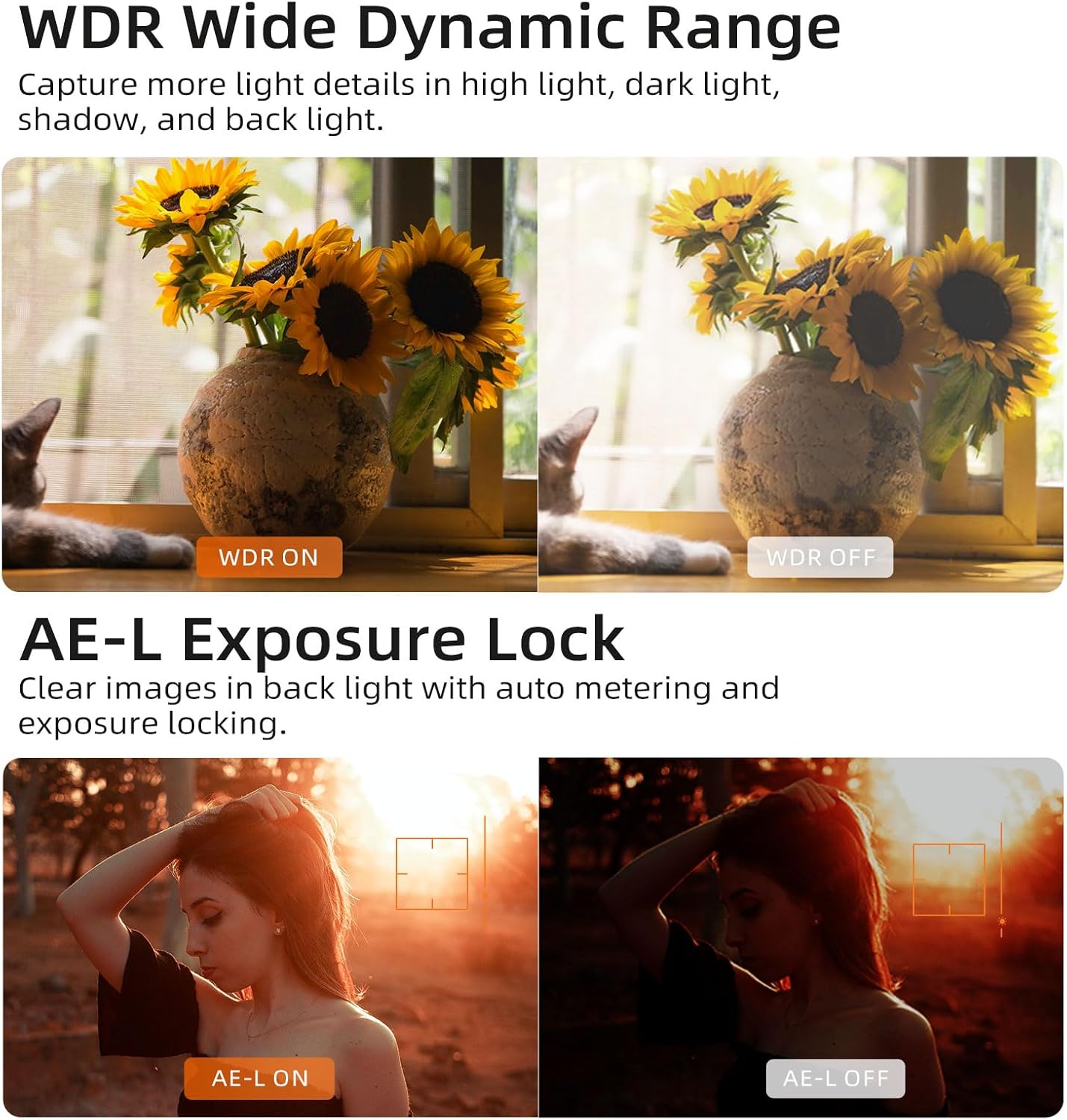
Image: A side-by-side comparison demonstrating the effect of WDR (Wide Dynamic Range) on image quality, showing how it captures more detail in both bright and dark areas of a scene with sunflowers.
- Enable WDR: Access the camera's settings menu and toggle the WDR option On or Off as needed.
4.7 AE-L (Auto Exposure Lock)
AE-L allows you to lock the exposure settings for a specific part of your scene. This is particularly useful when shooting in challenging lighting conditions, such as strong backlighting, to ensure your main subject is correctly exposed.
Image: A side-by-side comparison demonstrating the effect of AE-L (Auto Exposure Lock), showing how it helps achieve clear images by locking exposure, especially in backlit situations.
- Activate AE-L: Tap the AE-L icon on the screen or select it from the menu to lock the exposure.
- Deactivate AE-L: Tap the icon again to unlock exposure.
4.8 App Connectivity and Remote Shooting
The ORDRO M5 can connect to a mobile application for easy sharing of content and remote control of the camera. This allows for more flexible shooting angles and immediate content management.
Image: The ORDRO M5 camera connected to a smartphone, illustrating the ease of sharing content and remote shooting via the dedicated mobile application.
- Download App: Search for the official ORDRO app on your smartphone's app store.
- Connect: Follow the in-app instructions to connect your ORDRO M5 via Wi-Fi or Bluetooth.
- Functions: Use the app to preview footage, start/stop recording, adjust settings, and transfer files.
5. Maintenance
- Cleaning: Use a soft, dry cloth to clean the camera body. For the lens and screen, use a specialized lens cleaning cloth and solution. Avoid abrasive materials.
- Storage: Store the camera in a cool, dry place away from direct sunlight and extreme temperatures. Use the included carrying case for protection.
- Battery Care: To prolong battery life, avoid fully discharging the battery frequently. If storing for extended periods, charge the battery to about 50% every few months.
- Firmware Updates: Periodically check the official ORDRO website for any available firmware updates to ensure optimal performance and new features.
6. Troubleshooting
| Problem | Possible Cause | Solution |
|---|---|---|
| Camera does not power on. | Low battery; Power button not pressed long enough. | Charge the battery fully. Press and hold the Power button for 3-5 seconds. |
| Cannot record video/take photos. | No Micro SD card; SD card full; SD card error; Incorrect mode. | Insert a Micro SD card. Delete unnecessary files or use a new card. Format the SD card (this will erase all data). Ensure you are in video or photo mode. |
| Footage is shaky despite gimbal. | Gimbal not calibrated; Extreme movements; Gimbal obstructed. | Perform gimbal calibration via settings. Avoid sudden, jerky movements. Ensure no objects are blocking the gimbal's movement. |
| Touchscreen unresponsive. | Temporary software glitch; Screen protector issue. | Restart the camera. Ensure the screen is clean and free of debris. If using a screen protector, ensure it is properly applied and not interfering. |
| Cannot connect to mobile app. | Wi-Fi/Bluetooth off; Incorrect pairing; App outdated. | Ensure Wi-Fi/Bluetooth is enabled on both devices. Follow app pairing instructions carefully. Update the app to the latest version. |
7. Specifications
| Feature | Detail |
|---|---|
| Brand | ORDRO |
| Model Number | UHD-M5 |
| Sensor Technology | CMOS |
| Video Capture Resolution | 5K |
| Max Focal Length | 100mm |
| Max Aperture | f/2.2 |
| Flash Memory Type | Micro SD |
| Video Capture Format | MP4 |
| Screen Size | 3.5 Inches |
| Connectivity Technology | Infrared (IR Night Vision), Wi-Fi/Bluetooth (for app) |
| Batteries | 1 Lithium Ion battery (included) |
| Product Dimensions | 19 x 10 x 6.5 cm; 500 grams |
8. Warranty and Support
8.1 Warranty Information
This product is covered by a standard manufacturer's warranty. For specific details regarding warranty terms, duration, and coverage, please refer to the warranty card included in your product packaging or visit the official ORDRO website.
Return Policy: If you wish to return a product within 30 days of receipt because you have changed your mind, please consult the Amazon return policy page. If you have received a defective or damaged product, please consult the Amazon help page for defective/damaged items. For specific information on purchases made on the Marketplace, please consult the Amazon help page for Marketplace purchases.
8.2 Customer Support
For technical assistance, troubleshooting not covered in this manual, or warranty claims, please contact ORDRO customer support through the following channels:
- Official ORDRO Website: www.ordro.cn (Please note: This is a placeholder URL, use the actual official website if known)
- Amazon Store: Visit the ORDRO Store on Amazon for product information and seller contact options.
Please retain your proof of purchase for warranty purposes.
Ask a question about this manual
Ask about setup, troubleshooting, compatibility, parts, safety, or missing instructions. Manuals+ will review the question and use this page’s manual context to help answer it.