
AULA F75
AULA F75 75% Wireless Mechanical Keyboard User Manual
Model: F75
1. Product Overview
The AULA F75 is a 75% wireless mechanical keyboard designed for versatile use across multiple devices and operating systems. It features a compact 81-key layout, pre-lubed Star Vector switches, and extensive RGB backlighting. The keyboard is built with an advanced structure for enhanced typing feel and sound dampening.

Image: AULA F75 75% Wireless Mechanical Keyboard, showcasing its compact layout and multi-color keycaps.
Key Features:
- Tri-mode Connectivity: Supports BT5.0, 2.4GHz wireless, and USB wired connections.
- Hot-swappable Switches: Compatible with 3-pin or 5-pin switches for easy customization.
- Advanced Structure: Features integrated silicone pad and PCB single key slotting for optimized resilience and sound.
- Vibrant RGB Backlighting: 16.8 million colors with 16 lighting effects and 10 music rhythm effects.
- Multi-function Knob: Controls backlight, media, and switches between gaming and office modes.
- Long-lasting Battery: Equipped with a 4000mAh large-capacity battery.
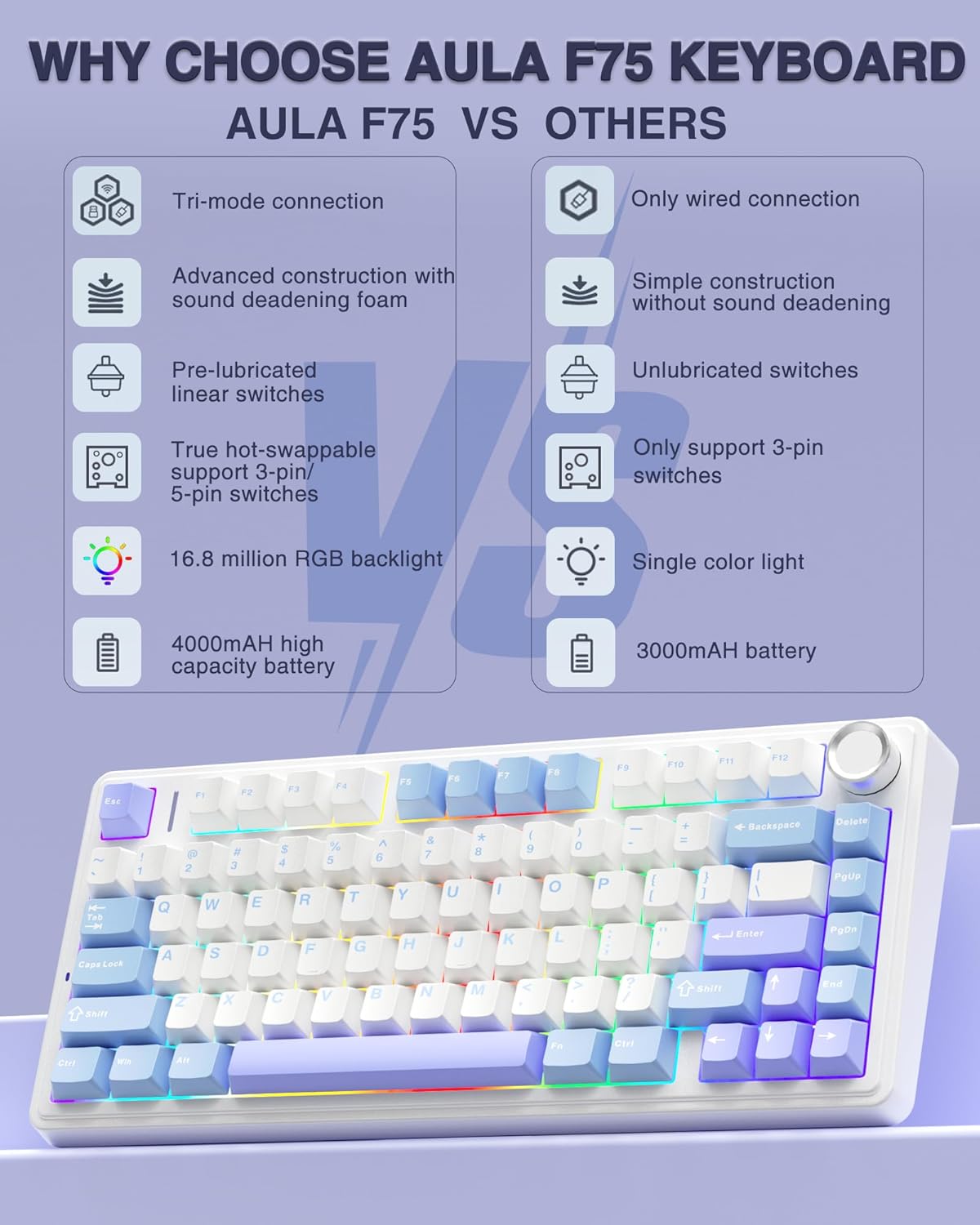
Image: A comparison chart detailing the advantages of the AULA F75 keyboard, including tri-mode connection, advanced construction, pre-lubricated switches, hot-swappability, RGB backlight, and battery capacity.
2. Setup Guide
Package Contents:
- Mechanical Keyboard x1
- Keycap Puller x1
- USB Cable x1
- Extra Leobog Star Vector Switches x2
- English User Manual x1
Initial Connection:
The AULA F75 keyboard offers three connection modes: Bluetooth (BT5.0), 2.4GHz wireless, and USB wired. You can connect up to five devices simultaneously and easily switch between them.
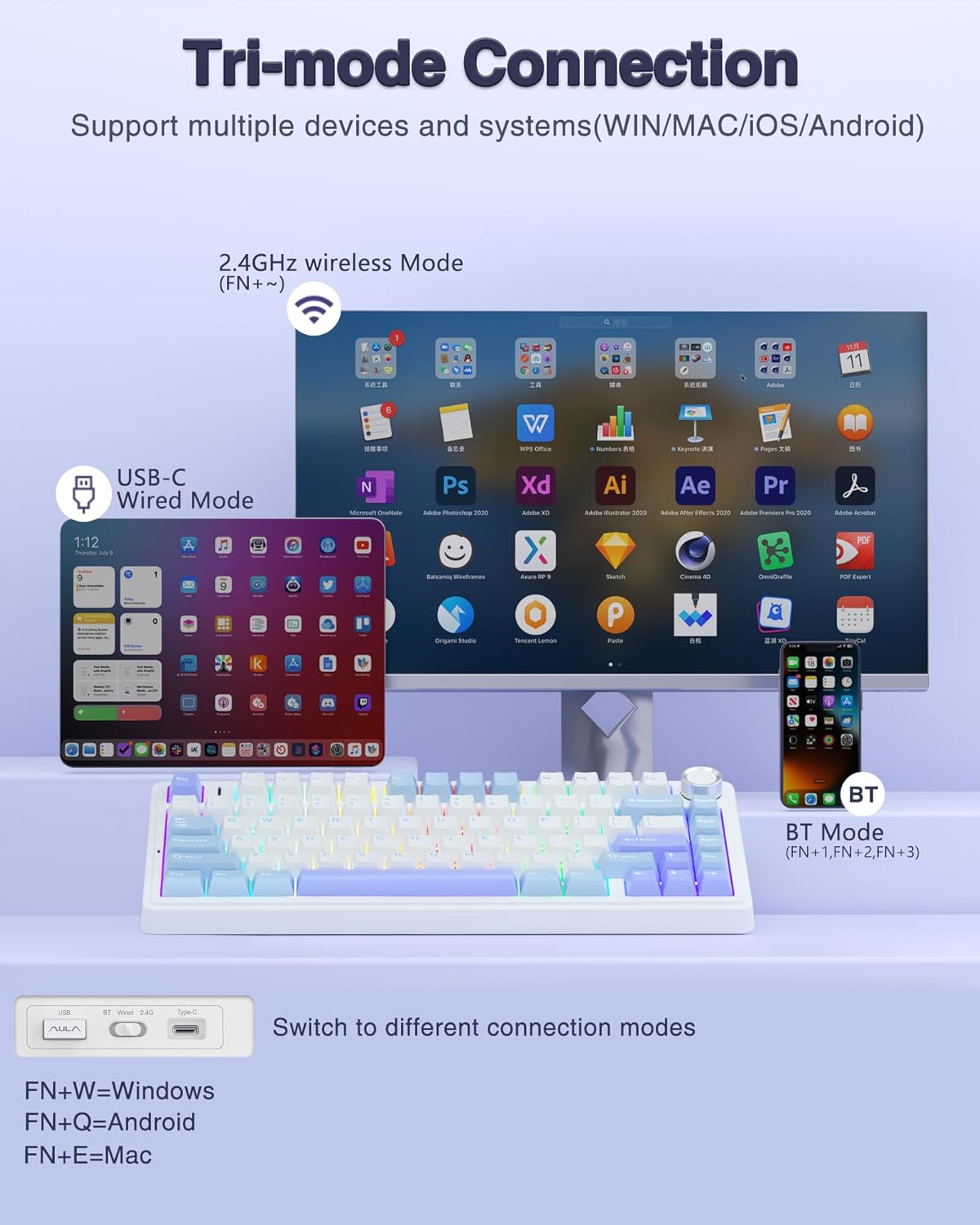
Image: A diagram showing the keyboard's tri-mode connection capabilities, including 2.4GHz wireless, USB-C wired, and Bluetooth modes, compatible with Windows, Mac, iOS, and Android devices.
- USB Wired Mode: Connect the provided USB-C cable from the keyboard to your computer's USB port. The keyboard will be recognized automatically.
- 2.4GHz Wireless Mode: Locate the 2.4GHz USB dongle (usually stored in a slot on the keyboard). Plug the dongle into your computer's USB port. Switch the mode selector on the keyboard to 2.4G.
- Bluetooth Mode (BT5.0): Switch the mode selector on the keyboard to BT. The keyboard will enter pairing mode. On your device (PC, laptop, tablet, or smartphone), search for Bluetooth devices and select "AULA F75" to pair.
Driver Installation (Optional for Advanced Customization):
For full customization of RGB lighting and macro programming, download the official AULA F75 driver. Please note that the driver currently only supports Windows operating systems.
- Driver Download Link: bit.ly/m/AULA

Image: A screenshot of the AULA F75 driver software, showing options for RGB lighting effects, musical rhythm lighting, and custom shortcut keys.
3. Operating Instructions
System Compatibility Switching:
Use the Function (FN) key in combination with other keys to switch between operating system layouts:
- FN + W: Switch to Windows layout
- FN + Q: Switch to Android layout
- FN + E: Switch to Mac layout
RGB Backlighting Control:
The AULA F75 features 16.8 million RGB lighting colors with 16 built-in lighting effects and 10 cool music rhythm lighting effects (via driver). Adjust brightness and speed using the knob or FN key combinations.
- FN + Tab: Switch lighting colors
- FN + Left Arrow: Decrease lighting speed
- FN + Right Arrow: Increase lighting speed
- FN + Up Arrow: Increase lighting brightness
- FN + Down Arrow: Decrease lighting brightness
- FN + V: Switch between 16 lighting effects or turn off the backlight.

Image: A visual guide demonstrating FN key combinations to control RGB lighting colors, speed, and brightness, as well as to switch between lighting effects or turn off the backlight.
Multi-function Control Knob:
The knob on the keyboard allows for quick switching between gaming and office modes, and provides convenient control over various functions.
- Long Press Knob (approx. 5 seconds): Switch between Gaming Mode and Office Mode.
- Gaming Mode:
- Rotate Knob: Adjust brightness of lights.
- Click Knob: Switch lighting effects.
- Office Mode:
- Rotate Knob: Adjust volume.
- Click Knob: Play or pause media.

Image: A detailed view of the multi-functional knob, PBT anti-sweat keycaps, ladder-type arrangement, and dual kickstands on the bottom of the keyboard, highlighting ergonomic design.
Advanced Customization:
- Hot-swappable Design: The keyboard's hot-swappable base supports 3-pin or 5-pin switch replacement, allowing users to easily customize their typing feel without soldering.
- Macro Programmable: Customize single key or key combination functions through the F75 driver to enhance gaming performance and work efficiency.
- N-Key Rollover: Ensures all key presses are registered accurately, even during rapid input.
- WIN Key Lock: Prevents accidental presses of the Windows key during intense gaming sessions.

Image: A diagram illustrating the hot-swappable design of the AULA F75, showing the PCB hot-swappable socket supporting 3-pin/5-pin switches and LEOBOG Star Vector switches.
Official Product Video:
Video: An official product video from AULA MALL showcasing the AULA F75 Wireless Mechanical Keyboard, highlighting its features and design.
4. Maintenance
To ensure the longevity and optimal performance of your AULA F75 keyboard, follow these maintenance guidelines:
- Cleaning: Regularly wipe down the PBT anti-sweat keycaps and keyboard surface with a soft, damp cloth. Avoid using harsh chemicals or abrasive materials.
- Switch Care: The keyboard comes with pre-lubricated LEOBOG Star Vector switches, which require minimal maintenance. If you choose to swap switches, ensure proper handling to avoid damaging the PCB sockets.
- Keycap Replacement: Use the provided keycap puller to safely remove and replace keycaps. This prevents damage to the keycaps and switches.
- Battery Care: To maximize battery life, avoid fully discharging the 4000mAh battery frequently. Charge the keyboard when the battery indicator is low.
5. Troubleshooting
Connectivity Issues:
- Keyboard not recognized in wired mode: Ensure the USB-C cable is securely connected to both the keyboard and your computer. Try a different USB port or cable.
- 2.4GHz wireless connection unstable: Ensure the USB dongle is plugged into a direct USB port on your computer, not a hub. Move the keyboard closer to the dongle to reduce interference.
- Bluetooth pairing issues: Ensure the keyboard is in Bluetooth pairing mode. Remove any previous pairings of the keyboard from your device's Bluetooth settings and try pairing again.
Knob Functionality:
- Knob not waking up keyboard from sleep (Wireless/Bluetooth): This is a known behavior. You must press any key on the keyboard first to wake it up, then the knob functionality will be active.
Driver and Software:
- Driver not installing/working on Mac: The official driver currently only supports Windows. Mac users will need to rely on the keyboard's built-in FN key functions for lighting and basic controls.
- Firmware Update (Important for some users): Some users may experience a bug where the keyboard is not recognized by the computer even via USB. This can often be resolved by updating the keyboard's firmware. Connect the keyboard via USB, download the latest firmware from the official AULA website (bit.ly/m/AULA), run the update tool, and then disconnect and reconnect the cable after the update is complete.
6. Specifications
| Feature | Detail |
|---|---|
| Brand | AULA |
| Model Number | F75 |
| Product Dimensions | 12.7 x 5.6 x 1.7 inches |
| Item Weight | 2.24 pounds |
| Connectivity Technology | 2.4GHz Wireless, BT5.0, USB-C |
| Number of Keys | 81 |
| Keyboard Description | Mechanical |
| Backlighting | RGB (16.8 Million Colors) |
| Special Features | Volume Roller, Backlit, Programmable Keys, Rechargeable, Hot-Swappable |
| Battery | 4000mAh Lithium Ion (included) |
| Compatible Devices | Laptop, Gaming Console, PC, Tablet, Smartphone |
| Country of Origin | China |
7. Warranty and Support
Warranty information for the AULA F75 keyboard is typically provided with your purchase. Please refer to the documentation included in your product packaging for specific warranty terms and conditions.
For technical support, driver downloads, and further assistance, please visit the official AULA website or contact their customer service. The driver download link is provided in the Setup Guide section.
Related documentsF75


Ask a question about this manual
Ask about setup, troubleshooting, compatibility, parts, safety, or missing instructions. Manuals+ will review the question and use this page’s manual context to help answer it.