Introduction
The NearStream AM10X is a versatile dynamic microphone designed for high-quality audio capture in various applications, including streaming, gaming, podcasting, and music recording. It offers both USB and XLR connectivity, along with advanced features like adjustable noise canceling, sound monitoring, and intuitive controls. This manual provides detailed instructions for setting up and operating your AM10X microphone.

Figure 1: NearStream AM10X Dynamic Microphone with Boom Arm
What's in the Box
Please verify that all components are present in the package:
- AM10X Plus Dynamic Microphone x 1
- Mic Windscreen x 1
- Boom Arm x 1
- USB Cable x 1
- User Manual x 1
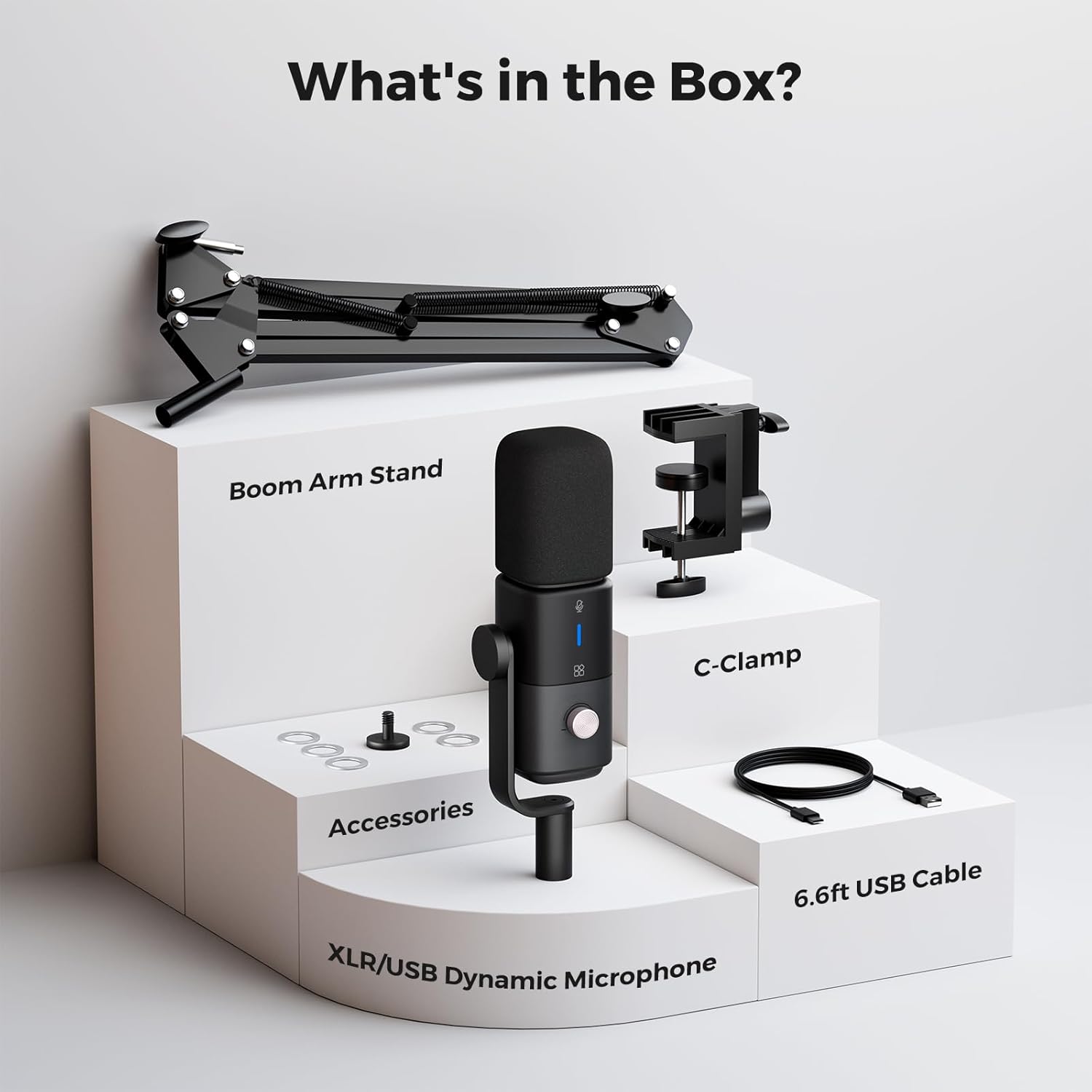
Figure 2: Package Contents
Setup
- Microphone Assembly: Attach the AM10X microphone to the provided boom arm. Ensure the mic windscreen is securely placed over the microphone capsule. The boom arm is designed for stability and flexibility, supporting up to 3.3 pounds. It can extend 180° vertically and 360° horizontally, with a head that adjusts 180° vertically for precise positioning.
- Desk Clamp: Secure the boom arm's desk clamp to a desktop with a thickness of less than 1.77 inches.
- Connectivity: The AM10X offers dual connectivity options:
- USB Connection: Use the included USB cable to connect the microphone directly to your PC, computer, or audio interface. This offers plug-and-play convenience without additional drivers. USB connectivity supports all microphone functions, including noise canceling, sound monitoring, and audio gain adjustment.
- XLR Connection: For professional setups, connect the microphone to mixers or sound cards using an XLR cable (not included). Note that when using the XLR interface, the AM10X's noise canceling, sound monitoring, and audio gain adjustment features are not supported.

Figure 3: Boom Arm Setup and Adjustability
Video 1: NearStream AM10X Dynamic Mic with Boom Arm - Demonstrates the physical setup and adjustability of the microphone and boom arm.
Operating Instructions
The AM10X microphone features smart controls for an enhanced user experience, primarily when connected via USB.
- Noise Canceling On/Off: The microphone features a Supercardioid pattern to reduce side and rear noise. An advanced AI noise suppression algorithm filters out background noises like keyboard clicks. Long press the dual-action button to activate noise cancellation (blue/yellow LEDs).
- Mute Button: Short press the dual-action button to toggle mute on/off. A red LED indicates the microphone is muted.
- Sound Monitoring: Connect headphones to the 3.5mm audio jack for real-time sound monitoring. This feature is only available with a USB connection.
- Gain Knob: A 15-level rotary volume knob allows adjustment of audio gain. This function is exclusively available in USB mode.
- Mic/Monitor Mode Switch: Short press the dedicated button to switch between microphone mode and monitor mode. A green LED indicates monitor mode is active. This feature is also exclusive to USB mode.
For optimal sound pickup, position the microphone within 14 inches of the sound source.

Figure 4: Smart Control Features

Figure 5: Noise Cancellation & Mute Mode Control Details

Figure 6: Mic/Monitor Mode Switch Details
Connectivity Details
The AM10X offers flexible connectivity to suit various recording environments.
- USB Connectivity: Connects to PC, Mac, PS4/PS5, desktop, and laptop devices. Not compatible with Xbox. All smart control functions (noise canceling, monitoring, gain) are active in USB mode.
- XLR Connectivity: Connects to audio mixers and audio interfaces. When using XLR, the microphone operates in a purely analog mode, and the built-in noise canceling, sound monitoring, and audio gain adjustment features are bypassed.
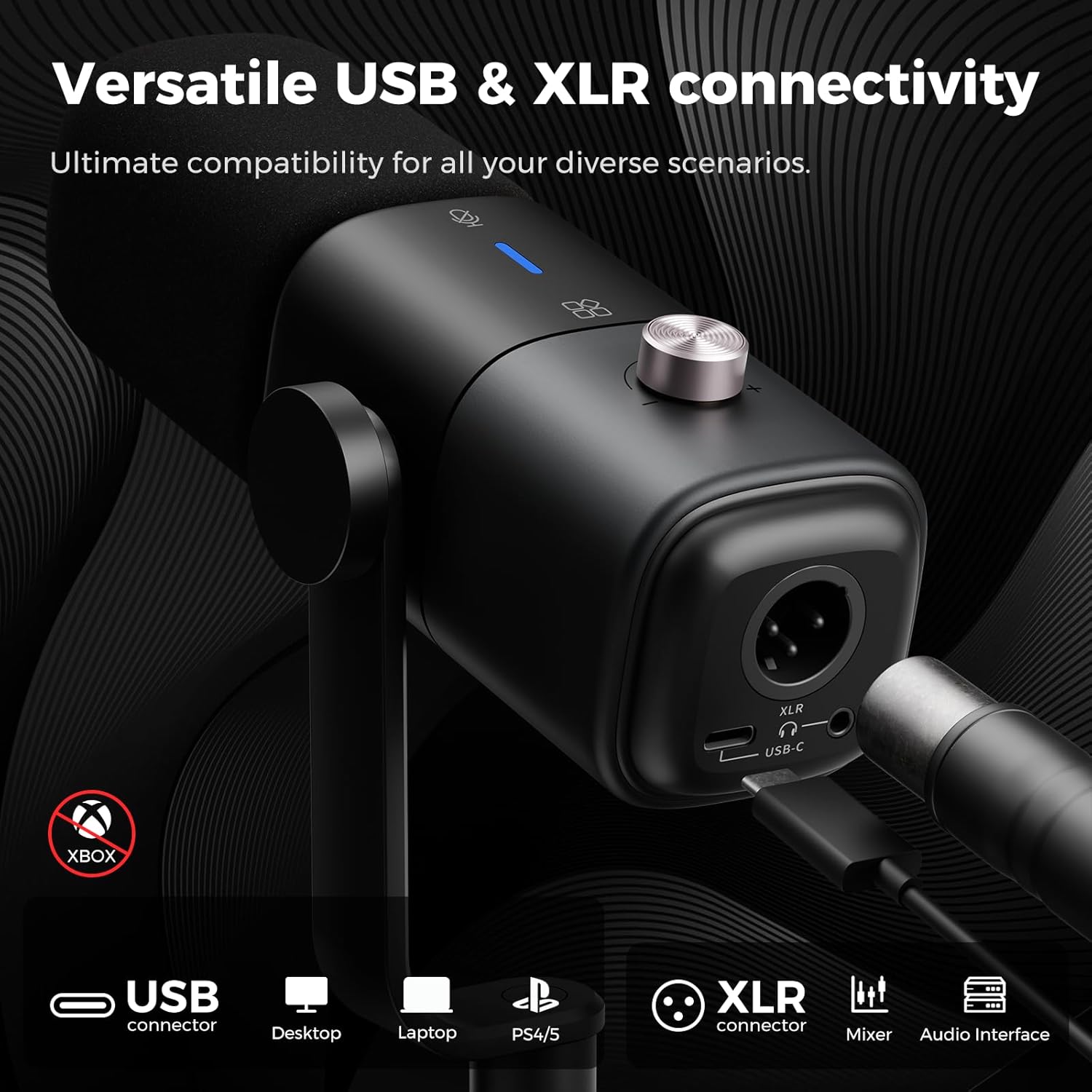
Figure 7: USB and XLR Ports

Figure 8: XLR Connector Usage

Figure 9: USB Connector Compatibility
Video 2: Dynamic Microphone with XLR & USB Port - Highlights the dual connectivity options of the microphone.
Video 3: Sturdy and Stylish XLR/USB Microphone with Boom Arm - Showcases the microphone's design and connectivity in a studio setting.
Specifications
| Feature | Detail |
|---|---|
| Brand | NearStream |
| Model Name | NSAM 10X Plus |
| Item Model Number | AM10X-US |
| Microphone Form Factor | Table Array |
| Connectivity Technology | USB, XLR |
| Polar Pattern | Super Cardioid |
| Audio Sensitivity | 125 Decibels |
| Signal-to-Noise Ratio | 78 dB |
| Frequency Response | 20 KHz |
| Power Source | Corded Electric |
| Item Weight | 1.05 Kilograms (2.31 pounds) |
| Recommended Uses | Gaming, Podcasting, Sound Recording, Streaming |
| Special Features | Mute Function, Noise Canceling On/Off, Sound Monitoring, Volume Control, XLR/USB Connection |
Troubleshooting
- No Sound/Low Volume: Ensure the microphone is correctly connected via USB or XLR. Check the 15-level rotary gain knob (USB mode) and adjust as needed. For XLR, ensure your mixer/audio interface provides sufficient gain.
- Noise Canceling Not Working: The noise canceling feature is only active when the microphone is connected via USB. Ensure you have long-pressed the dual-action button to activate it (blue/yellow LEDs).
- No Sound Monitoring: Real-time sound monitoring through the 3.5mm jack is only available when the microphone is connected via USB.
- Distorted Audio: Check the gain level and reduce it if the audio is clipping. Ensure the microphone is not too close to the sound source, especially for loud speech.
- Plosive Sounds (P-pops): While a mic windscreen is included, if plosives are still an issue, consider using an additional pop filter or a thicker windscreen.
Maintenance
To ensure the longevity and optimal performance of your NearStream AM10X microphone, follow these maintenance guidelines:
- Cleaning: Use a soft, dry cloth to clean the microphone body. Avoid using liquid cleaners or solvents.
- Storage: When not in use, store the microphone in a clean, dry place away from extreme temperatures and humidity.
- Handling: Handle the microphone with care to avoid dropping it or subjecting it to strong impacts, which could damage internal components.
- Windscreen: Periodically clean or replace the mic windscreen to maintain hygiene and acoustic performance.
Warranty and Support
For any questions or concerns regarding your NearStream AM10X microphone, whether before or after your purchase, please contact NearStream customer support promptly. We are committed to providing assistance and ensuring your satisfaction.
Please refer to the product packaging or the official NearStream website for specific warranty details and contact information.


